Business Object
Business Objects are the link between Lowcode and a Data Entity of the applications. In this way, the Business Object will represent the data model and may reach one or more forms.
Each business object created represents a table in the database.
Before getting started
Must have a DB Connection and Lowcode Application created.
General data
- Access the functionality through navigation in the menu Lowcode > Management > Business Object;
- Click on "New";
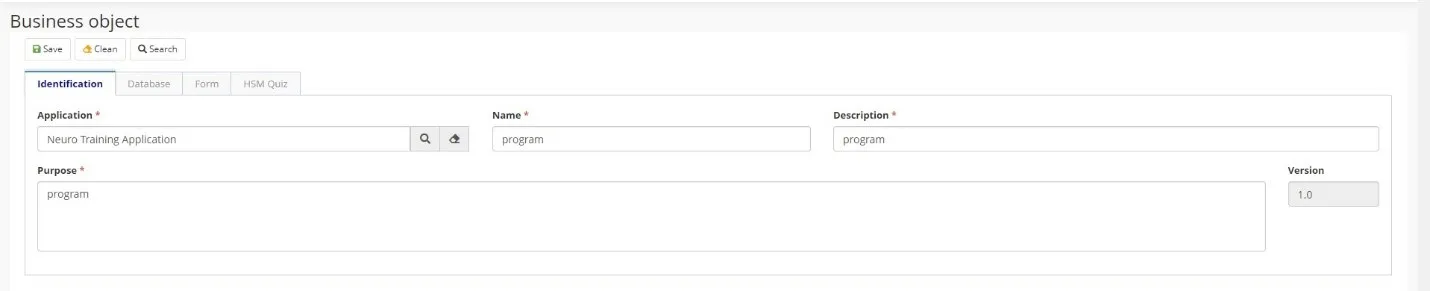
- Complete the fields available for the "Identification" tab;
- Select the Application for which the business object is created, give the Business Object a Name and a Description, also inform the purpose of the Business Object;
Database Information
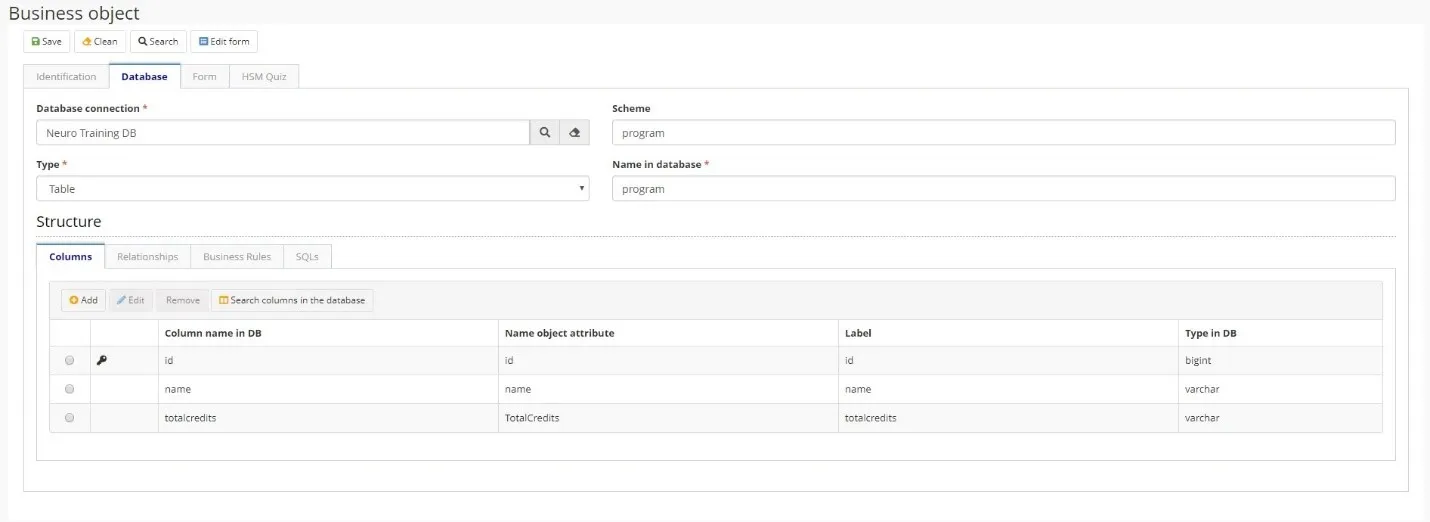
- Complete the fields available for the "Database" tab, this tab refers to the database structure of the application. Since each business object represents a database table, this tab defines the database columns as well as their relationships, business rules, and SQL commands (if necessary).
- Fill the information with:
- The Database Connection created;
- The Database Scheme name;
- Type, whether view or table;
- The Name in Database of the business object.
Columns
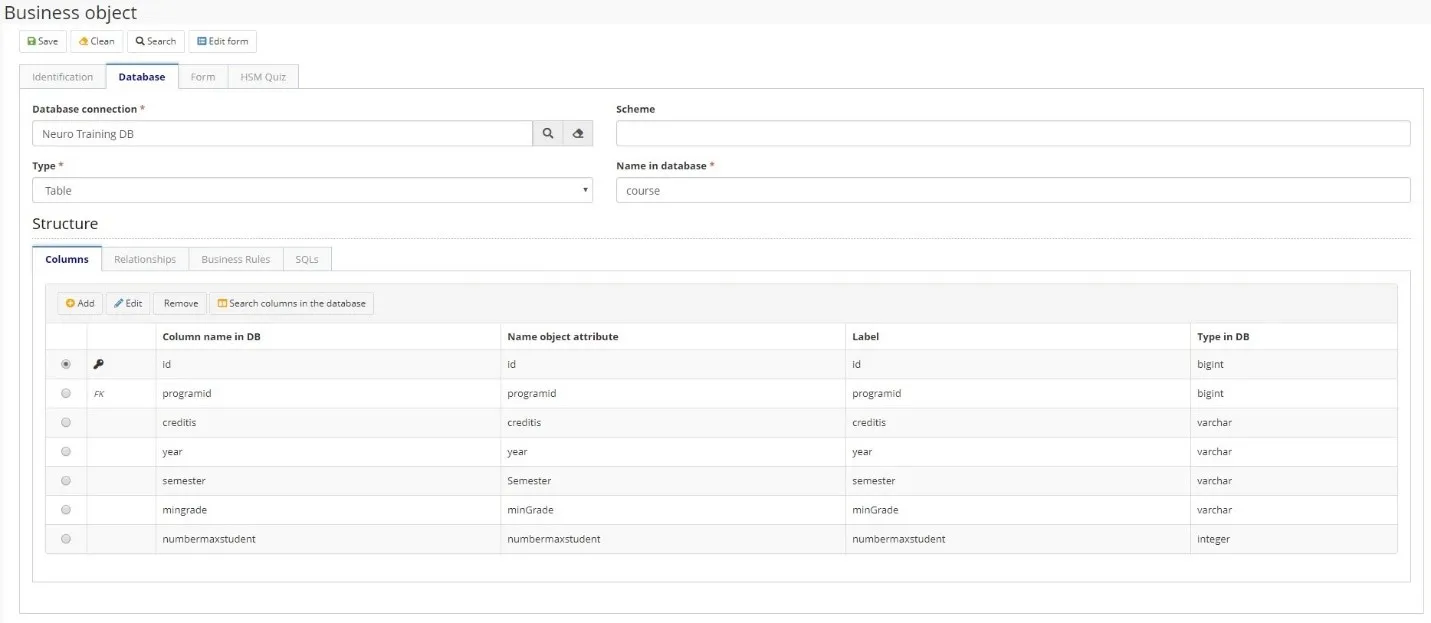
- Add the columns of the table, indicating
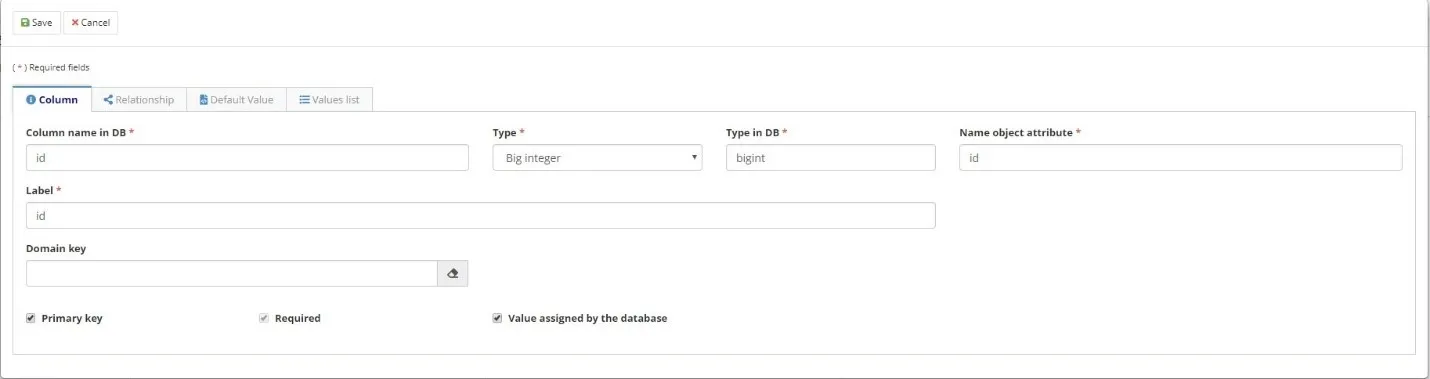
- Inform the Column name in DB;
- Select the Type of the Column, the system will make the correlation automatically to the Type in DB;
- Give the Name object attribute, if you don't change it will take the same name as the column name;
- Set the Label for the form and grid;
- Select Primary key if the column is the Primary key for the table;
- Select Required if the column is mandatory;
- Click on "Save”.
NOTE:
After Saving, you will be able to inform Domain key and type and assign the Relationship if it is needed.
ATTENTION:
On each change of database or by the time of the creation of the business object, you must run the correspondent DDL to run the creation/change in the Database.
Relationship
- If necessary, you can add Relationships at this tab;
- Define:
- Type (1 x N, N x 1);
- Inform the Relationship name and the Label (to the form);
- The Referenced object that will be linked;
- The Column for auto-complete;
- Set If it is Required field;
- Delegation use when you want to use Generalization/Specialization concepts for the Relationship;
- Set with Business object Colum will be part of the relationship.

Business Rules
- Select the Business Rule assigned for insert, change or delete action on the Business Object;

SQLs
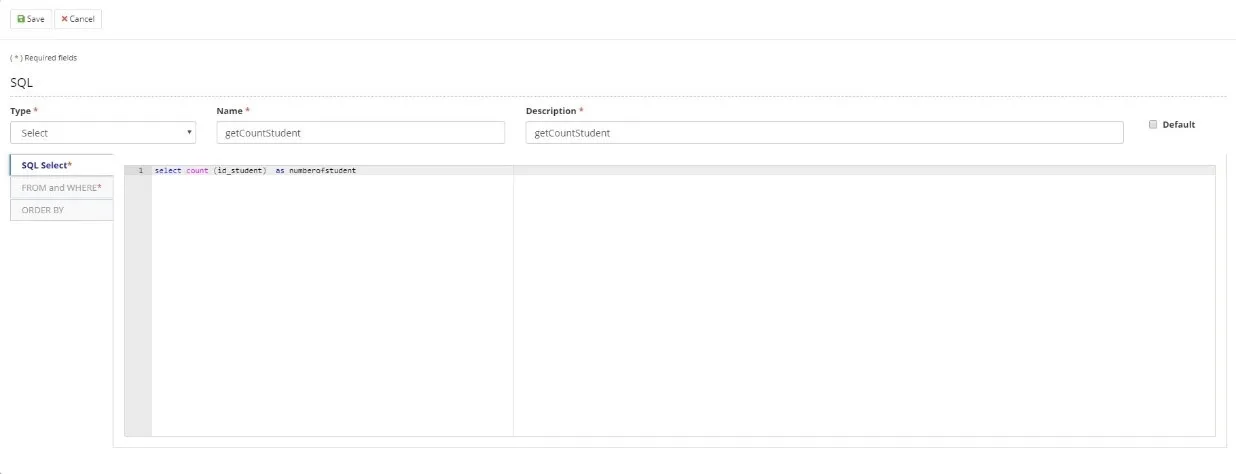
- You can create SQL's related to the business object to be used in the flow, for example:
a) In a task for the request of enrollment in courses you can create a SQL (it will be considered as a function) to get the number of students enrolled in a course;
b) The SQL will run under an ESI Flow and will be called by the SM Flow (using the component for integration with ESI Flow).
Form (CRUD & Custom)
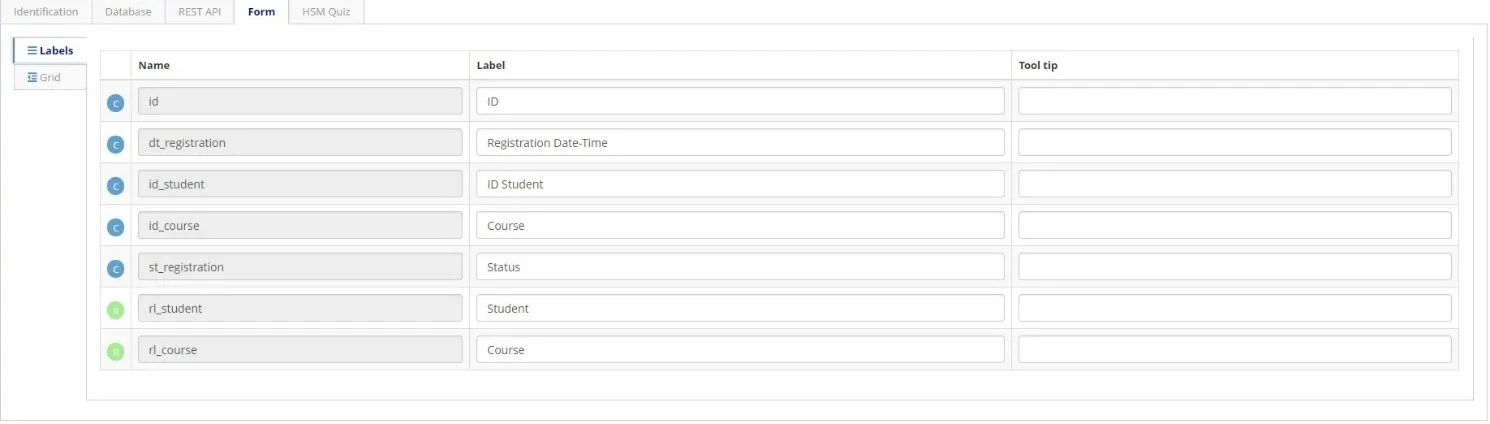
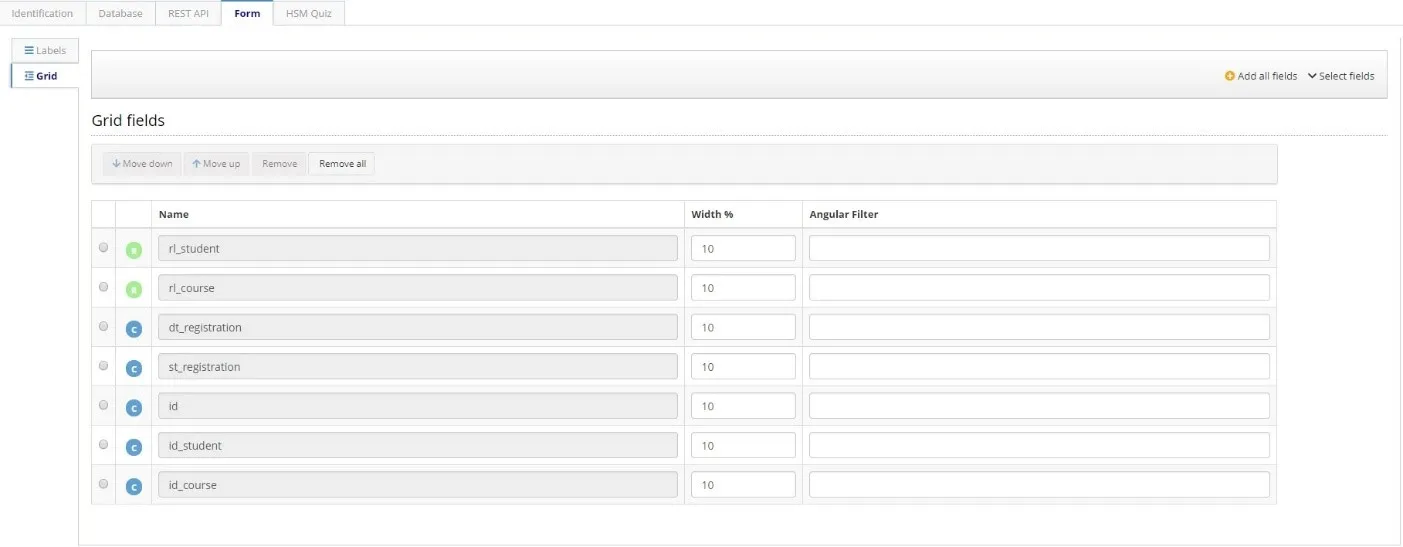
- You can change the attribute labels through the Labels tab, and you can edit the grid fields using the Grid tab.
- Clicking the Edit Form button in the screen header will generate a form for this business object. If there is no form for this business object, the Fields sidebar will be displayed. If there is already a previously registered form linked to this form, the Screen Drawing tab for this form will be opened.