Business Rules
Business rules define how your business works, and can cover a variety of issues such as your policies, interests, objectives, ethical and social commitments, contractual obligations, strategic decisions, laws, and regulations, among others. In Lowcode , business rules can be built through the Drools language, by drawing a flow, or through a Script.
How to access
- Access the functionality through navigation in the main menu Lowcode > Management > Business Rule.
Preconditions
- Not applicable.
Filters
- The following filter enables the user to restrict the participation of items in the standard feature listing, making it easier to find the desired items:
- Keyword or enter.

Figure 1 - Business Rules Search Screen
Items List
The following cadastral fields are available to the user to facilitate the identification of the desired items in the standard feature listing: Name, Description, Application, Version, and Block date.
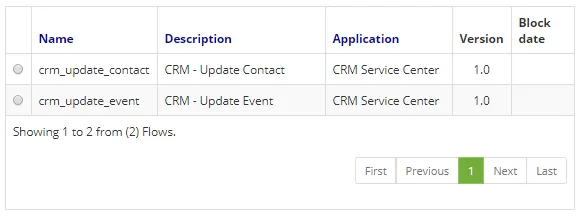
Figure 2 - Business rules listing screen
Filling in the Registration Fields
- To edit a created item, select the item you want, click on "Edit", make changes, and click on "Save".
- To create a new business rule, click on the "New button";
- To remove a created item, select the item you want, click on the Edit → Remove and confirm the deletion.
- The business rules you enter by default are created locked. This means that the rule will not be used unless you unlock it. To unlock the rule, select the desired item, and click the "Unlock" option on the top menu. A Business Rule can be used in a form, within a business object, in a business process, or in a flow;
- Further information regarding the use of a business rule can be found in the Developing Applications.
Create Business Rules using Drools Type
- Drools is a set of tools that allow us to separate and reason about the logic and data found within business processes. The two important keywords we have to realize are Logic and Data. Go to https://www.drools.org/ for more information;
- To create a business rule using Drools, you must first create the DSL and DSLR through the Lowcode > Configuration > Domain;
- After these registrations have been made, access the menu Lowcode > Management > Business rule, Click on the New button. Fill in the fields by entering the Name, Description, Type (fill in with Drools), and the respective Application that has been registered (Lowcode ®Management ® Application), finally inform Drools DSLR that was registered in the previous step;
- In addition, variables that complement business rules may be inserted.
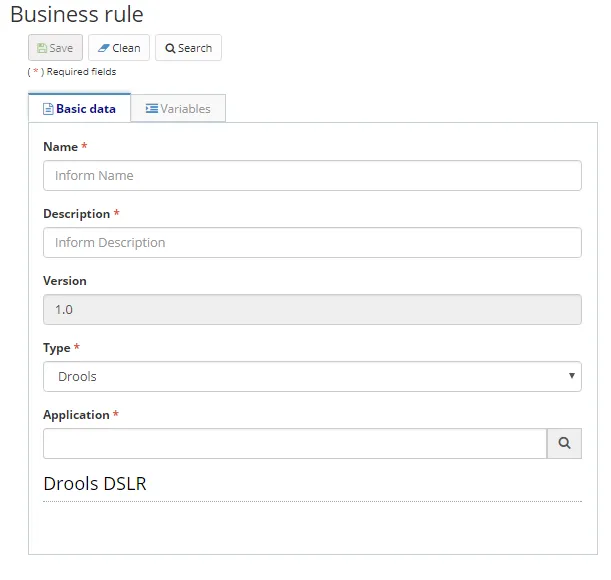
Figure 3 - Drools Business Rule Registration / Editing Screen - Basic data tab
- In the Variables tab click Add and fill in the following fields as shown below:
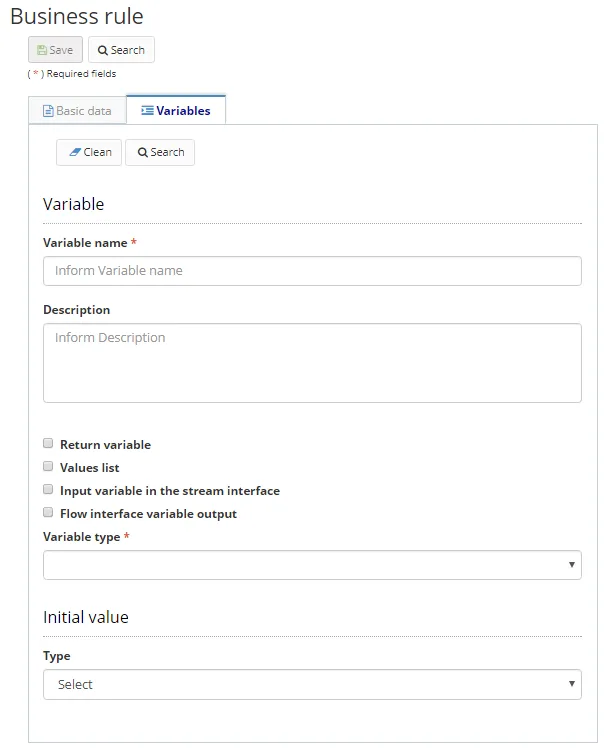
Figure 4 - Drools Business Rule Registration / Editing Screen - Basic data tab (Continued)
Create Business Rules using Flow Type
- To create a business rule using Flow, a diagram should be drawn using the components provided in the tool. To learn more about the components, visit the documentation for the components provided by Lowcode ;
- In the Basic Data tab, fill in all the fields (as shown in the figure below), when selecting the Flow Type, two new tabs will appear (Actions and Diagram);
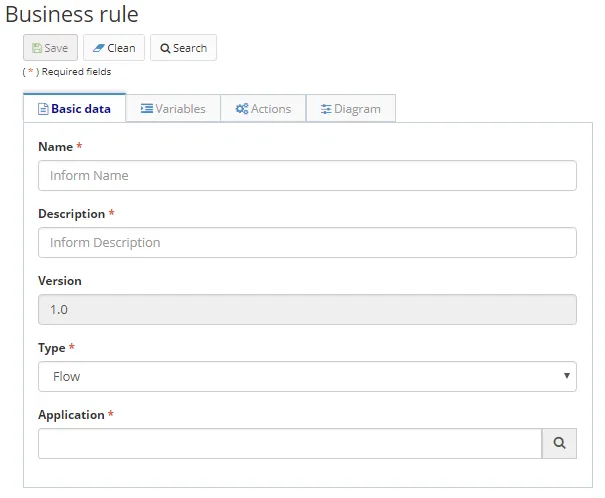
Figure 5 - Business Rule Registration / Editing Screen - Flow Type
- In the Variables tab click on "Add" and fill in the following fields as shown below:
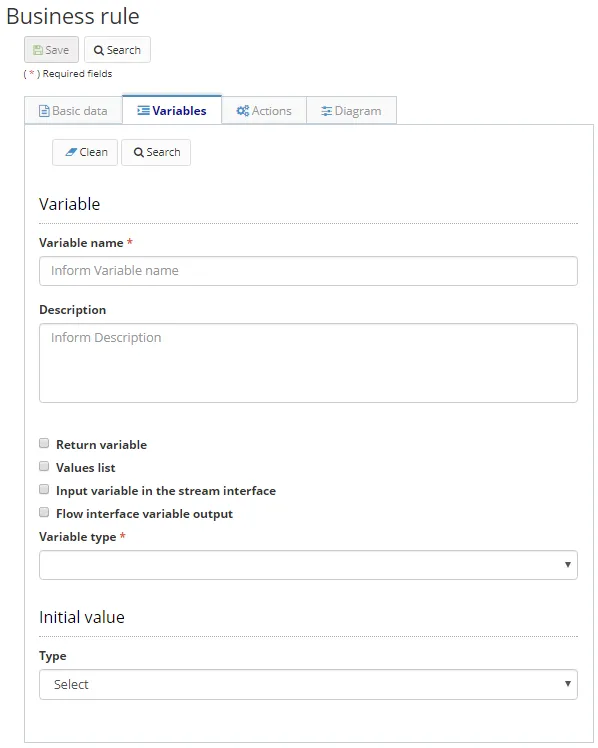
Figure 6 - Business Rule Registration / Editing Screen - Flow Type (Continued)
- On the Actions tab click on "Add" and fill in the following fields as shown below:
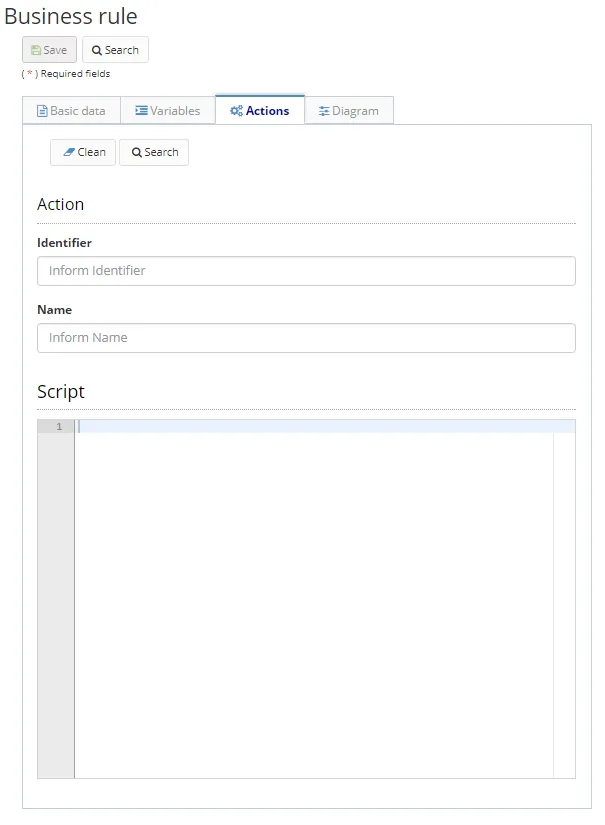
Figure 7 - Business Rule Registration / Editing Screen - Flow type (Continued)
- On the Diagram tab, draw the flow and click on "Save", as shown below:
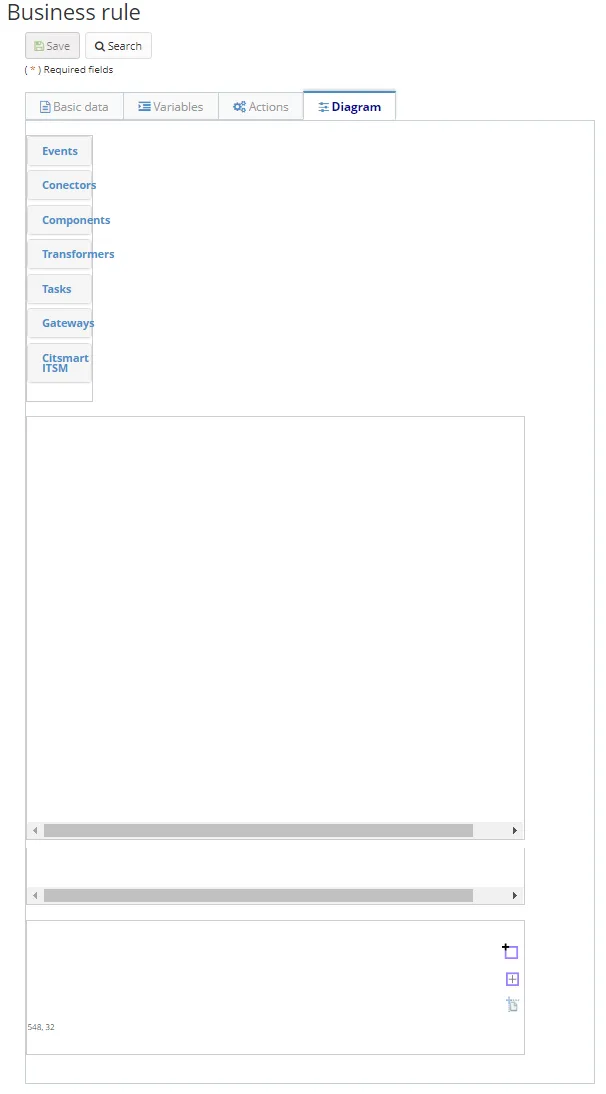
Figure 8 - Business Rule Registration / Editing Screen - Flow Type (Continued)
Create Business Rules using Script Type
- To create a business rule using Script, go to the New option, enter the Name, Description, Type (complete with Script), and the respective Application that has been registered:
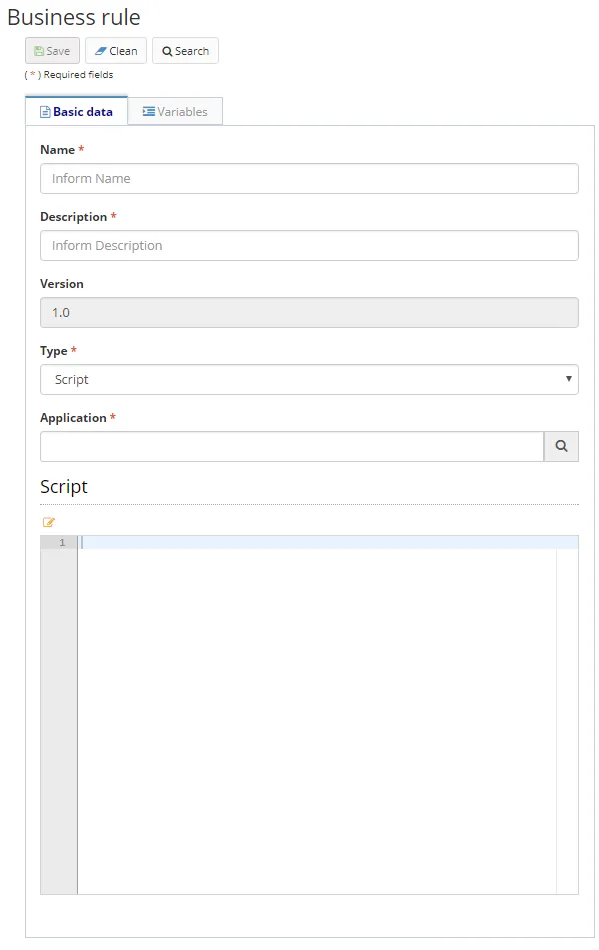
Figure 9 - Business Rule Registration / Editing Screen - Script Type
- Code your business rule script in the Script field, and add variables in the variables tab, if necessary. Scripts are accepted in the Rhino language.
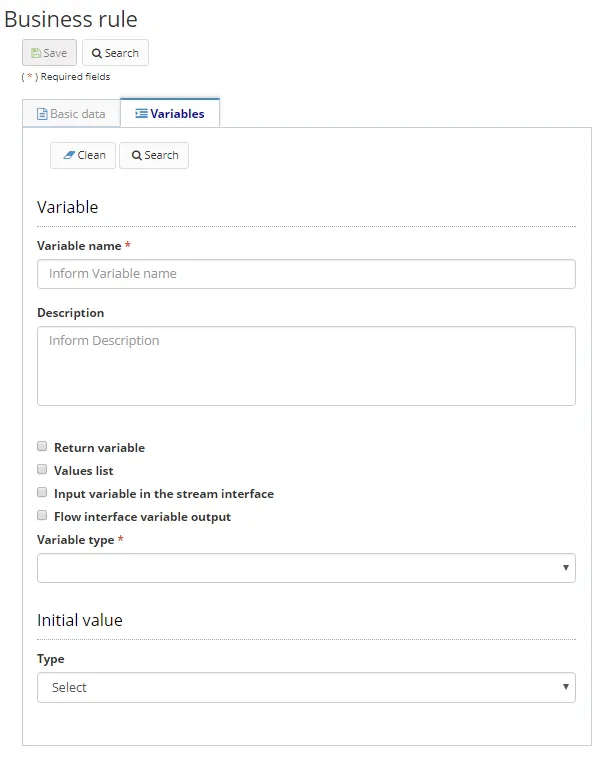
Figure 10 - Business Rule Registration / Editing Screen - Script Type (Continued)
- Click on "Save" to run the changes.