CSS
The Lowcode allows the maintenance of CSS files within the tool. These files can be used on Forms as a dependency.
ATTENTION:
The folder is a physical grouper of the files on the server, for organization purposes.
The configured folder does not interfere with system operation.
How to access
- Access the feature by navigating the menu Lowcode > Resources > CSS.
Preconditions
- Not applicable
Filters
- The following filter enables the user to restrict the participation of items in the standard feature listing, making it easier to find the desired items:
- Keyword

Figure 1 - CSS Search Screen
Items List
- The following cadastral fields are available to the user to make it easier to identify the desired items in the standard feature listing: Resource, Name, Description, and Version.

Figure 2 - CSS Listing Screen
Filling in the Registration Fields
- To register a new CSS file, click "New" as shown in the figure below:
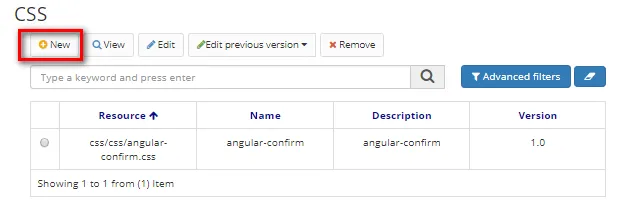
Figure 3 - CSS Home Screen
- On this screen, the user is also allowed other actions. They are:
- To edit a created item, select the desired item, click on Edit (the current version or the previous version), make the changes, and click on "Save".
- To view an item, select the item and click on "View".
- To remove a created item, select the item you want, click on "Remove", and confirm the deletion.
- When you click Next, the following screen will appear:
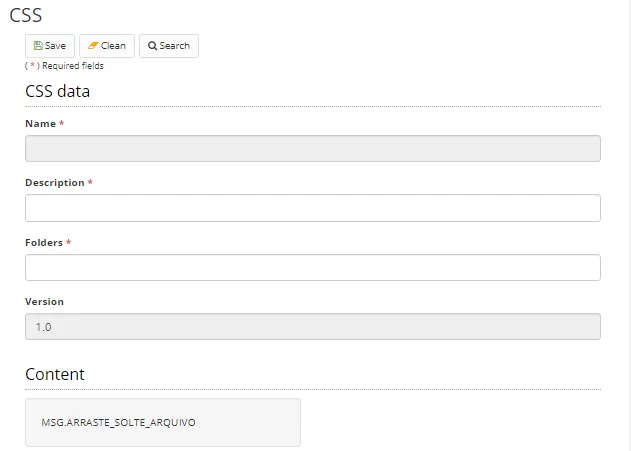
Figure 4 - CSS Registration Screen
- Enter a description, the path of the CSS folder, and upload the file. The field's name and versionS are auto-incremented by the system.
- Click "Save" to store the image. Click Search to return to the previous screen.