Data Type
The data type register has the functionality of linking an abstract type of data to a form component. This field is selected when you create a new attribute for a business object. More information can be found in the technical documentation.
How to access
- Access the feature by navigating the menu Lowcode > Configuration > Data type.
Preconditions
- Not applicable
Filters
- The following filter enables the user to restrict the participation of items in the standard feature listing, making it easier to find the desired items:
- Keyword

Figure 1 - Data Type Search Screen
Items list
- The following cadastral fields are available to the user to make it easier to identify the desired items in the standard feature listing: Name, Description, and Component.
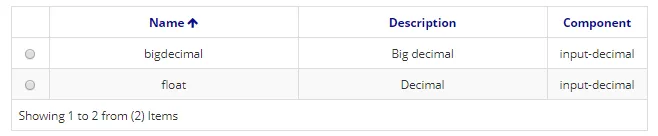
Figure 2 - Data Type List Screen
Filling in the Registration Fields
- To register a new data type, click on "New", as shown in the figure below:
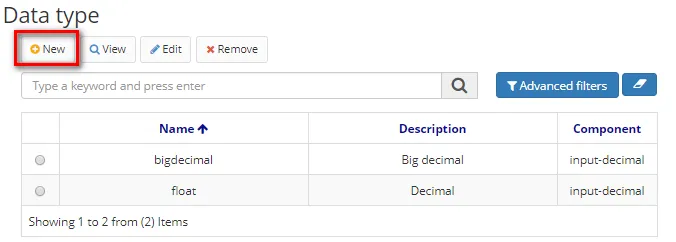
Figure 3 - Data Type Home Screen
- On this screen, the user is also allowed other actions. They are:
- To edit a created item, select the desired item, click on "Edit", make the changes, and click on "Save".
- To view an item, select the item and click on "View".
- To remove a created item, select the item you want, click on "Remove", and confirm the deletion.
- When you click Next, the following screen will appear:
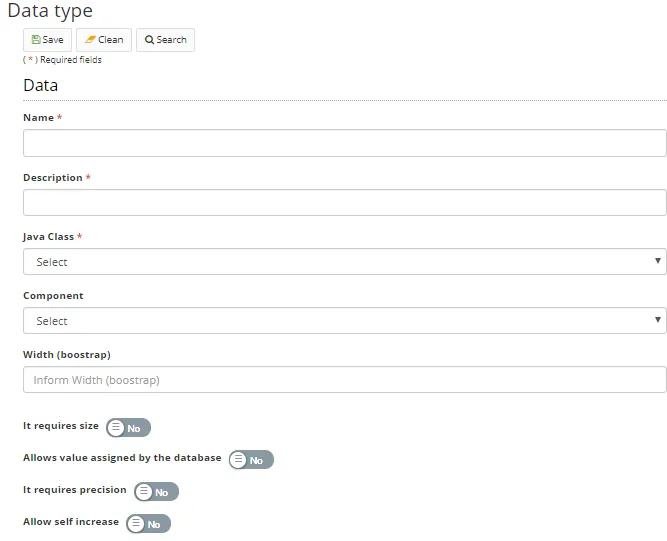
Figure 4 - Data Type Register Screen
- Fill in the fields;
- Click on "Save" to store the file. And click on "Search" to return to the previous screen.