Service Integration Flow
Service integration flows, as the name implies, involve workflows that are executed based on system services, such as integrations and conversions, for example.
How to access
- Access the functionality through the menu Lowcode > Management > Integration Flow.
Preconditions
- Not applicable
Filters
- The following filter enables the user to restrict the participation of items in the standard feature listing, making it easier to find the desired items:
- Keyword

Items List
- The following cadastral fields are available to the user to make it easier to identify the desired items in the standard feature listing: Name, Description, Flow Application, Version, and Block date.
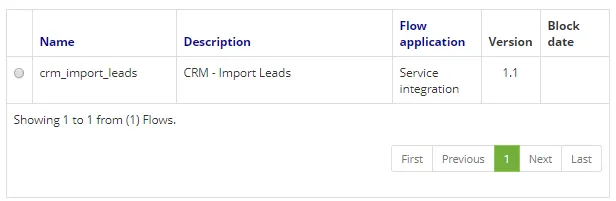
Filling in the Registration Fields - Flow data
Through this tab, all basic information about the flow to be designed is defined.
- To add a new flow, click on New > Integration services flow, as shown in the figure below:

- To add a new flow data, click on Add.
- The following screen will be displayed:
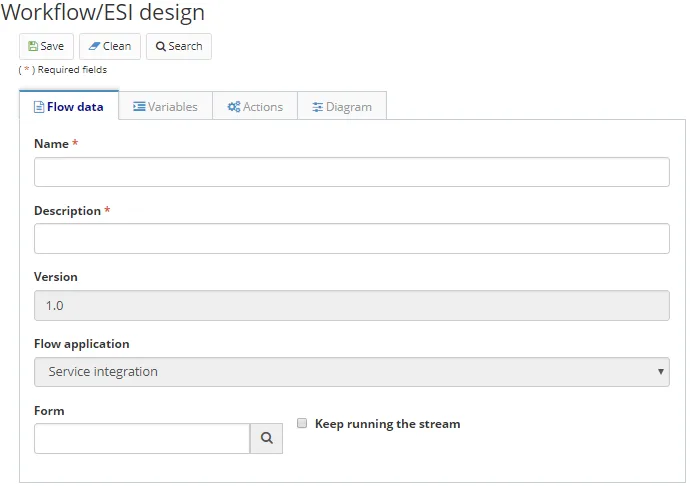
- Enter a name for the flow, a description, which form will start the flow (if applicable), and whether or not flow execution will persist. If the field "Keep running the stream" is checked, Lowcode will persist in the database on every instance of the execution of this flow.
- The field version is incremented automatically by the system whenever a new version of the workflow is created.
Variables
In this tab are configured the variables that will be used in the drawn flow. Variables are objects that can hold and represent a value or expression. Variables are associated with "names", called identifiers, during the runtime of the flow.
- To add new variables, choose the tab for the same and then click on "Add".
- The following screen will be displayed:
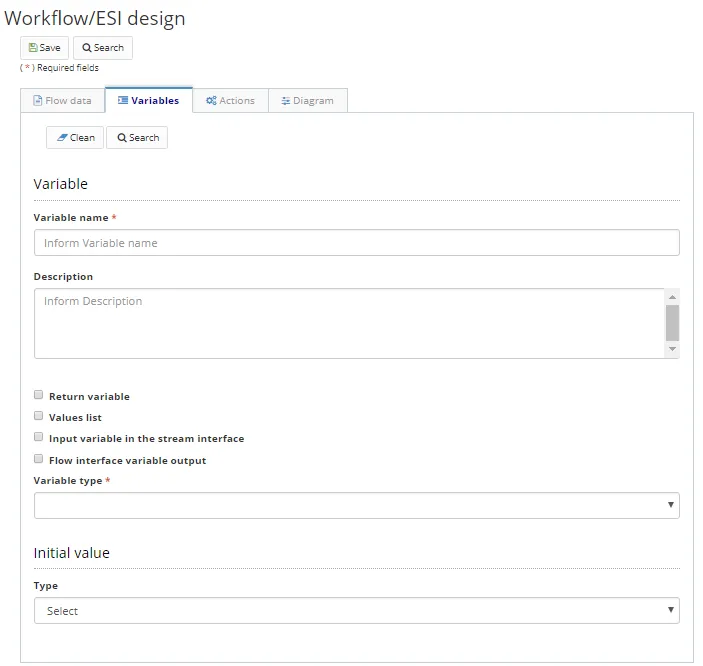
- Fill in the fields:
- Variable's name;
- Description;
- Whether it will be stored in the database;
- This option will store the value of the variable internally within the Lowcode data model, so it will retain the value during the execution of the tasks
- Whether it is a return variable;
- This option will cause Lowcode to return the variable at the end of the flow run.
- Whether it is a values list;
- If it is an input variable in the flow interface;
- This option allows the variable to be "injected" into the business process linked to this flow.
- If it is an output variable in the flow interface;
- This option causes the variable to have the value filled when the business process bound to the flow is executed.
- The variable type;
- If it is a Java object, enter the corresponding Java class;
- If it is a business object, inform what its respective application is and what the registered name of the business object;
- The initial value of the variable, whether constant or script.
- If the value is a constant, it will never be changed during the flow execution, regardless of the operations performed by the user.
- To edit a variable, select the desired variable, click on "Edit", make the necessary changes, and click on Update to complete the edit.
- To remove a variable flow, select the desired variable, click on "Remove", and confirm the deletion.
ATTENTION:
To save the changes effectively, click on "Save" on the top bar.
Actions
Through this menu, it is possible to register the actions that will be run in the workflow.
The actions are based on scripts programmed in the Rhino language.
- To include an action, choose the tab for the same and then click on go to "Add".
- The following screen will be displayed:
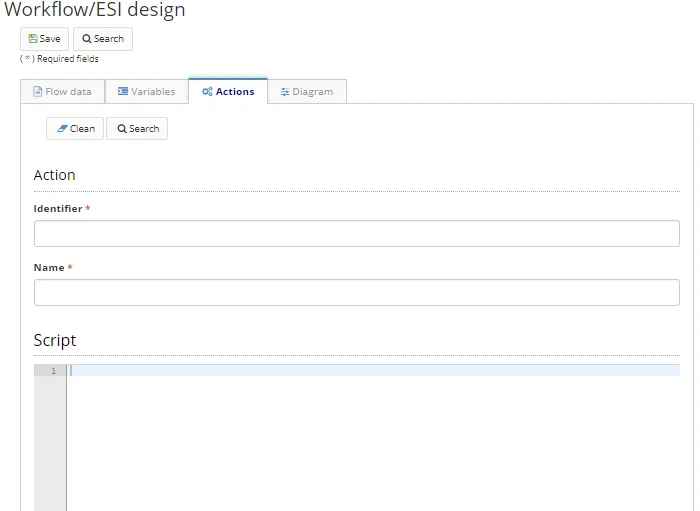
- Fill in the fields:
- an identifier for the action;
- the literal name for the action;
- and the script that will be run when the action is triggered.
- To edit an action, select the action you want, click on "Edit", make the necessary changes, and click on "Update" to complete the edit.
- To remove an action, select the action, click on "Remove", and confirm the deletion.
ATTENTION:
To save the changes effectively, click on "Save" on the top bar.
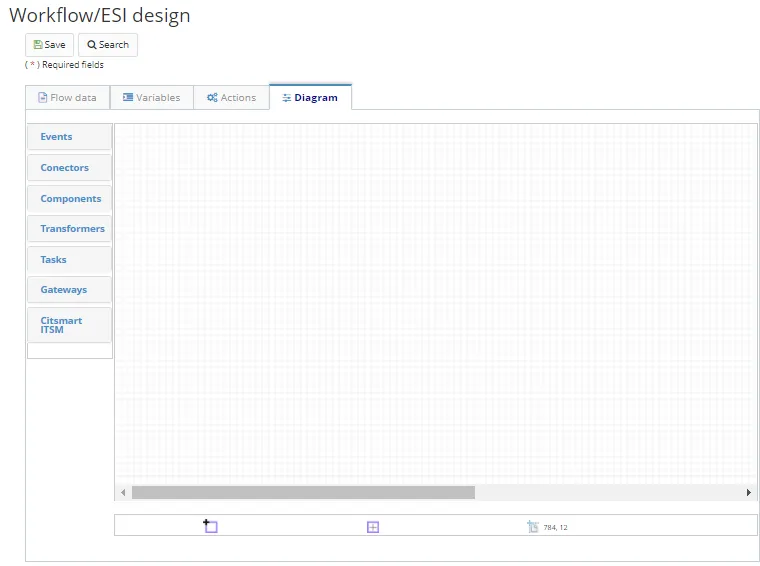
Diagram
The diagram of a service flow does not have the same "Task" components as a process flow. i.e., you cannot use the "Human Task" components for "Sub Process Workflow".
For a business process, we have, in addition, these components sections:
- Connectors: components used to perform operations related to the database.
- Components: varied components for performing various tasks.
- Transformers: components for converting variable types.
- CITSmart: components used for integration with an external Citsmart system.
The other components present in the palette resemble the components of a "Process Flow". Further information regarding the functionality and use of each of the components can be found in the Developing Applications.
- To design a diagram, choose the tab for the same
- The following screen will be displayed: