Report Configuration
The information is automatically populated from the report file. The name, description, and grouper folder on the server can be edited.
How to access
Access the functionality through the menu Lowcode > Management > Report.
Preconditions
The form must be previously registered in the Form.
Filters
- The following filter enables the user to restrict the participation of items in the standard feature listing, making it easier to find the desired items:
- Keyword or enter.

Figure 1 - Report Configuration Search Screen
Items List
- The following cadastral fields are available to the user to facilitate the identification of the desired items in the standard feature listing: Application, Resource, Name, Description, and Version.

Figure 2 - Report Configuration Listing Screen
Filling in the Registration Fields
Report data
- This information is automatically populated from the report file. The name, description, and project folder on the server can be edited, however, the engine and version fields can not be changed.
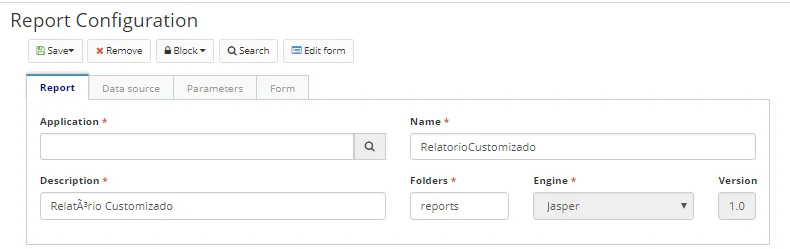
Figure 3 - Register/Edit Report Configuration, Report tab
Data source
- Refers to the data source of the report. Enter the type of the data source, which can be:
- None: if the file does not search the database.
- Data connection: if the information source is a database connection, also inform the respective database connection (register in the Database connection menu).
- Data object: if the information source is a database object registered in the application. Enter the data object that will be the data source (registerable in the Business Object menu).
- ESI flow: if the source of information is an ESI flow registered in the application. Enter the flow that will be the data source (registered in the Workflow/ESI Design menu).
- Script: if the data source is a script, code the script using the Rhino language.
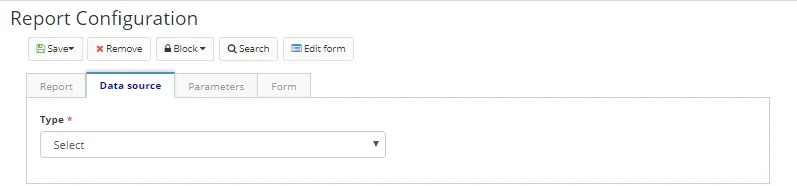
Figure 4 - Register/Edit Report Configuration, Data source tab
Parameters
- This tab refers to the registration of fixed parameters for the report. You can enter an image as a parameter to define the report logo, for example.
- Click on "Add" to add a new parameter.
- Enter the parameter name, type, and parameter object.
- Click on "Save" to add the parameter to the list.
- To edit a parameter in the list, click on "Edit".
- To remove a parameter from the list, click on "Remove".
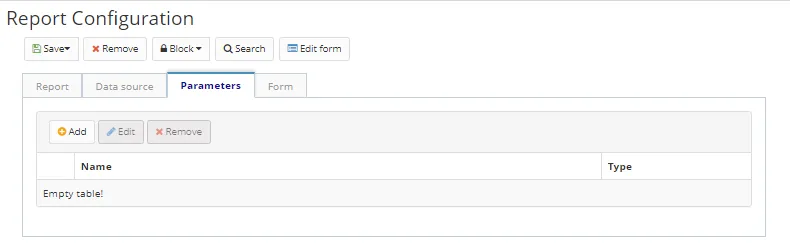
Figure 5 - Register/Edit Report Configuration, Parameters tab
Form
This tab represents the form to be displayed when the user generates the report.
- Enter the name of the registered form, state whether tabs should be displayed, the title of the form, and the menu associated with it.
- In the selected form, by default, options will be added to generate the report in PDF, Excel, and HTML.
- To change the default, edit the source code displayed on the screen.
- Click on "Save" to run the changes. Click on "Search" to return to the previous screen.
- To edit a created item, select the desired item, click on "Edit" (the current version or the previous version), make the changes, and click on "Save".
- To view an item, select the item and click on "View".
- To remove a created item, select the item you want, click on "Remove", and confirm the deletion.
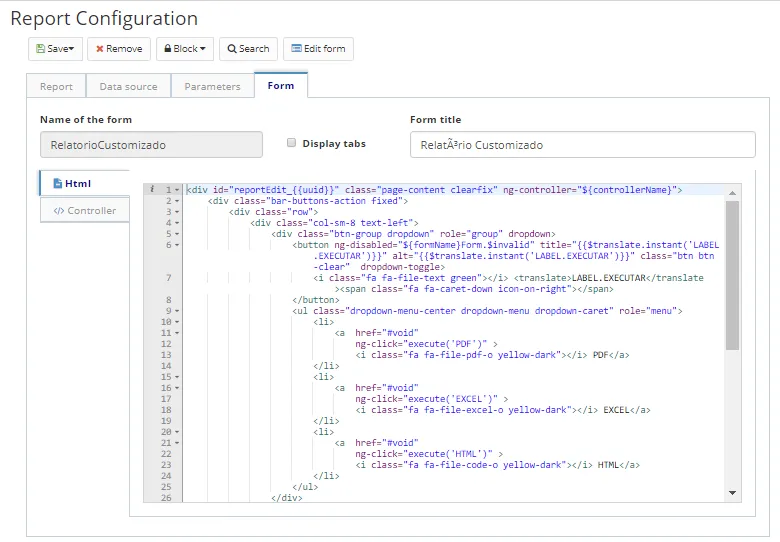
Figure 6 - Register/Edit Report Configuration, Form tab