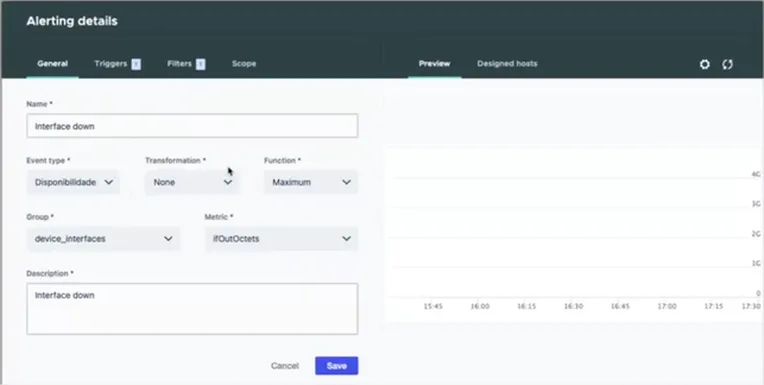
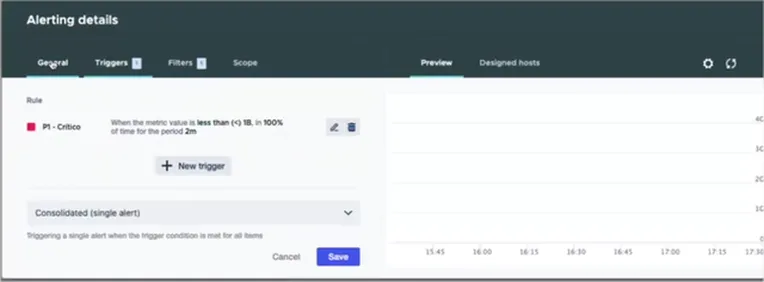
Create workflow
It's possible to create workflows that best fit to the users' reality, customizing the scenario of each organization.
Procedure
- Access the main menu Workflow > Flow Design;
- Click on "New";
- In the tab "Flow Data", it's necessary to complete the mandatory data: name (its internal identifier, it must be informed without space, accents and special characters); the process to which it's linked (the flow will be only visible to the process to which it's linked) and the option that allow to reopen the service regardless of group settings. It's also possible to view the version of the flow. In the tab there is also the field "Scripts Timeout (seconds): Mandatory Field where the seconds must be informed according to the rule. From version 9.2.0.0, the system stops the execution of a Rhino script from a Citsmart or Neuro flow that takes longer than the time defined in the "Scripts Timeout (seconds)" attribute. The default value of this attribute can be configured in the parameter HINO_TIMEOUT_EXCECUTION (in seconds) of the file APPLICATION.INI. If the parameter is not configured in the file, the system defaults to 90 seconds. The flows existing before the installation of the new version were initialized to 90 seconds.
- In the “Diagram” tab, it's presented the tool to design the flow by entering elements that represent the scenario. To do so, simply click on the element and drag it to the design area. When you do this, a screen will be displayed to set the properties. We must take into account that a flow starts with the "Start Event" element and ends with the "End Event".
- The properties of an element can be defined by double-clicking the element and then the icon next to it (properties icon). Define the data for this property by entering the required data in each of the property tabs. Here it is also liberated to link a knowledge to the "Knowledge Base" tab and implement functionalities in the flow on the activity by clicking on the "Interface" tab;
- Besides, the functionality allows to import flows when click on "Import". It'll be possible to import in "JSON" or "XML".
- After define the flow, click on "Save".
patrick
Through Automation and AI or approval flows, the platform allows carrying out planned activities and integrations with external task management tools. These tools provide options and have the ability to assign tasks and approvals for planning activities that include status tracking and notifications to ensure actions are on time.
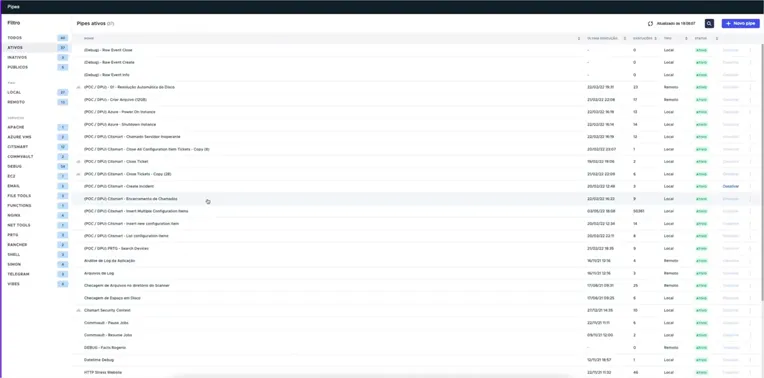
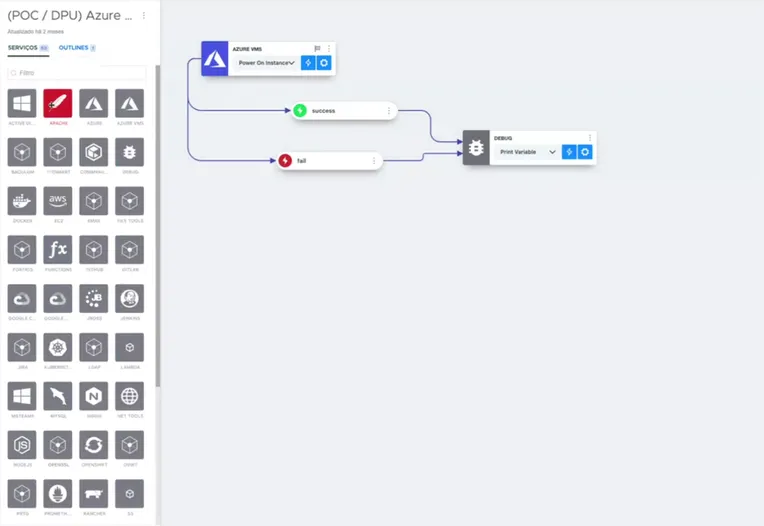
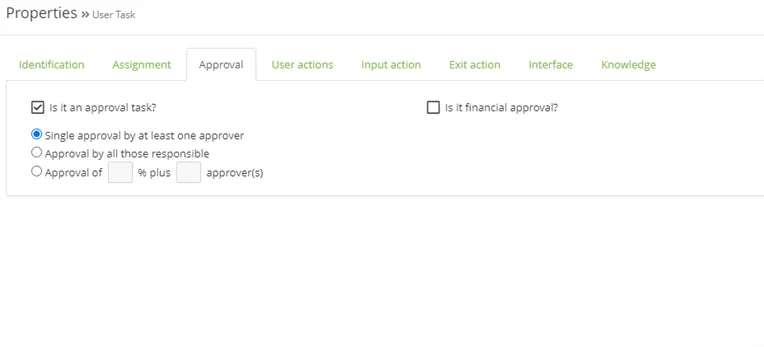
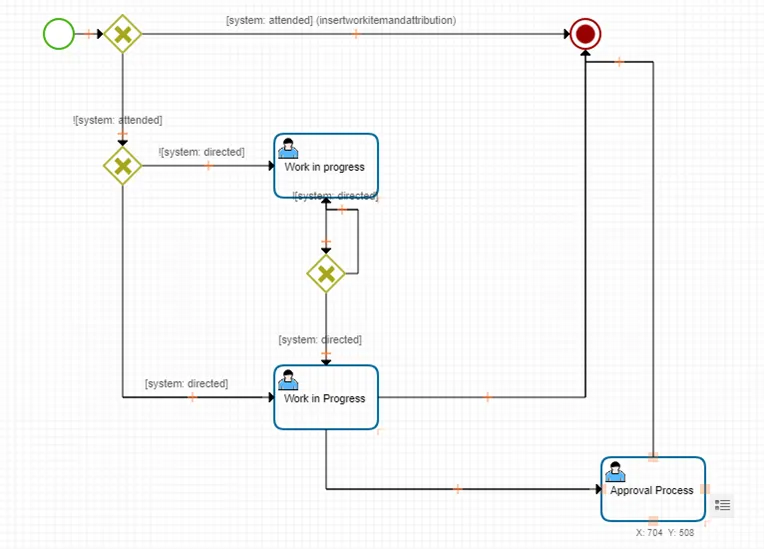
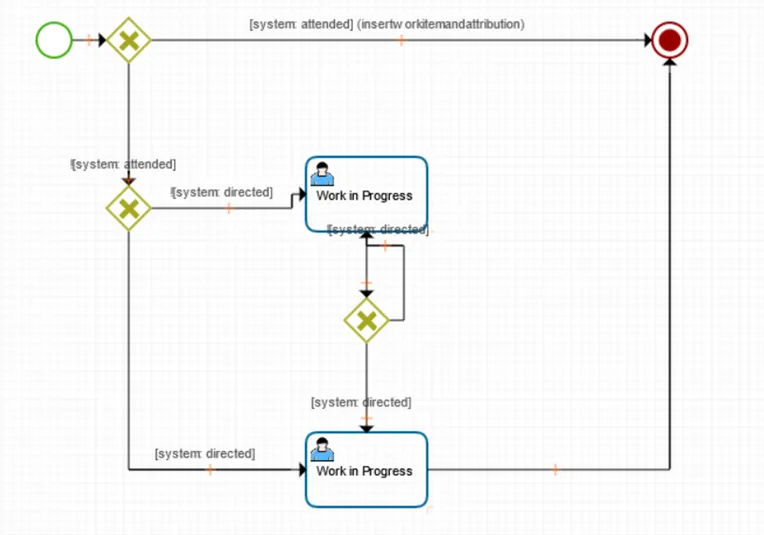
The platform provides integration with business process management (BPM) tools to assist analysts in understanding the customer processes and operations supported by the service.
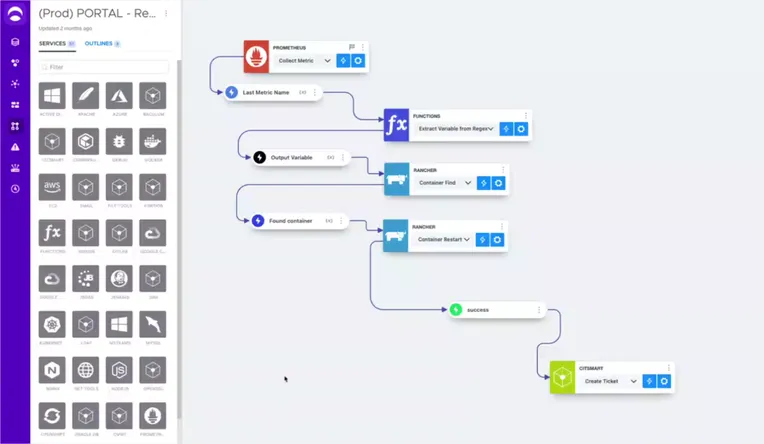
Using pipes or workflow, the platform can be integrated with external tools to create and distribute an availability plan.
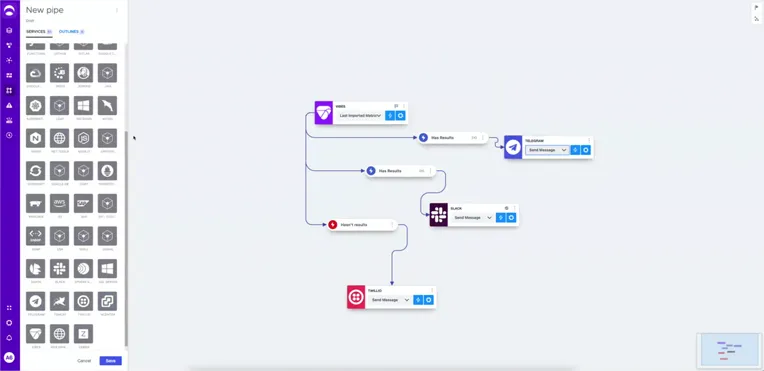
Through the installed agent, agentless, pipe automation, or workflow, the monitoring tool receives notifications from current devices/CIs when certain conditions are met.