Package
7 min
When you produce a set of application items through the Neuro, it is possible that this set is clustered in a package that can be imported/exported between Neuro environments.
How to access
- Access the functionality through navigation in the main menu Neuro > Management > Package.
Preconditions
- Not applicable.
Filters
- The following filter enables the user to restrict the participation of items in the standard feature listing, making it easier to find the desired items:
- Keyword or enter.

Figure 1 - Package Search Screen
Items List
- The following cadastral fields are available to the user to facilitate the identification of the desired items in the standard feature listing: Name, Description, and Version.

Figure 2 - Package Listing Screen
Filling in the Registration Fields
- To change a package already registered, click on "Edit", make the modifications, and then click on "Save";
- To create a package, click on "New". Enter the Package Name and Description. Then select the elements that will be part of the package. All these elements must have been previously registered in Neuro;
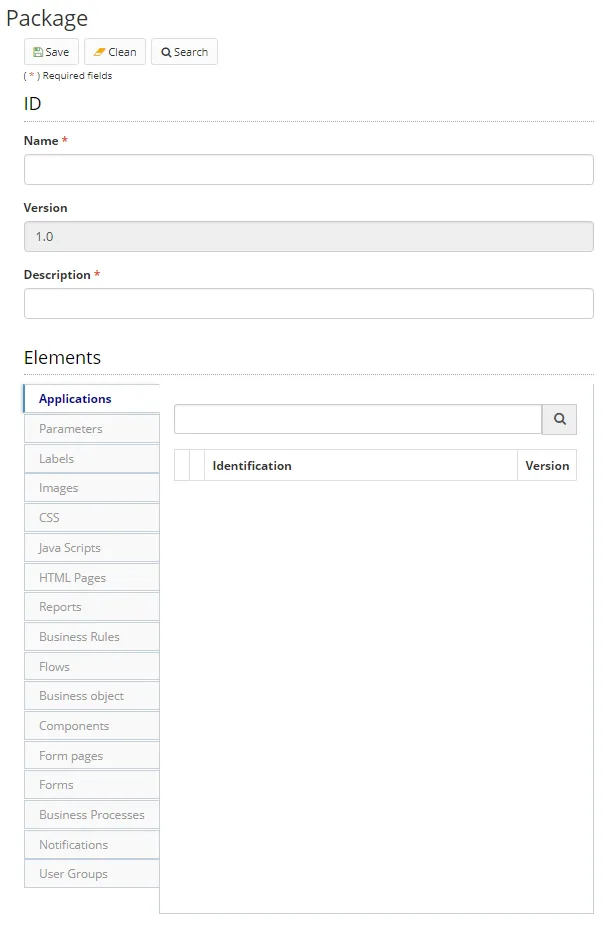
Figure 3 - Package Registration / Edit Screen
- You can select Applications, Parameters, Labels, Images, CSS, Java Scripts, HTML Pages, Reports, Business rules, Flows, Business object, Components, Form pages, Forms, Business Processes, Notifications and User Groups to compose the package;
- Click on "Save" to create the package. Click on "Search" to go back to the previous screen;
- To export a saved package, select it and then click on "Export". Packages are exported in .json format;
- To import a package into a Neuro, click on Import, select whether this version of the package should override elements that have the same identifier, whether the DDL should be run, and select the .json import file;
ATTENTION:
To ensure compatibility, it is strongly recommended that the Neuro version that created exported package be the same as the Neuro that will import it.
- To view an item, select the item and click on "View".