Knowledge Portal
The Knowledge Portal is one of the main screens of the solution, which aims to provide relevant information that allows the operator (user or administrator) to understand and apply certain knowledge.
It also enables it to register new knowledge in order to make the portal dynamic and up-to-date.
Main Screen
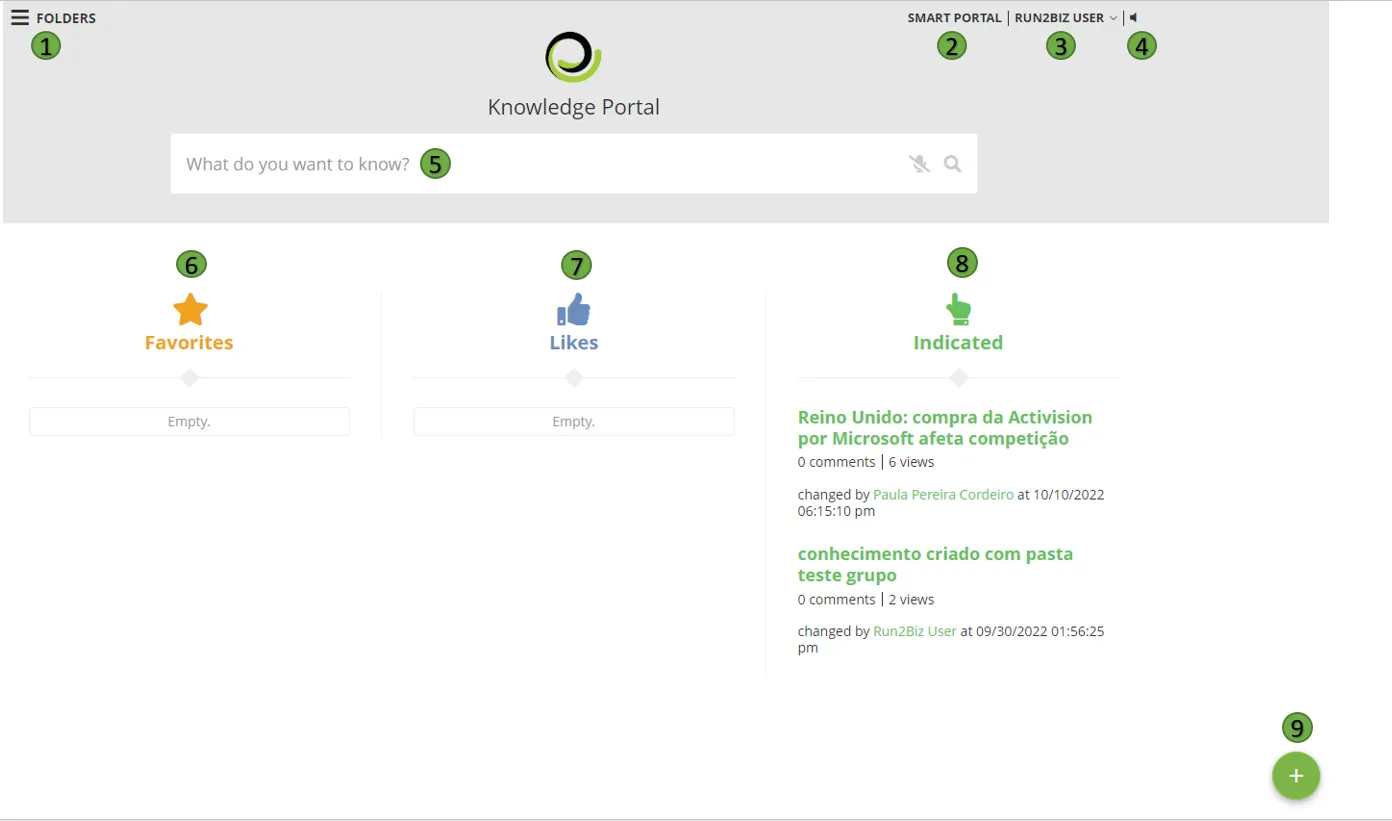
- Folders: displays the folders that the logged-in user has access to view the knowledge of the same;
- Services Portal: clicking on the option will display one of the main screens of the product, the Service Portal (Smart Portal);
- Identification of the user logged in: when clicking the option, the functions to change the access password and exit the portal are displayed;
- Acessibility: clicking this icon turns the acessibility option on and off. When activated, the system can search using the microphone device, and when user opens a document, the icon changes to speaker icon (Upper Right Corner). When activated, the platform "reads" the document and user can listen all information.
- Field of Search: allows the search for knowledge. The microphone icon will turn the audio input option on and off. It is necessary to have a microphone to use this option.
- Favorites: the knowledge that has been marked as favorite by the user of the logged in
- Liked: the knowledge that was created by the logged-in user
- Indicated: knowledge indicated to the user, referring to the most accessed system features.
9. Add Knowledge: allows the user logged in to post new knowledge in the Knowledge Base.
Search
It is possible to search for specific pieces of knowledge by using the search bar and clicking the magnifying glass icon:
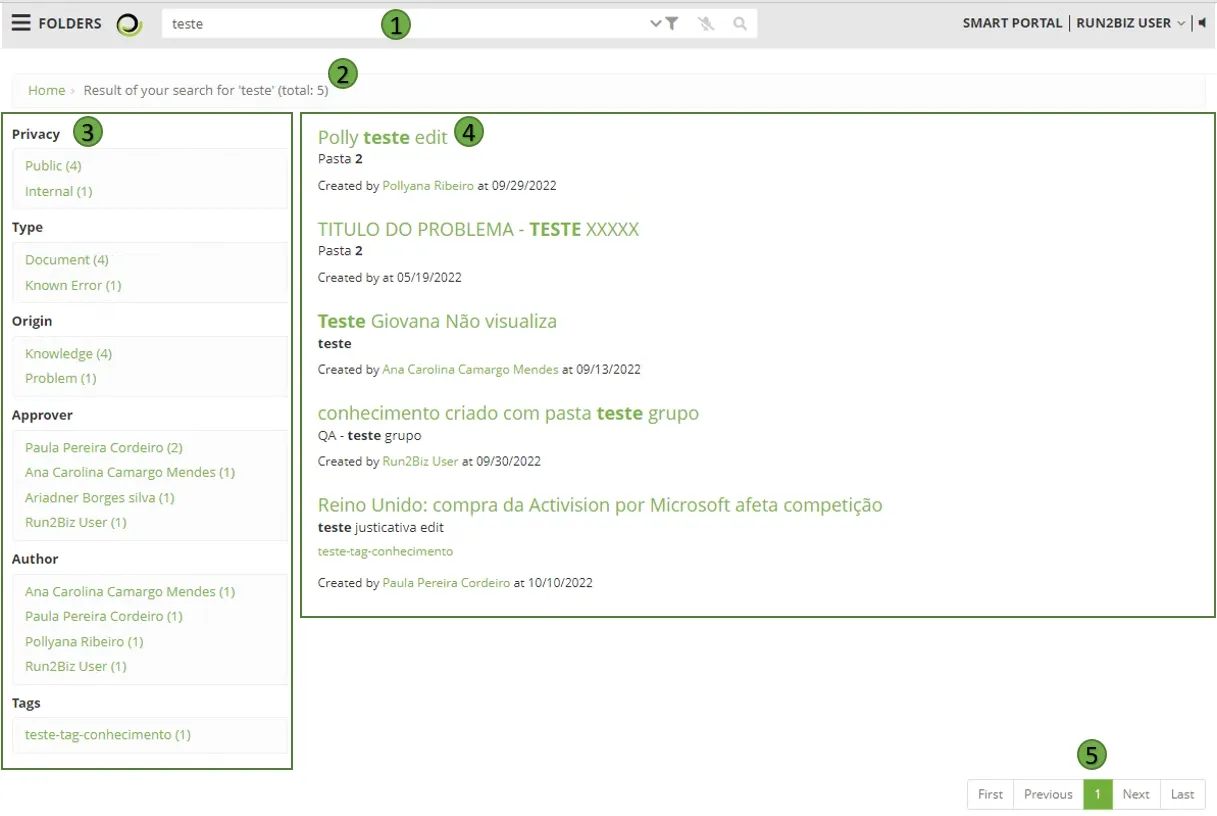
- 1: Search field. The first icon allows Filters to be applied to the search. The microphone icon turns the audio input option on and off.
- 2: Search results with the total number of knowledge articles with the inserted keyword.
- 3: Relation of knowledge articles found according to the tags.
- 4: List with the search results. Click on the title of the article to view it.
🖊 Note: The resulting list is mounted according to certain (configurable) comparison priorities. By default, any resulting list will be assembled by comparing the searched text with (in this order):
- content of knowledge
- title
- attachments
- keywords (Tags)
Knowledge
After finding the desired knowledge, click on the title to view the content:
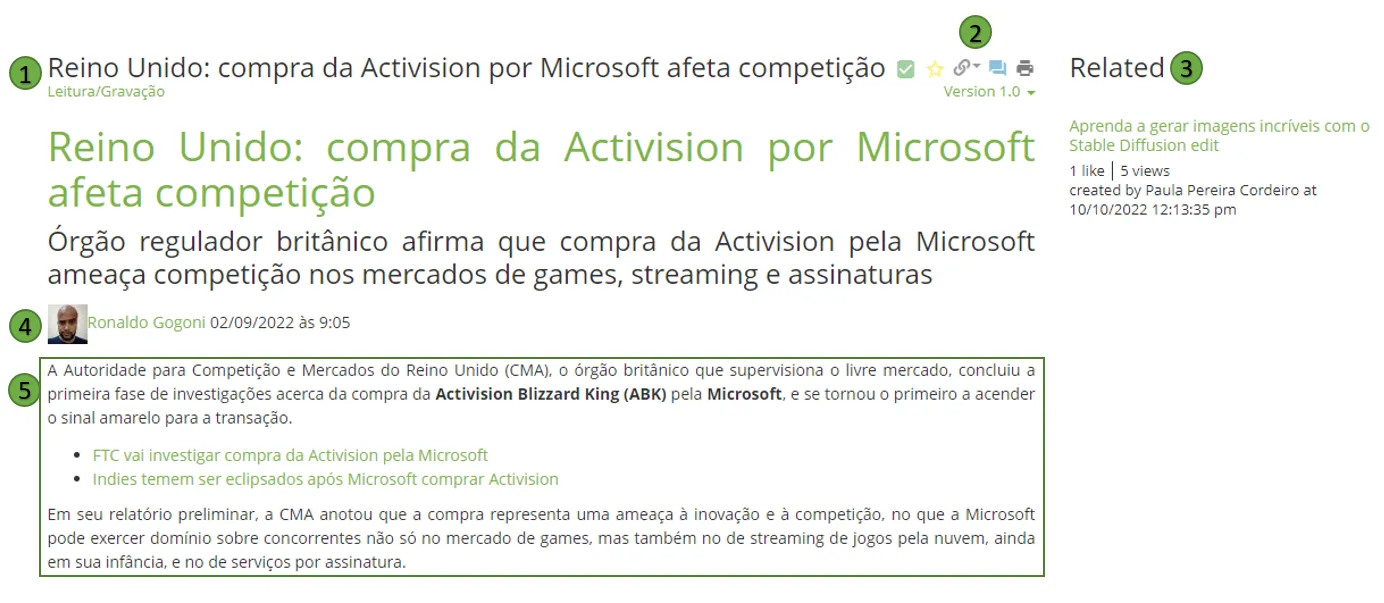
- Knowledge Title;
- List of icon with possible actions:
- The checkbox icon shows that the knowledge has been verified;
- Clicking the star icon will favorite the knowledge, showing it on the Knowledge Portal main page.
- The chain icon allows to link the knowledge with one or more processes in the system.
- The speech bubbles are used to add a comment to the knowledge;
- The printer is used to print a knowledge; Clicking this option allows the user to save the article with different file formats, such as a PDF file or a BI file.
- The field below the icons shows which version of the knowledge is currently being shown. when editing the article it is possible to save it as a new version, keeping the older versions saved;
- This field shows all the knowledge articles which are Related to the current knowledge;
- The author of the knowledge, as well as the date and time of the last edition;
- The content of the knowledge.
Below the content, by the end of the page, a few more information are available:
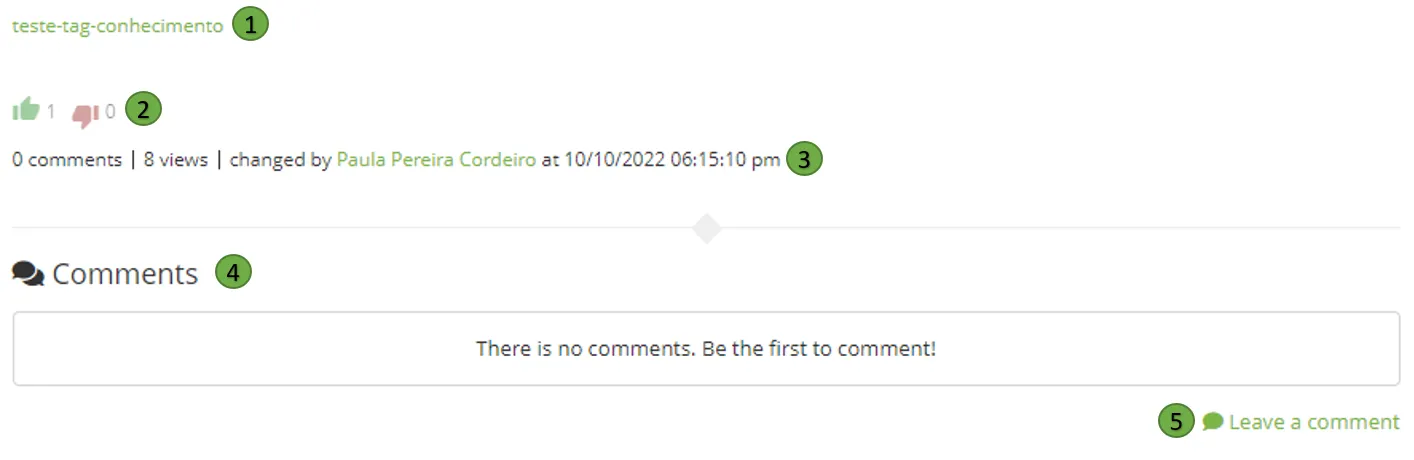
- List of knowledge tags
- Total reactions the knowledge received (likes and dislikes)
- This field shows all the knowledge articles which are Related to the current knowledge. The platform using NLP, Article rating and usage create dynamic links in each document that can be accessed on "Related Itens". The most relevant articles based on (Search + rating + usage) will be displayed.
- List of comments added to the knowledge.
- Click this button to leave a comment.

Users can rate articles using stars (1-5) and the knowledge search system will use the rating to show more relevant articles on the search results.