Release
The Release screen displays a list of registered releases and allows you to register and link new releases.
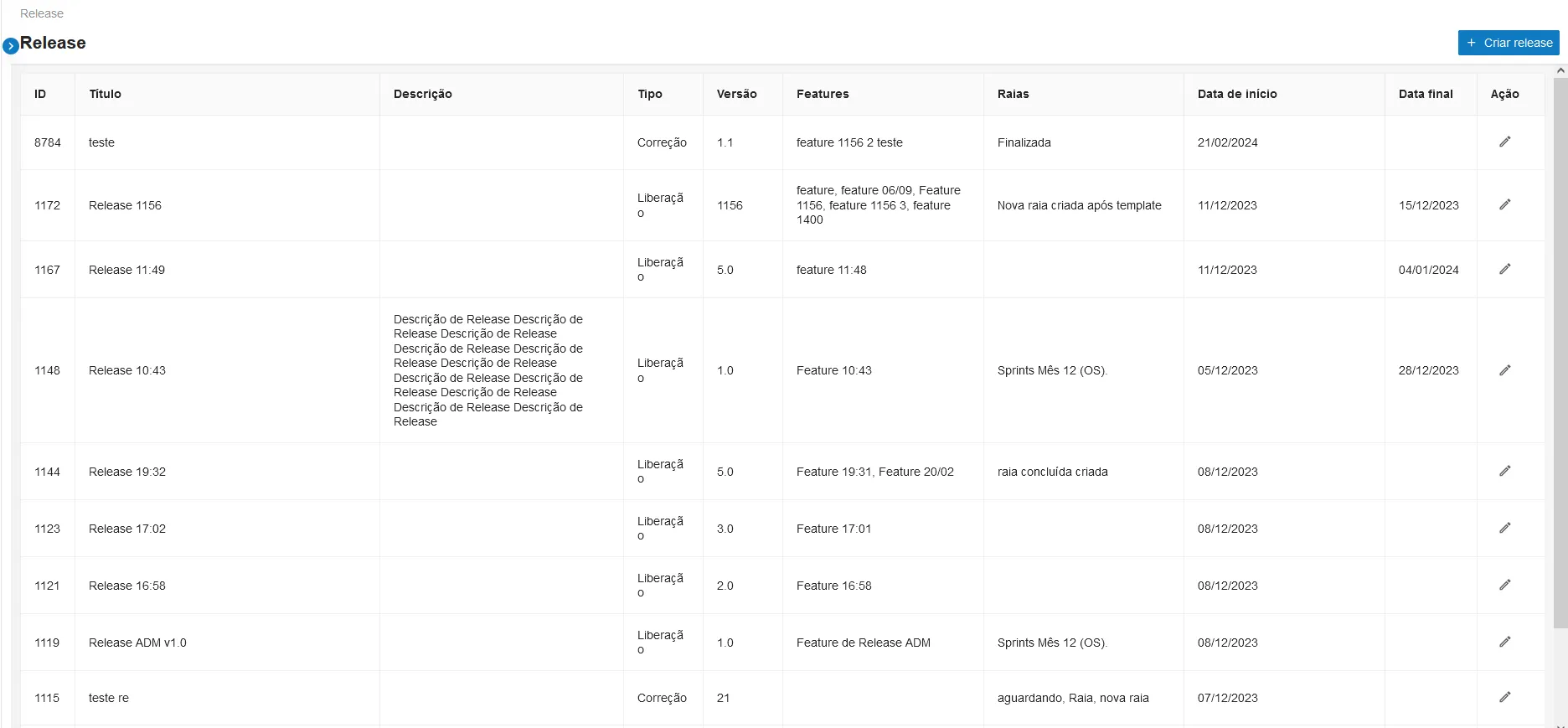
The Releases list shows information about each release divided into columns:
- ID - Release ID
- Title - Release name
- Description - Release description
- Type - Release type
- Version - Release version
- Features - Features linked to the Release
- Swimlanes - Swimlanes linked to the Release
- Start Date - Release start date
- End Date - Release end date
- Action - Available actions for the release:
- Edit - Displays the creation screen with fields pre-filled for editing
At the bottom of the page, a button displays page numbering and the number of releases to be shown in the view.
Procedure
Create new release
In the upper right corner of the screen, select the Create Release button to display the release creation screen:
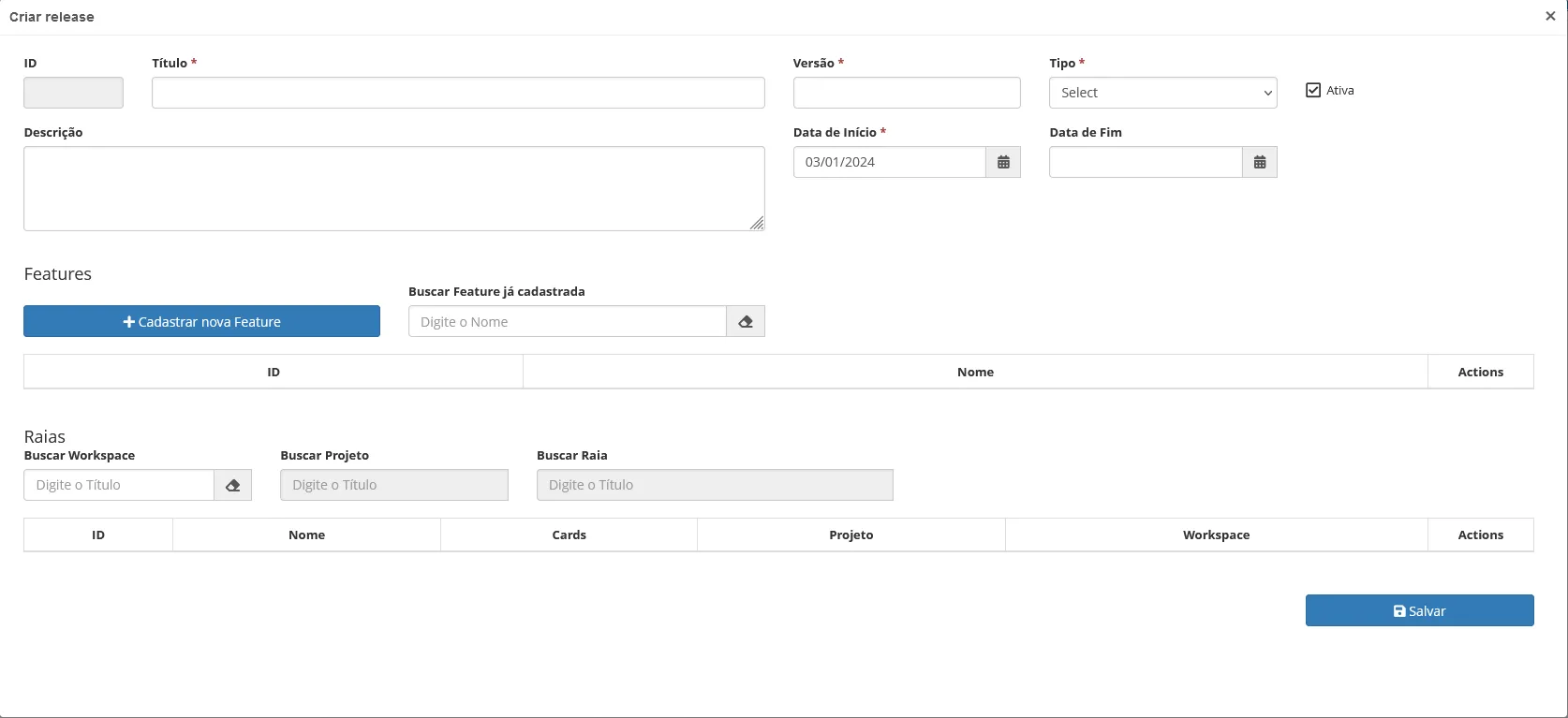
Field | Description |
|---|---|
ID | ID number will be automatically generated by the system |
Title(*) | Enter the release title |
Version(*) | Enter the version |
Type(*) | Select the type (Fix or Release) |
Active | Select whether it's active or not |
Description | Enter the description |
Start date(*) | Select the start date |
End date | Select the end date |
Fields marked with (*) are mandatory.
Features
Field | Description |
|---|---|
Register new Feature | Option to register a new feature, which opens the feature registration screen. |
Search existing Feature | Search and select an existing feature. |
After selecting a feature, the linked release will be displayed (if one exists), along with an option to replace the link with the release currently being created.
After linking, a table will be displayed showing the ID and name of the release, and an action to remove the link.
Swimlanes
| |
|---|---|
Search Workspace | Search and select a Workspace |
Search Project | Search and select a project from the chosen Workspace |
Search Swimlane | Search and select a swimlane from the chosen project |
After selection, the option to link the swimlane will be enabled.
After linking, a table will be displayed showing the ID, swimlane name, card name, project name, workspace name, and an action to remove the link.
At the bottom of the screen, click Save to create the new release.