Program and Product
On the Product/Program Screen, you can see a list with all the added products and programs
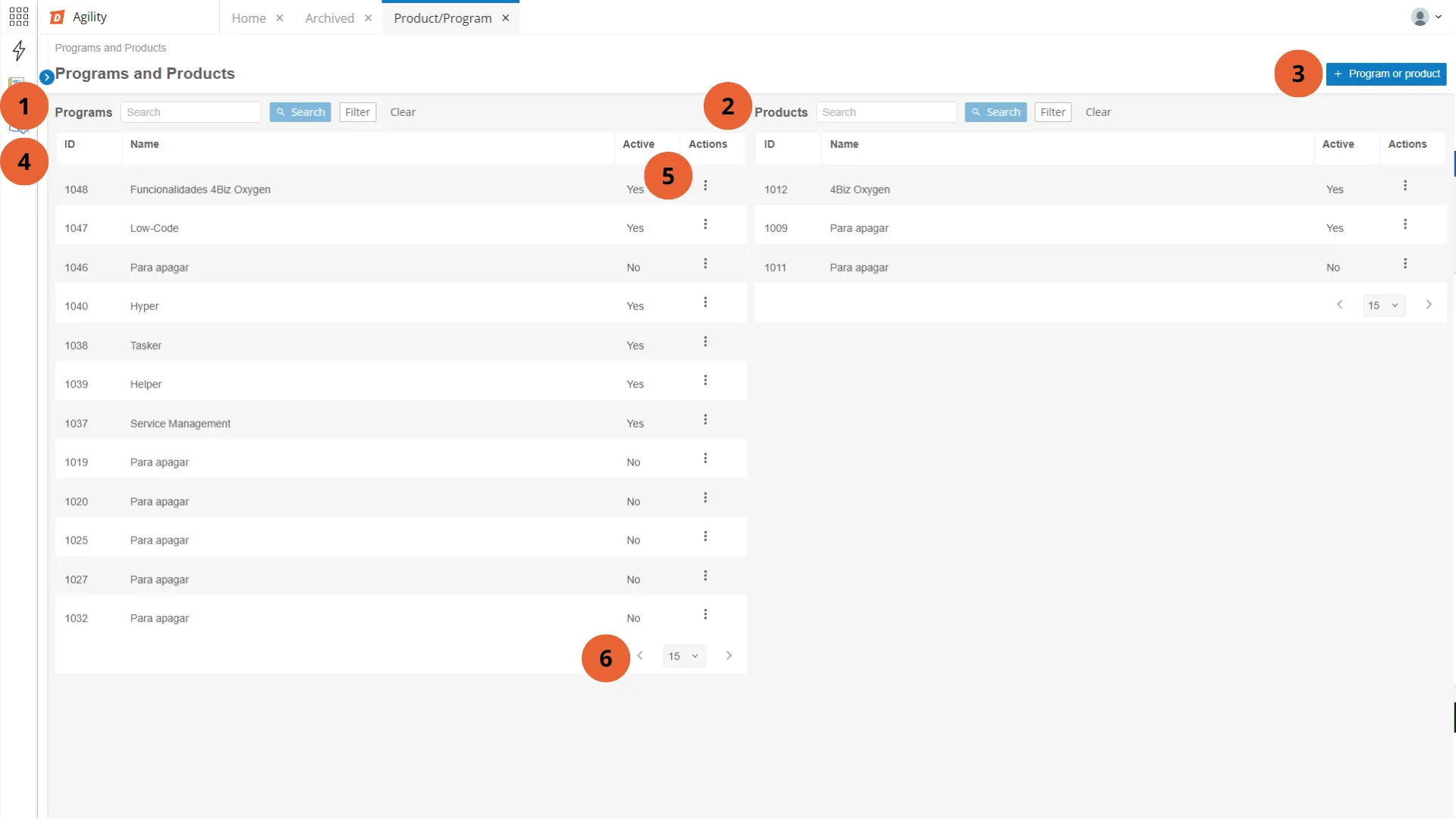
Field |
|---|
1. Search and Filters - Programs |
2. Search and Filters - Products |
3. Add Product or Program |
4. List of Programs |
5. List of Products |
6. Actions |
7. Pages |
Programs Column
Field | Description |
|---|---|
Search | Allows you to search for Programs by name. |
Filter | Allows you to filter Active and/or Inactive Programs and sort them by recently updated or alphabetical order. |
Table | Table with: Program IDs; Program Names; Whether the Program is Active or Inactive; and the following Actions:
|
Add a Product or Program
Before You Begin
The tool must present a list or view of all practices
Procedure
- Access the functionality through the navigation in the main menu Agile Work Management > Programs and Products;
- In the upper right corner, select the "Add Program or Product" button, which will display a registration screen (image).
Step 1 - General Data:
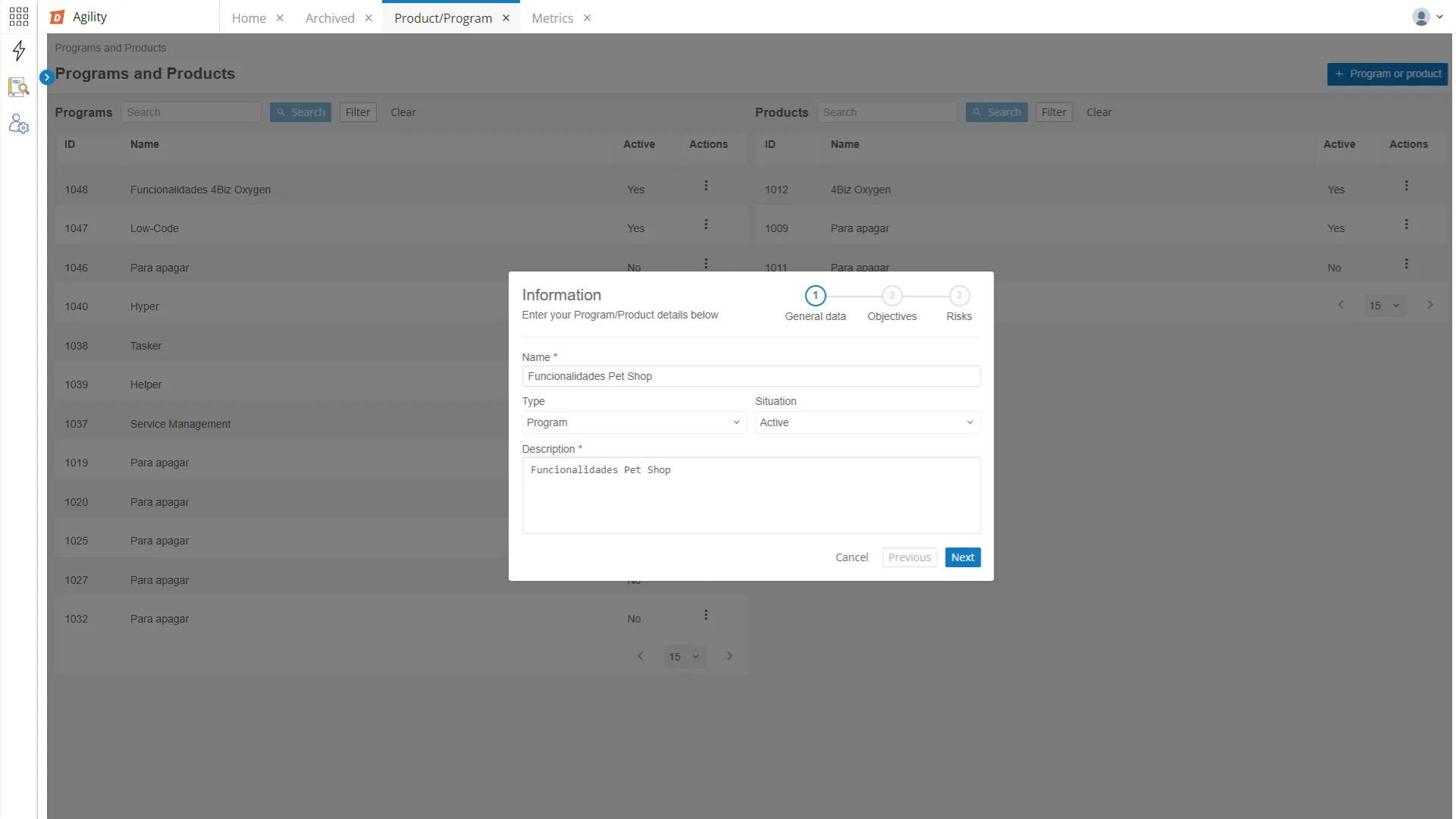
Field | Description |
|---|---|
Name | Enter the name for the new Program or Product:
|
Type | Select whether the type will be Program or Product; |
Status | Select the status (Active or Inactive); |
Description | Enter the description. |
To proceed to step 2, click "Next";
Step 2 - Objectives:
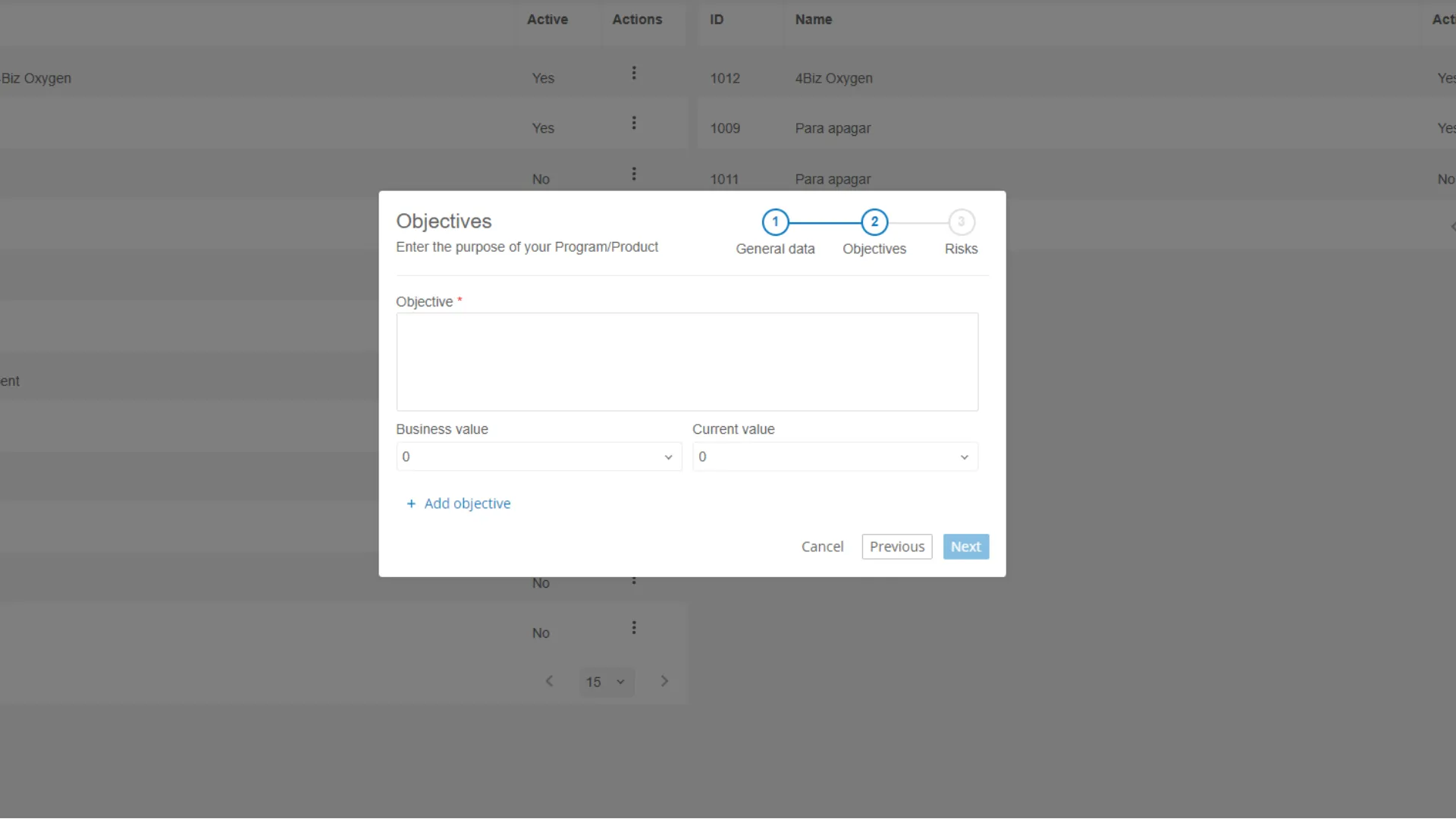
Field | Description |
|---|---|
Objective | Enter the Objective; |
Business Value | Select the Business Value; |
Current Value | Select the Current Value (Business Value and Current Value are used to permeate the organization with how important that program or product is and thus make the budget feasible. They are chosen in a range from 0 to 10); |
Add Objective | One or more objectives can be added. |
To proceed to step 3, click "Next";
Step 3 - Risks:
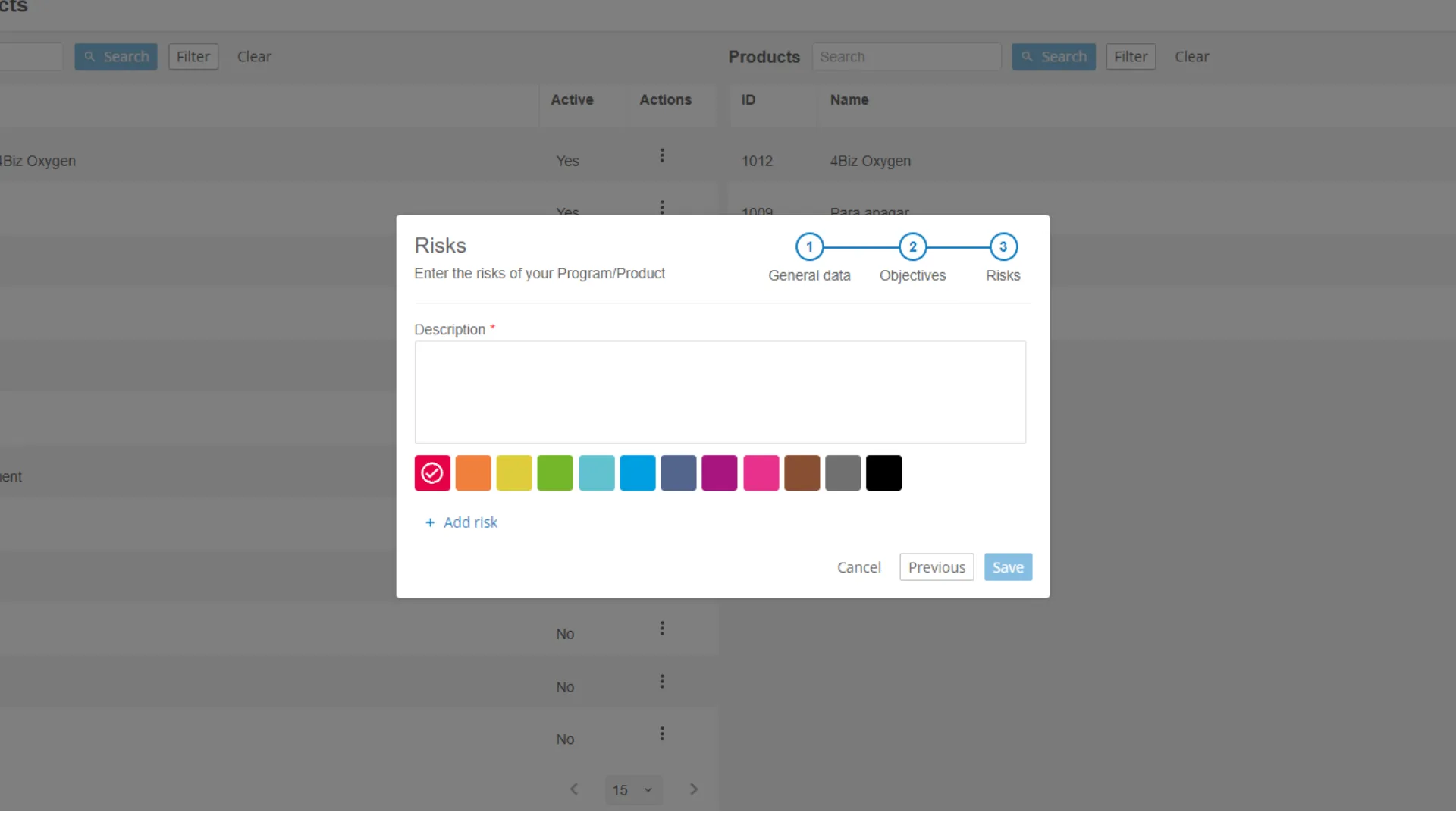
Field | Description |
|---|---|
Description | Enter the risk description; |
Color | Select a color for the risk; |
Add Risk | One or more risks can be added. |
Click "Previous" to return to the previous action or "Save" to continue.