Administration
People and invitations
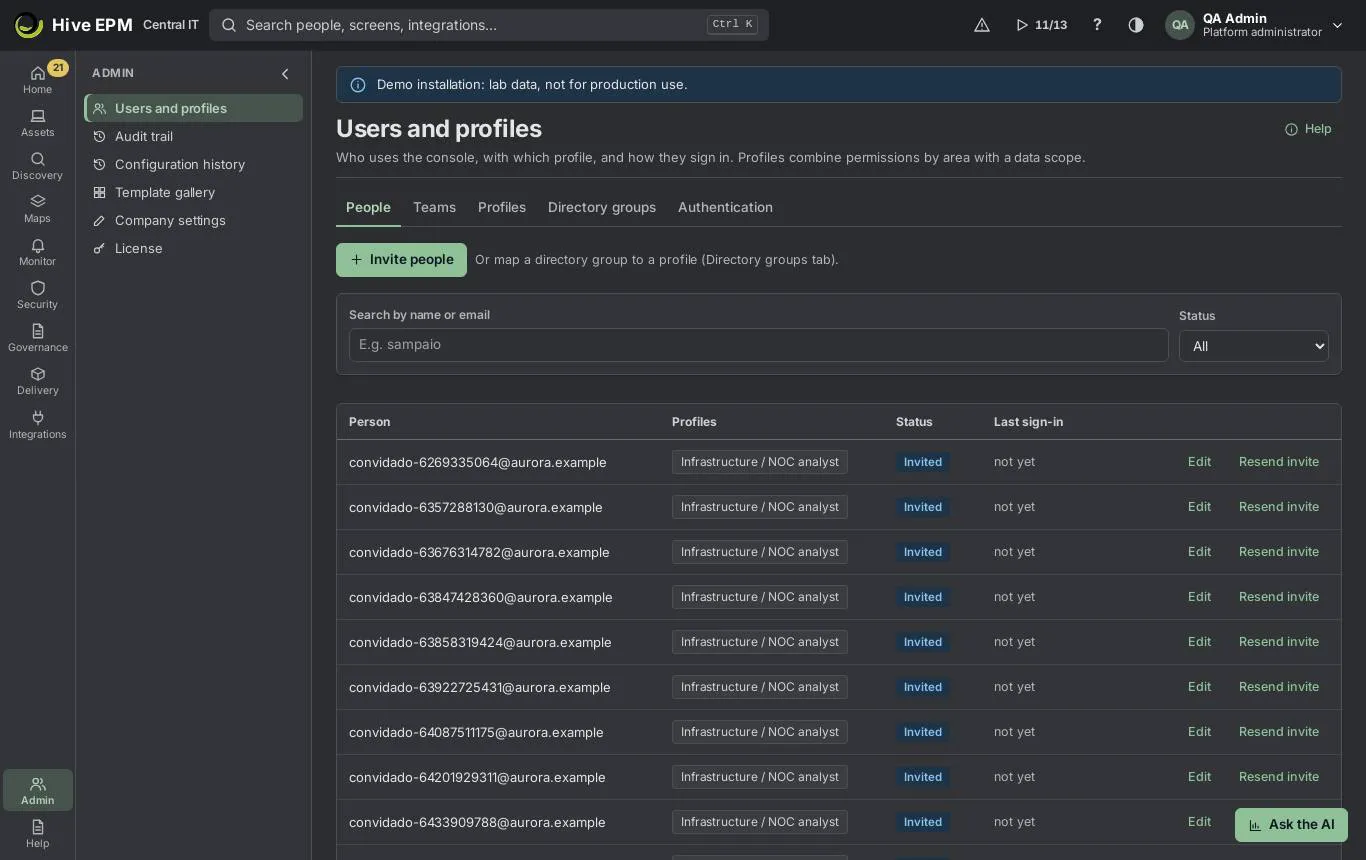
Admin › Users and profiles is where administrators decide who uses Hive. The People tab invites people by e-mail and changes their profiles and status; Teams groups people to share dashboards; Directory groups gives access automatically to members of directory groups (just-in-time) and sets up SCIM provisioning. Nobody needs a password created by hand. Profiles and sign-in methods have their own tabs: see Profiles and permissions and Sign-in methods.
What you can do here
- Invite one or many people at once and choose their profiles.
- Search people by name or e-mail and filter by Status (Active, Invited, Disabled).
- Edit a person: change profiles, disable or turn access back on.
- Resend invite to someone who has not signed in yet.
- Reset authenticator for someone who lost the phone.
- Create Teams to share dashboards with several people at once.
- Map Directory groups to profiles, preview who would get access, and create SCIM tokens.
Invite people
Click Invite people on the People tab. The wizard has three steps.
Type one or more e-mail addresses in E-mail addresses, one per line. People who already have access are skipped and listed separately at the end.
Choose one or more Profiles. The first profile becomes the active one. You can change profiles later with Edit.
Review and send. If local accounts are on, each person receives an e-mail to set a password. With SSO only, no e-mail is sent: share the sign-in address shown at the end — people sign in with their company account and are matched by e-mail.
At the end Hive shows " people invited.", whether e-mails were sent, who Already had access (skipped) and the Sign-in address of your company with a copy button, in case an e-mail does not arrive.
Edit, disable and reset
- On the person's line, click Edit. The window Access of lists the profiles as cards; privileged ones say "Privileged: always asks for MFA."
- Tick or untick profiles. Changes apply on the person's next action, without signing in again.
- Use the Active / Disabled switch to stop access. Confirm Disable access: sign-in stops right away, in Hive and in the local account; history and audit stay. Turn it back on the same way.
- Resend invite appears only for people with status Invited.
- Reset authenticator appears for active people (not for yourself). Their sessions end and they register the app again on the next sign-in.
Teams
Teams are groups of people used to share dashboards.
- Open the Teams tab and click New team.
- Fill Name and Description, search people in Search people and tick them ("People in the team (n)").
- Click Save. Deleting a team makes dashboards shared with it stop showing to its people, unless they were shared with them directly.
Directory groups, scope preview and SCIM
On the Directory groups tab:
- Click Add group, type the Directory group name and choose the Profile granted. Repeat for other groups, then Save mappings.
- Whoever signs in with the company account and is in a mapped group gets the profile without a manual invite (JIT). Whoever leaves the group loses it on the next sign-in.
- Scope preview › Preview shows, with the mapping on screen (even before saving), how many Enabled directory accounts would sign in, Would sign in, Left out (no mapped group), In more than one profile, Already people in Hive, and the groups with people and no profile yet —from what the Active Directory sync brought.
- SCIM provisioning (Entra ID, Okta, Google): type a Name and click Create SCIM token. Copy the Tenant URL (SCIM base) and the Secret token right away — the token is shown only once— and paste them in the provider's automatic provisioning. The provider then creates, updates and disables people in Hive; its groups become profiles by the same mapping. A person removed in the provider is disabled in Hive (the history stays). Revoke stops the provisioning until a new token is created.
Worked example: invite Ana Souza to the service desk
Ana Souza joins the service desk of Aurora on Monday. The company uses local accounts, and the profile Service desk L1 already exists (see Profiles and permissions).
- Open Admin › Users and profiles › People and click Invite people.
- In E-mail addresses type [email protected] and click next.
- In Profiles tick Service desk L1 only, then next.
- Review and send. Hive shows "1 person invited. Each person receives an e-mail to set a password." and the sign-in address https://aurora.hive.example .
- The People list shows [email protected] with status Invited and "not yet" under Last sign- in. The Home card Invitations not accepted yet counts her until she signs in.
- Open the Teams tab, click New team, name it Service desk , description L1 and L2 analysts , search ana and tick Ana Souza, then Save ("Team saved").
- A supervisor shares the dashboard Service desk — open alerts with the team Service desk: Ana sees it as soon as she signs in.
- On Tuesday Ana still had no e-mail (it went to spam). Click Resend invite on her line ("Invite sent again to [email protected]."). The invitation link is valid for 72 hours.
- Ana creates her password; her status becomes Active and Last sign-in shows when she signed in.
Worked example: give access by directory group
Aurora wants every member of the AD group GG-ServiceDesk to get Service desk L1 without invitations.
- On Directory groups, click Add group, type GG-ServiceDesk , choose Service desk L1.
- Click Preview before saving: 42 enabled directory accounts, 18 would sign in, 24 left out, 0 in more than one profile, 3 already people in Hive.
- Click Save mappings ("1 mapping saved."). The next time one of the 18 signs in with the company account, the person appears in People with Service desk L1.
Pitfalls and limits
- Every person needs at least one profile.
- You cannot disable your own access, and Hive never lets you disable the last active administrator.
- The plan of your company may limit the number of people; an invite beyond the limit is refused with a clear message — disable people who left.
- Teams only share dashboards; access to screens always comes from profiles.
- The scope preview uses what the Active Directory sync already brought; groups that the sync did not read show "not in the directory".
- Each action (invite, resend, profile change, disable, mapping change, SCIM provisioning) is recorded in the Audit trail.
Related
- Profiles and permissions
- Sign-in methods
- Signing in
- Directory and machines without agent
Profiles and permissions
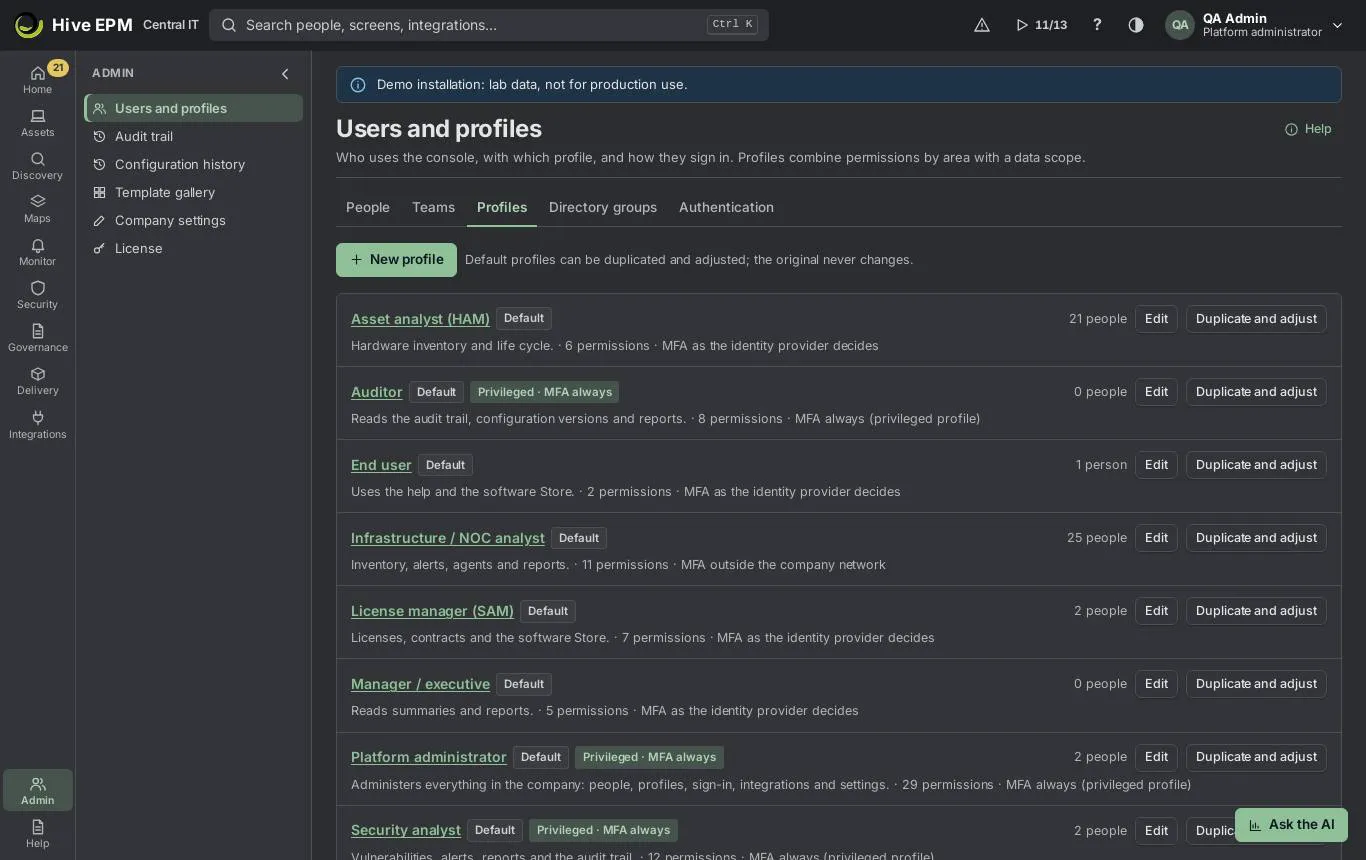
A profile says which screens a person sees, what they can change there, which sensitive actions they can run and which data they reach (scope). People can have several profiles and switch the active one in the user menu. Profiles live in Admin › Users and profiles › Profiles.
What you can do here
- See every profile with its type (Default or Created by the company), the Privileged · MFA always pill, how many people have it, how many permissions and its MFA policy.
- Create a profile with New profile, or start from an existing one with Duplicate and adjust.
- Edit a profile: name, permissions per screen, privileged flag, MFA policy and data scope.
- Compare versions field by field and restore an old one.
- Set the operator tier of the profile (T0, T1, T2).
- Delete a profile created by the company that nobody has.
Default profiles
Every company starts with: Platform administrator, Infrastructure / NOC analyst, Security analyst, Support technician (L1/L2), License manager (SAM), Asset analyst (HAM), Manager / executive, Auditor and End user. Platform administrator, Security analyst and Auditor are privileged. Default profiles can be edited but not deleted; "Default profiles can be duplicated and adjusted; the original never changes."
Create or edit a profile
Click New profile (or Edit / Duplicate and adjust on a line). The editor is a wizard.
Give the profile a clear Profile name and say Who is it for.
Tick the screens the profile can View and Edit, and its specific actions, in the matrix. Mark Privileged profile (always requires MFA) when it can change access or run sensitive actions: privileged profiles always require the authenticator app.
Limit the data the profile sees by Sites, Tags and Groups. Leave them empty to see everything.
The last step, Review, shows the whole profile before saving. A new profile is saved with its first version; when editing, Save changes creates a new version ("Profile saved (version n). It applies on each person's next action.") with Undo in the message.
The permission matrix
- The matrix lists every screen of the menu, grouped by workspace (Assets, Maps, Monitor, Security, Governance, Delivery, Integrations, Admin).
- Columns: Screen, View, Edit and Specific actions (for example Approve unattended access on Remote access, Export audit on Audit trail, Approve provider support on Company settings).
- Ticking Edit or an action also ticks View; unticking View clears the row. The box on a workspace row ticks the whole column of that workspace.
- Search screen or action filters rows, Only marked hides what is off, and the counter shows " of marked".
- Actions with a shield are sensitive: "Sensitive actions should only go to privileged profiles, which always require MFA."
- Screens that are not ticked disappear from the menu of people with that profile; a direct link shows "This screen is not available for your profile".
Versions and operator tier
When you edit an existing profile, two panels appear next to the wizard:
- Versions: each save is a version (v1, v2…, the newest marked current). Click an older one to compare field by field (permissions, scope, MFA in readable names) and click Restore version n. The restore becomes a new version, so you can go back again.
- Operator tier: choose Tier of this profile — "T2 · Workstations", "T1 · Servers" or "T0 · Tier 0" — or No tier restriction. A T2 operator acts only on workstations, T1 only on servers and T0 only on Tier 0. A person can have a tier of their own, which overrides the profile's.
Worked example: a "Service desk L1" profile
Aurora wants first-level analysts to see assets and alerts and open remote sessions, but not approve unattended access, and not see anything else.
- Open Admin › Users and profiles › Profiles and click New profile.
- Name: Profile nameService desk L1 ; Who is it forFirst-level service desk analysts .
- Permissions: type assets in Search screen or action and tick View on All assets. Clear the search, then tick View on Alerts and events (Monitor) and View and Edit on Remote access (Security). Leave Approve unattended access unticked. The counter shows "4 of … marked".
- Leave Privileged profile off and choose MFA policy "Required outside the company network".
- Data scope: in Sites type São Paulo so the analysts only see that office.
- Review and save: "Profile Service desk L1 saved. It is in the audit trail and has its first version."
- Invite Ana Souza with this profile (see People and invitations). When she signs in, her menu shows only Home, Assets › All assets, Monitor › Alerts and events, Security › Remote access and Help. She can start a remote session, but approving unattended access is not offered to her; if she opens /settings by a link, she sees "This screen is not available for your profile".
Worked example: undo a wrong change
Two weeks later someone ticks Edit on All assets in Service desk L1 by mistake.
- Open the profile with Edit; the Versions panel shows v2 (current) and v1.
- Click v1: the comparison shows the permission that was added in v2.
- Click Restore version 1 and confirm. Hive answers "Version restored as v3."; v1 values are current again and the whole story stays in the list and in the Audit trail.
Pitfalls and limits
- A profile needs at least one permission.
- Default profiles cannot be deleted. A company profile can be deleted only when nobody has it ("Move them to another profile first.").
- The Platform administrator profile must keep user and profile administration; Hive refuses changes (or restores) that would lock administrators out.
- In this version the sign-in enforces the authenticator only for privileged profiles. The other MFA policy values ("Always required", "Required outside the company network", "As the identity provider decides") are saved and shown on the profile, but do not block a sign-in by themselves. Mark the profile as privileged when MFA must be mandatory.
- Changes apply on each person's next action; nobody needs to sign in again.
- Restoring a version needs permission to change configuration.
Related
- People and invitations
- Sign-in methods
- Remote access
- Audit trail
Sign-in methods
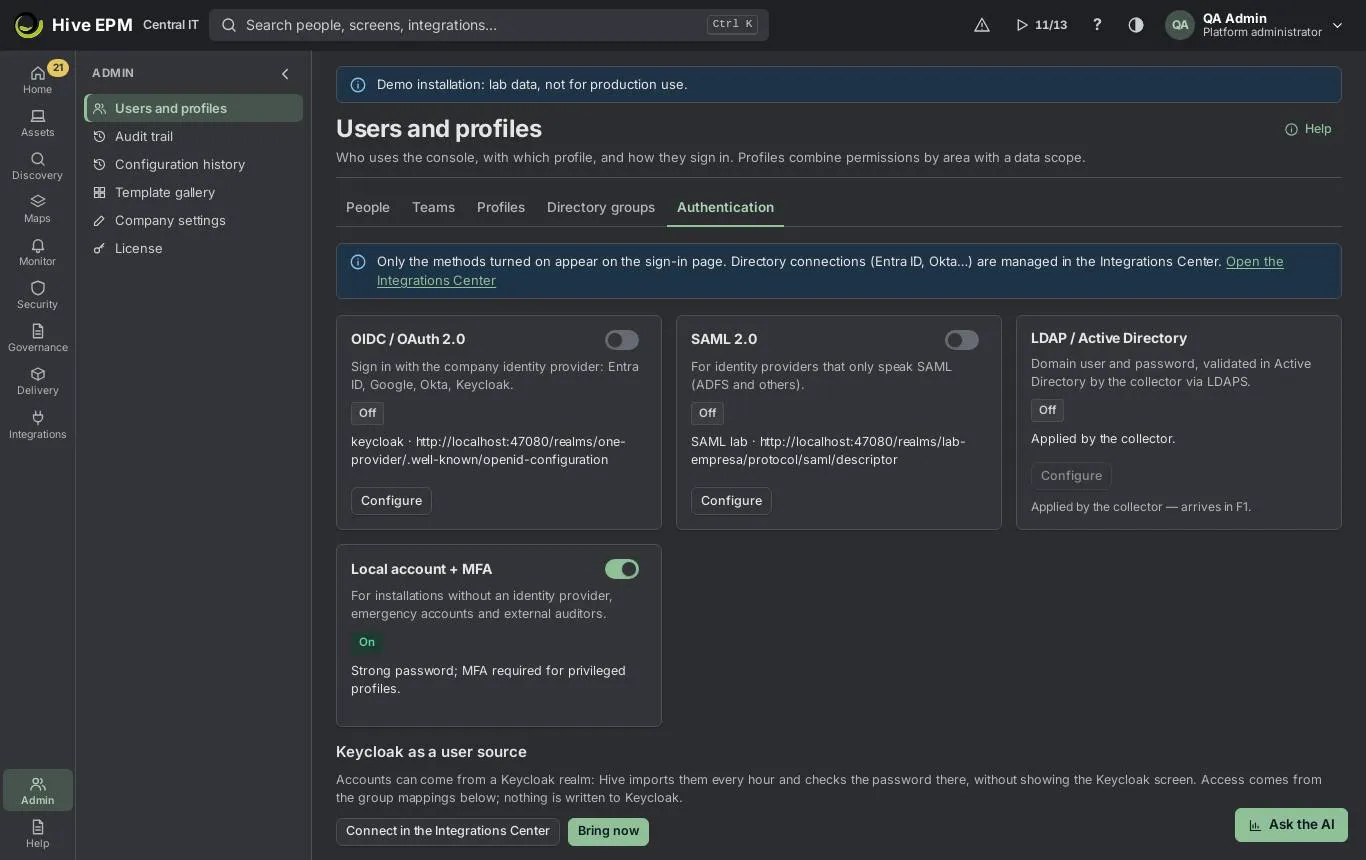
Admin › Users and profiles › Authentication decides how people sign in to your company. Hive has its own sign-in page: passwords, authenticator codes, invitations and resets happen there, without sending people anywhere. Only the company-account methods (OIDC and SAML) go to the identity provider and back. Keycloak can also be used only as a source of users: Hive reads the accounts and checks the password there, and people never see the Keycloak screen.
What you can do here
- Turn on or off each method: OIDC / OAuth 2.0, SAML 2.0, LDAP / Active Directory and Local account + MFA. At least one method always stays on.
- Configure OIDC and SAML with a wizard, and test the sign-in.
- Use Keycloak as a user source and Bring now the accounts.
- See the MFA policy by profile.
- Decide on support access requests from the service provider (see Service provider support access).
OIDC / OAuth 2.0
Click Configure on the OIDC / OAuth 2.0 card.
Choose the Identity provider: Microsoft Entra ID, Google, Okta, Keycloak, Auth0 or any OIDC provider. Button text (optional) changes what the sign-in button says.
Paste the provider's Discovery address (it ends with /.well-known/openid-configuration ), the Client ID and the Client secret (stored in the vault). The secret goes to the vault and is never shown again.
After Review, Hive shows the return address to register in the provider ("it is the only thing to copy") and Test the sign-in: open the address in a private window and choose "Sign in with your company account". The method is saved and turned on.
SAML 2.0
Click Configure on the SAML 2.0 card. Hive talks directly to the SAML provider (ADFS, Entra, Okta and others).
Enter the Provider metadata address: Hive reads the sign-on address and the signing certificate by itself. In the provider, register Hive with our metadata, at /api/v1/public/auth/<company>/saml/metadata , and send the e-mail as NameID (and, if you want, the groups in a "groups" attribute). Hive checks the signature, the validity, the audience and the request of every answer. Encrypted assertions are not accepted.
LDAP / Active Directory
Domain user and password typed on the Hive page. The collector of the Active Directory connection checks the password on the domain controller over LDAPS (with the pinned certificate) and returns only "matches or not", with name, e-mail and groups; the password is not stored anywhere. Someone without access yet gets in if one of their AD groups is mapped to a profile; an account disabled in AD loses access in Hive.
In this version the card shows "Applied by the collector — arrives in F1." and its Configure button is disabled. Hive only accepts this method when an Active Directory connection with a collector exists ("Connect the Active Directory first.").
Local account + MFA
People sign in with e-mail and password on the Hive page. The invitation arrives by e-mail with a link to create the password; privileged profiles register the authenticator app on the first sign-in. In People, Reset authenticator helps someone who lost the phone. Use it for installations without an identity provider, emergency accounts and external auditors.
Keycloak as a user source
- Click Connect in the integrations center. In the Keycloak connection fill Keycloak address, Realm, Client ID (service account with view-users and password grant) and Client secret, and turn on the use Platform users.
- Back on Authentication, click Bring now or wait: Hive brings the accounts every hour. The result reads "Read · new · turned off · without a mapped group ".
- Map Keycloak groups to profiles on Directory groups. Whoever is in a mapped group gets access; whoever was turned off in Keycloak loses it.
- People type their Keycloak password on the Hive page; Hive checks it in Keycloak behind the scenes. Profiles and permissions stay only in Hive, and nothing is written to Keycloak.
Keycloak is also listed as an OIDC provider. Choose that only if you want people to go to the Keycloak page to sign in; to keep the Hive sign-in page, use Keycloak as a user source.
MFA policy by profile
The table lists each profile and its MFA policy; privileged profiles always require MFA, even when the identity provider does not ask for it. Change the policy in the profile editor (see Profiles and permissions).
Worked example: Entra ID sign-in for Aurora
- In Entra ID, register an application "Hive", note the client ID and create a client secret.
- In Hive, open Admin › Users and profiles › Authentication, click Configure on OIDC / OAuth 2.0.
- Identity provider: Microsoft Entra ID; Button text (optional): Aurora account .
- Discovery address: https://login.microsoftonline.com/<tenant-id>/v2.0/.well-known/openid- configuration ; Client ID and Client secret.
- Review and save: "Microsoft Entra ID saved and turned on." Copy the return address shown and add it as a redirect URI of the Entra application.
- Open the company address in a private window: the button Aurora account appears above the e-mail and password fields. Sign in to test.
- Map the Entra group GG-Hive-NOC to Infrastructure / NOC analyst on Directory groups: NOC analysts get access on their first sign-in.
Worked example: Keycloak as the only source of accounts
Aurora keeps its accounts in Keycloak at https://sso.aurora.example , realm aurora .
- Connect Keycloak in the Integrations center with a client that has view-users and the password grant, and turn on Platform users.
- Turn Local account + MFA on (the e-mail and password fields are where the Keycloak password is typed).
- Click Bring now: "Read 120 · new 118 · turned off 2 · without a mapped group 40".
- Map the group hive-admins to Platform administrator. Its members type their Keycloak e-mail and password on the Hive page and register the authenticator app on their first sign-in, because the profile is privileged.
Pitfalls and limits
- Hive always keeps at least one method on; turning off the last one is refused.
- Turning a method off asks for confirmation: "People who sign in this way will need another method."
- The client secret is never shown again; to change it, run Configure again.
- The service provider may restrict from which networks people and integrations sign in (agents are not affected); outside them access is refused before the password is checked.
- The plan may limit agents and people; a new agent or invite beyond the limit is refused with a clear message.
- Each method change goes to the Audit trail and to the Configuration history as a "Login method" version.
Related
- Signing in
- People and invitations
- Profiles and permissions
- Integrations Center
Service provider support access
The service provider's team never sees your company's data on its own. When they need to help, they send a request and your administrator decides. Requests appear in Admin › Users and profiles ›Authentication, in the section Support access requests from the service provider, and pending ones are counted on Home under Support access requests.
What you can do here
- See every request with who asks, the reason, when it was requested and its status (Waiting for approval, Approved, Denied, Revoked, Expired).
- Approve for min a pending request, or Deny it.
- Revoke now an approved access before its time ends.
- Follow everything the provider did in the audit trail.
Approve or deny
- Open Home and click Support access requests in What needs attention, or go straight to Admin › Users and profiles › Authentication.
- Read the line: requester, reason, "requested ".
- Click Approve for min. The confirmation says "Read-only access for minutes. Every action is recorded in your audit trail; you can revoke it at any time." Click Approve.
- Or click Deny and confirm: "The service provider team will not see your data."
After approval the line shows Approved, "until " and "decided by ".
During the access
Support access is read-only: any attempt to change something is refused ("Support access is read-only."). Every call made by the provider's team is recorded in your audit trail as "Call made in support mode".
Revoke
Click Revoke now on an approved line and confirm: the access ends immediately, even before the time requested. When the time runs out, access ends by itself and the status becomes Expired.
Worked example: a 60-minute support session
Aurora opened a ticket with the provider because a dashboard shows no data.
- At 14:00 the provider's analyst asks for access: reason "Check dashboard NOC TV with no data", 60 minutes.
- The Aurora administrator sees Support access requests 1 on Home, opens the request and clicks Approve for 60 min, then Approve. The line reads Approved · until 15:00 · decided by [email protected].
- The analyst reads the dashboard settings and finds the cause. The audit trail shows each call with the action "Call made in support mode".
- At 14:25 the problem is understood; the administrator clicks Revoke now. The status changes to Revoked and the analyst's next call is refused.
Pitfalls and limits
- The provider asks for between 15 and 480 minutes; you cannot change the duration, only approve, deny or revoke.
- Only profiles with the permission to approve provider support (the sensitive action Approve provider support) see the buttons; others see the list read-only.
- Support access never allows changes, even if approved.
- Requests, approvals, denials and revocations are all in the Audit trail (group Support access).
Related
- Audit trail
- Sign-in methods
- Profiles and permissions
Compliance and hardening
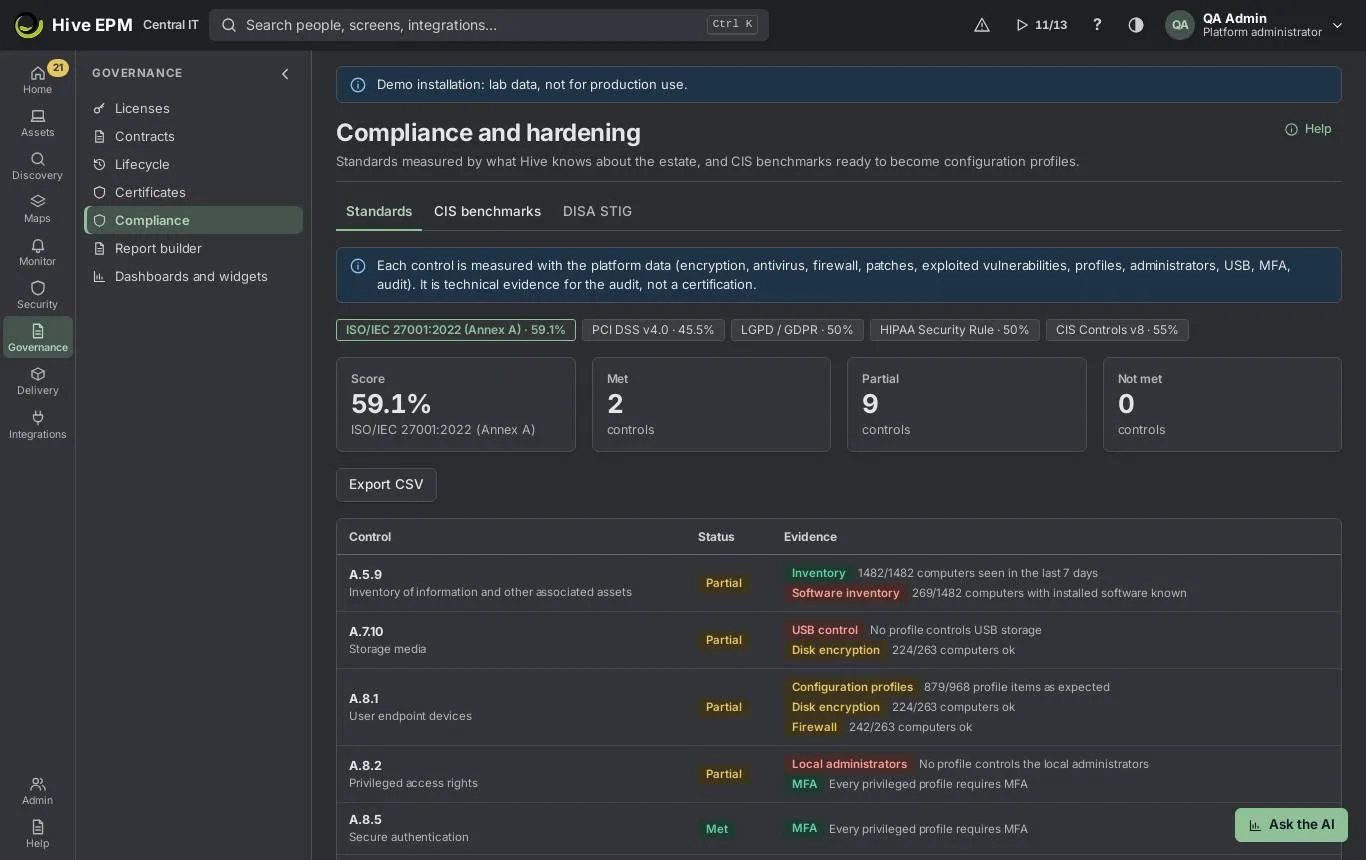
Screen: Compliance and hardening
Governance › Compliance measures standards with what Hive knows about your estate and turns CIS benchmarks into configuration profiles. The Standards tab scores ISO/IEC 27001:2022 (Annex A), PCI DSS v4.0, LGPD / GDPR, HIPAA Security Rule and CIS Controls v8; the CIS benchmarks tab creates hardening profiles for Windows, Linux, macOS, nginx and Apache. It is technical evidence for the audit, not a certification.
What you can do here
- See the score of each standard and how many controls are Met, Partial or Not met.
- Read the evidence of each control, measure by measure.
- Export CSV of a standard for the auditor.
- Turn a CIS benchmark into a configuration profile with Create profile, in "only warn" or "fix" mode, for some sites and tags or for every device.
- Keep BitLocker recovery keys in the vault and show one with a reason.
Standards
- Open Governance › Compliance. The Standards tab shows one chip per standard with its score, for example "ISO/IEC 27001:2022 (Annex A) · 72%".
- Click a chip. The cards show Score, Met, Partial and Not met.
- The table lists each Control, its Status and the Evidence: one pill per measure (Inventory, Software inventory, Antivirus, Firewall, Disk encryption, OS updates, Security patches, Exploited vulnerabilities, Configuration profiles, Local administrators, USB control, Application control, Recovery keys in the vault, Sensitive data, Certificates, MFA, Audit trail, EDR) with the detail.
- Click Export CSV to download control, description, status, measure, measure status and evidence.
How it is calculated:
- A coverage measure is Met at 95% or more of the devices, Partial from 70%, Not met below 70%.
- A control is Met when all its measures are met, Not met when all are not met, and Partial otherwise.
- Score = (met + half of partial) ÷ controls measured.
CIS benchmarks
- Open the CIS benchmarks tab. Each benchmark shows its OS, " controls", the controls list and how many profiles were already created from it.
- Click Create profile. Set the Profile name, the Mode — Only warn (recommended to start) or Fix — and optionally Sites (empty: all) and Tags (empty: all).
- Click Create. Hive opens the new configuration profile, where you can adjust it.
Benchmarks available: CIS Windows 10/11 Level 1 (essentials), CIS Ubuntu/Debian/RHEL Level 1 (essentials), CIS macOS Level 1 (essentials), Web server hardening: nginx, and Web server hardening: Apache.
Disk encryption and recovery keys
The configuration item "Disk encryption required" checks BitLocker, FileVault or LUKS; on Windows, in fix mode, it turns BitLocker on. Every day Hive reads the BitLocker recovery key of encrypted Windows devices and stores it in the vault. On the device, the panel BitLocker recovery key shows "Stored in the vault " and offers Read the key now, Rotate key and Show the key (which asks for a Reason and goes to the audit trail; the key is then replaced as soon as the machine is back online). See Disk encryption.
Worked example: ISO 27001 before the audit
- Open Governance › Compliance › Standards and click "ISO/IEC 27001:2022 (Annex A)". It shows 11 controls: 6 Met, 4 Partial, 1 Not met — score (6 + 2) ÷ 11 = 72.7%.
- Control A.8.1 is Partial: the measure Disk encryption says "82/100 computers ok" (82%: Partial, between 70% and 95%).
- Create a configuration profile with "Disk encryption required" in fix mode for the tag notebooks (see Configuration profiles).
- A week later encryption reaches "97/100 computers ok": Disk encryption turns Met; A.8.1 becomes Met if its other measures are met, and the score rises.
- Click Export CSV and send iso27001.csv to the auditor with the Audit trail evidence pack.
Worked example: CIS Windows in two phases
- On CIS benchmarks, click Create profile on "CIS Windows 10/11 Level 1 (essentials)".
- Profile nameCIS Windows L1 — pilot , ModeOnly warn (recommended to start), Tagspilot- cis . Click Create ("Profile created.").
- After a few days, the profile shows which of the pilot machines differ from each of the 12 controls, without changing anything.
- When the differences are understood, edit the profile and switch it to fix mode; then widen the tags to all workstations.
Pitfalls and limits
- The measures use only data Hive already collects. Antivirus, firewall, disk encryption and OS updates count only computers that report protection; with no such computer the measure is "Not applicable". Inventory counts computers seen in the last 7 days.
- Controls with no applicable measure are "Not applicable" and do not count in the score.
- The results follow the data scope of your active profile.
- Create profile needs permission to change configuration; reading the tabs needs reports or configuration read permission.
- Empty sites and tags apply the profile to every device; you can change the scope in the profile later.
- Showing a recovery key always needs a reason and is recorded in the audit trail.
Related
- Configuration profiles
- Disk encryption
- Audit trail
- Vulnerabilities
DISA STIG profiles and checklists
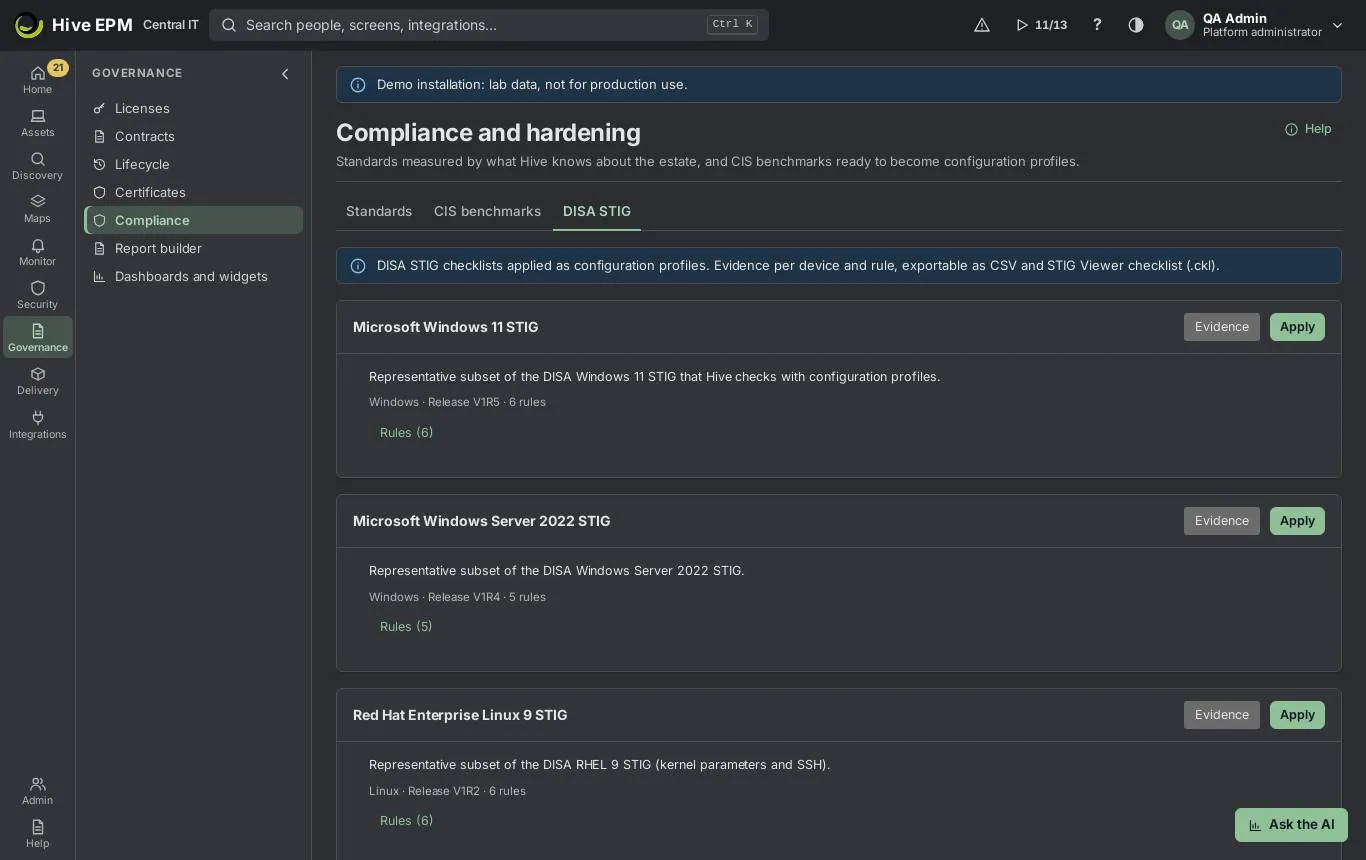
The DISA STIG tab of Governance › Compliance sits next to the CIS benchmarks tab and turns DISA Security Technical Implementation Guides into configuration profiles. Hive then shows, per device, which STIG rules pass and which are open, and exports the evidence in the format auditors expect, including the STIG Viewer checklist ( .ckl ).
What you can do here
- Browse the STIGs: Microsoft Windows 11 STIG, Microsoft Windows Server 2022 STIG, Red Hat Enterprise Linux 9 STIG and Canonical Ubuntu 22.04 LTS STIG. Under each name you see the operating system, the release (for example "Release V1R2"), the number of rules and how many profiles already use it.
- Click Rules (n) to list the rules: category (CAT I, CAT II or CAT III), Vul ID (V-xxxxx) and title. The Rule ID, SRG ID, check text and fix text travel in the API and in the .ckl file.
- Apply a STIG: Hive creates a configuration profile from it.
- Click Evidence to see the result per device and rule, and export CSV, Print / PDF or Checklist (.ckl) per device.
How it works
Each STIG carries a small representative subset of the STIG rules (five or six per STIG): the ones Hive can check with the configuration-profile checks — registry values, sysctl parameters, lines in settings files and services.
- Apply opens a dialog with Profile name and Mode: Audit only (it only reports) or Enforce (the agent also fixes what differs). Create profile creates the profile, enabled, with an empty scope —that is, every device of that operating system — and a check interval of 1440 minutes (once a day). Hive then opens the new profile, where you narrow the scope (sites, tags, groups) and change the interval.
- The agent checks the profile at the profile interval and reports each item.
- Hive maps each item result to the STIG status:
Item result | STIG status |
|---|---|
ok, fixed | Not a finding ( NotAFinding ) |
drift | Open ( Open ) |
not applicable | Not applicable ( Not_Applicable ) |
error, or no result for that rule | Not reviewed ( Not_Reviewed ) |
The Evidence table has the columns Device, Rule, Status, Expected, Found and Checked. Only devices that have already reported the profile appear.
Worked example: RHEL 9 STIG for an audit
- Open Governance › Compliance and the DISA STIG tab. On "Red Hat Enterprise Linux 9 STIG" click Rules (6) and find the CAT II rule that requires net.ipv4.conf.all.accept_redirects = 0 .
- Click Apply. Keep the name, keep Mode on Audit only and click Create profile. Hive opens the new configuration profile.
- In the profile, set the scope to the tag linux-prod and save, so that only those servers are checked.
- After the next agent check, go back to the DISA STIG tab and click Evidence: for SRV-DB-02 most rules are Not a finding; the redirect rule is Open with Expected0 and Found1 .
- Discuss with the server owners, switch the profile to Enforce and save. On the next check the rule turns Not a finding and the change goes to the audit trail.
- Click Checklist (.ckl) · SRV-DB-02 and open the file in DISA STIG Viewer, or give it to the auditor together with the CSV of all devices.
Pitfalls and limits
- Each STIG is a small subset of the guide, not the full guide; every other rule must be assessed by hand in STIG Viewer.
- The Apply dialog has no scope field: the profile starts enabled for every device of that operating system. Narrow the scope in the profile right away — above all before choosing Enforce.
- The checklist is one file per device.
- Check the release shown under the STIG name against the one your auditor requires.
- A device that has not reported the profile yet does not appear in the evidence (and has no .ckl ); a rule with an error or without a result shows Not reviewed.
- Apply needs the permission to change configuration ( config:write ); viewing the STIGs and exporting the evidence needs configuration read permission ( config:read ).
Related
- Compliance and hardening
- Configuration profiles
- Disk encryption
- Audit trail
Audit trail
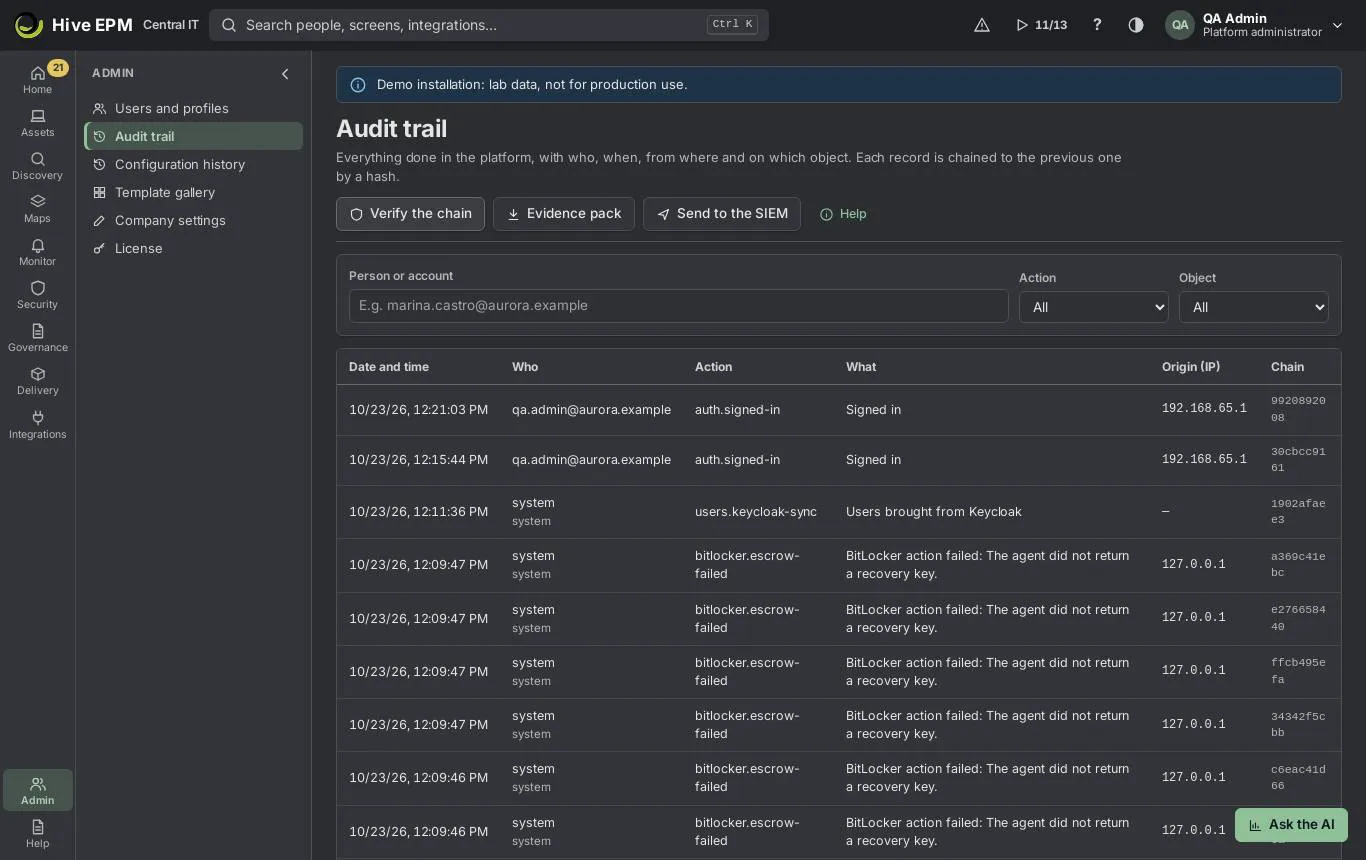
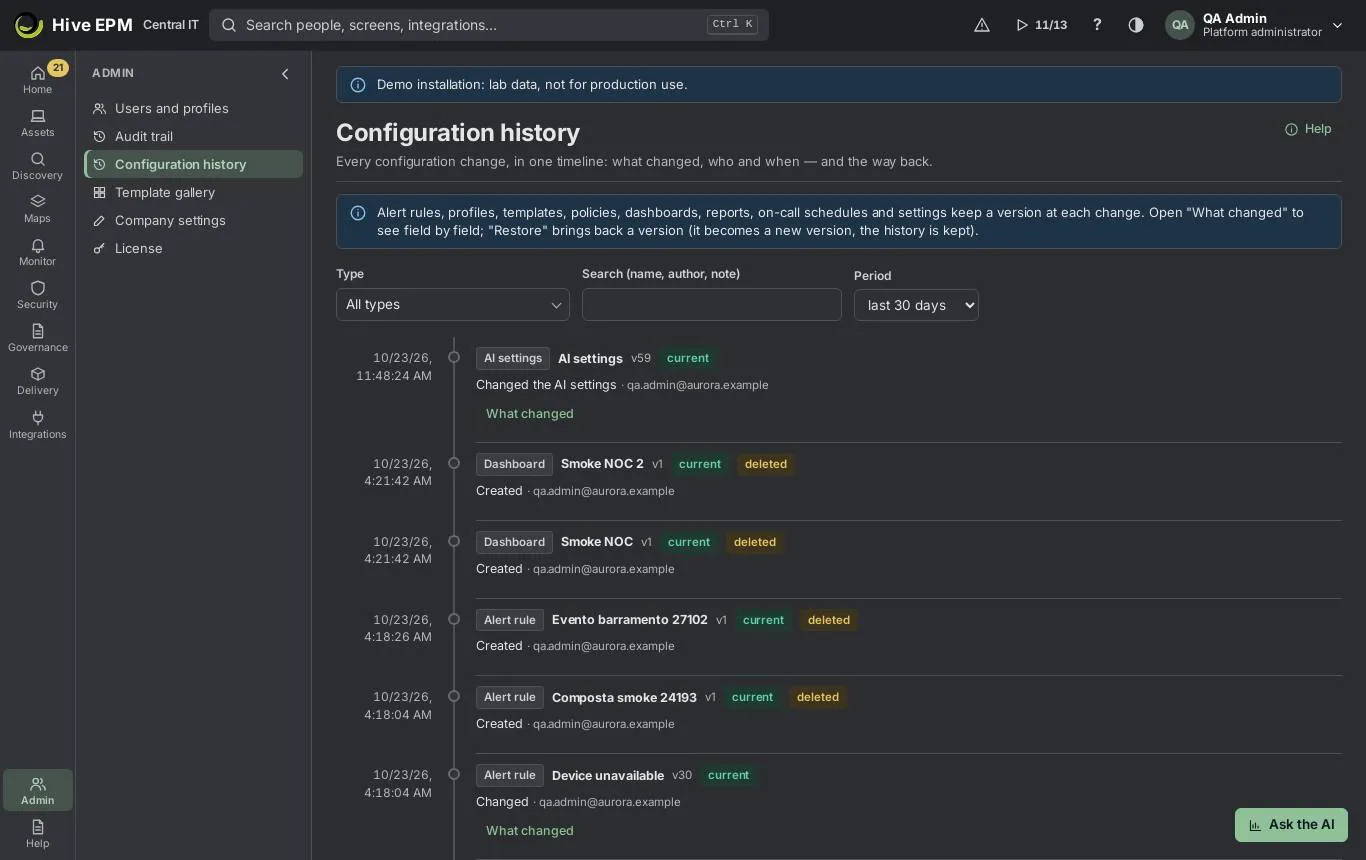
Admin › Audit trail records everything done in Hive — by people, integration accounts, the system or the service provider's support team — with who, when, from where (IP) and on which object. Each record is chained to the previous one by a hash, so a change made outside Hive shows up. Admin ›Configuration history puts every configuration change in one timeline, with what changed field by field and the way back.
What you can do here
- Filter the trail by Person or account, Action and Object, and load older records.
- Verify the chain of every record.
- Download an Evidence pack (signed ZIP) for a period, for SOC 2 / ISO 27001 auditors.
- Send to the SIEM (opens the Syslog integration in the Integrations center).
- In Configuration history: filter by Type, search, choose the Period, open What changed and Restore a version.
Read and filter the trail
- Open Admin › Audit trail. The table shows Date and time, Who, Action, What, Origin (IP) and Chain.
- Type an e-mail or account name in Person or account (for example [email protected] ).
- Choose an Action group (People, Profiles, Sign-in methods, Integrations, Integration accounts (API), Company settings, Support access, Configuration versions, Directory groups, Templates) and an Object (Person, Profile, Sign-in method…).
- At the end of the list, load older records until "End of the list".
Verify the chain
Click Verify the chain. Hive reads every record, recalculates the hash chain and answers either "Trail intact: none of the records was changed." or "The chain is broken at record : a record was changed outside Hive. Keep the evidence and contact the service provider."
Evidence pack
- Click Evidence pack.
- Fill From and To as YYYY-MM-DD .
- Click Generate signed pack. A ZIP downloads with the chained audit trail of the period and its verification, configuration changes, privileged access (provider support, dual approvals, revealed secrets, MFA), the current access review and every backup with its sha256. The manifest is signed with Ed25519. The export itself goes to the audit trail.
Configuration history
Admin › Configuration history shows a version at each change of: alert rules, access profiles, monitoring templates, change and integrity policies, groups, subnets, dashboards, reports, login methods, ITSM profiles, AI settings, vulnerability settings and on-call schedules.
- Choose a Type (or All types), type in Search (name, author, note) and choose the Period: last 7, 30, 90 or 365 days.
- Each line shows the name, the version, the author, Created or Changed, and current or deleted. 3. Click What changed to see Field, Before and After; Hide closes it.
- On types that allow it, click Restore on an older version and confirm: "The configuration goes back to that version now; it is recorded as a new version and in the audit."
Worked example: who turned off SAML?
On Monday people complain that the "Sign in with your company account (SAML)" button disappeared.
- Open Admin › Audit trail, choose Action "Sign-in methods".
- The first line: Sunday 22:14, [email protected] , "Sign-in method turned off", object saml , origin 203.0.113.40 .
- Open Admin › Configuration history, Type "Login method", Period "last 7 days". The line "Sign- in: saml" shows the new version as current; What changed shows the field enabled going from true to false .
- Login methods have no Restore button, so turn SAML back on in Admin › Users and profiles ›Authentication. That creates another version in the history and a "Sign-in method turned on" line in the trail.
Worked example: restore a profile from the history
- In Configuration history, choose Type "Access profile" and search Service desk .
- Service desk L1 shows version 3 (current), 2 and 1. What changed on version 3 shows the field permissions with screen:assets.inventory:edit added (Edit on All assets).
- Click Restore on version 2 and confirm. Hive answers "Service desk L1 restored to version 2."; the restore becomes version 4 and a "Version restored" line in the audit trail.
Worked example: evidence for the ISO 27001 auditor
- The auditor asks for the evidence of the third quarter.
- Click Evidence pack, From2026-07-01 , To2026-09-30 , Generate signed pack.
- The file hive-evidence-instance-2026-07-01_2026-09-30.zip downloads ("Evidence pack downloaded.
The export went to the audit trail."). Send it to the auditor; the signed manifest proves nothing was changed afterwards.
- Click Verify the chain and attach the "Trail intact" result to the audit report.
Pitfalls and limits
- The trail cannot be edited or deleted from Hive; any direct change in the database breaks the chain and shows up in the verification.
- Opening the trail needs permission to read the audit; Export audit is a separate action of the profile.
- Restore in the configuration history appears only on types that allow it and only for versions that are not the current one, and needs permission to change configuration.
- Dates of the evidence pack must use YYYY-MM-DD .
Related
- Profiles and permissions
- Compliance and hardening
- Service provider support access
- Send events to the SIEM
Company settings and branding
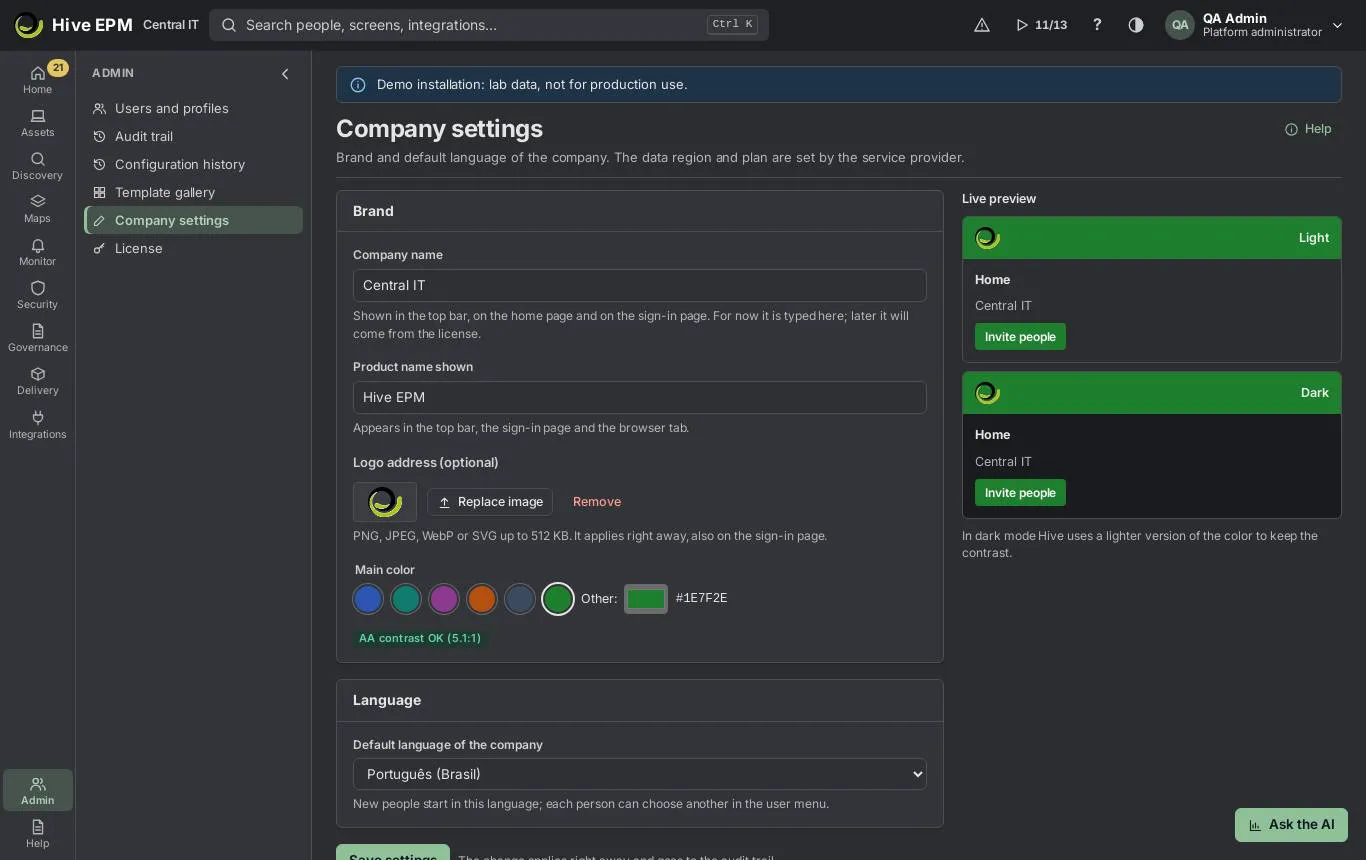
Admin › Company settings sets how Hive looks for everyone in your company (white label) and the default language: company name, product name shown, logo and main color, with a live preview in light and dark mode. The data region and plan are set by the service provider. The Hive product license is described in Product license and deployment mode.
What you can do here
- Change the Company name and the Product name shown.
- Upload a logo (Upload image) or point to one with Or logo address (https); replace or remove it.
- Choose the Main color from the swatches or with Other:, with an AA contrast check.
- Set the Default language of the company.
- See the result in Live preview before saving, and undo right after saving.
Change the brand
- Open Admin › Company settings.
- In Brand, type the Company name (shown in the top bar, on the home page and on the sign-in page) and the Product name shown (top bar, sign-in page and browser tab; up to 40 characters).
- Logo: click Upload image and choose a PNG, JPEG, WebP or SVG up to 512 KB. It applies right away, also on the sign-in page ("Logo uploaded"). Replace image and Remove appear after an upload. Without an uploaded image you can type an https address in Or logo address (https); the new logo appears after you save.
- Main color: click a swatch or Other: to pick any color. If the contrast with white text is below 4.5:1, Hive warns "Not enough contrast with white text" and offers Use the suggested variation; otherwise it shows "AA contrast OK".
- Check Live preview (light and dark). In dark mode Hive uses a lighter version of the color to keep the contrast.
- Click Save settings. The change applies right away and goes to the audit trail; the message "Settings saved." has Undo.
Languages
Hive is available in English (default), Português and Español. Default language of the company is the language new people start in; each person can choose another language and the theme (light, dark or system) in the user menu.
Worked example: Aurora's brand
- Company name: Aurora Logística ; Product name shown: Aurora IT .
- Upload image: aurora-logo.svg (38 KB) — the top bar shows it at once.
- Main color: Other:#F2C14E (yellow). Hive warns "Not enough contrast with white text (1.7:1)" and suggests a darker variation; click Use the suggested variation and the check turns to "AA contrast OK".
- Default language of the company: Português.
- Save settings. Everyone now sees "Aurora IT" in the top bar and on the sign-in page; new people start in Portuguese. A colleague in Madrid switches to Español in the user menu, just for herself.
- The color looked wrong on the meeting screen: click Undo in the message to go back to the previous settings ("Previous settings restored.").
Pitfalls and limits
- Only profiles with permission to manage company settings open this screen.
- The logo address must start with https:// ; images up to 512 KB.
- The product name falls back to "Hive" when left empty.
- The service provider's support team requests access separately; see Service provider support access.
- Every change goes to the Audit trail as "Company settings changed".
Related
- Product license and deployment mode
- Audit trail
- Signing in
Product license and deployment mode
Each Hive installation runs in one of three deployment modes — demo, trial or production — chosen when it is installed. In trial and production the number of agents is limited: by the trial, or by the license keys you install in Admin › License. This article is about the license of Hive itself; to manage the software licenses of your company, see Licenses.
What you can do here
- See the deployment mode, the installation ID, how many agents are in use and the limit.
- Follow the trial countdown (15 days + 15 days of grace).
- Install a license key (paste the serial) and see every key: agents, kind, validity and state (active, pending, expired, replaced).
Deployment modes
Mode | For | Agents | When it ends |
|---|---|---|---|
Demo | Lab and demonstration data | No limit | — (shows the "Demo" banner) |
Trial | Evaluating Hive in your own environment, empty base | 20 devices (configurable by the vendor) | 15 days from the first start, then 15 days of grace with a strong warning |
Production | Real use | The sum of the active license keys | When a key expires it stops counting |
The mode is recorded at the first start ( HIVE_DEPLOYMENT_MODE in the installation) and is not changed by editing the variable later. A trial becomes production by installing a license key.
When the trial and the grace period end (or production has no valid key), Hive becomes read-only: everything stays visible and exportable, the agents already installed keep working and reporting, but changes and new agent enrolments are refused until a key is installed. Admin › License stays open to install the key.
License keys
- A key is a signed serial ( HIVE1.… ) issued by the vendor's license generator and checked offline by Hive. It states the licensee, the number of agents, optionally an expiry date, a start date and the installation it is bound to.
- Stacking: valid keys add up — a key for 500 agents plus an add-on key for 200 agents give 700.
- Replacing: the vendor can issue a key that replaces earlier license IDs (for example at renewal). The replaced keys stop counting, even if installed later.
- A key with a future start date stays pending; an expired key stops counting.
- The collector does not use a license; revoked agents free their license.
- At 90% of the limit Hive shows a warning; at the limit a new agent enrolment is refused with the message "the license allows N agents and M are installed". Agents already installed are never cut off.
Step by step: install a key
- Open Admin › License (needs settings:admin ).
- Paste the serial you received from the vendor in License key and click Install.
- Check the list of keys: the new key shows as active (or pending if its start date is in the future) and the total of agents is updated.
Worked example: trial, then 500 + 200 agents, then renewal
- Day 1: the Aurora installation is created in trial with scripts/new_installation.sh --mode trial (empty base with the standard profiles only). Up to 20 devices (agents) can be enrolled.
- Day 16: the trial ends and the 15 days of grace start — a red banner shows the days left.
- Day 20: Aurora buys 500 agents. The vendor issues license-issuer issue -licensee "Aurora" -agents 500 -expires 2027-10-31 ; the admin pastes the serial in Admin › License. The mode becomes production, limit 500.
- Six months later a new branch needs 200 more: the vendor issues an add-on key for 200; installed, the total becomes 700.
- At renewal the vendor issues one key for 800 agents that replaces the two previous license IDs. After installing it, the total is 800 (not 700 + 800).
Pitfalls and limits
- Do not wait for the end of the grace period: once it ends, Hive is read-only until a key is installed.
- A key bound to another installation (installation ID or company) is refused — send the vendor the installation ID shown on the screen.
- The installation trusts only keys signed by the vendor key configured in HIVE_LICENSE_PUBLIC_KEY .
- Plan limits set by a service provider are separate from the product license and are refused with their own message.
Related
Company settings and branding
Agents and collectors