Artificial intelligence
AI recommendations
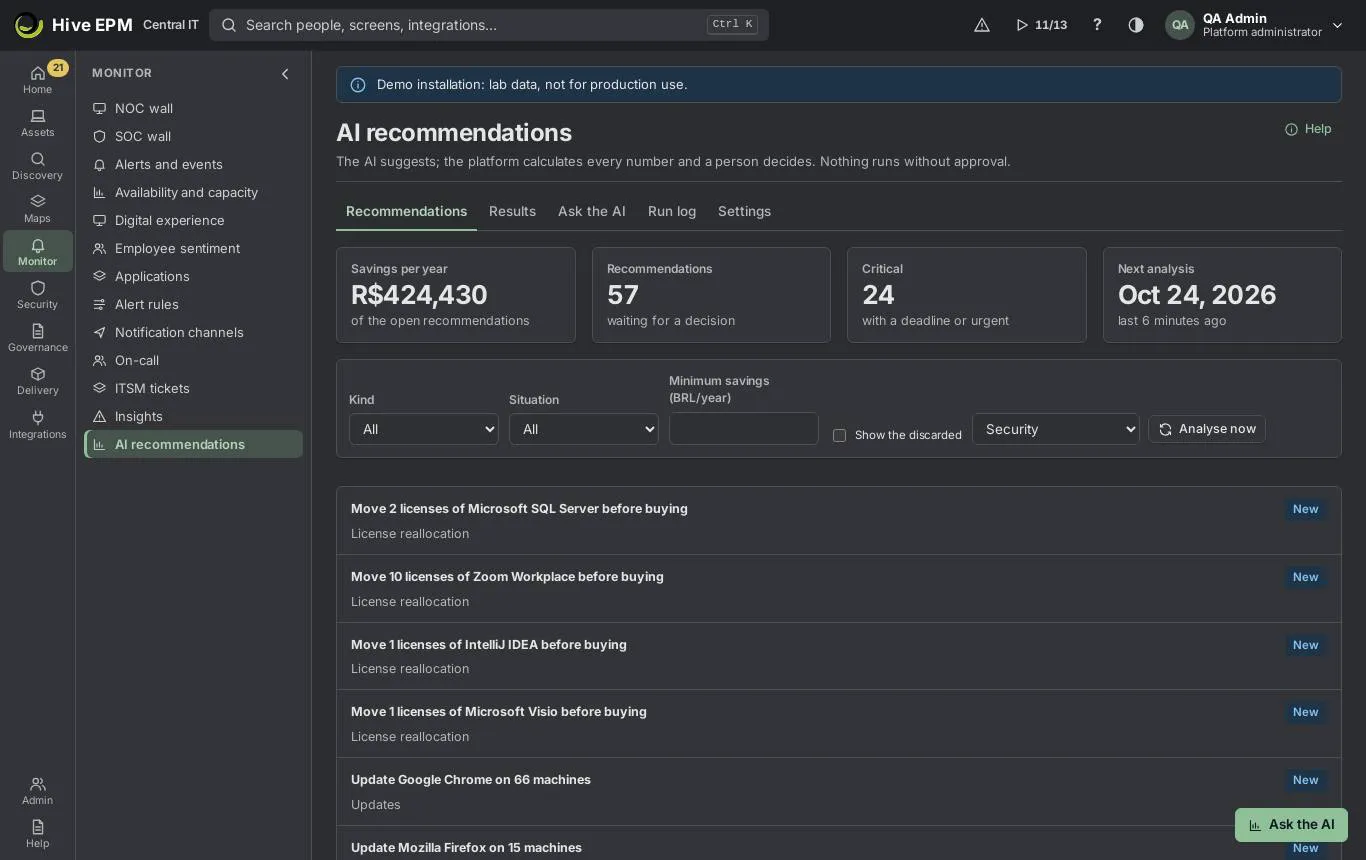
Screen: AI recommendations
Monitor › AI recommendations shows what the AI suggests about security, updates, licenses and renewals. The platform calculates every number; the AI only groups, orders items with close scores and explains each recommendation in up to three sentences. It has no write tool: nothing changes until a person approves. The screen has five tabs: Recommendations, Results, Ask the AI, Run log (needs audit:read or settings:admin) and Settings (needs settings:admin). Seeing the screen needs vulnerabilities:read, licenses:admin, audit:read or settings:admin.
What you can do here
Read the recommendations of four kinds: Security, Updates, License reallocation and Renewals, with numbers, evidence and alternatives.

Approve (optionally opening a ticket), mark in review, send to a contract renewal, create an alert rule or reject with a reason.

Follow estimated and realized savings, the approval rate and the time to decide.

Ask free questions about your data; the answer cites the evidence it used.

Audit every AI run: model, prompt version, tokens.

Turn the AI on or off, choose the provider, set monthly caps, weights and limits, and set up embeddings.

Recommendations
The cards show Savings per year (of the open recommendations), Recommendations (waiting for a decision), Critical (with a deadline or urgent) and Next analysis. Filter by Kind, Situation (New, In review, Approved, Rejected, Discarded by a limit, Not generated, Deadline missed, Done) and Minimum savings (BRL/year); tick Show the discarded to see what a limit removed.
Security: vulnerabilities by context (risk, EPSS, KEV, exposure, criticality).

Updates: which updates close the most risk with the least effort.

License reallocation: a product in shortfall that has idle installations — move them before buying.

Renewals: contracts near the notice deadline, with what to renew or cut by real use.

The analysis runs once a day for every kind. A CVE from the KEV newly found in the inventory produces an urgent security recommendation outside the daily batch (checked every 10 minutes). Analyse now (with the kind chosen beside it) runs one at once.
Click a recommendation to open it: Numbers (each marked "calculated by the platform"), Return and Payback, Evidence ([E1], [E2]…), Alternatives and, for licenses and renewals, Open the contract. An AI text that cites a number not in the evidence, or that is longer than three sentences, is discarded and the item shows Not generated.
Acting on a recommendation
- Approve: with Open a ticket when approving on, a ticket goes to the connected ITSM tool. For 10 seconds you can undo ("Approved. You can undo for 10 s.").
- Mark as in review while someone checks it.
- Send to the renewal (license and renewal kinds, when there is a contract) links it to the contract, where it shows on the Recommendations tab, and counts as approved.
- Create alert rule opens the alert rule wizard already filled.
- Reject asks for the Reason (Already handled, Wrong number, Business constraint, Other) and a Note: the reason teaches the next analyses.
A profile that can see but not decide reads "Your profile can see it but not decide."
Results
Estimated savings (of the approved recommendations), Realized savings (confirmed by the inventory: the licenses actually recovered in Licenses › Idle licenses), Approval rate and Time to decide (average), plus Rejections by reason and how many were discarded by a limit or not generated.
Ask the AI
Use the Ask the AI tab or the Ask the AI button in the corner of any screen. Ask in plain words ("which machines have an almost full disk?", "how much do we spend on cloud per month?"). Hive finds the ready-made queries, dashboard widgets and manual sections that answer it, runs them with your scope and permissions, and sends only the result to the AI, which answers citing the sources ([E1], [E2]). What your profile cannot see stays out, and nothing is changed: when you ask to configure something, the answer offers Open the prefilled wizard for you to review and save.
Run log
Each run with When, Kind, Result (Done, Skipped, Failed, Running, with the reason), Generated / candidates, Tokens and Model and prompt. It is the record for auditors.
Settings and limits
- Turn the AI on for this company: off, no data leaves Hive and every analysis stops.
- What the AI may do: tick the kinds (the four recommendation kinds, Ask the AI and Help assistant).
- AI provider: choose the Connection created in the Integrations center and click Test the connection. Model is used for Claude (default claude-opus-5-5 ); other providers use the model of the connection. Language of the answers.
- Token cap per month and Cost cap per month (USD) (empty = no cap). The administrator is warned at 80% and 100%; at the cap the analyses stop until next month. Use in shows calls, tokens, cost and the percentage of the cap.
- Goals and limits: the weights of Savings, Performance and Risk (they add up to 100%), Never suggest a reduction above this CPU (p95) (30% to 95%), Never reduce (Antivirus, EDR, Backup, Monitoring) and Respect the SLAs. A recommendation that breaks a limit goes to "Discarded by a limit" with the limit's name.
- Save settings: each save creates a configuration version.
Privacy and pseudonymization
Only what the analysis needs is sent. Before anything leaves Hive, the names, e-mails, logins, UPNs and employee IDs of the people in the directory (values of 3 or more characters), and any other e-mail address, are replaced by tokens such as ⟨P1⟩, ⟨P2⟩. The map stays in the run record and only your screen puts the real values back. Analyses never send license keys: a payload with a full product key or a known last-5-characters fragment is not sent and the run fails with that reason. File contents are never sent.
Connect a provider and embeddings
In Integrations › Integrations Center, connect LLM provider (Claude, OpenAI, Azure OpenAI, Gemini or your own) and choose the Model hosting:
Anthropic API, OpenAI, Google Gemini: the model and the API key.

Azure OpenAI: the address ( https://your-resource.openai.azure.com ), the deployment name in the model field, and the key.

Your own server (OpenAI-compatible: Ollama, vLLM, LM Studio, OpenRouter…): the address (for example http://ollama:11434/v1 ), the model and, if the server asks, the key.

The key stays in the vault. For models other than Claude, the monthly cap counts tokens (the dollar cost is not estimated). In Settings › Embeddings — semantic search, turn on Use embeddings, choose an AI connection that offers embeddings and the Embeddings model (for example text-embedding-3-small , nomic-embed-text ), then Save and index: the ready-made reports, the dashboard widgets and the manual are indexed in the three languages. Reindex now rebuilds the index. Without embeddings, questions match by words.
Worked example: move idle Acrobat licenses before buying
Adobe Acrobat Pro has 50 licenses bought at R$ 1,200.00 and 54 people using it (shortfall of 4), while 9 installations have had no use for 60 days.
- In Monitor › AI recommendations, choose License reallocation beside Analyse now and click it. The toast says "Analysis done: 1 recommendation." 2. The list shows "Move 4 licenses of Adobe Acrobat Pro before buying", state New. Open it: Numbers shows quantity 4 and R$ 4,800 avoided, each "calculated by the platform"; Evidence shows [E1] the 9 installations without use, [E2] the position (acquired 50, consumed 54, shortfall 4) and [E3] the cost centers the licenses leave.
- Turn on Open a ticket when approving and click Approve. The toast "Approved. You can undo for 10 s." appears and a ticket with the recommendation opens in the connected ITSM tool. The recommendation shows Approved and Results › Estimated savings adds R$ 4,800.
- The service desk reclaims the idle installations (for example with Licenses › Idle licenses); when the inventory confirms the removals, Results › Realized savings grows by the recovered yearly cost. Once the shortfall is gone, the next analysis finds nothing to move for Acrobat.
- Had the contract of Acrobat forbidden transfers, the item would show under Show the discarded as "Discarded by a limit" with the reason "The contract does not allow transfer".
Worked example: a question with personal data stays pseudonymized
- In Ask the AI, type "Which computers of [email protected] have the most open vulnerabilities?" and click Ask.
- Hive runs the matching ready-made queries with your scope. What goes to the provider reads "computers of ⟨P1⟩", and the directory name "Ana Souza" in the results also becomes ⟨P1⟩.
- The answer streams back citing [E1]; on your screen ⟨P1⟩ is shown as Ana Souza again.
- In Run log, an auditor sees the run with the model, the prompt version and the tokens; the provider never received the name or the e-mail.
Worked example: a local model with Ollama
- In Integrations › Integrations Center, connect LLM provider, Model hosting "Your own server (OpenAI-compatible…)", address http://ollama:11434/v1 , model llama3.1:8b , no key. Test it.
- In AI recommendations › Settings, choose that Connection, set Token cap per month to 5,000,000 and click Save settings.
- In Embeddings — semantic search, choose the same connection, model nomic-embed-text , and click Save and index: "N of N documents indexed".
- Ask a question. A small model can take up to a minute to start answering ("Still thinking…"); a larger model or a faster server answers sooner and better.
Pitfalls and limits
Every number comes from the platform; an AI text with a number not in the evidence is discarded.

At the monthly cap, new analyses stop until next month or until the cap is raised.

Approving with a ticket needs a connected ITSM tool; otherwise the decision is recorded and the screen says no ticket was opened.

A server on the internal network must be reachable by the platform.

Answers use only what your profile can see; two people can get different answers to the same question.

Related
Software security insights

Licenses (SAM)

Contracts

Vulnerabilities

Integrations center

ITSM

Software security insights
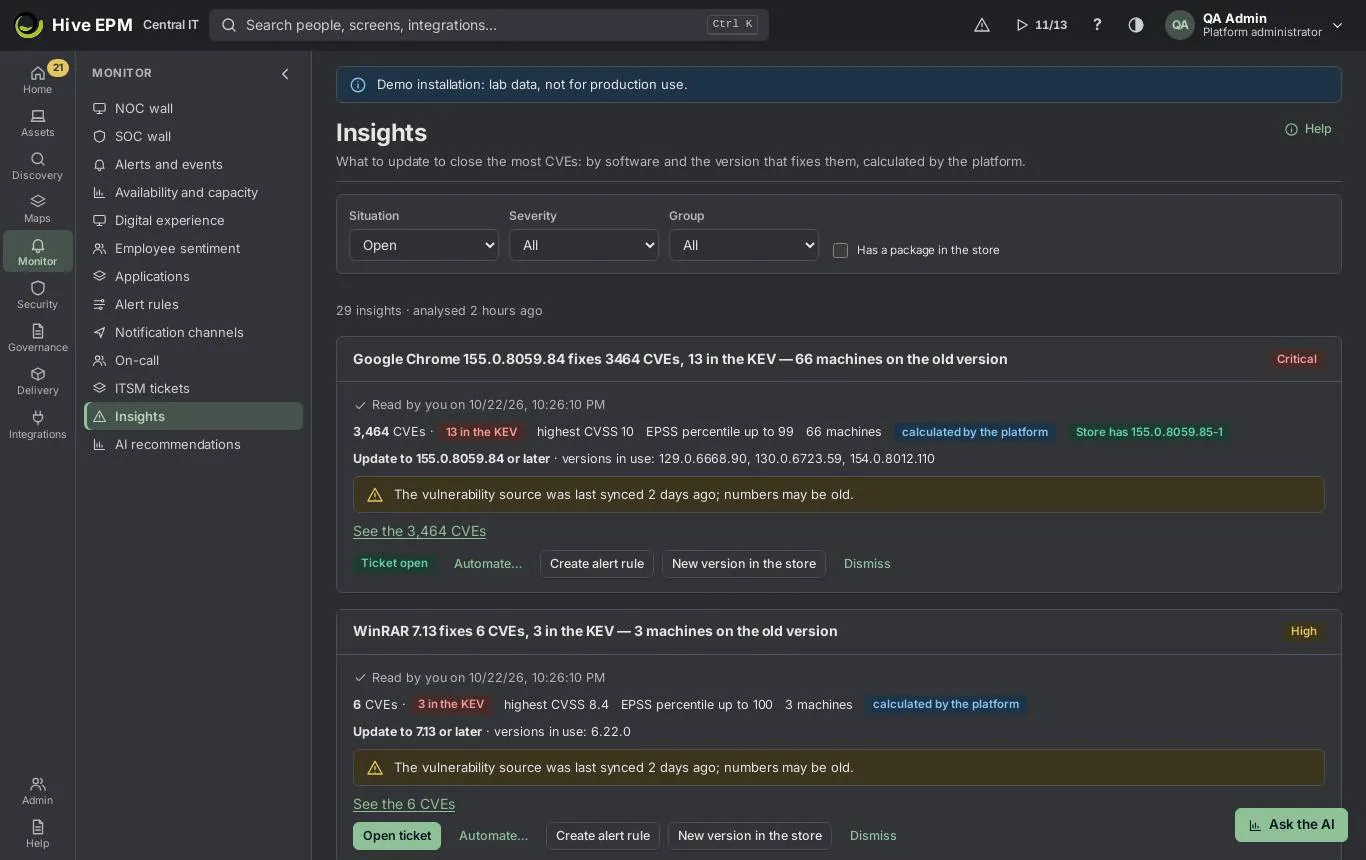
Screen: Software security insights
Monitor › Insights tells you what to update to close the most vulnerabilities: one insight per software and the version that fixes it, never one per machine, with the numbers calculated by the platform. The Insights button on the top bar shows how many insights are open and the three most important, with See all insights. You need vulnerabilities:read to see the screen.
What you can do here
See, per software, which version fixes how many CVEs (how many in the KEV), the highest CVSS and EPSS, and how many machines are on old versions.

Filter by situation, severity, group and whether the Store already has the fixed version.

Open a ticket, create an alert rule already filled, or publish the new version in the Store.

Dismiss an insight with a reason (including risk acceptance) and undo the dismissal.

What an insight shows
Each card has a sentence with what to do, for example "Google Chrome 131.0.6778.86 fixes 3 CVEs, 1 in the KEV — 311 machines on the old version", and below it:
CVEs with the KEV count, highest CVSS, EPSS percentile up to, the number of machines and the "calculated by the platform" mark;

the action ("Update to … or later"; for appliances such as switches, firewalls and printers, "Update in the next maintenance window" with the window's name) and the versions in use;

Store has … when a published Store package already has the version;

See the N CVEs to list them.

The severity comes from the highest CVSS (Critical from 9, High from 7, Medium from 4). An insight disappears by itself when the inventory shows the fixed version on every asset. If a vulnerability source fails, the cards show "The vulnerability source was last synced …" and no new insight is created with incomplete data.
Filters
Situation (Open or Dismissed), Severity, Group (only the machines of that group are counted) and Has a package in the store. The line above the cards shows the count and when the analysis ran.
Acting on an insight
- Open ticket (needs integrations:admin and a connected ITSM tool): the ticket carries the evidence; the card then shows Ticket open.
- Create alert rule (needs alerts:admin): the alert rule wizard opens filled with a "software below version" rule for the product and the fixing version, critical when there is a KEV CVE, scoped to the group you filtered — "Filled in from the insight. Review before saving." Nothing is saved until you save the wizard.
- New version in the store (needs store:admin): opens the Store package of the product with the new version form prefilled with the fixing version.
- Dismiss: choose Why — Already handled, Risk accepted (opens the risk acceptance of each CVE, with approver and validity), Wrong number or Other — and a Note. Dismissed insights are listed with Situation › Dismissed, with Undo dismissal.
A dismissed insight comes back by itself when a new CVE from the KEV appears for the same version; the card shows "Reopened: New CVE in the KEV for this version".
Worked example: close a KEV vulnerability in Chrome
The top bar shows "Insights: 7 open". The first item is Google Chrome.
- Click Insights and See all insights. Set Severity to Critical.
- The card reads "Google Chrome 131.0.6778.86 fixes 3 CVEs, 1 in the KEV — 311 machines on the old version", highest CVSS 9.8, EPSS percentile up to 97, versions in use 129.0, 130.0. Click See the 3 CVEs to check them.
- The Store has no 131 package yet: click New version in the store. The package page opens with the new version 131.0.6778.86 prefilled; finish it and publish it as usual.
- Back on the card, click Create alert rule. The wizard comes filled with an inventory rule "Google Chrome below 131.0.6778.86", severity critical (the insight has a KEV CVE) and, if you filtered by a group, that group as the scope. Review and save it: machines still below that version raise an alert.
- As the deployments update the machines, the count of machines on the old version falls. When the inventory shows the fixed version on all of them, the insight disappears by itself.
Worked example: dismiss with risk accepted
An old Java runtime on two lab machines cannot be updated until the vendor certifies the new version.
- On the Java card, click Dismiss, choose Risk accepted, write the note "Lab LIMS certified only on 8u401; vendor ETA March" and confirm.
- The Risk acceptance chooser opens: pick each CVE and Request acceptance; each request goes to its approver with a validity.
- The card leaves the open list; with Situation › Dismissed it shows "Dismissed: Risk accepted". 4. If a new KEV CVE appears for that Java version, the insight reopens by itself with the reason.
Pitfalls and limits
Insights are computed for your scope and group and kept for 5 minutes; a just-finished update can take a few minutes to show.

Open ticket needs a connected ITSM tool ("No ITSM tool is connected.").

Has a package in the store only filters the cards already loaded; it does not change the counts.

Dismissing does not fix anything: the machines stay vulnerable until updated.

Related
AI recommendations

Vulnerabilities

Patches

Deployments

ITSM
