Agents
Agents and collectors
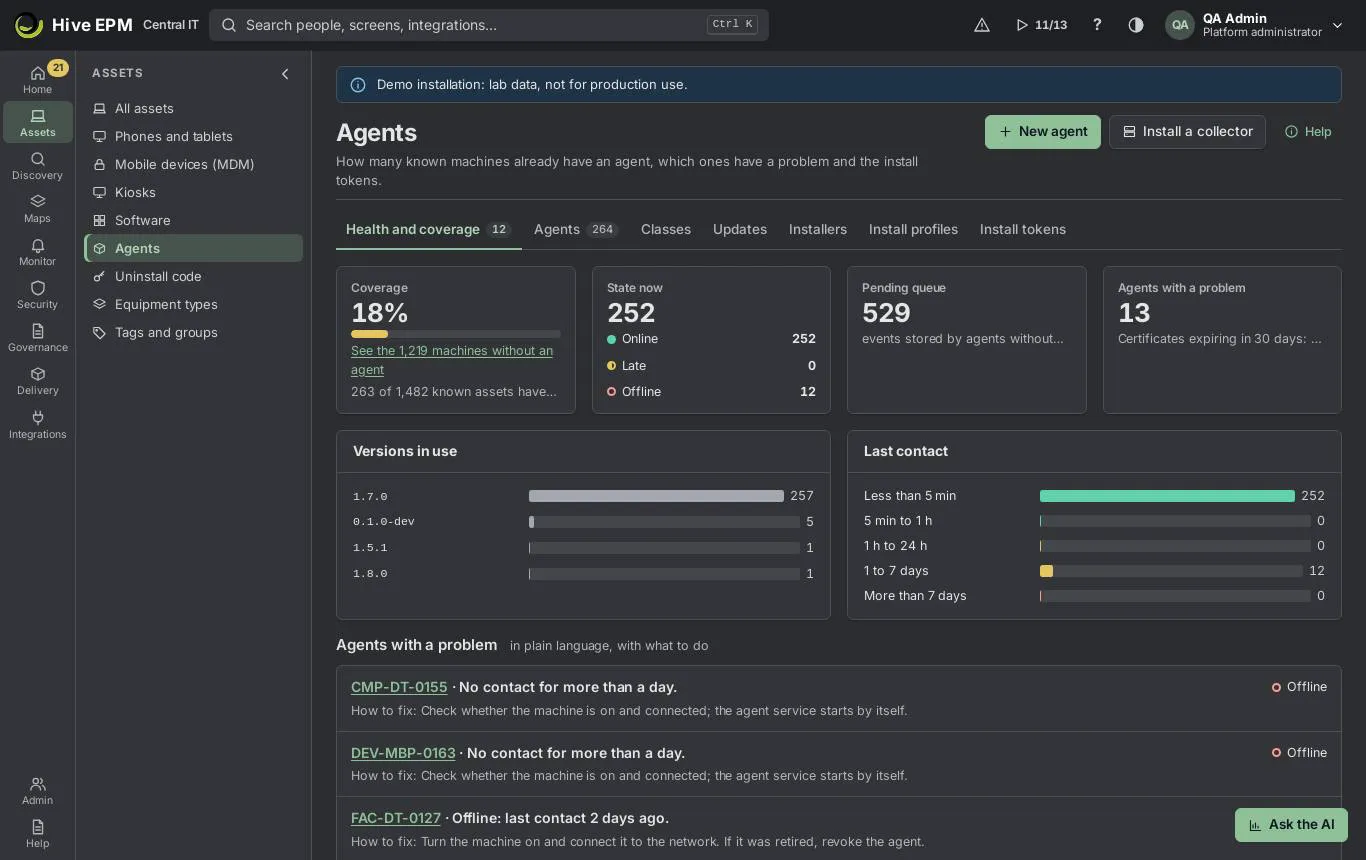
Screen: Agents and collectors (1/4)
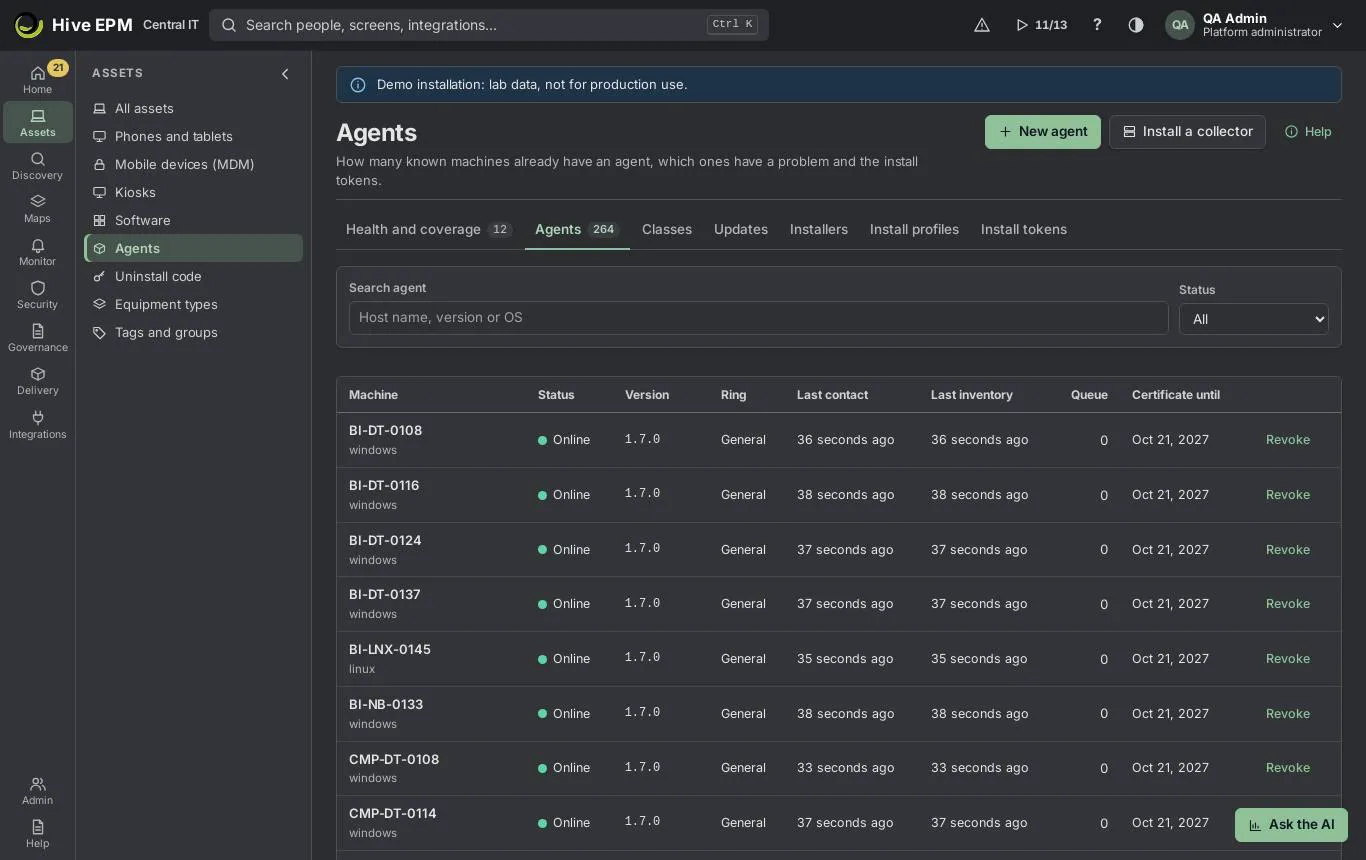
Screen: Agents and collectors (2/4)
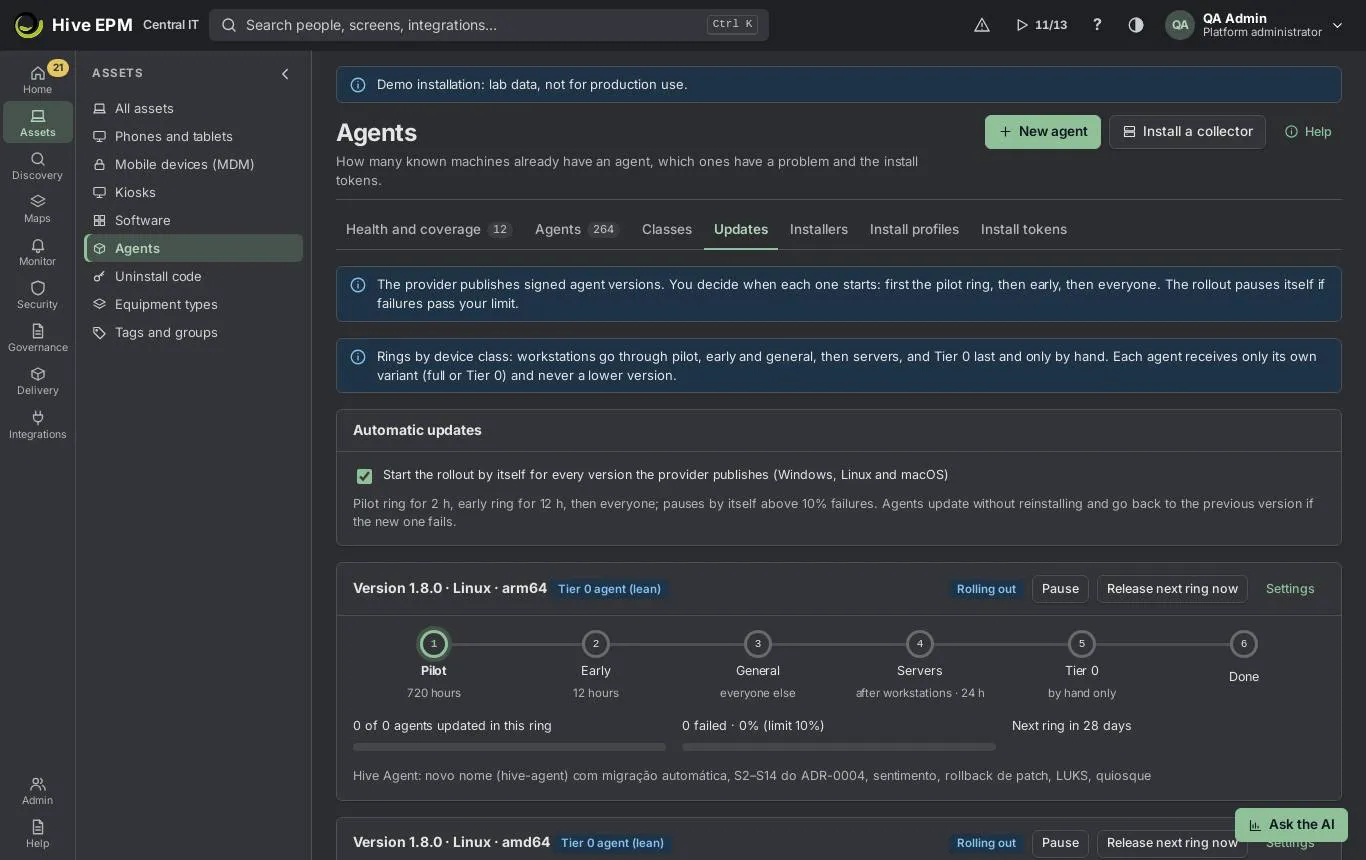
Screen: Agents and collectors (3/4)
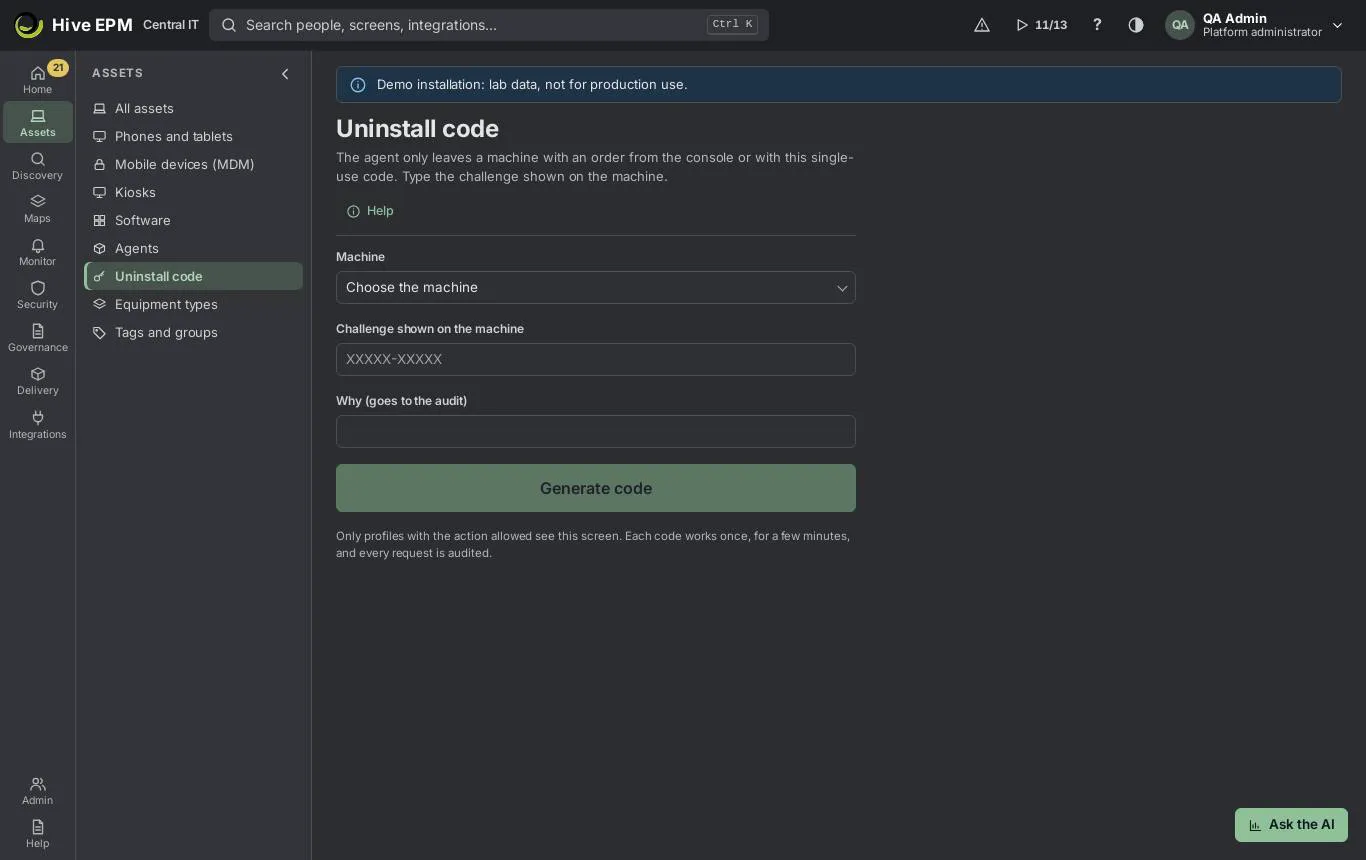
Screen: Agents and collectors (4/4)
The agent is the Hive service that runs on Windows, Linux and macOS: it sends the inventory, evaluates monitoring rules on the machine and keeps a local queue for up to 7 days when there is no connection.
It only connects outbound (HTTPS 443) to the gateway, with a certificate per device that it renews by itself 30 days before it expires. A collector is an agent with an extra role: from inside the network it scans without agents, reads Active Directory and installs agents remotely. Everything about them is in Assets › Agents; the one-time code to remove an agent by hand is in Assets › Uninstall code.
What you can do here
- Health and coverage: see how many known machines have an agent, how many agents are online, late or offline, the versions in use, the local queues and every agent with a problem, explained in plain language with the fix.
- Agents: search and filter the agents, open the detail of one (problem, self-protection, uninstall orders) and revoke an agent.
- Classes: check the class of each device (workstation, VDI host, server, Tier 0), approve or reject class changes and see what each class may do.
- Updates: turn automatic updates on or off and follow, pause, resume or speed up the rollout of each new agent version through the rings.
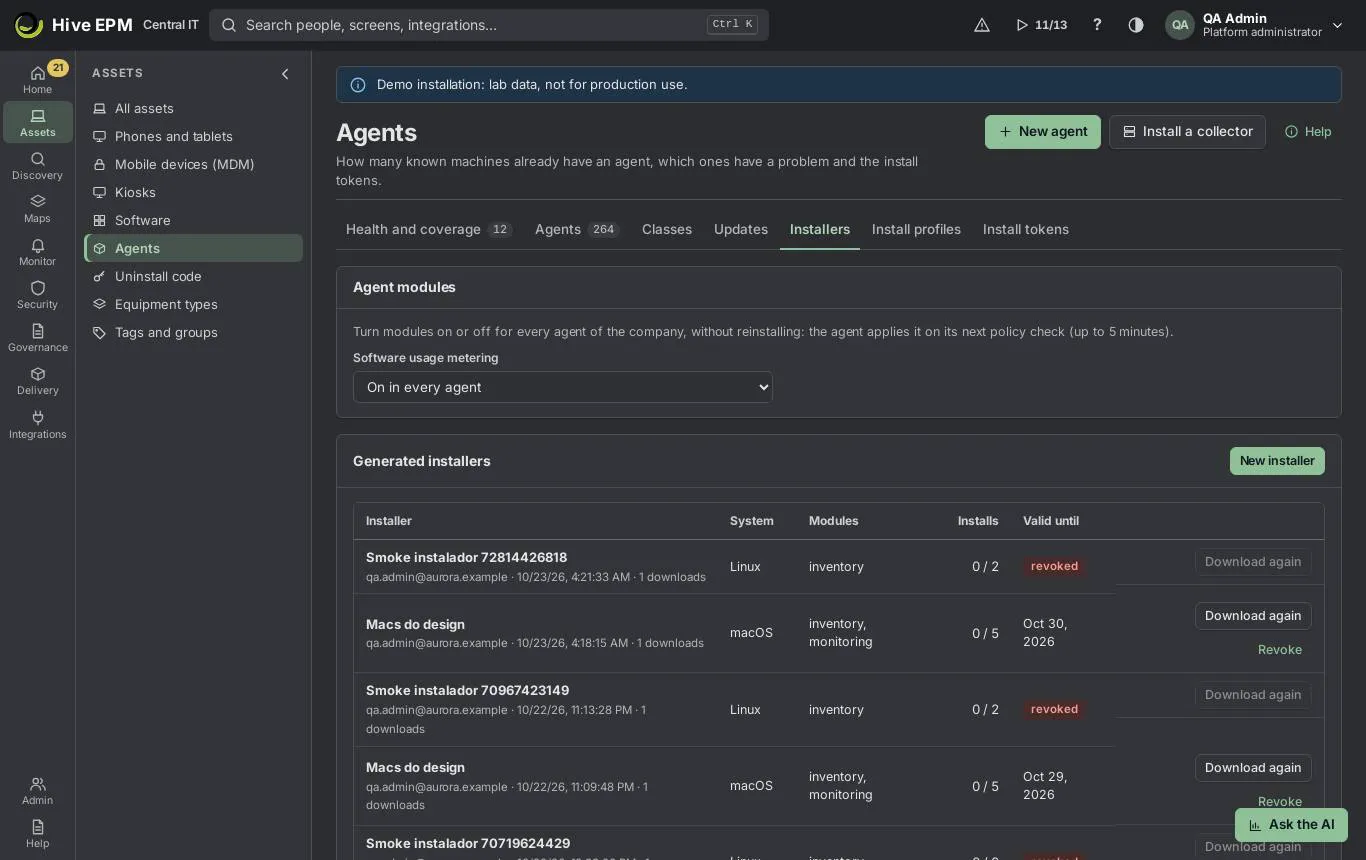
- Installers: download again or revoke the installers generated in the wizard (see Rolling out the agent).
- Install profiles: reuse the choices of an earlier agent wizard.
- Install tokens: create a token for a manual or scripted installation and revoke tokens that leaked.
- Uninstall code: answer the challenge shown by hive-agent uninstall on a machine, from the phone if needed.
The buttons New agent and Install a collector at the top open the two wizards (create the agent, create a collector). Seeing the screen needs See assets; every action needs Manage agents.
Health and coverage
The tab opens with four figures:
- Coverage: how many active computers, notebooks, servers and VMs of the inventory have an agent. Below it, See the N machines without an agent opens the asset list already filtered.
- State now: agents Online (contact in the last 15 minutes), Late (15 minutes to 24 hours) and Offline (more than 24 hours).
- Pending queue: events stored by agents without connection; they are sent with the real time when the agent comes back.
- Agents with a problem, with the certificates that expire in 30 days and the number of collectors.
Versions in use and Last contact (less than 5 min, 5 min to 1 h, 1 h to 24 h, 1 to 7 days, more than 7 days) show the fleet at a glance. Under Agents with a problem, each line has the machine, what happened and How to fix. When the fix is a fixed agent action, the line has its button: Sync time (a wrong clock makes the certificate be refused), Clean temporary files (disk full; only temporary files untouched for more than 7 days) and Send queue now (more than 20 inventories waiting). The result comes back within 1 minute and both the request and the result go to the audit trail.
The problem text comes from the last error the agent reported, for example: the clock is off, the disk is full, a proxy inspects HTTPS, the gateway name does not resolve, the gateway is unreachable, or the agent certificate is no longer valid. Without an error, Hive explains the state: quarantine, no contact for more than a day, no check-in for more than 15 minutes, or a certificate close to expiring.
Agents, classes and tokens
In Agents, search by host name, version or system and filter by Status (Online, Late, Offline, Revoked). The columns show version, ring, last contact, last inventory, queue and certificate date; collectors have the Collector label. Click a name to open its detail: the explained problem, Open asset and the Self-protection panel (maintenance pause of 5 to 240 minutes, signed uninstall order, challenge answer, and the orders waiting for approval). Revoke stops accepting the machine certificate right away; to bring the machine back, install again with a new installer.
In Classes, each agent reads the class of its machine and the class goes into its certificate with the ceiling of what it may do (the table What each class may do). A more restrictive class applies at once.
A less restrictive one puts the device in quarantine (only inventory, telemetry and monitoring) and creates a request under Class changes waiting for approval; another administrator approves or rejects it — who asked cannot approve.
In Install tokens, New install token asks for a name, the maximum installations, the validity (1, 7, 30 or 90 days) and the ring. The token is shown only once. Revoke refuses new installations with it; agents already enrolled keep working.
Updates in rings
New agent versions are signed by the provider. Workstations and VDI hosts go through the Pilot, Early and General rings, then servers (24 hours after by default) and Tier 0 last, only by hand with Release to Tier 0 by an operator with tier T0. Each agent belongs to the ring chosen in its installer or token.
With Automatic updates on (the default), every published version starts by itself: pilot for 2 h, early for 12 h, then everyone, pausing above 10% failures. You can change these numbers. With it off, each version waits as Ready to start until you click Start rollout. The agent downloads the version of its system and architecture, checks the signature, replaces its own binary and restarts; if the new version cannot talk to Hive, it goes back to the previous one and never receives a lower version.
Worked example: find the agents offline for more than 24 hours and why
Monday morning, the Health tab shows 412 agents: 398 online, 5 late and 9 offline.
- Open Assets › Agents › Agents and set Status to Offline. Nine machines remain; the Last contact column shows, for example, FIN-NB-031 · 3 days ago.
- Go back to Health and coverage and look at Agents with a problem. FIN-NB-031 says "No contact for more than a day." with the fix "Check whether the machine is on and connected; the agent service starts by itself." — the notebook is simply off.
- SP-WS-114 says "The machine cannot reach the Hive gateway." because its last error was a timeout: the fix asks to allow outbound HTTPS (443) to the gateway. The data waits in the local queue meanwhile (up to 7 days).
- OLD-PC-07 has been offline for 40 days and is in the More than 7 days bar: the machine was retired, so open it in Agents and click Revoke.
- When SP-WS-114 gets its firewall rule, it turns Online within 15 minutes and sends the queue with the original times.
Worked example: put an application server in the Server class
APP-HR-02 was installed with a Workstation installer, but it is an application server and must follow the server rules.
- Open Assets › Agents › Classes, find APP-HR-02 and click Change class.
- Choose Server and write the reason (10 to 500 characters, it goes to the audit trail): "Application server of HR, moved from the workstation class".
- Server is more restrictive than Workstation, so the change applies now: "Class changed. The agent renews its certificate in a few minutes." 4. From now on APP-HR-02 receives new versions only in the Servers stage, after every workstation, and follows the server column of What each class may do.
- The opposite move (Server to Workstation) is less restrictive: it becomes a request that another administrator approves in the same tab.
Worked example: roll out a new version through the rings
Version 4.8.2 is published and automatic updates are off.
- In Assets › Agents › Updates, the card Version 4.8.2 shows Ready to start. Click Start rollout. 2. Set Pilot ring time to 4 hours, Early ring time to 24 hours and Failure limit (%) to 5, then Start rollout. Hive confirms "Rollout of 4.8.2 started in the pilot ring." 3. The card shows "12 of 15 agents updated in this ring" and the failure rate. Pilot agents update on their next check.
- After 4 hours without failures above 5%, the early ring starts. If 2 of 15 pilot agents had failed (13%), the rollout would stop by itself (Stopped, with the reason) and the failed agents stay on the previous version; check them and click Resume.
- In a hurry, Release next ring now skips the wait. After General, servers follow; Tier 0 waits for Release to Tier 0.
Worked example: get an uninstall code for one machine
A technician must remove the agent from FIN-NB-031, which is going back to the leasing company, and the machine has no network.
- On the machine, as administrator, the technician runs hive-agent uninstall . It shows a 10- character challenge, such as K7Q2M-9XRT4 .
- On your phone, open Assets › Uninstall code. In Machine, choose FIN-NB-031; in Challenge shown on the machine, type K7Q2M-9XRT4 ; in Why (goes to the audit), write "Notebook returned to the leasing company, ticket 4821".
- Click Generate code. Read the answer under "Read this to the person at the machine": it works once, until the time shown (15 minutes), even offline.
- The technician types it and the agent removes itself.
- For a server or Tier 0 machine, the answer does not show: "Servers and Tier 0 need a second person to approve". Another administrator opens the agent in Agents, Self-protection and clicks Approve; then you open the same panel and use Show response.
Pitfalls and limits
- An agent's ring comes from the installer or token used to install it; to change it, reinstall with another installer.
- Starting a rollout ends the rollout in progress for the same system.
- Server and Tier 0 installers are single use and expire in hours (1 to 24).
- Each challenge can be answered only once; if the answer expires, run hive-agent uninstall again for a new challenge. The reason needs at least 10 characters.
- Only profiles with the Uninstall code (mobile) action see that menu item.
- Revoking cannot be undone: the machine needs a new installation.
- Health details are loaded for the first 60 agents; filter the Agents tab to look at the others.
Related
- Rolling out the agent
- Step by step: create and install the agent
- Step by step: create a collector
- Directory and machines without agent
- Discovery area
Rolling out the agent
Screen: Rolling out the agent (1/2)
Screen: Rolling out the agent (2/2)
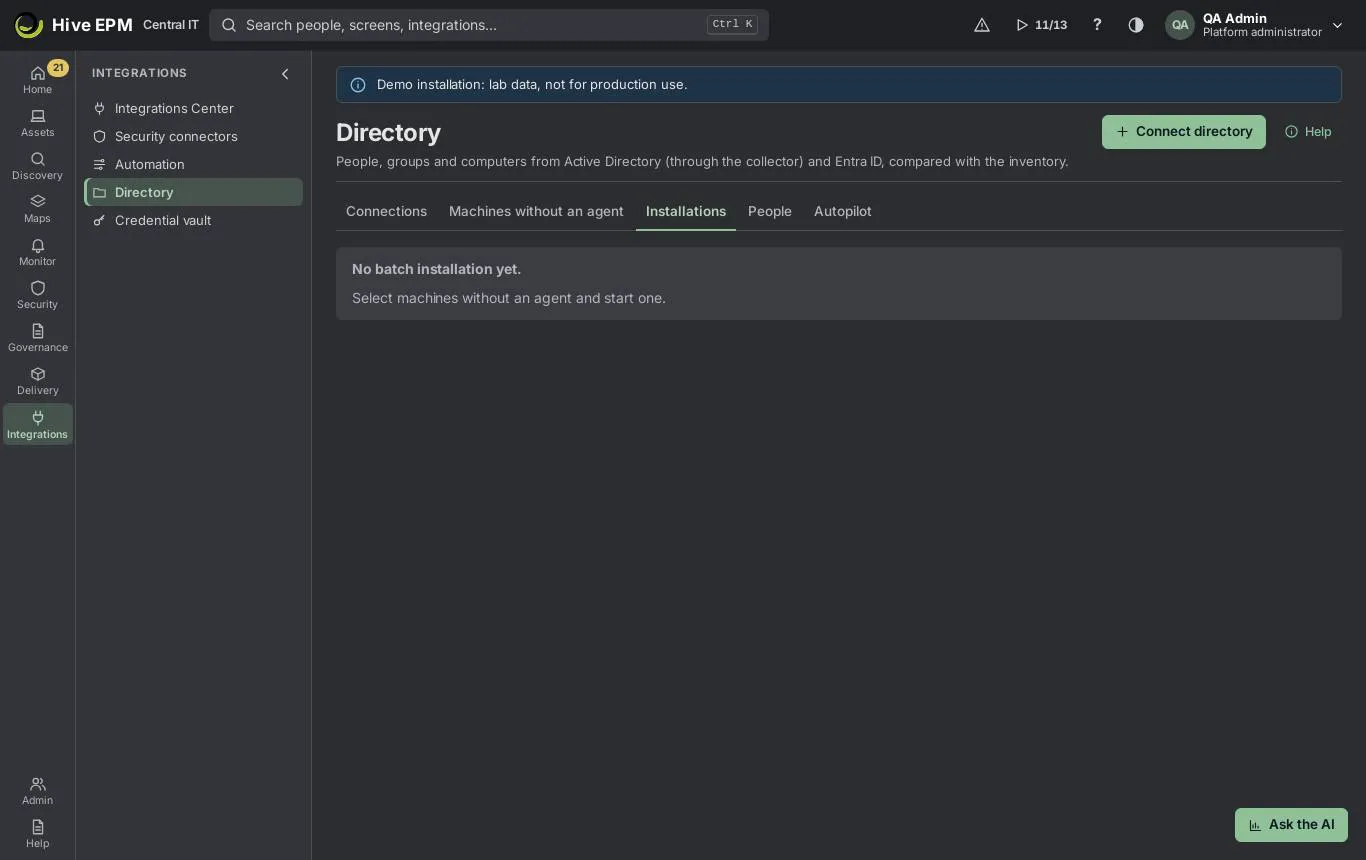
This article shows every way to take the agent to many machines without touching them one by one: the configured Windows MSI, Group Policy, Intune, Jamf and SCCM, remote installation by the collector over WinRM, and the administrative share (ADMIN$) over SMB for a range of IP addresses. The installers you generate are kept in Assets › Agents › Installers; batch installation runs from Integrations › Directory › Machines without agent and is followed in Integrations › Directory ›Installations.
What you can do here
- In Installers: see every installer generated by the agent wizard (system, modules, installs used, validity), Download again while its token is valid, and Revoke it.
- In Agent modules (same tab): turn Software usage metering on or off for every agent without reinstalling.
- Generate the Windows MSI in New agent and install it silently with msiexec , by hand or with your own tool (SCCM, Intune, a startup script).
- Install in batch from the directory: by a GPO generated by Hive, by Remote installation by the collector (WinRM) or by Install by IP range (ADMIN$).
- Install on the Windows machines a discovery scan found without agent, by WinRM.
- At the end of the agent wizard: send a Link by e-mail or Publish to Intune.
- Follow each machine until its first inventory and measure the coverage in Assets › Agents › Health and coverage.
Choosing a method
Method | Where | Good for | Needs |
|---|---|---|---|
MSI ( hive-agent.msi ) | Assets › Agents › New agent | Any tool that runs a command as SYSTEM | Machines reach the gateway on 443 |
GPO generated by Hive | Directory › Machines without agent | A whole OU of the domain | A share the computers read; a restart |
Remote installation (WinRM) | Directory › Machines without agent, or a discovery run | Machines that are on now | Collector, WinRM 5986/5985, an install account |
ADMIN$ by IP range | Directory › Machines without agent › Install by IP range (ADMIN$) | Windows outside the directory | Collector, port 445, an administrator account |
Publish to Intune | End of New agent | Devices joined to Entra ID | Entra connection with DeviceManagementApps.ReadWrite.All |
Jamf Pro policy | New agent › Distribution | Macs | A Jamf script and policy |
The Windows MSI: a transparent installation
When you choose Windows in New agent, the download is hive-agent.msi already configured: the gateway address, the certificate authority to trust it, the install token and the chosen modules travel inside the file. Nothing is edited on the machine — no hosts file, no JSON, no script: double-click it, or install it silently:
The MSI writes the configuration in the agent folder, readable only by SYSTEM and Administrators, and registers the HiveAgent service. GATEWAY= and TOKEN= on the command line override what is inside the file, only when you need it. For SCCM / ConfigMgr, the wizard gives the installation program ( msiexec /i hive-agent.msi /qn /norestart ), the uninstall program and a detection script that checks that the HiveAgent service is running. In production, the gateway address must be a DNS name the machines resolve and that is in the gateway certificate.
Store shortcut and notification icon
On Windows, the MSI and install.ps1 (also through GPO) create, for all users, the Hive Store shortcut in the Start menu and on the Desktop, and the Hive icon in the notification area, started at each logon.
Two options change this:
MSI | install.ps1 | Effect |
|---|---|---|
STORESHORTCUT=0 | -NoDesktopShortcut | No Desktop shortcut; Hive Store stays in the Start menu. |
TRAY=0 | -NoTray | No notification-area icon. |
For example: msiexec /i hive-agent.msi /qn STORESHORTCUT=0 TRAY=0 . The icon appears from the next logon, is on by default on workstations and VDI, on servers only when requested, and never on Tier 0. Uninstalling the agent removes the shortcuts and the icon. See Software store.
Batch installation from the directory
In Integrations › Directory › Machines without agent, choose an OU (with Hide probably retired to skip computers without sign-in for more than 90 days), select machines or Select the whole OU, then Install agent and pick the Method:
- GPO generated by Hive: Hive creates a token for the machines (valid for 30 days) and a package with the agent, its configuration, a startup script and a README with the OU and the share already filled in. The agent installs at the next restart.
- Remote installation by the collector (WinRM): immediate for the machines that are on. Choose the Collector and the Install account (a "Windows remote install (WinRM)" connection of the Integrations Center: an account allowed to install software, its password in the vault, HTTPS 5986 or HTTP 5985). The collector runs the installation on up to 10 machines at a time.
- Install by IP range (ADMIN$): for Windows machines outside the directory. Type one network or range per line ( 10.20.1.0/24 or 10.20.2.10-10.20.2.60 ), choose the collector and the install account (a local or domain administrator). The collector downloads the MSI once, checks port 445 on each address, copies the MSI to the ADMIN$ share and installs it silently, 8 machines at a time.
What you see per machine
Start installation opens the progress panel, which updates by itself (every 3 seconds; every 15 seconds for GPO). Each machine has a state:
- Waiting: not started yet.
- Installing: the GPO waits for the next restart, or the collector installed it and Hive waits for the first inventory.
- Installed · first inventory received: done; the machine leaves Machines without agent.
- Failed: with what happened and the fix, for example "The machine did not answer (off, out of the network or firewall)." — "Try again when it is on, or use the generated GPO."
Installations lists every batch with its method, OU, machines, installed, with error and who started it; click the date to open the panel again.
Retries and coverage goal
There is no automatic retry: fix the cause and start the installation again with the same OU, selection or range. It is safe — batches only take machines still without agent, the WinRM and ADMIN$ installers skip a machine where the agent is already present ("Agent already present."), and the GPO startup script does nothing when the service exists. Follow the result in Assets › Agents › Health and coverage: Coverage counts the active computers, notebooks, servers and VMs that have an agent, and its bar turns green at 90%. Use See the N machines without an agent to find what is left.
Worked example: GPO for the OU "Workstations-SP"
The domain corp.local has 214 computers in OU=Workstations-SP ; 180 have no agent.
- Open Integrations › Directory › Machines without agent. In OU, choose Corp/Workstations-SP (180/214) and turn on Hide probably retired: 172 remain.
- Click Select the whole OU (172), then Install agent (172).
- In Method, choose GPO generated by Hive and click Start installation. Hive answers "GPO package ready. Token for 172 machines, valid for 30 days." and shows OU to link: OU=Workstations-SP,DC=corp,DC=local .
- Click Download the GPO package ( hive-agent-windows-gpo.zip ; the link works for 2 hours) and copy all its files to \\corp.local\NETLOGON\Hive\ .
- In Group Policy Management, create the GPO "Hive Agent", link it to the OU and add \\corp.local\NETLOGON\Hive\gpo-startup.ps1 as a computer startup PowerShell script — the README in the package has the same steps with your OU.
- Click Follow the installation. All 172 machines show Installing ("Waiting for the next restart"). As people turn on their computers, they become Installed · first inventory received; a machine with a problem writes C:\ProgramData\Hive\gpo-install.log .
The GPO package carries the agent and a startup script, not the MSI. If you prefer the MSI, generate it in New agent with How many machines can use this installer set to 180 and run msiexec /i hive-agent.msi /qn from your own startup script or tool.
Worked example: WinRM installation on 10.20.0.0/24 with a domain account
A weekly scan of 10.20.0.0/24 found 37 Windows machines without agent.
- In Integrations › Credentials, create a New credential of type WMI / WinRM: user CORP\svc- hive-install (a local administrator on the machines), its password and the HTTPS (5986) transport. Click Test against one machine, for example 10.20.0.15 : reach the port, sign in, collect. 2. Open the last run of the scan (Discovery › Discovery › Scans, the entry under Last run) and the Without agent tab.
- Tick the 37 Windows machines and click Install agent (37). Choose the credential CORP\svc-hive- install and confirm: "Installation sent to the collector for 37 machine(s)." 4. The scan's collector runs the installation by WinRM, 10 at a time. Each machine downloads the installer from Hive over HTTPS and installs it.
- In Assets › Agents › Agents, the new agents appear Online within minutes; the next run of the scan no longer lists them under Without agent.
When the same machines are in Active Directory, you can do it from Machines without agent with Remote installation by the collector (WinRM): then each machine also has its own progress line.
Worked example: ADMIN$ over SMB for 10.30.1.10–10.30.1.200
A factory network has Windows machines that are not in the domain.
- In Integrations › Integrations, add a Windows remote install (WinRM) connection with the local administrator account of these machines (for example .\hive-admin ) and its password.
- Open Integrations › Directory › Machines without agent and click Install by IP range (ADMIN$).
- In Address ranges, type 10.30.1.10-10.30.1.200 . Choose the collector that reaches this network and the Install account, then Start installation.
- The collector covers the 191 addresses. Addresses without port 445 (printers, switches, machines off) are skipped and do not appear. Each Windows machine that answers appears as Installing with "Installed by the collector; waiting for the first inventory." or as Failed with the reason — for example "The account was refused on this machine." — "Use an account that is a local or domain administrator on the machine." 5. Check the new agents in Assets › Agents. For the failed ones, fix the account or the firewall and start the same range again: the machines that already have the agent are skipped.
Worked example: publish to Intune
- Make sure the Microsoft Entra ID connection in Integrations › Directory has the consent including DeviceManagementApps.ReadWrite.All .
- Run New agent for Windows. On the last screen, in Publish to Intune, paste the object id of the group "Notebooks-Sales", keep Required and click Publish to Intune.
- Follow the steps Package, Create app, Upload, Confirm, Assign and Done. Hive creates a Win32 app, installed as SYSTEM, and assigns it to the group; the first devices show up in a few minutes.
Pitfalls and limits
- Up to 5,000 machines per directory batch; up to 500 machines per installation from a discovery run; an ADMIN$ installation accepts up to 1,024 addresses — split larger ranges, or the collector refuses the range.
- WinRM installs need the machine to reach Hive over HTTPS to download the installer; use the GPO when it cannot.
- ADMIN$ needs file and printer sharing on, port 445 open and the SMB tools (smbclient and winexe) on the collector. In the ADMIN$ batch, a row becomes Installed when an agent reports the inventory with that address (or the machine name the collector found).
- Installations started from a discovery run have no per-machine panel; follow them in Assets › Agents and in the next run.
- Assign in Intune in the directory batch works for machines imported from Microsoft Entra ID and needs the agent already published to Intune on that connection (end of New agent) and the consent with Group.ReadWrite.All: Hive creates the security group "Hive agent install …", adds the machines and assigns the published app to it as required. Machines only in Active Directory, or managed by Intune without an Entra registration, show Failed with the reason.
- The download link of a generated package expires in 2 hours; Download again in Installers makes a new link while the token is valid. Revoking an installer stops new installs; installed agents keep working.
- Every batch is recorded in the audit trail.
Related
- Agents and collectors
- Step by step: create and install the agent
- Directory and machines without agent
- Discovery area