Inventory
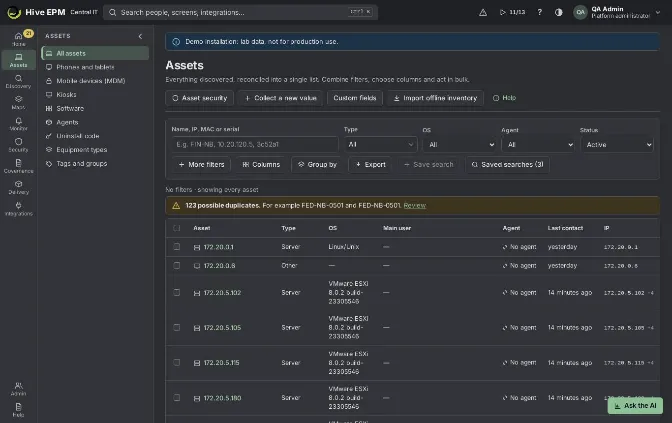
Screen: Assets and inventory (1/2)
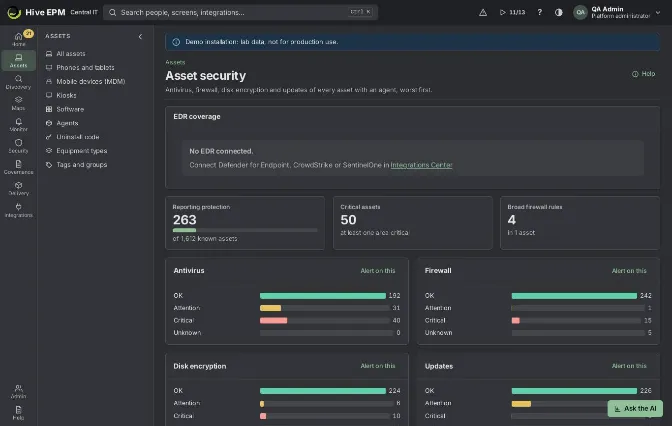
Screen: Assets and inventory (2/2)
Every device Hive knows about becomes one asset: machines with the agent, devices found by discovery, records from the directory, MDM and other tools. Records of the same device are joined by hardware UUID, serial, MAC and name, so each device appears once. The list is in Assets › All assets; clicking a name opens the asset page, and Asset security (button at the top of the list) shows the protection of the whole estate.
What you can do here
- Search by name, IP, MAC or serial, or scan the QR code or barcode of the asset label with the camera.
- Combine filters (type, OS, agent, status, site, VLAN, tag, department, group, installed software, changed recently); the filters stay in the address, so the link can be shared.
- Choose the visible Columns and Group by a column (type, OS, agent, main user, department, site, VLAN or status).
- Save search with the current filters, optionally as a card on the home page.
- Export the filtered list to CSV or Excel.
- Select assets and Apply tag, Remove tag, Add to group (static groups) or Change type.
- Review Possible duplicates and merge them or mark them as different.
- Import offline inventory of a machine without network (a .hive file exported by the agent).
- On the asset page: see the details by tab, change the type, add tags, Collect diagnostic, open a remote session or a ticket, and Retire the asset.
- In Asset security: see antivirus, firewall, disk encryption and updates of every asset with an agent, worst first, and create an alert rule from each card.
Find assets
- Open Assets › All assets. Without filters the footer says "Showing 50 of N assets"; Load more brings the next 50.
- Type part of the name, IP, MAC or serial in Name, IP, MAC or serial (the search runs when you stop typing). The camera button Scan a label with the camera opens the asset directly when the label carries its link, or searches for the code read.
- Use Type, OS, Agent (Online, Late, Offline, With agent, No agent) and Status (Active or Retired).
- Click More filters for Site, VLAN, Tag, Department (only when the company structure has departments), Group, Installed software (type the name and press Enter) and Changed since (Last 24 hours, Last 7 days, Last 30 days). The button shows how many of these are on.
- The active filters appear as chips under the bar; the x of a chip removes that filter and Clear filters removes them all.
- Columns chooses what the table shows (Type, OS, Site, VLAN, Department, Main user, Tags, Agent, Last contact, IP, MAC, Serial, Model). Your choice is remembered in this browser.
- Group by turns the list into groups with counts; click a group to open its assets.
Save a search
- Choose at least one filter (Save search stays disabled until then).
- Click Save search, give a Name (up to 80 characters) and, if you want, tick Show as a card on the home page.
- Click Save. The search appears in Saved searches; from there you apply it again, show or hide it on the home page, or remove it.
The home card shows how many assets the search finds right now; clicking the number opens the filtered list. Each person sees only their own saved searches.
Export the list
Export › CSV (comma-separated) or Excel (opens in columns) downloads all pages with the current filters and the visible columns (the asset name always comes first). The Excel option uses semicolons so that Excel in Portuguese or Spanish opens it in columns. Each export is recorded in the audit trail.
Act on several assets
Tick the assets (the box in the header selects the page) and use the bar that appears:
- Apply tag / Remove tag: choose the tag and confirm. Inherited tags (from the subnet, directory, discovery or cloud) are kept and the message says which. The confirmation has Undo.
- Add to group: only static groups; dynamic groups maintain themselves.
- Change type: see below.
Change the type of an asset
On the asset Overview, the Summary panel shows the Type with the Change type button; in the list, select assets and click Change type in the bar (up to 1,000 at a time). Choose the new type and Apply.
A type chosen by hand stays: the agent and discovery stop changing it, and the asset shows "set by hand". Choose Automatic (by the inventory) to give the decision back. The change goes to the asset history and to the audit trail. New types are created in Equipment types and custom fields.
The asset page
The header shows type, department, name and the main facts (model, main user, OS, IP, serial, site, VLAN, agent and last contact) with the tags; Add tag adds a manual tag (tags from an origin cannot be removed by hand). The buttons are Remote access, Open a ticket, Collect diagnostic and More actions (Install, Mark as decoy, Retire, depending on your permissions).
The tabs:
- Overview: CPU, memory and the fullest disk in the last 24 hours, memory, disks, first and last contact, the summary (type, domain, FQDN, hardware UUID, data origin per field) and the last changes.
- Hardware: CPU, memory, BIOS, disks and the network, virtualization and cloud panels.
- Software: sub-tabs Software, Software usage and Licensing.
- Applications: Services, Databases and Web and app servers.
- Network: Network (open ports, interfaces) and Topology.
- Security: Security, Patches, Integrity, Configuration and Browsers.
- Monitoring, Alerts and Changes (the full history, before and after).
- Management: Location, purchase and lifecycle, Sources and Custom fields.
Collect diagnostic asks the agent for a read-only package (system, network, routes, disks, processes and the end of the agent log); it arrives in about 1 minute and is downloaded from the menu next to the button. The request is in the audit trail.
Asset security
Assets › All assets › Asset security shows how many assets report protection out of all known ones, how many are critical in at least one area and how many broad firewall rules exist. Four cards (Antivirus, Firewall, Disk encryption, Updates) count the assets in OK, Attention, Critical and Unknown. Alert on this on each card opens a new alert rule with the matching condition (no antivirus, firewall off, unencrypted disk, old updates). Assets that need attention lists the worst assets and the critical areas; the name opens the Security tab of the asset.
On the asset, the Security tab shows the same four cards with details (antivirus product, signatures, real-time protection; firewall per profile; updates), the open ports with process and reach (exposed to the network or local only) classified by the port policy of the asset's group, and the local firewall rules, with broad rules marked.
Possible duplicates
When two records look like the same device but no serial or UUID confirms it, a note appears above the list ("N possible duplicates") with Review. For each pair, compare the fields and choose Merge, keeping … (history, tags and custom values move to the record you keep; this cannot be undone) or They are different (the pair is not suggested again).
Worked example: Windows notebooks of the Campinas site, saved and checked for BitLocker
Paula, from the security team, wants a quick way to see the Windows notebooks of the Campinas site and which of them still have the disk without BitLocker.
- In Assets › All assets, she sets Type = Notebook and OS = Windows.
- She clicks More filters and sets Site = Campinas. The chips read "Type: Notebook", "OS: Windows", "Site: Campinas" and the footer shows "Showing 50 of 63 assets".
- She clicks Save search, names it "Notebooks Windows Campinas", ticks Show as a card on the home page and clicks Save. The message is "Search saved and added to the home page." From now on the home page shows a card with 63; clicking it opens this list.
- The asset list has no encryption filter, so she opens Asset security: the Disk encryption card shows 7 assets in Critical. In Assets that need attention, each of them lists "Disk encryption" among the critical areas.
- For the complete list of unencrypted drives she opens Security › Disk encryption and sets Show = Not encrypted; from there she can start BitLocker (see Disk encryption).
- To be warned about new cases, she clicks Alert on this on the Disk encryption card and finishes the rule with the scope of the Campinas group.
Worked example: retire a stolen notebook
The notebook FIN-NB-031 (serial 5CG2341XYZ) was stolen on 20 October; the police report is 4471/2026.
- In Assets › All assets, type 5CG2341XYZ in the search and open FIN-NB-031.
- Write down what you may need later: the Overview shows the main user and the last contact; the Changes tab keeps the history.
- Open Management › Location, purchase and lifecycle. In Lifecycle stage, click Change stage, choose New stage = Retired, Date = 2026-10-20, Reason = "Stolen — police report 4471/2026" and Save. Retired takes the device out of the active estate: it stops counting in reports and alerts, and the stage change is in the audit trail.
- The quick alternative is More actions › Retire, which asks "Retire FIN-NB-031?" and is confirmed with Retire asset; the message is "FIN-NB-031 retired." This one does not record a reason.
- The confirmation warns that the asset comes back if the agent sends inventory again. So in Assets › Agents › Agents, search for FIN-NB-031 and click Revoke: the machine certificate stops being accepted right away.
- To find it later, set Status = Retired in the list. The asset is there with its whole history.
Pitfalls and limits
- Seeing the list needs See assets; tags, groups, type changes and retiring need Edit assets; revoking an agent needs Manage agents; Alert on this needs Manage alert rules. People limited to a scope only see their assets, also in exports and home cards.
- The list has no filter by encryption, antivirus or custom field: use Asset security, Disk encryption or a dynamic group in Tags and groups.
- A saved search keeps only the filters of the list (not the columns or the grouping) and needs at least one filter; names are unique per person.
- Export brings up to 100,000 rows.
- Add to group works only with static groups.
- Merging duplicates cannot be undone.
- A retired asset leaves the list, reports and alerts but keeps its history; if the agent keeps reporting, revoke it.
Related
- Equipment types and custom fields
- Tags and groups
- Agents and collectors
- Disk encryption
- Lifecycle, depreciation and responsibility terms
- Phones and tablets (Hive Mobile)
Equipment types and custom fields
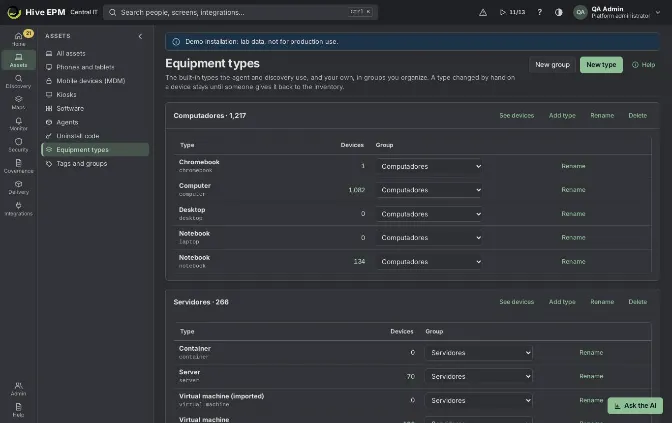
Screen: Equipment types and custom fields (1/3)
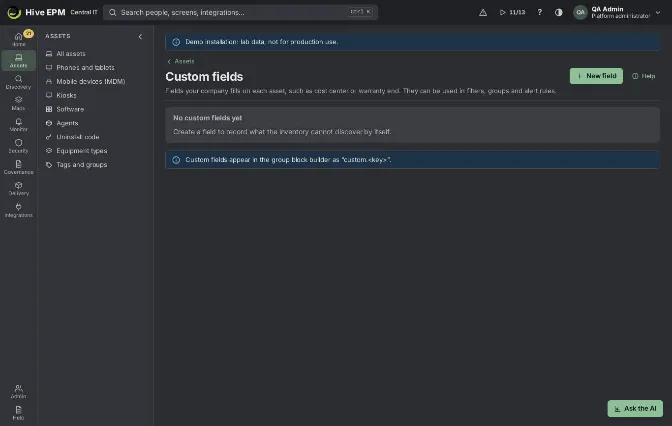
Screen: Equipment types and custom fields (2/3)
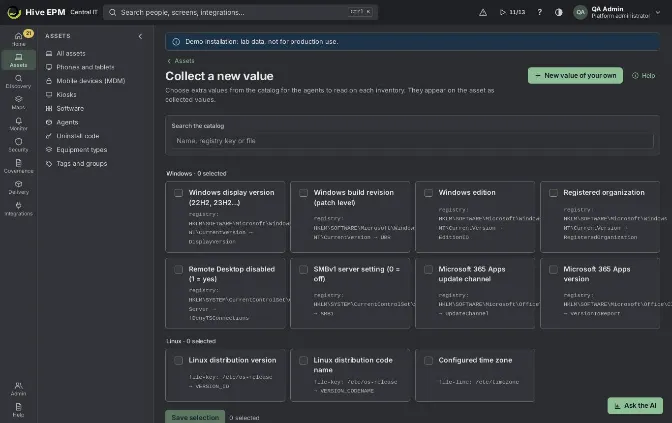
Screen: Equipment types and custom fields (3/3)
Three screens shape what the inventory records about each device. Assets › Equipment types organizes the types (Notebook, Server, Printer…) in groups and lets you create your own. Custom fields (button on Assets › All assets) creates the fields your company fills by hand, such as cost center. Collect a new value (also on All assets) chooses extra values the agents read on each device, from a ready catalog or from a registry key, WMI property, file or plist you define, with no script.
What you can do here
- Equipment types: create groups, create your own types, rename built-in and own types, move types between groups, delete unused own types, and open the devices of a type or of a whole group.
- Custom fields: create a field (Text, Number, Date, List of options or Person) for all asset types or only some, mark it required, and delete it.
- Fill the custom fields on each asset in Management › Custom fields.
- Collect a new value: tick values of the catalog for the agents to read, or create a New value of your own (registry, WMI, file or plist), try it on up to 3 devices and start collecting; stop collecting your own values.
Equipment types
- Open Assets › Equipment types. Each group is a panel with its types, the number of Devices (the number opens the list filtered by that type) and the Group selector to move the type.
- New group creates a group (name up to 60 characters). On each group, See devices opens the list filtered by all the types of the group, Add type creates a type inside it, Rename and Delete act on the group. Deleting a group keeps its types, now Without a group; no device changes.
- New type asks for the Name (for example "Barcode reader", up to 60 characters) and creates it in the first group; the message is "Type created. Use it in Change type on the devices." Own types show the label "your type".
- Rename on a built-in type replaces the translated name; leave it empty to go back to the original.
- Delete works only on own types that no device uses.
Devices get a type from the agent and from discovery. To put a device in your type, use Change type on the asset or in the bulk bar of the list (see Assets and inventory). A type chosen by hand stays until someone chooses Automatic (by the inventory).
Custom fields
- In Assets › All assets, click Custom fields, then New field.
- Type the name in Name in English, Name in Português and Name in Español (a language left empty takes the name you typed).
- The Key is suggested from the name (for example cost_center ): 2 to 40 lowercase letters, digits or _ , starting with a letter. It is used in filters and the API as custom.<key> and cannot change later.
- Choose the Type: Text, Number, Date, List of options (type each option and press Enter) or Person.
- In Asset types, tick the types that have the field; leave it empty for every type.
- Turn on Required on new assets if the field cannot stay empty, and click Create field.
To fill the values, open the asset, go to Management › Custom fields, fill the fields and click Save values ("Custom values saved."). Numbers accept a comma or a point; dates use the format 2026-10- 01; a list accepts only its options. In the group block builder of Tags and groups the field appears as custom.<key> with is, is not, contains and starts with.
Collect a new value
The screen lists the catalog by system (Windows, Linux, macOS, Any system), with a search by name, registry key or file. Examples of the catalog: Windows display version, Windows edition, Remote Desktop disabled, SMBv1 server setting, Microsoft 365 Apps version, Linux distribution version and the configured time zone.
- Tick the values you want and click Save selection. The message is "Agents will collect N values from the next inventory."
- To read something that is not in the catalog, click New value of your own:
- System: Windows, Linux or macOS.
- Read: on every inventory, every hour, every 6 hours, once a day or once a week.
- Where the value comes from: Registry (HKLM) and WMI on Windows, File: KEY=value and File: first line on every system, Property list (plist) on macOS.
- Fill where to read (Key and Value name for the registry; WMI class and Property; File and Key; plist file and Key).
- Browse on a device opens the folders or the registry of an online device of that system (and the WMI classes on Windows) so you can click Use instead of typing.
- Name of the value is how it appears on the asset (up to 80 characters).
- Try on up to 3 devices reads the value now on up to 3 online devices and shows the table Value read now (the value or "not found on this device").
- Save and start collecting. The message is "Value saved; the agents start reading it on the next inventory." The value appears in Values of your company, with Stop collecting.
On each asset, the values read appear in Management › Custom fields, panel Collected by the agent.
Worked example: a "Cost center" field filled on the notebooks
The finance team wants each notebook and desktop to carry its cost center.
- In Assets › All assets › Custom fields, click New field.
- Name in English = "Cost center", Name in Português = "Centro de custo", Name in Español = "Centro de costo". The Key is suggested from the name in the language of the screen; keep or type cost_center .
- Type = List of options, options CC-100 Finance , CC-200 Sales , CC-300 IT .
- In Asset types, tick Notebook and Desktop; leave Required on new assets off. Click Create field: "Field “Cost center” created." The table shows the field with the options under the name.
- Open the notebook FIN-NB-042, go to Management › Custom fields, choose CC-100 Finance and click Save values.
- In Assets › Tags › Groups, create a dynamic group "Finance cost center" with the block custom.cost_centerisCC-100 Finance . FIN-NB-042 and every other device with that value join it, and the group appears in the Group filter of the asset list.
Worked example: collect the version of the ERP client from the registry
The ERP client writes its version in HKLM\SOFTWARE\Contoso\ERPClient , value Version , on the Windows machines.
- In Assets › All assets › Collect a new value, click New value of your own.
- System = Windows, Read = once a day, Where the value comes from = Registry (HKLM).
- Click Browse on a device: the panel says "Reading from FIN-NB-042". Open HKLM\SOFTWARE , then Contoso , then ERPClient , and click Use next to Version . Key and Value name are filled.
- Name of the value = "ERP client version".
- Click Try on up to 3 devices. Value read now shows, for example, FIN-NB-042 → 12.1.2310, FIN-NB-017 → 12.1.2310 and RH-WS-003 → "not found on this device" (the client is not installed there).
- Click Save and start collecting. The value appears in Values of your company as "ERP client version" with registry: HKLM\SOFTWARE\Contoso\ERPClient → Version .
- After the next inventory, the asset page of FIN-NB-042 shows "ERP client version: 12.1.2310" in Collected by the agent.
Pitfalls and limits
- Equipment types and Custom fields need Edit assets to change; Collect a new value needs Manage agents to save, try or remove values. Without the permission the screens are read-only.
- Built-in types cannot be deleted, and own types only when no device uses them. A changed type applies to up to 1,000 devices at a time.
- Deleting a custom field also deletes the values filled on the assets; groups and rules that use it stop matching it.
- The key of a custom field cannot change; a field limited to some types cannot be filled on other types.
- A required field is checked when someone saves the values of an asset; it is not filled by itself.
- Collected values never run commands or scripts: only the catalog and the five sources above (registry under HKLM only, WMI class and property with letters, digits and _ , file by full path). A command output cannot be collected.
- Try on up to 3 devices and Browse on a device need an online device of that system (contact in the last 15 minutes); without one you can still save, and the value is read on the next inventory.
- Stop collecting stops the reading; values already collected stay in the history of each asset.
Related
- Assets and inventory
- Tags and groups
- Agents and collectors
- Reports and dashboards
Phones and tablets (Hive Mobile)
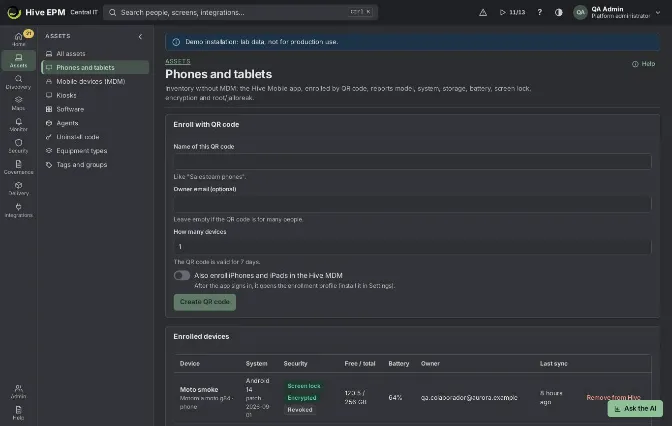
Screen: Phones and tablets (Hive Mobile)
The Phones and tablets screen (Assets › Mobile) puts phones and tablets in the inventory without MDM. You create a QR code, the person scans it with the phone camera, the Register this phone in Hive page opens on the phone and, after one tap, the phone becomes an asset of type phone or tablet. On the same screen you also import phones, tablets, Macs and Chromebooks from Google Workspace, Apple Business Manager, Microsoft Intune, Jamf Pro and Workspace ONE UEM, without installing anything on them. To manage devices (lock, wipe, policies), see Mobile device management (MDM).
What you can do here
- Create a QR code to enroll one phone or a whole team (Enroll with QR code).
- See the Enrolled devices: system and patch, screen lock, encryption, root/jailbreak, free and total storage, battery, owner and last sync.
- Remove from Hive a phone that left the company or was lost.
- Revoke a QR code that should not be used anymore (list QR codes).
- Optionally make the QR code also enroll iPhones and iPads in the Hive MDM.
- Connect Sources without the app and import their devices every 6 hours or with Import now.
Create a QR code
- Open Assets › Mobile. The Enroll with QR code panel is shown to people who can change assets.
- Fill Name of this QR code (at least 2 characters, e.g. "Sales team phones").
- Optionally fill Owner e-mail (optional): use it only when the code is for one person; every phone enrolled with it gets that owner.
- In How many devices, type how many phones may use the code (1 to 10,000). The code is valid for 7 days.
- Turn on Also enroll iPhones and iPads in the Hive MDM if iPhones and iPads should also install the MDM enrollment profile right after registering (Android phones ignore this option). 6. Click Create QR code. The QR code appears next to the form, with the link under it. It is shown only now: take a picture of it or send the link before leaving the page.
On the phone: Register this phone in Hive
- The person opens the phone camera and points it at the QR code; the link opens the Register this phone in Hive page in the browser (no sign-in).
- The page shows what it detected (for example "Detected: Android 14.") and suggests a Phone name from the model; the person can change it.
- Optionally the person types Your e-mail (optional) to be linked to the phone (an owner set on the QR code takes precedence).
- The person taps Register phone. The page shows Phone registered in Hive. and how to add Hive Mobile to the home screen; with the MDM option on, an iPhone or iPad also shows Install the management profile.
- Each time Hive Mobile is opened again on that phone, it sends the battery and the system version.
Remove a phone from Hive
- In Enrolled devices, click Remove from Hive on the phone's row.
- Confirm Remove from Hive?. The phone stops sending data (its secret is revoked) and the asset is retired: it leaves Enrolled devices and the active asset list but keeps its history. 3. On the phone, Hive Mobile can simply be removed from the home screen. If it is opened again, it forgets the registration.
Sources without the app
In Sources without the app (people with integration administration), choose the Source, give a Name and fill the fields of that source, then click Connect:
- Google Workspace (phones and ChromeOS):Google Workspace administrator e-mail and the Service account JSON key (domain-wide delegation, read-only scopes admin.directory.device.mobile.readonly and admin.directory.device.chromeos.readonly).
- Apple Business Manager:Client ID, Key ID and Private key (.pem), created in Apple Business Manager → Preferences → API.
- Microsoft Intune: a Microsoft Entra ID connection with administrator consent (permission DeviceManagementManagedDevices.Read.All). Without one, use Connect Entra ID.
- Jamf Pro:Jamf Pro address, API client ID and Client secret (Settings › API roles and clients, read access to computers and mobile devices).
- Workspace ONE UEM:Workspace ONE API server and Authentication — OAuth client (recommended) with region, client ID and secret, or User and password with the tenant code. Also import the installed apps adds one call per device.
Each source row has Import now, Test (reads the first page without importing and says how many devices it found) and Remove (the devices stay in the inventory). Keys, secrets and passwords go to the vault.
Worked example: enroll an Android phone by QR code, then remove it
Ana, from IT, registers the phone of Bruno, a salesperson, and removes it three months later when he leaves.
- In Assets › Mobile, Ana types Name of this QR code = "Bruno - Galaxy S23", Owner e-mail (optional) = [email protected], How many devices = 1, and clicks Create QR code.
- She shows the QR code to Bruno. He points the camera of his Samsung Galaxy S23 at it; the page Register this phone in Hive opens with "Detected: Android 14." and Phone name "SM-S911B". Bruno changes the name to "Bruno Galaxy S23" and taps Register phone.
- The phone shows Phone registered in Hive. In Enrolled devices, Ana now sees "Bruno Galaxy S23 · phone", Android 14, battery 82 %, owner [email protected] and Last sync "just now". In QR codes, the code shows "1 of 1 used" and cannot enroll another phone.
- Three months later, Bruno leaves. Ana clicks Remove from Hive on "Bruno Galaxy S23" and confirms. The toast says "Bruno Galaxy S23 was removed from Hive." The phone leaves Enrolled devices; in All assets the phone appears only with the Status filter set to Retired, with its history.
Worked example: import company iPhones from Jamf Pro
- In Sources without the app, choose Source = Jamf Pro, Name = "Jamf HQ", Jamf Pro address = https://example.jamfcloud.com, plus the API client ID and Client secret.
- Click Connect: "Source connected. Import it now or wait for the next round."
- Click Test: "Connection OK: 214 devices in the source." Then Import now: the row shows "214 devices (37 new)". Devices already in the inventory are matched instead of duplicated.
Pitfalls and limits
- The QR code and the link are shown only once. If lost, revoke the code and create another.
- A QR code stops working after 7 days, when all its uses are taken or when revoked; the phone then sees "This QR code is not valid anymore." with "Ask IT for a new QR code."
- The phone must reach the console address in the link (company Wi-Fi or VPN). Without a console address configured in the core, the QR code uses the older one-mobile:// format, which only the native Hive Mobile app opens.
- Registering through the browser page sends only system, version, model and battery. Screen lock, encryption and root/jailbreak appear only when the device reports them (native app, MDM or a source); otherwise those pills stay grey.
- IMEI and serial number come only from MDM or from the sources.
- A removed phone cannot sync again ("This device is not enrolled anymore."); to bring it back, enroll it with a new QR code.
- Creating QR codes and removing phones need permission to change assets; sources need integration administration.
Related
- Mobile device management (MDM)
- Assets and inventory
- Lifecycle, warranty and end of support
Mobile device management (MDM) for Android and Apple
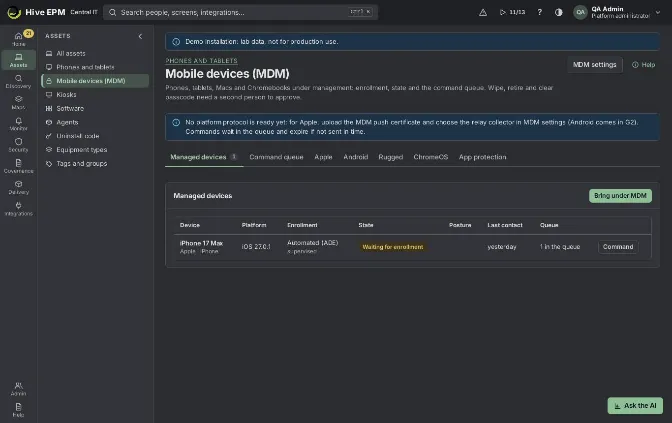
Screen: Mobile device management (MDM) for Android and Apple (1/2)
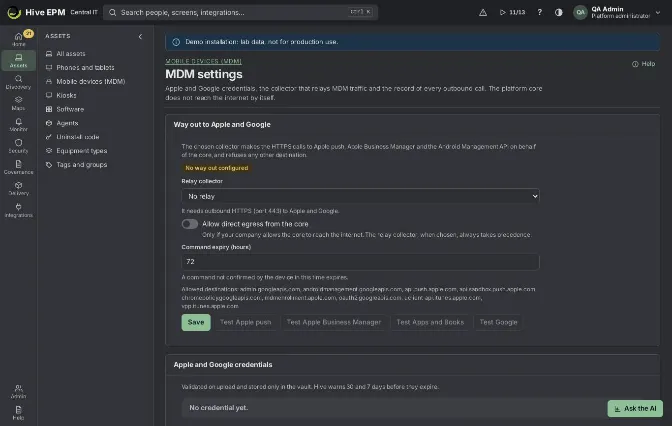
Screen: Mobile device management (MDM) for Android and Apple (2/2)
The Mobile devices (MDM) screen (Assets › MDM) manages phones, tablets, Macs and Chromebooks: enrollment, state, posture and a command queue in which wipe, retire and clear passcode need a second person to approve. Android is managed through Google's Android Management API, Apple devices through the Apple MDM protocol and Apple Business Manager, Chromebooks through Google Admin. The platform core does not reach the internet: every call to Apple and Google leaves through the relay collector chosen in MDM settings (button at the top right of the screen). To inventory phones without managing them, see Phones and tablets (Hive Mobile).
What you can do here
- Managed devices: see each device with platform, Enrollment mode, State, Posture (encrypted, screen lock, rooted/jailbroken, compliant) and Last contact; Bring under MDM a phone, tablet, Mac or Chromebook from the inventory; send a Command; open Apple details; on Android with Hive Mobile, View screen.
- Command queue: approve, reject or cancel open commands.
- Apple: enrollment links and QR codes, Automated enrollment (ADE), configuration Profiles, Apps (VPP) and OS updates.
- Android: link the company with Google, write and publish Policies, create Enrollment tokens (QR code, NFC, token, work profile link, zero-touch) and approve apps in Managed Google Play.
- Rugged: special-purpose Android devices (Zebra, Samsung) by vendor and model, with OEMConfig, firmware and compliance.
- ChromeOS: link Google Admin, enroll Chromebooks in the organizational unit managed by Hive and set policies per unit.
- App protection: keep company data inside managed apps and run selective wipes (company apps and data only), also on offboarding.
- MDM settings: relay collector, command expiry, Apple and Google credentials and the log of outbound calls.
MDM settings
- Click MDM settings. In Way out to Apple and Google, choose the Relay collector (it needs outbound HTTPS, port 443, to Apple and Google). Only if the company allows it, turn on Allow direct egress from the core; the relay always takes precedence.
- Set Command expiry (hours) (1 to 720, default 72): a command not confirmed by the device in this time expires. Click Save.
- In Apple and Google credentials, choose the Credential, pick the file or paste its Content, and click Validate and save:
- Apple MDM push certificate (PEM with key, or .p12 with its password) — needed for any Apple device.
- Apple push token key (.p8) — used by the Hive Mobile app.
- Apple Business Manager server token (.p7m) — for ADE.
- Apps and Books content token (.vpptoken) — for VPP apps.
- Google service account (JSON) — a Google Cloud service account with the Android Management API enabled.
- Use Test Apple push, Test Apple Business Manager, Test Apps and Books and Test Google to check the way out. Outbound calls lists every call, its way and result.
Files go to the vault and are never shown again; Hive warns 30 and 7 days before a credential expires.
Bring a device under MDM and send commands
- In Managed devices, click Bring under MDM, choose the Device (phones, tablets, Macs and Chromebooks of the inventory outside MDM, including those registered with Hive Mobile) and the Enrollment mode, and click Bring under MDM. It stays Waiting for enrollment until the device enrolls. Devices enrolled by an Apple link, by ADE or by an Android enrollment appear here by themselves.
- To act on a device, click Command, choose the command, type Why (at least 5 characters) and click Put in the queue. Available commands depend on the platform: Refresh information, Restart, Shut down, Update the system, Lock (optional message and phone), Turn on lost mode/Turn off lost mode, Locate, Clear passcode, Retire (remove management), Wipe (factory reset), Selective wipe (company apps and data only) and, for Chromebooks, disable, enable again, screenshot, volume and wipe user profiles.
- Destructive commands (wipe, retire, clear passcode, selective wipe, wipe user profiles) show Ask for approval instead: another administrator must approve them in Command queue within 24 h. Wipe also asks you to type the device name to confirm.
- In Command queue, the states are Waiting approval, Queued, Sent, Confirmed, Error, Expired, Rejected and Canceled. Cancel works only before the command is sent.
Android
- In MDM settings, upload the Google service account (JSON) and choose the relay collector.
- In the Android tab, click Link with Google. Google opens its sign-up page; sign in with the company Google account (or create a managed Google Play account). When Google sends you back, the link finishes. The Android Enterprise panel then shows the enterprise, the Last reading and how often it reads (every 15 minutes by default); Read now reads at once.
- In Policies, click New policy: give the Policy name, Mode (Work profile (BYOD), Fully managed, Dedicated (kiosk)), an optional Group and the Priority (lower number wins when a device is in several groups). Fill the sections Password and screen lock, Restrictions, Wi-Fi and VPN, System update, Managed Google Play apps, Kiosk (dedicated device) and Compliance rule, then Save and Publish. Unpublished edits are marked "changes not published"; API JSON shows what goes to Google.
- In Enrollment, click New enrollment: label, Mode, a published Policy, Valid for (days) (up to 90; zero-touch up to 3650) and Single use. Click Create; the dialog shows QR code, Token and link, NFC and Zero-touch. Show opens it again later (recorded in the audit trail) and Revoke cancels it.
- In Managed Google Play, type the Package name and click Approve, or Open Managed Google Play to search, publish private apps and organize the store.
Apple
- Upload the Apple MDM push certificate in MDM settings and choose the relay. In Apple ›Enrollment, the Apple MDM server panel shows the address the devices use; set the Public HTTPS address (devices reach it from the internet, not through the VPN) and the Organization shown on the profile.
- In New enrollment link, choose How: QR code, Profile download (Mac or iPhone/iPad) or User enrollment (personal device, BYOD) (needs the person's Managed Apple ID). Fill Name of this QR code, optionally the owner and How many devices, and click Create link. Use the QR code, Download profile or Copy link. Links are valid for 7 days and listed in Enrollment links.
- Automated enrollment (ADE): download the Hive public key, create the MDM server in Apple Business Manager with it, upload the server token in MDM settings, then create the ADE profile.
Devices bought by the company enroll by themselves, supervised, on first power-on; Sync now reads the device list.
- Profiles: New profile of type Wi-Fi, VPN (IKEv2), Passcode, Restrictions, Certificate, E-mail, FileVault (with escrow), System extensions or Privacy (PPPC); Assign it to devices. Apps (VPP) installs Apps and Books licenses; OS updates creates policies with a test ring and a target version.
Worked example: enroll a company Android phone with a QR code
Carla manages 20 Samsung phones for the warehouse team.
- In MDM settings, she uploads the Google service account (JSON), chooses the relay collector "coll-dc01" and clicks Test Google: it answers through the collector relay.
- In Android, she clicks Link with Google, signs in with the company Google account and is sent back; the panel shows the enterprise and "every 15 min".
- In Policies, New policy: "Warehouse phones", Mode = Fully managed, Group = "Warehouse", Password = Numeric without sequences, Minimum length = 6, Block camera off, Block factory reset on, compliance action Alert and block the device. Save, then Publish: "Policy published to Google."
- In Enrollment, New enrollment: "Warehouse batch 1", Mode = Fully managed, Policy = "Warehouse phones", Valid for (days) = 7, Single use off. Create shows the QR code.
- On each factory-reset phone, she taps the welcome screen six times and scans the QR code.
After the next reading (or Read now: "20 devices read · 20 new · …"), the phones appear in Managed devices as Fully managed, Enrolled, and in the inventory with model, serial, IMEI and apps.
Worked example: wipe a lost iPhone with a second approval
- Daniel opens Managed devices, clicks Command on "iPhone-Sales-07", chooses Wipe (factory reset), types Why = "Lost in a taxi, ticket 4821" and types the device name to confirm. The button says Ask for approval; the note warns that without approval it expires in 24 h.
- The Command queue tab shows a count; the row is Waiting approval. Daniel himself sees no Approve button — whoever asked cannot approve.
- Elisa, another administrator with the wipe permission, clicks Approve, reads the effect ("Erases everything on the device and returns it to factory settings. It cannot be undone.") and confirms.
The command becomes Queued, then Sent, and Confirmed when the iPhone answers; the device state becomes Wiped.
Pitfalls and limits
- Without a relay collector (or allowed direct egress) nothing reaches Apple or Google: commands wait in the queue and expire.
- Link with Google needs the Google credential and the relay; Android policies, enrollments and apps appear only after the link.
- Google notifications do not reach a network with no way out: Android state comes from the periodic reading, not in real time.
- Android Locate and View screen need the Hive Mobile app on the device; the person must accept the screen view, and Android shows its sharing notice. Locating also asks for a recorded consent text.
- User enrollment (BYOD) on Apple manages only work data: the company cannot wipe, lock or locate the device.
- Only one open command of each type per device. Commands on a retired or wiped device are refused.
- Approving a destructive command needs a profile allowed to run that action (for example the MDM wipe action) and a different person from the requester.
- Enrollment tokens and QR codes let anyone enroll devices in the company: keep them private and revoke them when done.
Related
- Phones and tablets (Hive Mobile)
- Assets and inventory
- Kiosks
Patches
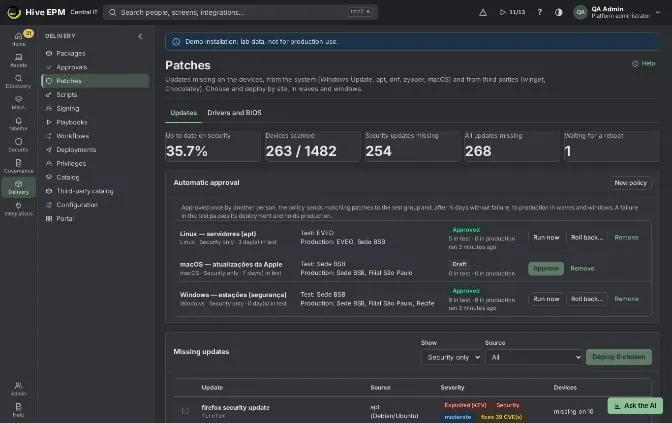
Screen: Patches
Patches shows the updates missing on the devices, from the system and from third parties, and sends them through deployments: by site, in waves and windows, with approval and rollback. Automatic approval policies take new patches to a test ring and, after some days without failure, to production. It is in Delivery › Patches.
What you can do here
- See how many devices are up to date on security, scanned, missing updates or waiting for a reboot.
- List the missing updates with source, severity, CVEs closed and how many devices miss them.
- Choose updates and deploy them; decline an update for the whole company or accept it again.
- Create automatic approval policies (test ring, then production) and run them.
- Roll back updates on one device or on a ring of a policy.
Scan and read the catalog
The agent looks for missing updates every 6 hours: Windows Update, apt (Debian/Ubuntu), dnf (Red Hat/Fedora), zypper (SUSE) and macOS Software Update, plus winget and Chocolatey on Windows. On a device page, the Patches tab shows the last scan and has Scan now (the result comes with the next inventory).
In Delivery › Patches, the top shows Up to date on security, Devices scanned, Security updates missing, All updates missing and Waiting for a reboot. Missing updates lists each update with its source, severity, "missing on N" and "installed on N", "fixes N CVE(s)" and Exploited (KEV) when a CVE it closes is in the CISA known exploited list (those come first). Use Show (Security only or All) and Source to filter.
Deploy and decline
- Tick the updates with Choose (one system per deployment).
- Click Deploy N chosen. The new deployment opens with Patches as what to deploy.
- Choose Reboot after installing: Only if an update asks (15 min notice), Never (the user reboots later) or Always (15 min notice); then targets, waves and window as in any deployment, and send it for approval.
- After installing, the agent scans again and the update shows as installed.
Decline removes an update from compliance and from deployments for the whole company; Accept again brings it back.
Automatic approval
- In Automatic approval, click New policy.
- Fill Name, System, Show (Security only or All), Test group (tag), Production (site), Days in test and Reboot after installing.
- Click Create draft. Another administrator clicks Approve; from then on the policy's deployments start already approved.
- Every 15 minutes the policy sends new matching patches to the test group. When the test deployment finished without a failure pause and the days in test passed, it creates the production deployment, in waves and windows. A failure in the test pauses its deployment and holds production. Run now runs a round at once.
Changing a policy returns it to draft. With the autonomous criterion of Workflows (tab Autonomous patch), a ring is also judged by the experience score and the post-change sentiment of its devices.
Roll back
- One device: on the device Patches tab, click Roll back on an installed update, or tick several and click Roll back selected (N).
- A ring of a policy: in Automatic approval, click Roll back…, choose the Ring (Test or Production), the patches (none chosen = all), the Reason and, if needed, Decline these patches for the company (they do not come back through the policy).
Windows updates are uninstalled (wusa or DISM); winget, Chocolatey and distribution packages go back to the version the device had before. The rollback runs as a deployment with the same waves and windows. Workstations start right away; servers, VDI and Tier 0 wait for a second approval in Deployments.
Worked example: Patch Tuesday with a pilot ring
The company has 420 Windows devices; 25 of them (IT and two volunteers per department) have the tag patch-pilot . Production is the site São Paulo.
- In Automatic approval › New policy: Name "Windows security – monthly", System Windows, Show Security only, Test group patch-pilot , Production São Paulo , Days in test 3 , Reboot Only if an update asks (15 min notice). Create draft.
- Rafael (another administrator) clicks Approve: "Policy approved: its deployments start already approved."
- On Patch Tuesday, the agents find the new cumulative update within 6 hours. Within 15 minutes the policy creates the test deployment for the 25 pilot devices; the policy line counts the patches, for example "3 in test · 0 in production".
- On Friday, with the test deployment finished above the threshold and 3 days passed, the policy creates the production deployment for São Paulo, in waves and inside the 20:00 → 06:00 window. By Monday Up to date on security is above 95%.
- A month later, a cumulative update breaks a scanner driver on two pilot devices. You click Roll back… on the policy, ring Test, choose that update, Reason "Breaks Kodak scanner driver", and tick the decline option. The rollback deployment uninstalls it from the pilot ring and the update is declined, so it never goes to production.
Pitfalls and limits
- One system per deployment ("Choose updates of one system per deployment.").
- macOS updates cannot be uninstalled. Only updates installed on the device can be rolled back; the reason has 5 to 300 characters.
- Whoever wrote or last changed a policy cannot approve it. Days in test go from 0 to 60. A policy needs at least one device with the agent in the test group.
- Wake devices that are off in a deployment makes the site collector send Wake on LAN to devices of the wave with a known MAC address.
- The emergency brake stops policies from creating deployments.
Related
- Deployments
- Vulnerabilities
- Workflows
- Decision queue and approvals
- Tags and groups
Drivers and BIOS
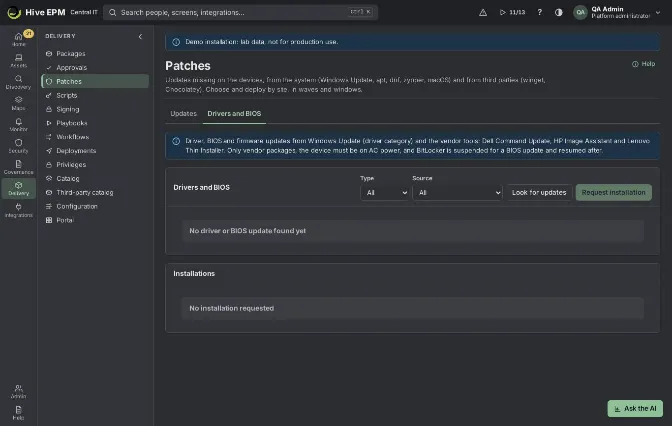
Screen: Drivers and BIOS
Drivers and BIOS lists the driver, BIOS and firmware updates that apply to each device and installs them safely. The updates come from Windows Update (the driver category) and from the vendor tools: Dell Command Update, HP Image Assistant and Lenovo Thin Installer. It is the Drivers and BIOS tab in Delivery › Patches (next to the Updates tab).
What you can do here
- See the applicable updates per device, with the Source, the Type (Driver, BIOS or Firmware), the vendor, the version and whether it needs a Restart. Tier 0 devices show Tier 0: two approvals.
- Filter by Type and Source.
- Look for updates: ask the agents to scan again (needs assets:write ).
- Choose updates of one device and click Request installation, with a Reason (5 to 500 characters) and a Ring (needs assets:write ).
- Approve or deny the requests in the Installations panel (the buttons appear to people with store:admin ). Whoever asked cannot approve, and Tier 0 devices need two approvals from two different people.
Step by step
- Open Delivery › Patches and the Drivers and BIOS tab.
- Click Look for updates. Each Windows agent asks Windows Update for driver updates and runs the vendor tool it finds on the device in scan mode.
- When the list fills, filter by Type to separate drivers from BIOS and firmware.
- Select the updates of one device and click Request installation.
- Choose the Ring (Pilot, Early or General) and type the Reason. Click Request installation. The request shows Waiting for approval and 0 of 1 approvals (or 0 of 2 approvals on Tier 0).
- Another person approves it in Installations with Approve; the confirmation window has a Note (optional) that goes to the audit trail. On a Tier 0 device a second, different person must approve too.
- On the last approval the installation goes to the agent right away (Sent to the agent). Hive does not wait for a maintenance window and does not use the ring to stagger devices: the ring is only stored with the request.
- The agent checks that the device is on AC power. For a BIOS update it suspends BitLocker for one restart, then runs Windows Update or the vendor tool. The agent does not restart the device: updates marked Restart finish on the next restart.
- The installation shows Installed or Failed with the tool's message.
Worked example: update the BIOS of a Dell notebook
The security bulletin of the vendor asks for a new BIOS on the Latitude notebooks.
- Carla opens Delivery › Patches › Drivers and BIOS and clicks Look for updates.
- A few minutes later FIN-NB-12 shows Dell Latitude 5440 System BIOS 1.18.0 , source Dell Command Update, type BIOS, with Restart.
- She selects it and clicks Request installation. The window Install 1 on FIN-NB-12 warns that the device must be on AC power and that BitLocker is suspended for one restart.
- Ring: Pilot. Reason: Vendor security bulletin for the BIOS . She clicks Request installation.
- Bruno opens Installations, sees the request Waiting for approval with 0 of 1 approvals, clicks Approve and confirms with Approve in the window.
- The task goes to the agent at once. The notebook is on battery, so the installation shows Failed with "the device is not on AC power" and nothing is changed.
- Carla asks the user to plug in the charger and requests the installation again; Bruno approves it.
- This time the agent suspends BitLocker for one restart and runs dcu-cli.exe /applyUpdates limited to BIOS updates. The installation shows Installed; the new BIOS is applied when the user restarts the notebook, and BitLocker comes back on by itself after that restart.
Pitfalls and limits
- No maintenance window, no staged rollout. An approved installation goes out immediately; the ring is only recorded. Approve only when the device can take it (for a BIOS, when the user can restart soon).
- The agent does not restart. Updates marked Restart take effect on the next restart, done by the user or by another action.
- Only vendor packages. Hive installs what Windows Update or the vendor tool offers; it never installs a driver file you upload.
- Vendor tools filter by type. Dell Command Update and Lenovo Thin Installer install every pending update of the chosen types (for example all BIOS updates), not a single package; HP Image Assistant gets the list of chosen SoftPaqs. Windows Update installs exactly the chosen drivers.
- The vendor tool must be installed. Dell Command Update ( dcu-cli.exe ), HP Image Assistant ( HPImageAssistant.exe ) or Lenovo Thin Installer ( ThinInstaller.exe ) must be on the device; deploy it from the Store first. Without it, only Windows Update drivers appear.
- AC power. The agent refuses to install on battery. Desktops without a battery always pass.
- BitLocker. For a BIOS update the agent suspends BitLocker for one restart (firmware and driver updates do not suspend it). If an update fails, the agent resumes BitLocker right away.
- Tier 0. Driver and BIOS updates on Tier 0 machines need two approvals from two different people, and neither can be the requester; the agent checks the count again.
- One device per request. Choose updates of one device at a time; to cover many devices, make one request per device.
- Device without an agent. The request stays Approved with the message that the device has no Hive agent.
- Windows only. macOS and Linux firmware (softwareupdate and fwupd) is not covered yet.
Related
- Patches
- Deployments
- Disk encryption
- Decisions
Trust signal and persistence
These features use what the agent already knows about each device to answer security questions: can this device be trusted right now, what starts on its own on it, where are documents with personal data, which Windows devices can be registered in Autopilot, and which ones have an EDR sensor. They show in the asset Security tab, in Assets › All assets › Asset security, in Integrations › Directory ›Autopilot and through the API.
What you can do here
- Read the trust signal of a device (trusted, at risk, untrusted, with a 0–100 score and the checks behind it), on screen or through the API for conditional access.
- See what starts automatically on each device and be alerted when an entry appears, changes or disappears.
- Find files with CPF, CNPJ or card numbers in the users' folders, without the content leaving the machine.
- Register Windows devices in Windows Autopilot without touching them.
- Follow the EDR coverage and isolate, release or scan a device through the EDR.
Trust signal
On computers the checks are: agent reporting (critical without agent, warning when silent for more than 24 hours), antivirus, firewall, encryption, updates, security patches (warning when missing, critical when missing for more than 14 days), vulnerabilities (critical with an exploited one — KEV —, warning with CVSS 9 or more) and configuration profile compliance. On phones: screen lock, root or jailbreak, storage encryption and a report in the last 7 days. When an EDR is connected, the sensor is checked too, and an isolated device is critical. Any critical check makes the device Untrusted; any warning makes it At risk. The score starts at 100 and loses 25 per critical check and 10 per warning.
Other systems (Entra conditional access, ZTNA, VPN, proxy) read the signal before granting access: create an integration account with the trust scope and call GET /api/v1/trust/devices?hostname=… (or serial= , mac= ). That scope only reads the signal, not the inventory.
Worked example: block a notebook with an old critical patch
- NB-SALES-12 has a security update missing for 20 days and a critical (CVSS 9.8) vulnerability open. Its Security tab shows Untrusted, Score 65/100: Security patches critical, Vulnerabilities warning.
- The ZTNA gateway, with an integration account of scope trust, calls GET /api/v1/trust/devices?
hostname=NB-SALES-12 and receives "level": "untrusted", "score": 65 with the list of checks. Its policy denies access to the finance apps.
- The patch is deployed. On the next evaluation the patches check turns ok, the device becomes At risk (score 90) because of the open vulnerability, and the gateway lets it in with limited access.
Persistence
The agent lists what starts on its own: Run keys, the Startup folder and scheduled tasks (Windows); systemd units, cron, rc.local, desktop autostart, library preload and authorized SSH keys (Linux); launchd (macOS). The first reading is the baseline; after that, a new, removed or changed entry becomes a change of kind Automatic start (persistence). The list, with kind, entry, command and since when, is in the asset Security tab.
Worked example: alert on a new autostart entry
- In Monitor › Rules, create an alert rule on changes of kind Automatic start (persistence) for the tag Finance , sent to the security channel.
- A user on FIN-NB-031 runs a downloaded file that adds the Run key "Updater" with C:\Users\Public\upd.exe .
- With the next inventory, the change is recorded and the rule raises the alert. The asset Security tab lists the entry with its command and date.
- Investigate in Incident response; when it was legitimate, close the alert.
Sensitive data in files
The batch action Scan for sensitive data (CPF, CNPJ, card) (Delivery › Deployments, batch action) reads the documents in the users' folders — text, CSV, JSON, XML, logs, Word, Excel and PowerPoint — and counts valid CPF, CNPJ and card numbers. Only the path and the counts come back, never the content or the number. The result is in the asset Security tab, under Sensitive data in files.
Worked example: find spreadsheets with customer data
- In Delivery › Deployments, run the batch action Scan for sensitive data (CPF, CNPJ, card) on the devices with the tag Finance .
- Open FIN-NB-031, Security tab: "Last scan 10 minutes ago, 3,412 files read." and the file C:\Users\ana\Documents\clientes.xlsx with 1,204 CPF and 3 card(s).
- Ask the owner to move the file to the protected share and run the scan again to confirm.
Windows Autopilot
The batch action Read the Autopilot hash (Windows) collects the hardware hash of Windows devices. In Integrations › Directory › Autopilot, select the devices, choose the Microsoft Entra connection, optionally a Group tag, and click Send N to Autopilot. The Entra app needs DeviceManagementServiceConfig.ReadWrite.All; the import state (Not sent, Importing, Registered, Failed) is checked every 5 minutes.
Worked example: register 25 new notebooks
- Run Read the Autopilot hash (Windows) on the 25 notebooks of the tag New-2026 .
- In Integrations › Directory › Autopilot, click Select all, choose the Entra connection, type the group tag Sales and click Send 25 to Autopilot.
- Hive reports "25 sent to Autopilot, 0 failed." The column Autopilot shows Importing and, a few minutes later, Registered.
EDR (Defender for Endpoint, CrowdStrike, SentinelOne)
Connect the EDR in Integrations. Every 15 minutes Hive reads the devices with the sensor (state, version, isolation) and matches them with the assets by serial number, name or MAC; EDR alerts become Hive alerts and resolve together. Asset security shows EDR coverage: devices with and without the sensor, sensors with problems, isolated devices and EDR devices not found in Hive. On a device (Security tab), Isolate, Release isolation or Scan through the EDR, always with a reason that goes to the audit trail and to the EDR as the comment.
Worked example: isolate a suspicious server
- In Assets › All assets › Asset security, EDR coverage shows 12 computers without the sensor: install the sensor on them through your EDR.
- SRV-FILE-02 has an EDR alert. Open its Security tab and click Isolate, with the reason "Ransomware alert 4471, isolating while we investigate".
- The EDR cuts the server off the network, keeping only its own connection; the trust signal turns Untrusted. When it is clean, click Release isolation.
Pitfalls and limits
- The trust signal is computed when asked; it reflects the last inventory, so a silent agent shows as a warning.
- The trust API answers 404 when no device matches the serial, host name or MAC.
- Persistence changes start only after the baseline reading; entries that existed before are not alerted.
- The sensitive data scan has a time limit; when it is reached, some folders are not read and the result says so.
- Autopilot needs the Microsoft Entra connection with the extra permission.
Related
- Inventory
- Vulnerabilities
- Incident response
- API accounts
- Directory and machines without agent
Tags and groups
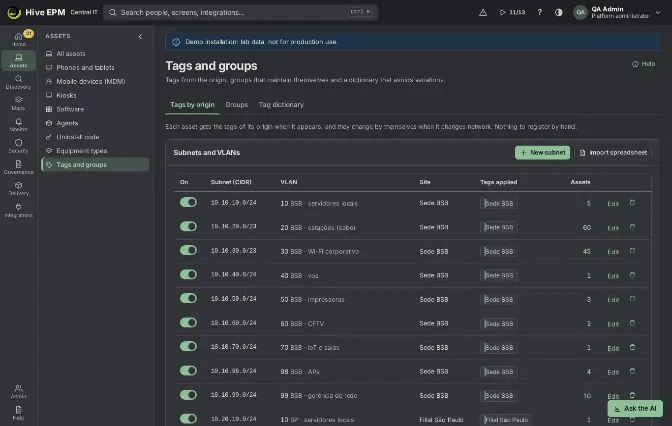
Screen: Tags and groups
Tags are key: value pairs on assets (for example Department: Finance ). Most of them come by themselves from the origin of each asset (subnet and VLAN, site, directory, cloud, discovery, structure); groups gather assets by conditions to scope rules, profiles and the agent policy. It is in Assets › Tags, with the tabs Tags by origin, Groups and Tag dictionary.
What you can do here
- Register subnets and VLANs (New subnet or Import spreadsheet) so assets get VLAN, site and extra tags by themselves.
- Tag devices by Active Directory OU, directory group, cloud account or collector with New tag rule by origin.
- See the Tags in use, by origin and how many assets carry each one.
- Create dynamic groups (by conditions) and static groups (a fixed list).
- Keep a Tag dictionary of keys with allowed values and known variations.
Subnets and VLANs
Assets with an address in a registered subnet receive its tags at once: VLAN 120 · Finance (VLAN and name), Site: <site> and the extra tags. When subnets overlap, the longest prefix wins for each asset. When an asset changes network, its tags follow and the change goes to its history. The switch Apply the tags of <cidr> turns a subnet off without deleting it.
Import spreadsheet takes a CSV (or pasted lines) with cidr, vlan, name, site, tags (tags separated by ; ; the first line can be the header). Click See preview to see what is new, updated or rejected and how many assets would change; nothing is saved until Import.
New subnet opens a 3-step wizard (needs assets:write ):
Network: type the Network (CIDR), like 10.20.120.0/24 , and optionally the VLAN (1 to 4094) and a Name (up to 80 characters). Assets with an address in this network receive its origin tags right away; the preview shows how many and any overlap with other subnets.
Location: type the Site (up to 120 characters). The site is set on the assets of this network, unless someone chose another one by hand; a site with the same name as a site of the structure is the same site, and a new name creates the site.
Extra tags: add key: value tags, like Departamento: Financeiro . The dictionary unifies variations. Click Register and apply tags: "Subnet 10.20.120.0/24 registered: n assets received the tags."
Rules by other origins
In Tags by origin › Rules by other origins, New tag rule by origin tags devices by Active Directory OU (and the OUs below), Directory group (AD or Entra ID), Cloud account or subscription or Collector that discovered. Choose the Origin, what it Points to and the Tags applied (press Enter after each), then Create rule. The list shows how many assets each rule covers. The tag follows the origin: leaving the OU or the account removes it. Rules are reapplied every 15 minutes and on save; turning a rule off or removing it takes its tags away; manual tags are never touched. The Organizational hierarchy panel reminds that each level of the structure (company, site, building, floor, room) and the rack also become tags.
Inherited tags
Tags that come from the subnet, the directory (AD/Entra), discovery ( Descoberto por: <method> ·<collector> · <scan> and the scan's tags), the cloud, the structure or a rule are inherited: they show without the remove button, and a bulk removal keeps them and says why. They change by themselves when the device moves to another subnet, VLAN or department, with the change in the device history. A discovery tag leaves when that scan has not seen the device for 7 days. A manual tag equal to an inherited one becomes inherited.
Groups
New dynamic group: fill Group name and Description, then build Conditions with blocks: a field (Operating system, OS family, Type, Site, VLAN, Department, Tag, Manufacturer, Model, Agent status, Installed software, IP address in, Host name, Main user, Last contact), an operator (is, is not, contains, has, is in...) and a value chosen from a list. Join blocks with AND (all) or OR (any), up to 20 conditions. The Live preview shows how many assets match today and a Sample of assets at each change. Click Create group. The group maintains itself: assets enter and leave as they start or stop matching (recalculated every minute).
New static group is a fixed list: save it, then Add asset one by one (or use "Add to group" in the asset list). Static groups suit one-off lists (audit sample, leasing return).
Groups can scope alert rules, configuration profiles and the agent policy. Before deleting a group in use, Hive lists where it is used; those items lose the group from their scope until you choose another one (Delete anyway).
Tag dictionary
New key creates a key (the part before the colon, like Department ) with Allowed values and Unified variations (one per line: fin = Finance ). Tick Closed key: only the listed values are accepted to refuse other values. Try a tag shows how a typed tag would be stored. Deleting a key keeps the tags already applied; only the dictionary rules go away.
Worked example: Finance subnet
- Assets › Tags, Tags by origin, New subnet.
- Network: 10.20.120.0/24 , VLAN120 , NameFinance . The preview says "38 assets would receive these tags now".
- Location: SiteSão Paulo HQ .
- Extra tags: Departamento: Financeiro . Register and apply tags: "Subnet 10.20.120.0/24 registered: 38 assets received the tags." 5. The notebook FIN-NB-07 now has VLAN 120 · Finance , Site: São Paulo HQ and Departamento: Financeiro , all without the remove button. When it moves to the Wi-Fi network 10.20.200.0/24, the three tags leave and those of the new subnet enter; its history records the change.
Worked example: tag by Active Directory OU
- Rules by other origins, New tag rule by origin, Origin Active Directory OU (and the OUs below), Points toOU=Servers,DC=corp,DC=local , Tags appliedRole: Server , Create rule: "Rule applied: 54 assets changed." 2. A server moved to OU=Retired loses Role: Server within 15 minutes.
Worked example: dynamic group for a pilot
- Groups, New dynamic group, Group nameFinance W11 .
- Block 1: Operating system contains Windows 11 ; AND block 2: Department is Finance ; AND block 3: VLAN is 120 . The preview goes from 1,240 to 312 to 35 assets as each block is added.
- Create group. Use it as the scope of a configuration profile; a new Finance notebook with Windows 11 on VLAN 120 enters the group within a minute.
Worked example: closed key in the dictionary
- Tag dictionary, New key, KeyDepartment , Allowed valuesFinance , HR , IT ; Unified variations fin = Finance ; tick Closed key.
- Typing Department: fin on an asset stores Department: Finance ("“fin” is a known variation..."); Department: Marketing is refused with an explanation.
Pitfalls and limits
- Registering subnets, rules, groups and keys needs assets:write ; viewing needs assets:read .
- The CIDR must be valid (like 10.20.120.0/24 ); the VLAN goes from 1 to 4094.
- Deleting a subnet takes its tags from its assets (the history keeps the change).
- The group preview counts only what your profile can see.
- Deleting a dictionary key does not remove tags already applied.
Related
- Organization structure
- Inventory
- Directory
- Cloud
- Configuration profiles
Directory and machines without agent
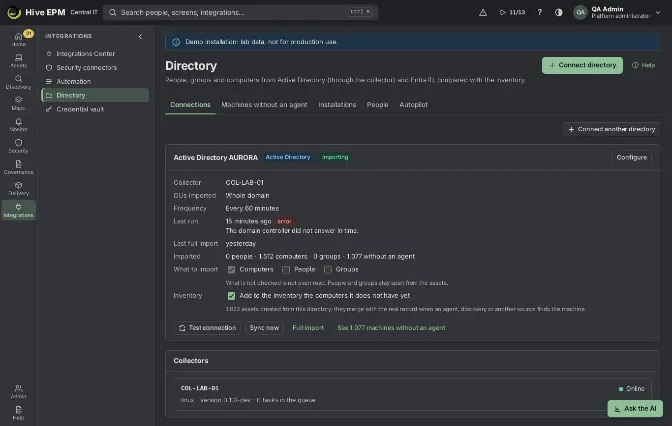
Screen: Directory and machines without agent (1/2)
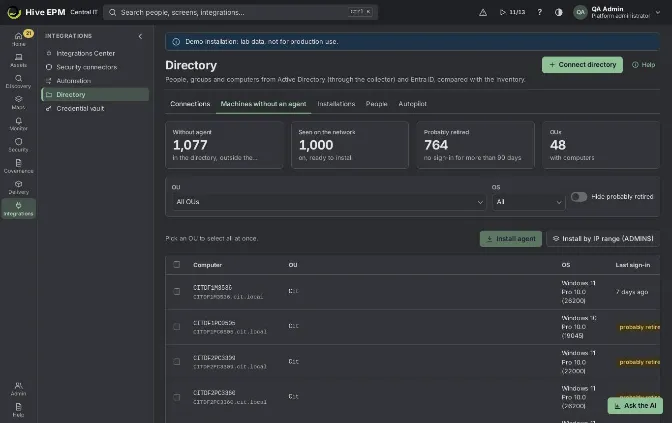
Screen: Directory and machines without agent (2/2)
Integrations › Directory brings people, groups and computers from Active Directory (read through a collector inside the network, by LDAPS, with a read-only account) and from Microsoft Entra ID (through the administrator consent, with no secret to paste), and compares them with the inventory. You can connect several directories — for example two AD forests, each read by its own collector — plus Entra ID. Seeing it needs See integrations or See assets; changing connections needs Connect and manage integrations; installing agents needs Manage agents.
What you can do here
- Connections: see each directory with its collector, the OUs imported, the frequency, the last run and what was imported; test, sync now or run a full import; choose what to import; add to the inventory the computers it does not have yet.
- Machines without agent: the computers of the directory that have no agent, by OU and system, with the ones probably retired; install the agent in batch.
- Installations: every batch installation with its progress, machine by machine.
- People: search people, their department, OU, account state, last sign-in and how many assets they have; list the departed people who still have assets.
- Autopilot: send the hardware hash of Windows devices to Windows Autopilot through Entra ID.
- Connect directory (top) and Connect another directory open the connection wizard.
Connections
Each Active Directory card shows the Collector, the OUs imported (or Whole domain), the Frequency, the Last run with its state and error, the Last full import and Imported (people, computers, groups and how many without agent). In What to import, tick Computers, People and Groups — what is not ticked is not even read — and, for people, Do not bring people already disabled. In Inventory, Add to the inventory the computers it does not have yet creates an asset for each computer missing from the inventory; those assets merge with the real record when an agent, a discovery scan or another source finds the machine. The buttons are Test connection, Sync now, Full import, See N machines without agent and Configure (reopens the wizard).
The Entra ID card shows the Entra tenant, the consent state and what was imported, with Open administrator consent, Sync now and Full import. The Collectors panel lists the collectors, their state, version and tasks in the queue.
What Hive does with the directory
- Each computer is matched with the inventory by serial number, name or DNS name; by IP only an asset that has no machine name yet.
- Matched assets get the tag OU: <domain>/<OU path> (for example OU: Corp/Workstations-SP ) and the department of the main user ( Department: Finance ; the tag name follows the company's default language).
- After the first full import, only what changed is read (uSNChanged).
- A person disabled in the directory who still has assets shows in the warning at the top ("N departed people still have assets allocated") and in People with Only departed people with assets.
Machines without agent
The figures on top are Without agent (in the directory, outside the inventory), Seen on the network (already matched to an asset of the inventory), Probably retired (no sign-in for more than 90 days) and OUs. Filter by OU and OS, turn on Hide probably retired, select machines or Select the whole OU, and click Install agent. The methods — GPO generated by Hive, remote installation by WinRM and ADMIN$ by IP range — are explained in Rolling out the agent.
Worked example: two AD forests, each with its own collector
The company has the forest corp.local at the head office and fabrica.local at the plant, on separate networks.
- Install one collector in each network: COL-CORP-01 (reaches dc01.corp.local:636 ) and COL-FAB-01 (reaches dc01.fabrica.local:636 ). See create a collector.
- In Integrations › Integrations, create two Active Directory / LDAP connections: "AD Corp" ( dc01.corp.local:636 , base DN DC=corp,DC=local , account [email protected] ) and "AD Fábrica" ( dc01.fabrica.local:636 , DC=fabrica,DC=local , [email protected] ). Each password goes to the vault.
- In Integrations › Directory, click Connect directory, choose "AD Corp", the collector COL-CORP-01 , test, choose the OUs and save. Then Connect another directory for "AD Fábrica" with COL-FAB-01 .
- Connections now shows two cards, each with its collector and counts, for example "1,240 people· 860 computers · 96 groups · 210 without agent" and "310 people · 290 computers · 25 groups ·140 without agent".
- Assets get OU: Corp/… or OU: Fabrica/… tags, so you can filter, report and deploy by forest. Machines without agent lists the OUs of both forests together.
Worked example: import the computers of one OU and install the agent in batch
- In Connections, on the "AD Corp" card, keep Computers ticked and turn on Add to the inventory the computers it does not have yet. Then click Configure: in the wizard step What to import, click Read OUs and groups, tick the OU Workstations-SP and go on to Save and import.
- The full import starts: "Import: the collector is working…", then "Import finished". Imported on the card now counts, for example, 214 computers, 180 of them without agent.
- Open Machines without agent, choose the OU Corp/Workstations-SP , turn on Hide probably retired (172 remain) and click Select the whole OU (172).
- Click Install agent (172), choose Remote installation by the collector (WinRM), the collector COL-CORP-01 and the install account, and Start installation.
- The panel shows each computer: Installing, then Installed · first inventory received. Machines that were off show Failed with "Try again when it is on, or use the generated GPO." Start them again later, or link a GPO for them.
- Each installed computer leaves Machines without agent; its directory-created asset merges with the asset the agent reports.
Pitfalls and limits
- Active Directory is read only through a collector that reaches a domain controller on port 636 (LDAPS).
- Microsoft Entra ID needs the provider's Entra application to be registered; without it, the consent button is unavailable.
- Google Workspace and other directories are not imported here.
- The list of machines without agent shows up to 1,000 computers per filter; filter by OU for large domains.
- A computer disabled in the directory does not appear in Machines without agent.
Related
- Step by step: integrate Active Directory
- Rolling out the agent
- Step by step: create a collector
- Trust signal and persistence
Kiosks and shared devices
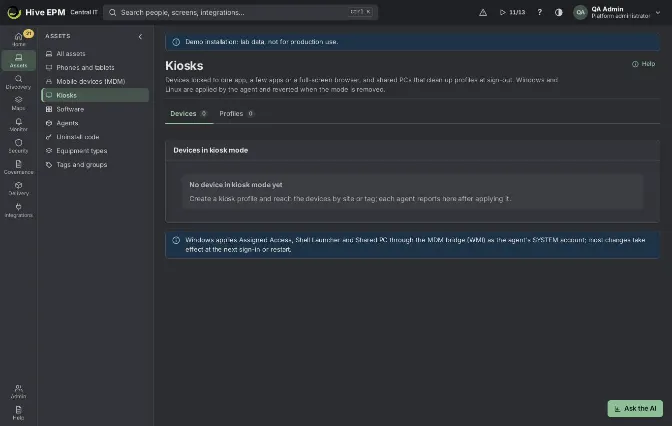
Screen: Kiosks and shared devices
Kiosks and shared devices locks devices to one app, a few apps or a full-screen browser, and turns PCs into shared PCs that clean up profiles at sign-out. Windows and Linux kiosks are applied by the agent and reverted when the mode is removed; iOS/iPadOS and Android profiles wait for mobile device management. It is in Assets › Kiosks.
What you can do here
- Create kiosk profiles per platform and type, and reach devices by site and tag.
- Follow the devices in kiosk mode: profile, state, current session, last restart and last check.
- Restart a kiosk device, Reapply its profile or Remove mode.
Kiosk types
Platform | Type | What it does |
|---|---|---|
Windows | Single app (Assigned Access) | One Store (UWP) app, or Microsoft Edge on a site, full screen for the kiosk account. |
Windows | Several apps (Assigned Access) | A restricted Start with only the listed apps (AUMID or full path of the .exe); one can open by itself. |
Windows | Custom shell (Shell Launcher) | A program replaces Explorer for the kiosk account; other accounts keep Explorer. |
Windows | Shared PC | Many people on one PC; local profiles deleted at sign-out, on low disk space or after days without use. |
Linux | Full-screen browser | A dedicated user signs in by itself (GDM, LightDM or SDDM) straight into Chromium, Chrome or Edge, only on the allowed sites. |
iOS / iPadOS | Single app mode, Shared iPad | Ready, applied when Apple MDM is available. |
Android | Dedicated (lock task), Digital signage | Ready, applied when Android Enterprise is available. |
Create a kiosk profile
- In Assets › Kiosks, open the Profiles tab and click New kiosk profile.
- Fill Name, Description, Platform and Kiosk type.
- Fill the fields of the type. For Single app: App (Store (UWP) app with its App id (AUMID), or Microsoft Edge with a site with Web address, Edge mode and Restart the session after idle minutes (0 = never)) and Kiosk account (empty = automatic account that Windows creates and signs in by itself, or DOMAIN\user ).
- In Which devices, choose Sites and Tags (empty reaches every device of the platform; a tag like kiosk is the safest choice). Set the Priority: when two profiles reach the same device, the lowest number wins.
- Keep Profile on and click Save profile. Each agent applies it and reports in the Devices tab.
Follow and act on devices
The Devices tab lists each device in kiosk mode with Profile, State (Pending, Applied, Drift, Error, Removing, Mode removed), Current session ("nobody signed in" when empty), Last restart and Checked. Notes show when the agent is late or offline or the device runs an older profile version. The actions are:
- Restart: whoever is using it sees a one-minute warning;
- Reapply: applies the profile again, also bringing back a device whose mode was removed;
- Remove mode: the agent reverts every change and the device stays out until you reapply.
Worked example: visitor check-in at the reception PC
The reception has a Windows PC, RCP-01, that must only show the visitor check-in site https://visitors.example.com .
- In Assets › All assets, add the tag reception-kiosk to RCP-01.
- In Assets › Kiosks › Profiles › New kiosk profile: Name "Reception – visitor check-in", Platform Windows, Kiosk type Single app (Assigned Access).
- App: Microsoft Edge with a site; Web addresshttps://visitors.example.com ; Edge modeFull screen (digital sign, interactive display); idle restart 5 minutes; Kiosk account empty (automatic account).
- Which devices: Tags reception-kiosk ; Priority 10 . Save profile.
- In Devices, RCP-01 shows Pending and then Applied. Windows applies Assigned Access through the agent's SYSTEM account, and most changes take effect at the next sign-in or restart, so click Restart: the person at the desk sees a one-minute warning.
- After the restart, RCP-01 signs in by itself with the kiosk account and opens Edge full screen on the check-in site; 5 minutes without use restart the session. Current session shows the kiosk account.
- When the reception moves to a tablet, click Remove mode on RCP-01: the agent reverts the changes and the PC goes back to normal at the next restart.
Pitfalls and limits
- Creating, editing, restarting, reapplying and removing need permission to change configuration; seeing the screen needs asset read.
- AUMIDs look like Microsoft.WindowsCalculator_8wekyb3d8bbwe!App (run Get-StartApps in PowerShell). Paths must be full paths of an .exe; arguments cannot have quotes or symbols.
- Several apps: 1 to 50 apps, only one opens by itself. Shared PC: 1 to 365 days without use and a maintenance hour from 0 to 23.
- Linux kiosk user: empty = hive-kiosk , created if missing and deleted when the mode is removed; it cannot be root.
- iOS/iPadOS and Android profiles cannot be applied until the matching mobile device management is available ("Kiosk profiles for this platform need the mobile device management of the next phases.").
- Deleting a profile takes its devices out of kiosk mode.
Related
- Configuration profiles
- Tags and groups
- Mobile devices
- Android management (MDM)
- Agents
Digital certificates
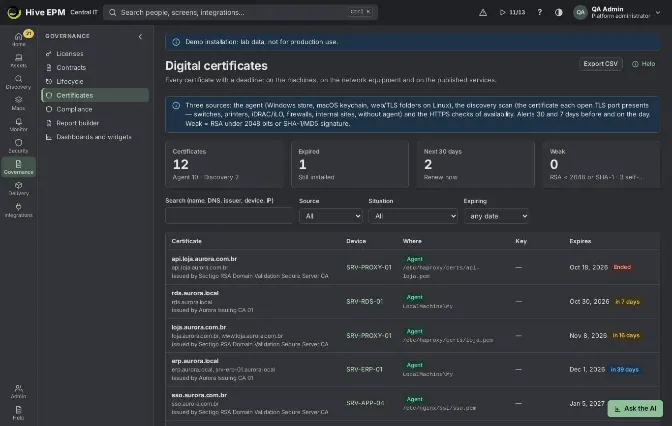
Screen: Digital certificates
Governance › Certificates gathers every certificate with a deadline — on the machines, on the network equipment and on the published services — with the expired and weak ones first, so nothing expires by surprise.
What you can do here
- See how many certificates there are, how many are Expired, expire in the Next 30 days and are Weak (RSA under 2048 bits or SHA-1/MD5 signature), and how many are self-signed.
- Search by name, DNS, issuer, device or IP and filter by Source, Situation and Expiring.
- Open the device that holds each certificate.
- Export the filtered list with Export CSV.
- Receive an alert before each certificate expires, with no rule to create.
Where they come from
- Agent: server and client certificates of the machine (Windows machine store, macOS system keychain, web server and TLS folders on Linux) — never CAs or private keys.
- Discovery: in a scan with ports on and the method TLS certificates (expiry, weak keys), the collector opens TLS on every open port where the service speaks TLS directly (443, 465, 636, 993, 995, 3269, 4443, 5986, 6443, 8006, 8443, 9443, 10443) and keeps the certificate presented, validating nothing and sending no credential. This brings in switches, printers, iDRAC/iLO, firewalls, hypervisors and internal sites without an agent. The same certificate on several ports shows once, with the ports.
- HTTPS check of availability: the days left on the certificate of the checked address.
Step by step
- Open Governance › Certificates.
- Read the indicators: Certificates (with the count per source), Expired ("Still installed"), Next 30 days ("Renew now") and Weak ("RSA < 2048 or SHA-1 · N self-signed").
- Narrow the list:
- Search (name, DNS, issuer, device, IP).
- Source: Agent, Discovery or HTTPS check.
- Situation: Expired, Expire in 30 days, Weak key or signature or Self-signed.
- Expiring: within 30 days, within 90 days, within 1 year or any date (the default).
- Each row shows the Certificate (common name, DNS names, issuer, "Self-signed" mark), the device, Where (store or folder; for discovery, IP, ports and TLS version), the Key (algorithm, size, signature, "weak" mark) and Expires with the days left.
- Click the device to open it; its Security tab has the panel "Certificates on this device".
- Click Export CSV to download what is filtered.
Alerts
Hive checks the certificates every 6 hours and raises the alert "Certificate expiring" once at each milestone: 30 days before (warning), 7 days before (major) and after it expires (critical). Once the certificate is renewed or removed, the alert closes by itself.
Worked example: find the network gear with weak or expired certificates
- In Discovery, run a scan of 10.10.0.0/24 with ports on and TLS certificates (expiry, weak keys) ticked (it comes on in new scans).
- Open Governance › Certificates, set Source to Discovery and Situation to Weak key or signature.
- The list shows idrac-srv01 at 10.10.0.21:443 with key RSA 1024 , marked "weak", and the switch sw-core01 at 10.10.0.2:443, 8443 , self-signed with SHA-1.
- Click Export CSV and hand the list to the infrastructure team to replace the certificates.
- After the next scan reads the new certificates, the rows leave the "weak" filter.
Worked example: renew the intranet certificate in time
- On 2 October, the alert "Certificate expiring" (warning) arrives for CN=intranet.corp.local : "Expires on 2026-11-01 · 2 device(s)".
- In Governance › Certificates, search intranet . Both web servers, web-intra01 and web-intra02 , show the same certificate, read by the agent.
- Install the renewed certificate on both servers.
- At the next inventory the agent reports the new certificate; at the next check the alert closes with "Certificate renewed or removed". Without renewal, a major alert would come on 25 October and a critical one after 1 November.
Pitfalls and limits
- Discovery only reads ports where TLS starts directly; services that use STARTTLS on other ports (for example SMTP on 25) are not read.
- A device without agent and outside discovery scans, and not checked by HTTPS, does not appear.
- Alerts are only raised for certificates on active assets and up to 30 days after expiry.
- The list shows up to 1,000 rows; use the filters or the CSV.
Related
- Discovery area
- Business services, SLA and capacity
- Assets and inventory
- Alerts and rules
- Software usage
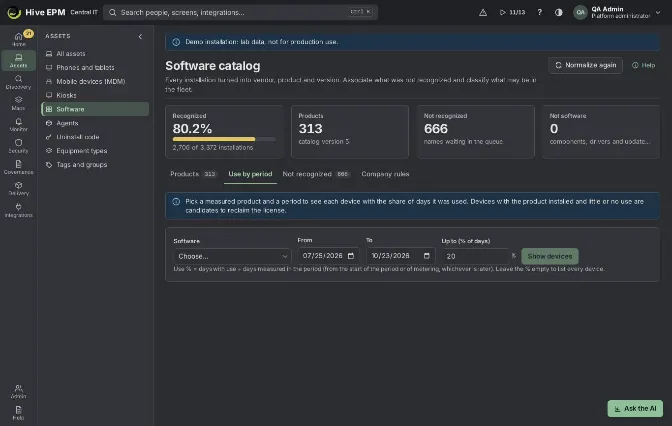
Screen: Software usage
With usage metering on, the agent measures which installed programs people open, how long they stay open and how much of that time the person was active. It does not collect window titles, content, URLs or keystrokes, and it sends summaries, not event by event. The company-wide view is in Assets ›Software › Use by period; each machine also has a Software usage sub-tab on its page.
What you can do here
- Turn metering on for every agent in Assets › Agents › Installers › Agent modules.
- See, on one asset, each product with its last use, time used in the last 7 and 30 days, days used and whether it is unused.
- Open the usage of a product over the last 12 weeks or 12 months, and the peak simultaneous use in the company.
- In Use by period, list every device with a product installed or used, with the share of days it was used, and export it to CSV.
- Create alert rules on usage: unused for days, fewer hours than expected, simultaneous use above the licenses.
Turn metering on
- Open Assets › Agents › Installers.
- In Agent modules, set Software usage metering to On in every agent (or keep As chosen in each installer and turn it on only in some installers).
- Agents apply it on their next policy check, within 5 minutes. The agent samples the open programs every 30 seconds and sends a summary every hour, so the first figures appear within an hour.
On the asset
- Open the asset and click Software › Software usage.
- The header says since when it is measured and the precision: either open time and active time (with keyboard or mouse use), or, where the system does not report activity, only the time each program is open.
- The table shows Product, User, Last use, Last 7 days, Last 30 days, Days used and Status ("In use" or "Unused for N days" after more than 60 days). Executables of the same product (for example Word, Excel and Outlook) add up in the product.
- Search with Search usage or tick Paid licenses only.
- Click a product to see its usage over time (Last 12 weeks or Last 12 months) and the peak simultaneous use in the company. Click a user to see every product that person used.
- The panel "N installed products never used" lists what was installed but not opened since metering started.
Use by period
- Open Assets › Software › Use by period.
- In Software, choose a measured product, or All metered products.
- Set From and To (the default is the last 90 days) and Up to (% of days) (default 20). Leave the % empty to list every device.
- Click Show devices. The indicators show Devices, Installed, never used, Listed and Not measured.
- Each row shows the Device, Use (% of days) = days used ÷ days measured (from the start of the period or of metering, whichever is later), Days used, Active time, Last use and Who used, lowest use first. "Used, not in the inventory" marks a device that used the product but does not list it as installed.
- Click Export CSV to take the list.
Worked example: reclaim Visio licenses
The company has 40 Visio licenses and suspects many are idle.
- In Use by period, choose Visio , From 2026-07-01 , To 2026-09-30 , Up to (% of days)10 , and click Show devices.
- The indicators show Devices 40 (40 with it installed), Installed, never used 14, Listed 19.
- The 14 devices at 0 % with Last use "Never" and the 5 below 10 % are the candidates. Click Export CSV and send the list to the managers to confirm.
- After confirmation, uninstall Visio from those 19 machines with a deployment and reassign the licenses.
Worked example: alert when a paid tool goes unused
- Open Monitor › Alert rules and create a rule of kind Software usage.
- In Condition, choose Installed and not used for days, Product AutoCAD , Days 60 .
- Limit the scope to the group "Engineering", click Run the preview to see with today's data what already matches, and save.
- Each machine where AutoCAD is installed and has not been opened for 60 days raises an alert.
Other conditions: Used fewer hours than expected (Hours per month (less than) for Months observed), Simultaneous use above the licenses (A number I type or The concurrent licenses bought) and Use above the contract limit.
Pitfalls and limits
- Without metering, the asset tab says "Software usage is not measured on this asset" and Hive only knows what is installed.
- Use by period accepts up to 400 days and lists up to 20,000 rows.
- Devices whose metering started after the period, or is off, count as Not measured and show "Not measured" in the row.
- "Installed" is matched by name: a device counts as having the product when an installed program's name contains the product name.
- Only active (not retired) assets are counted.
Related
- Software catalog and classification
- Licenses
- Agents and collectors
- Alerts and rules
Web and application servers
The agent finds the web and application servers running on its own machine — IIS, Apache, nginx, Tomcat, JBoss/WildFly, WebLogic, Node.js and PHP-FPM — and reads their configuration and access log with no account or password. You see the result on the asset page, in Assets › All assets › (asset)› Applications › Web and app servers.
What you can do here
- See each server of the machine with its version, ports, sites and whether it is Running or Stopped.
- Read the traffic of the last 15 minutes from the access log: Requests per second, Server errors (5xx), client errors (4xx), Response time (p95), Responses by status, Slowest URLs (p95), URLs with the most 5xx errors and Most requested URLs.
- See Requests per second in the last 24 h.
- See Thread queues and connection pools (JMX) of Tomcat and WildFly/JBoss.
- Create an alert rule straight from the tab with Create an alert rule for 5xx errors, or from a pool row.
Step by step
- Open Assets › All assets and click the server's name.
- Click the Applications tab, then the Web and app servers sub-tab.
- Each server shows a summary row (Server, Ports, Sites, Requests/s, 5xx errors, Read). Click sites, slowest URLs and errors to open the details.
- Read the notes at the top of the details: when something is missing (no response time in the log, no JMX access), the agent says what is missing and how to fix it.
- Use Create an alert rule for 5xx errors to open a new rule with the metric "Web server: % of 5xx errors (last 15 min)" and the server type as the target.
Paths arrive without the query string and with identifiers (numbers, UUIDs, hashes) replaced by :id, so /orders/48213?token=... appears as /orders/:id and no personal data comes along.
Status page (active connections)
- Apache: turn on mod_status for the machine only ( Require local ).
- nginx: turn on stub_status in a location .
With it, the details show Active connections with busy and idle counts.
Response time
For the p95 and the slowest URLs, the access log must carry the time of each request:
- Apache: add %D to the LogFormat .
- nginx: add $request_time to the log_format (for example rt=$request_time ).
- Tomcat: add %D to the pattern of the AccessLogValve .
Without it, the KPI shows "the log has no response time" and only the counts.
Thread queues and connection pools (JMX)
- Tomcat: start it with the Jolokia agent bound to the machine, in CATALINA_OPTS : -javaagent:jolokia-agent-jvm.jar=host=127.0.0.1 . Hive reads the connector thread pools and the connection pools (DBCP2 and tomcat-jdbc).
- WildFly/JBoss: nothing to install. The agent uses the local bin/jboss-cli , which signs in without a password when it runs as the owner of the server, and reads the datasources and the Undertow worker. For the pool numbers, turn on statistics-enabled in the datasource.
Each pool shows In use / maximum (amber from 75 %, red from 90 %) and Waiting.
Worked example: alert when the shop's connection pool fills up
The Tomcat on srv-shop01 serves the online shop and uses the datasource jdbc/shop .
- On srv-shop01 , add -javaagent:/opt/jolokia/jolokia-agent-jvm.jar=host=127.0.0.1 to CATALINA_OPTS and restart Tomcat.
- In Hive, open Assets › All assets › srv-shop01 › Applications › Web and app servers and expand Tomcat. After the next inventory, Thread queues and connection pools (JMX) lists jdbc/shop as "Database connections", for example 12 / 50 (24 %) , Waiting 0 .
- On the jdbc/shop row, click Create an alert rule for 5xx errors. The rule wizard opens with the metric "Application server: connection pool in use (% of the maximum)" and the target tomcat:jdbc/shop .
- Set warning at 80 and critical at 95, choose the severity and save.
- On Black Friday the pool reaches 47 / 50: the row turns red and the rule raises an alert in Monitor › Alerts and events for srv-shop01 .
Worked example: find the slow pages of the intranet
- On web-intra02 (nginx), change the log_format to end with rt=$request_time and reload nginx.
- Open the asset's Web and app servers sub-tab. The note about missing response time disappears and Response time (p95) shows, for example, 840 ms .
- Slowest URLs (p95) lists /reports/:id/pdf first. Hand it to the development team; the path already has the report number replaced by :id .
Pitfalls and limits
- Only servers on machines with the Hive agent are read; the agent reads only its own machine.
- Traffic covers the last 15 minutes of the access log; if the server writes no access log, only the version, ports and sites appear.
- Tomcat pools need Jolokia bound to 127.0.0.1 ; WildFly/JBoss pools need bin/jboss-cli in the installation and the agent running as a user that can use it.
- Alert rules on pools use the target kind:name (for example tomcat:jdbc/shop ); the 5xx rule uses the server type (for example nginx ).
Related
- Assets and inventory
- Applications
- Alerts and rules
Software catalog and classification
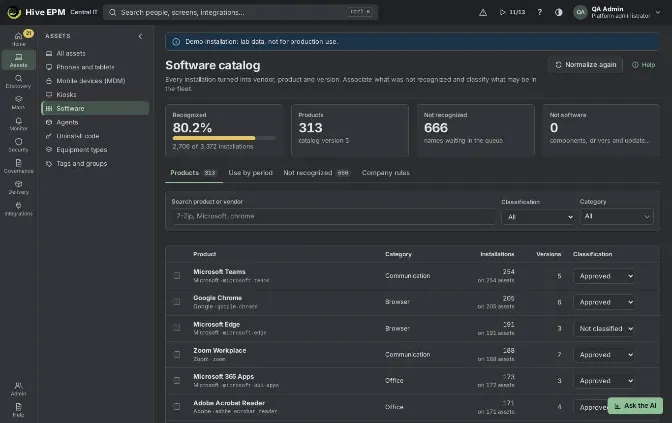
Screen: Software catalog and classification (1/2)
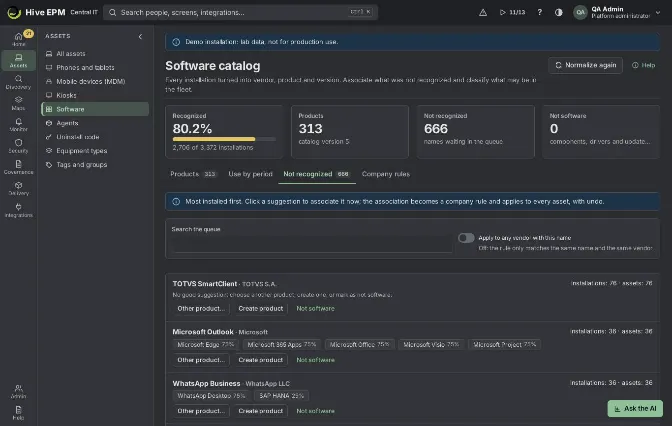
Screen: Software catalog and classification (2/2)
Every program the inventory finds is normalized into a product, with vendor, version, edition, category and, when known, the CPE (and purl for Linux packages). This is what links software to licenses and vulnerabilities. The catalog is in Assets › Software, with the tabs Products, Use by period, Not recognized and Company rules (Use by period has its own article).
What you can do here
- See how much of the installed software is recognized: the Recognized, Products, Not recognized and Not software indicators at the top.
- Search products, filter by Classification and Category, and see installations, assets and versions of each one.
- Classify products as Approved, Tolerated, Forbidden or Evaluating, one by one or in bulk.
- Associate names the catalog did not recognize with a product, with a new product of your company, or mark them as Not software.
- Review and remove the Company rules created by those associations.
- Run the normalization again with Normalize again.
Products and classification
- Open Assets › Software. The Products tab opens.
- Type in Search product or vendor (for example 7-Zip ) or pick a Classification or Category.
- Each row shows the Product with its vendor and key, the Category, Installations ("on N assets"), Versions and Classification. A product without CPE shows "no CPE: not cross-checked with CVEs".
- Click the number in Versions to see each version and edition and on how many assets it is installed.
- To classify, choose the value in the Classification list of the row. To classify several, tick them and use the buttons of the bar that appears (Approved, Tolerated, Forbidden, Evaluating or Remove classification).
- Choosing Forbidden asks for a Reason: it goes to the audit trail and into the alert of the "Forbidden software installed" rule. Click Forbid.
- A notification confirms ("2 products are now “Forbidden”.") with Undo.
To be told when a forbidden product is installed, click Create the rule in the note below the list: it opens the ready rule "Forbidden software installed".
Not recognized
- Open the Not recognized tab. Names are listed with the most installed first, with "installations: N · assets: N".
- Each name shows up to five suggestions with a similarity percentage. Click a suggestion to associate it now.
- No good suggestion? Use Other product… to search the catalog, Create product to create a product of your company (vendor, product, category and an optional CPE such as cpe:2.3:a:7-zip:7-zip ), or Not software for updates, drivers and uninstall entries.
- Turn on Apply to any vendor with this name when the same name comes with different vendors; off, the rule only matches the same name and the same vendor.
- The association becomes a company rule and applies to every asset with that name, now and in the next inventories. The notification says how many records were recognized and offers Undo.
Company rules
The Company rules tab lists each rule: Name in the inventory (and vendor or "any vendor"), what it Becomes (a product key or "not software") and Created by. Company rules win over the provider's catalog for the same name. Remove rule sends the records back to Not recognized.
Worked example: forbid uTorrent and be alerted
- In Assets › Software › Products, type utorrent in the search.
- The row "uTorrent" shows 4 installations on 4 assets. In Classification, choose Forbidden.
- In Reason, type P2P client not allowed by the security policy (POL-07) and click Forbid.
- Click Create the rule in the note below the list, keep the condition "Forbidden software installed", click Run the preview (it shows the 4 assets already in that situation) and save.
- From now on, each asset with uTorrent raises an alert carrying the reason you typed.
Worked example: teach Hive an in-house application
The finance team uses "FinPlan Client 3.2 (x64)", from the vendor "Acme Sistemas", on 37 machines, and it sits in the queue with no good suggestion.
- In Not recognized, type FinPlan in Search the queue.
- Click Create product. Vendor Acme Sistemas , Product FinPlan Client , Category Productivity; leave CPE empty.
- Click Create and associate. The notification says "“FinPlan Client 3.2 (x64)” is now Acme Sistemas FinPlan Client: 37 records recognized." 4. The product appears in Products with the "company" mark, and the rule appears in Company rules. The rule matches that exact name: if version 3.3 is installed as "FinPlan Client 3.3 (x64)", the new name shows up in the queue and needs its own association (pick "Acme Sistemas FinPlan Client" with Other product…).
Worked example: set aside updates
- In Not recognized, the name "Security Update for Microsoft Office (KB5002...)" has hundreds of installations.
- Click Not software. The records leave the queue and count in Not software.
- If you change your mind, open Company rules and click Remove rule: the records go back to the queue.
Pitfalls and limits
- Classifying, associating and removing rules need permission to change assets; without it the tabs are read-only.
- A product without CPE is not cross-checked with vulnerabilities; it shows as "Not correlated" in Vulnerabilities.
- The Products list shows up to 500 rows; refine with the search and filters.
- The queue shows up to 200 names at a time; associate the top ones and the next appear.
- A company rule matches the exact name in the inventory (and the vendor, unless Apply to any vendor with this name was on).
- Software sent by other tools through the inbound route (SCCM, spreadsheets, another CMDB) only applies to assets without an agent; the agent always wins, because it sees the machine from inside.
Related
- Software usage
- Licenses
- Vulnerabilities
- Assets and inventory
Identities and access reviews
Screen: Identities and access reviews (1/2)
Screen: Identities and access reviews (2/2)
Identities treats every account as an asset: people, service accounts, Kubernetes workloads and cloud keys and tokens. It is in Security › Identities. Hive keeps only account metadata (who, source, groups, created, last used, expiry, owner); secret values of keys and tokens are never read or stored. Names and e-mails go through the same pseudonymization Hive applies before any AI analysis.
What you can do here
- See every identity from Active Directory, Entra ID, Kubernetes and the import API in one list (tab Inventory), filtered by kind, group or text.
- Open an identity to see its groups, MFA, last use, primary machine and the keys and tokens it owns.
- Read the findings: administrator without MFA, excessive privilege, stale accounts, keys without expiry or too old, and segregation-of-duties conflicts.
- Define segregation-of-duties rules as pairs of groups or roles.
- Run access reviews: a campaign over a group where a reviewer marks keep or revoke for each member, closed and exported as evidence.
Where the identities come from
- Directory: the users of the Active Directory and Entra ID sources (Integrations Center). Groups come from the membership; members of administrative groups (Domain Admins, Global Administrator, cluster-admin and similar) are marked privileged.
- Kubernetes: service accounts read by the collector become workload identities.
- Import API: POST /api/v1/identities/import receives cloud IAM users, roles, access keys and tokens as metadata ( kind , source , externalId , owner , createdSrc , lastUsed , expiresAt , parentExternalId ). Fields with secret values do not exist and are ignored.
- Primary machine: a person is linked to the asset whose primary user is the same login.
Click Read sources again after a directory sync; the list is also updated by the import API.
Findings
Finding | When it appears |
|---|---|
Administrator without MFA | privileged person whose source reports MFA off (sources that do not report MFA show "Not informed" and do not raise it) |
Excessive privilege | member of two or more administrative groups, or a privileged service account |
Stale account | no sign-in for the number of days chosen (90 by default); never used counts from creation |
Key without expiry, old key, expired key | key or token with no expiry date, older than the limit (365 days by default) or already expired |
Segregation-of-duties conflict | the same identity in both groups of a rule |
The thresholds are the fields Stale after (days) and Key too old after (days) at the top of the Findings tab. Stale accounts are checked only for people and service accounts. Disabled accounts do not raise findings.
Worked example: quarterly review of Domain Admins
- In Integrations Center, confirm the Active Directory source finished its last sync, then open Security › Identities and click Read sources again. The message shows, for example, "412 directory accounts and 9 Kubernetes service accounts read; 287 linked to their primary machine".
- Open the Findings tab. Click the Administrator without MFA filter: two people in Domain Admins appear with severity Critical. Open each one to see the groups and the last sign-in.
- In Segregation of duties, add the rule Pay and approve with group A Accounts Payable and group B Payment Approvers . Back in Findings, one conflict appears for the person in both groups.
- Open Security › Access reviews, type the campaign name Domain Admins Q4 , the group Domain Admins and the reviewer [email protected] , and click Create review. Hive adds the 7 current members that are enabled; disabled accounts are left out.
- The reviewer clicks the campaign name to open it, marks Keep for 5 people and Revoke for 2; for those two, the note left the infrastructure team is typed in Note before clicking Revoke, because the note is saved with the decision.
- Click Close review. The message says "Review closed: 2 access(es) recommended for revocation."; the audit trail records the creation, each decision and the closing.
- Click Export CSV and attach the file to the change ticket that removes the two accounts from the group in Active Directory.
Pitfalls and limits
- Revoke is a recommendation: Hive does not change group membership in the directory. The administrator removes the access and the next sync shows it.
- MFA is known only when the source reports it (import API mfa ); the directory sources do not report it yet, so "Administrator without MFA" depends on that field.
- The review takes the members at creation time; people added to the group later enter only in the next campaign.
- The group of a review must be the simple name as shown on the Identities screen, such as Domain Admins (Hive keeps directory groups by their simple name; segregation-of-duties rules also accept the full DN). If no enabled identity is a member, the review is refused with "No active identity is a member of …".
- The Inventory tab shows up to 2,000 identities; use the search, group and kind filters to narrow it. The import API takes up to 20,000 records per call.
- Viewing needs the users:read permission; reading the sources again, importing, segregation-of- duties rules and creating, deciding or closing reviews need users:admin .
- Local administrators of each machine are shown in the asset; they are not yet identities in this list.
Related
- Directory
- Kubernetes
- Cloud
- SaaS in use and posture
- Audit
SaaS in use and posture
Screen: SaaS in use and posture
SaaS shows which cloud applications the company uses and how the main ones are configured. It is in Security › SaaS. Usage comes from two sources: the identity provider (application assignments and sign-ins from Entra ID or Okta) and expenses (card or reimbursement lines matched against a catalog of SaaS vendors). The posture tab (SSPM) evaluates security rules over the configuration of Microsoft 365/Entra ID, Google Workspace, Okta, GitHub, Slack and Salesforce.
What you can do here
- Import a CSV of card or expense lines and see which ones are SaaS, with the total spend per application.
- Receive the applications of the identity provider with the number of people through the API.
- Mark each application as sanctioned (approved by IT) or not.
- Import the configuration of a SaaS as JSON and see each rule as pass, fail or not informed, with how to fix it.
Expenses
The file has the columns date, description, amount and an optional currency, separated by comma or semicolon, with or without a header. Amounts like 1.234,56 and 1,234.56 are both accepted. The description is matched against the catalog by the vendor name as it appears on the card statement (for example SLACK T0ABC DUBLIN or ZOOM.US 888-799 ). Dates may be 2026-10-01 , 01/10/2026 or 01-10-2026 .
Lines without a match are kept and up to 10 of their descriptions are listed after the import ("Not recognized: …"), so you can review them.
Posture rules
Each rule reads one field of the configuration JSON. A field that is missing is shown as "Not informed" and does not count as a failure; the score of each SaaS is the passing rules divided by the evaluated ones. GET /api/v1/saas/posture/rules lists every rule with the field it reads, for example /conditionalAccess/requireMfaForAdmins for Microsoft 365 or /org/twoFactorRequired for GitHub.
Worked example: card statement and Slack posture
- Export the corporate card statement of the month as CSV with date, description and amount.
- Open Security › SaaS, tab Applications in use, and click Import expenses (CSV). The message shows "184 lines imported, 37 matched to SaaS." and, below it, "Not recognized: …" with up to 10 descriptions.
- The list shows Slack (with the SSPM tag), Zoom and Figma, with Expenses in the Seen by column; Slack has a spend of 1,250 BRL. Click Mark as sanctioned for Slack and Zoom; the button changes to Remove sanction.
- Open the Posture tab, choose Slack in the SaaS list and paste in Configuration (JSON) the configuration read from the Slack admin API, such as {"team":{"twoFactorRequired":false,"publicFileLinks":false,"sessionDurationHours":720}} .
- Click Evaluate. The message says "2 failing rule(s).": two-factor authentication is not required and sessions last 30 days (the rule asks for at most 7 days, 168 hours). The Slack panel shows "2 failing · 1 passing · 1 not informed" and "33% passing" (Slack Connect approval was not sent). Each failure explains the fix.
- After the Slack administrator changes the settings, import the configuration again; the score goes to "100% passing" and each evaluation is recorded in the audit trail.
Pitfalls and limits
- In this first delivery the configuration is imported (screen or POST /api/v1/saas/posture/ ); automatic reading by connectors comes with the security connectors.
- The identity provider applications arrive through POST /api/v1/saas/idp ; the Entra ID and Okta connectors will fill it automatically.
- Card descriptors vary by bank: a vendor that is not in the catalog stays unmatched instead of being guessed.
- Spend adds up every import; import each period only once.
- A line whose amount is not a number (other than the header) stops the import with "Line N: the amount … is not a number" and nothing from that file is saved. The file can have up to 5 MB.
- A configuration that is not JSON shows "The configuration is not valid JSON."; it must be a JSON object.
- Viewing needs assets:read ; importing expenses, sanctioning and the identity provider API need assets:write ; evaluating posture needs integrations:admin .
Related
- Identities and access reviews
- Integrations Center
- Audit
Vulnerabilities
Screen: Vulnerabilities (1/3)
Screen: Vulnerabilities (2/3)
Screen: Vulnerabilities (3/3)
Hive crosses the software installed on your assets with the public vulnerability sources and shows what is vulnerable, where, how urgent it is and how to fix it. You find it in Security › Vulnerabilities; the reputation of IPs and file hashes seen in the fleet is next to it, in Security › Reputation.
What you can do here
- Fix now tab: the sources and their sync, the counters (open findings, CVEs in KEV, KEV time to fix, critical, not correlated), the Top 10 to fix now by risk and the Fix SLA.
- Findings tab: every finding per asset, filtered by CVE, severity, state, deadline and KEV only, with Export CSV.
- Risk acceptances tab: every exception, active or expired, with justification, approver and validity; approve, reject, cancel and export.
- Open a CVE to see its scores, KEV data, affected assets, how the risk was calculated, the fix, and to Accept risk or Open ticket.
- Configure risk score: factor weights and fix deadlines by severity, with a preview of the Top 10.
- Reputation: check external IPs and executable hashes against AbuseIPDB, abuse.ch, VirusTotal and OTX.
Sources and how a finding is made
CISA KEV (exploited in the wild) and the NVD are synced every 2 hours, OSV.dev every 6 hours and FIRST EPSS (probability of exploitation in the next 30 days) once a day. Each source shows its last successful sync and how many items changed. If a source fails, the previous data stays valid; after 24 hours without success (6 hours for KEV) a band warns that the source is out of date.
Programs are matched by their CPE and the version ranges published by the NVD; Linux packages by the distribution package and its exact version through OSV, so a fix backported by the distribution is not flagged. Software without CPE or purl never gets a CVE by name similarity: it is counted as Not correlated and the link Not correlated — normalize takes you to the software queue. When the fixing update is installed, the next inventory closes the finding as Fixed.
Risk score and deadlines
- The Hive risk score (0 to 100) turns CVSS, EPSS, exposure and asset criticality into 0–1, weights them and multiplies by the KEV multiplier when the CVE is in KEV. How the risk was calculated shows each factor, its value and its weight.
- Exposure comes from tags with "internet" or "dmz" on the asset and from open ports. Asset criticality is set on the asset; when it is not set, "Medium" is used and the risk window offers Set criticality.
- The deadline counts from the day the CVE was detected on the asset plus the days of its severity (recommended: critical 15, high 30, medium 90, low 180). With CVE in the KEV uses the KEV deadline when it is sooner, the CISA due date wins.
- In Configure risk score (needs vulnerabilities:approve ) you move the weights and see Top 10 with the new weights (▲▼ show how each CVE moved) before saving. Save new version keeps the change in Configuration versions, with undo. Back to the recommended weights restores the suggested values.
Step by step: from the Top 10 to the fix
- Open Security › Vulnerabilities. In Fix now, check that the sources are Connected.
- In Top 10 to fix now, turn on KEV only if you want only what is exploited in the wild.
- Click a CVE to open it. Read Scores (CVSS 3.1 and 4.0 with their source, EPSS, NVD status, CWE), Known exploited (KEV) and the list of affected assets.
- In Fix, see the installed version, the Version that fixes, the distribution package or Microsoft KB, the vendor bulletins and how many CVEs the update fixes on that asset.
- Click Open ticket (needs integrations:admin and a connected ITSM) to open one ticket for the CVE with the affected assets, the deadline and the fix.
- Fix it with a patch, a package or a deployment. The next inventory closes the finding.
Worked example: triage a critical CVE and keep one exception
On Monday the Top 10 to fix now shows, in first place, CVE-2026-20817 (example values) in 7-Zip 24.08: risk 92, KEV, Critical, CVSS 9.8, EPSS percentile 97, 14 assets, deadline Due in 7 days.
- Lia (security analyst) clicks How the risk was calculated: CVSS 9.8, EPSS 97%, exposure "reachable on the network", criticality "High" and In KEV with multiplier 2. Two assets have no criticality; she opens the asset risk and uses Set criticality on them.
- She opens the CVE. Known exploited (KEV) shows Added to KEV 3 days ago and the KEV deadline. Fix says "Updating 7-Zip to 25.01 fixes all 2 CVEs of this software on the asset."
- She clicks Open ticket: one ticket in the ITSM with the 14 assets. The desk deploys 7-Zip 25.01 to 13 of them; the next inventories close those findings as Fixed.
- The 14th asset is OT-HMI-03 , a line HMI the vendor only supports with the current build until the next stop. Lia clicks Accept risk: ScopeOne asset ( OT-HMI-03 ), Justification "Vendor-certified build; machine has no internet and only the HMI port open; update in the 12/15 maintenance stop", Approver Marcos (he has "Approve risk acceptance"), Valid until 12/16 (default is 90 days, at most 365). Send for approval.
- Marcos opens Vulnerabilities › Risk acceptances, reads the request and clicks Approve: "Risk of CVE-2026-20817 accepted." The finding leaves the Top 10 and the SLA and is marked Risk accepted.
- On 12/09, seven days before the end, Lia and Marcos receive an e-mail: the acceptance ends on 12/16. If the stop slips, Lia asks for a new acceptance. If nothing is done, on 12/17 the acceptance turns Expired and the finding returns to the Top 10 and the SLA.
- Had the CVE entered the KEV after the approval, or its EPSS passed 50%, the acceptance would get the review tag and Marcos an e-mail; it stays valid until he reviews it (he can cancel it).
Worked example: tune the risk score and deadlines
The board asked to fix critical findings in 10 days. Marcos opens Configure risk score, moves Exposure up and sees in Top 10 with the new weights that two internet-facing CVEs climbed (▲3,▲2). In Fix deadline by severity he types 10 for critical and keeps CVE in the KEV uses the KEV deadline when it is sooner on. Save new version: "Risk score saved as a new version; the top 10 is recalculated." The deadlines of open findings are recalculated from their detection date; the undo in the toast (or Configuration versions) brings the old values back.
Worked example: check an IP in Reputation
- An administrator connects AbuseIPDB and VirusTotal in Integrations (the API keys are the company's own). Security › Reputation shows each source with its daily quota.
- Hive checks by itself every 15 minutes; you can click Run now: "120 indicators · 35 queried · 85 from cache · 1 malicious."
- The Indicators list shows 185.220.101.47 (External IP) as Malicious: AbuseIPDB "Malicious · high confidence", VirusTotal "Malicious". With the default rule 2 sources, or 1 of high confidence, the verdict is malicious.
- You open it: Seen on lists FIN-NB-014 and when. The malicious verdict raised an event in Alerts, with the source, the verdict and the asset. From there, continue with Incident response or Indicators of attack.
Pitfalls and limits
- Requesting a risk acceptance needs only vulnerabilities:read , but the approver must have vulnerabilities:approve , cannot be the requester, and only the chosen approver decides.
- Rejecting needs a reason. The requester or any approver can Cancel acceptance.
- Justification needs at least 20 characters; validity from tomorrow up to 365 days.
- Open ticket without a connected ITSM shows "No ITSM is connected to open the ticket." A CVE that already has a ticket gets the new assets added to it.
- Only active assets count. The Findings tab shows the first 500 rows on screen; the CSV has them all (up to 1,000 per query).
- Reputation sends only SHA-256 hashes and public IPs, never files. Answers are cached for 24 hours and shared between companies. A source above 80% of its daily quota shows Attention; indicators beyond the quota wait for the next day. Changing the verdict rule needs vulnerabilities:approve .
Related
- Indicators of attack (IoC hunting)
- Patches
- Deployments
- ITSM
- Alerts
- Software catalog
Attack paths and choke points
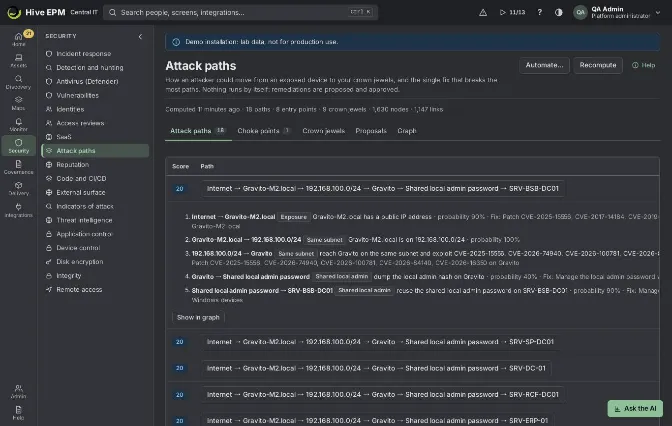
Screen: Attack paths and choke points
Attack paths (Security › Attack paths) show how an attacker could move from an entry point (a device reachable from the internet) to your crown jewels (domain controllers, Tier 0 devices and the machines behind critical business services), step by step, and which single fix, the choke point, breaks the most of those paths.
What you can do here
The screen has five tabs: Attack paths, Choke points, Crown jewels, Proposals and Graph.
- See the Crown jewels: the ones found by rule (source Rule: Tier 0 devices, domain controllers, components of critical business services, the data layer of high-criticality services) and the ones marked by hand (source Manual).
- Mark a device or a business service with Mark as crown jewel (choose the Type, the device or service and a Reason of up to 500 characters), or Remove a manual mark. This needs the assets write permission.
- Read the Attack paths, from the highest Score down, and expand a line to see each step, its probability and the fix that breaks it; Show in graph draws that path alone.
- See the Choke points ranked by Paths broken, with the concrete fix and Open, which goes to the screen that does it.
- Propose remediation for a choke point and Approve or Reject proposals in Proposals.
- Open the Graph of the attack paths (with Only nodes on paths to hide the rest) and download it as Image (PNG), Image (SVG), draw.io or Visio.
How a path is built
Hive builds a graph from what it already knows about your devices, once an hour and when you click Recompute:
- Exposure: a device with a public IPv4 address is an entry point (a global IPv6 address from the ISP does not count: it sits behind the router firewall), linked from Internet.
- Exploitable vulnerabilities: each open finding gives the device an exploit probability: 90% when the CVE is in KEV; otherwise the EPSS, with a floor by severity (critical 50%, high 30%, medium 10%, other 5%).
- Reachability: connections seen by the agent in the last 30 days, flows sent by the switches (NetFlow, sFlow, IPFIX) in the last 7 days and devices in the same private /24 subnet. A reachability step only leads to a device that has an open finding to exploit.
- Credentials: devices with the same primary user, and Windows devices that share the local administrator password because Hive does not rotate it (two or more such devices).
- Virtualization: whoever controls a host controls its VMs.
Each step has a probability; the path score (0 to 100) is the probability of the whole path, so a short path through a KEV vulnerability on an exposed device ranks at the top. Up to 200 paths are kept.
Choke points
A choke point is the fix that breaks the most paths. Hive picks them one at a time: the first breaks the most paths, the second the most of what is left, and so on. Paths broken is how many paths that fix alone removes; Cumulative is the total after applying the fixes above it too. The kinds are:
- Patch: update the software with the CVEs on that device; Open goes to Vulnerabilities filtered by the device.
- Rotate local admin password: manage the local admin password with Hive on the Windows devices that share it; Open goes to Configuration profiles.
- Restrict user: restrict where the shared user signs in and remove its local admin rights; Open goes to Configuration profiles.
- Isolate host: isolate the management of the hypervisor host; Open goes to the device page.
- Close exposure: close the internet exposure of the device (used when the exposed device has no exploitable finding to patch); Open goes to the device page.
Worked example: break the path to the domain controller
The web server web-shop-01 has a public IPv4 address and an open finding for a CVE in KEV. Its primary user ana.ops is also the primary user of srv-file-02 , which the agent saw connecting to the domain controller dc-01 , and dc-01 has an open critical finding.
- Open Security › Attack paths. In the Crown jewels tab, dc-01 appears with the source Rule and the reason "Domain controller".
- In the Attack paths tab, the first line is Internet → web-shop-01 → ana.ops → srv-file-02 → dc-01 . Expand it to read each step (the step texts come in English): "web-shop-01 has a public IP address", "harvest the session of ana.ops on web-shop-01", "sign in to srv-file-02 as ana.ops", "connection observed by the agent; exploit … on dc-01".
- In the Choke points tab, the first one is Patch "Patch CVE-… on web-shop-01" with the most Paths broken. Click Propose remediation. The Remediation column shows Proposed. 4. Another person with the vulnerability approval permission clicks Approve in the Proposals tab (whoever proposed cannot approve). Nothing runs by itself: click Open on the choke point to go to Vulnerabilities filtered by web-shop-01 and deploy the update through the usual patch flow. 5. After the update is installed and the inventory comes in, click Recompute: the path disappears and the choke point list changes.
Pitfalls and limits
- The graph uses the data that exists today: public IPv4 addresses, observed connections and flows, the same /24 subnet, primary users, shared local admin when Hive does not manage the local admin password, and host to VM placement. Kubernetes pod placement, identities and cloud come later with the asset graph.
- Probabilities are heuristic (KEV, EPSS, severity and exposure), not a measure of real exploitability. Use them to rank, not as proof.
- The same /24 subnet is a weak signal: firewall and VLAN rules are not read yet, so some paths may not be possible in practice.
- Results are cached for an hour and recomputed on Recompute; a fix shows up only after the next inventory and recompute.
- Nothing is executed automatically: proposing needs the assets write permission, approving needs the vulnerability approval permission and a different person, and the fix runs through the existing screens.
- Crown jewels found by rule cannot be removed here; change the device class or the business service criticality instead.
Related
- Vulnerabilities
- Business services, SLA and capacity
- Configuration profiles
- Service path and logical map