Getting started First steps
First steps
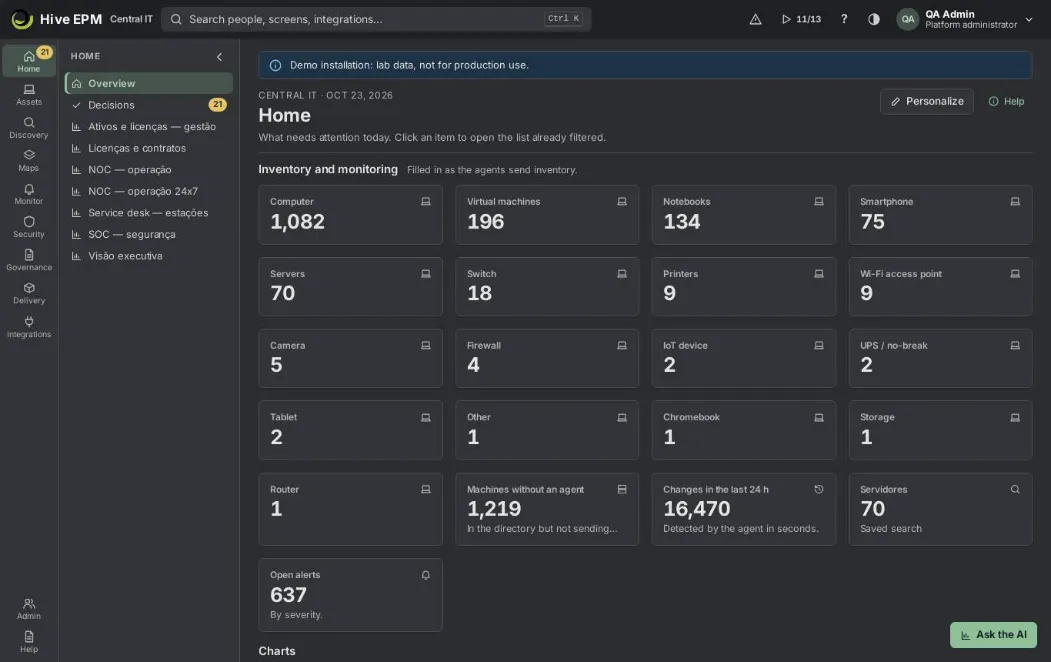
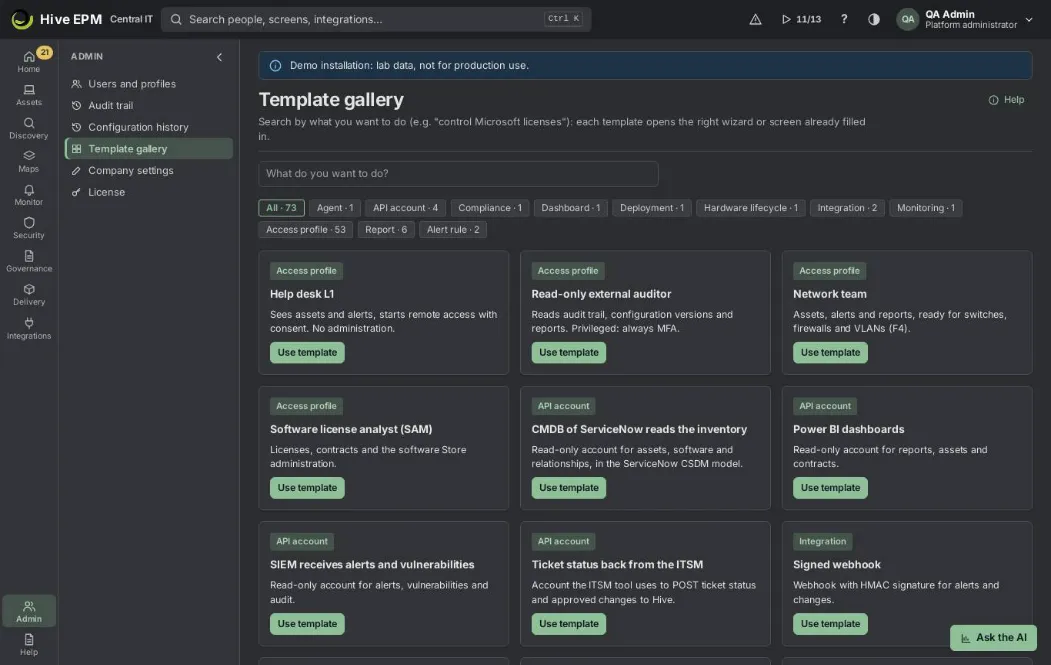
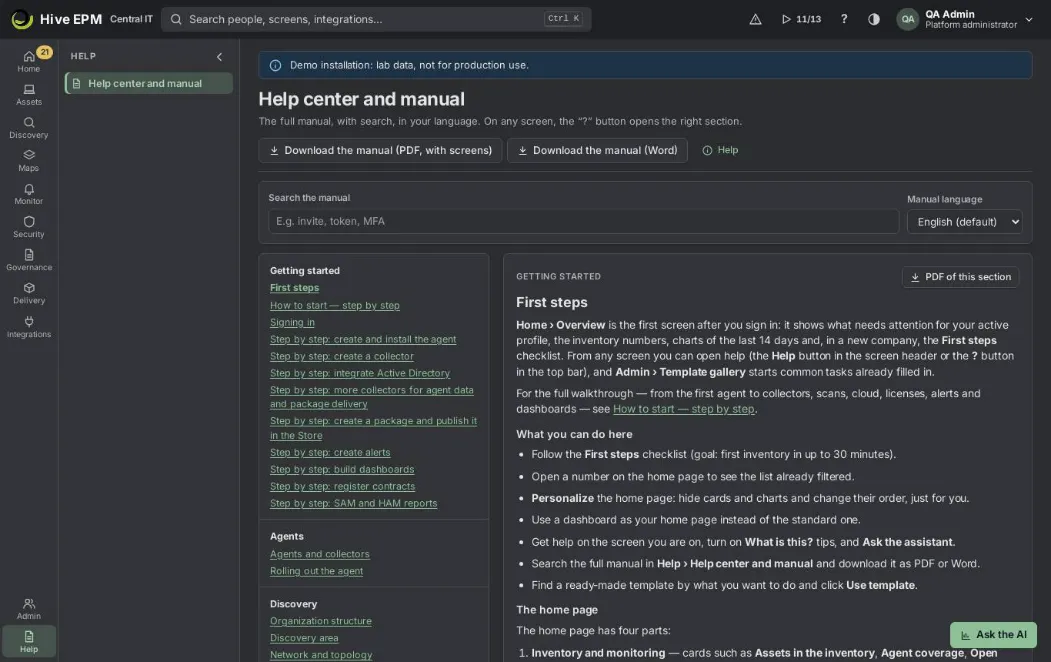
Home › Overview is the first screen after you sign in: it shows what needs attention for your active profile, the inventory numbers, charts of the last 14 days and, in a new company, the First steps
checklist. From any screen you can open help (the Help button in the screen header or the ? button in the top bar), and Admin › Template gallery starts common tasks already filled in.
For the full walkthrough — from the first agent to collectors, scans, cloud, licenses, alerts and dashboards — see How to start — step by step.
What you can do here
- Follow the First steps checklist (goal: first inventory in up to 30 minutes).
- Open a number on the home page to see the list already filtered.
- Personalize the home page: hide cards and charts and change their order, just for you.
- Use a dashboard as your home page instead of the standard one.
- Get help on the screen you are on, turn on What is this? tips, and Ask the assistant.
- Search the full manual in Help › Help center and manual and download it as PDF or Word.
- Find a ready-made template by what you want to do and click Use template.
The home page
The home page has four parts:
- Inventory and monitoring — cards such as Assets in the inventory, Agent coverage, Open alerts, Changes in the last 24 h and Machines without agent, plus one card per asset type and one per saved search of the asset list. Click a number to open the list already filtered.
- Charts — Alerts opened per day (14 days) by severity, Changes in the inventory per day (14 days), Devices by operating system and Open vulnerabilities by severity.
- What needs attention — items for your profile, for example Support access requests, Invitations not accepted yet, Integrations with problems and Integration tokens expiring (in the next 15 days). Each line opens the right screen.
- First steps — the checklist below, or What you can do now (shortcuts allowed by your profile) once the checklist is hidden.
Everything respects the active profile: a person without permission for alerts does not see alert cards.
The First steps checklist
- Connect the directory — Entra ID, Google Workspace, Okta or Keycloak: people, groups and sign-in in one connection.
- Create the agent — signed installer published through Intune, GPO or a link.
- Add a collector — optional: discovers the network and works as a local cache. 4. First alert rule — start from a template and see how many assets would trigger today. 5. First dashboard — build the team view by dragging widgets.
The panel shows " of done" and a progress bar. The next pending step is marked Next; click Open assistant to open its wizard (finished steps show Open again). Hide checklist hides it ("Checklist hidden. It remembers where you stopped."); Show first steps brings it back.
Personalize the home page
- Click Personalize in the header.
- Untick the cards and charts you do not want; use the arrows (Move up, Move down) to change the order.
- Click Save. It is saved for you only. Back to default undoes everything.
To open a dashboard as your home page, open the dashboard and choose Use as home page. Home then opens that dashboard, with the link Open the standard home page to come back.
Getting help on any screen
- Help (in the header of every screen) and ? (top bar) open the help panel on the article for that screen. Inside a wizard, the panel shows the help for the current step ("Step 2 of 3").
- This screen tab: the article, a search box (Search the help) and the switch What is this? — when on, hovering or focusing a field shows a tip.
- Ask the assistant tab: type a question in your own words and click Ask. Answers come from the manual; when the AI is turned on for your company the answer is written by the AI and cites the manual sections. When nothing is found, the assistant offers Open a support ticket with this question.
- Open in the manual opens the full article in the help center.
The help center and the manual
Help › Help center and manual shows the contents by section, the article and a search box (Search the manual).
- Choose the Manual language: English (default), Português or Español.
- Click Download PDF for the whole manual, or PDF of this section next to the article for one section only.
- When the illustrated manual has been generated on your server, the button reads Download the manual (PDF, with screens), and Download the manual (Word) appears for the DOCX version.
The template gallery
Admin › Template gallery lists ready-made starting points: access profiles, API accounts, integrations, reports, dashboards, alert rules, monitoring templates, agent profiles, compliance, deployments and hardware lifecycle.
- Type what you want to do in What do you want to do? — results are ranked by how well they match.
- Filter by type with the chips (All, Access profile, Report, Alert rule…).
- Click Use template: Hive opens the right wizard already filled in, or the right screen. Nothing is saved until you finish that wizard.
Copies made by your company show the Company template pill.
Worked example: control Microsoft licenses from a template
Marina, the license manager at Aurora, wants to see how many Microsoft 365 licenses are bought but unused.
- She opens Admin › Template gallery and types control Microsoft licenses .
- The card Microsoft licenses: owned × used (type Report) appears at the top: "Microsoft 365 purchased, assigned and used in 30 days, idle and disabled accounts, and the monthly waste." The Software license analyst (SAM) profile template is also listed, because it mentions licenses.
- She clicks Use template on the report card. Hive opens Governance › Licenses › Microsoft 365.
- Microsoft Entra ID is not connected yet, so the tab shows "No Microsoft 365 data yet" and asks to connect Entra ID with administrator consent (read-only). After she connects it, the tab shows purchased, assigned and used licenses and the monthly waste.
Worked example: first morning with the checklist
Rafael has just been invited as Platform administrator of a new company.
- He signs in; the home page shows First steps with "0 of 5 done" and Connect the directory marked Next.
- He clicks Open assistant, connects Entra ID and returns to Home: the step is ticked Done and Create the agent becomes Next.
- He builds the agent installer and sends it to five pilot machines. Within minutes Agent coverage and Assets in the inventory show numbers instead of "—".
- He clicks Hide checklist to make room; later, Show first steps brings it back exactly where he stopped.
Worked example: a wrong address
A colleague sends the link /asset/123 (a typo). Hive shows Page not found — "This address does not exist in Hive." — with the button Go to Home. If the address exists but your profile cannot see it, the message is instead "This screen is not available for your profile", with the hint to ask an administrator or switch profile.
Pitfalls and limits
- Cards and checklist steps of modules your company does not have yet show "—" and "Arrives in …" instead of numbers.
- Personalize is per person; it does not change other people's home page.
- The illustrated PDF and the Word manual exist only after they are generated on the server; the plain Download PDF always works.
- Use template is disabled on templates whose module is not available yet ("arrives in …").
- The assistant never saves anything by itself; it only points to the manual and to wizards.
Related
- How to start — step by step
- Signing in
- People and invitations
- Reports and dashboards
- Licenses
How to start — step by step
Before you begin
This guide takes a new Hive installation from zero to daily operation in 13 steps. The How to start button in the top bar (the play icon with "done/total") opens the same steps in a side sheet that stays open while you move between screens. Each step marks itself as done from real evidence — there is no "mark as done" click — and has two links: Go to the screen and See in the manual (this page). The order matters: the collector comes before the directory and the scans because it is the collector that reads Active Directory, scans the networks, reads hypervisors and installs agents in batch. To configure, use a profile with administration rights (for example Platform administrator); people who only look things up need a read profile.
Worked example used throughout this guide: the company Aurora S.A. has a head office in São Paulo ( 10.10.0.0/16 ), a factory in Campinas ( 10.30.0.0/16 ), the domain corp.local , a vCenter and about 400 computers.
- Company structure
Where: Discovery › Structure. Create the sites, then the buildings and floors inside each site, and link each subnet to its site. Hive uses the subnet to place every asset (and every scan result) in the right site. Done when: at least one site exists. The guide shows the number of sites. Example: site São Paulo HQ with Floor 1 and Floor 2 and subnet 10.10.0.0/16 ; site Campinas Factory with 10.30.0.0/16 . See Company structure and Tags and groups.
- Network collector
Where: Assets › Agents › Install a collector (3-step wizard). A collector is an agent with the collector role on a server that is always on inside the network. It only makes outbound HTTPS calls to Hive.
Install one per site or per isolated network. Done when: at least one collector agent exists and is not revoked. The guide shows the number of collectors. Example:COL-SP-01 , a Linux VM at 10.10.0.20 that reaches 10.10.0.0/16 and dc01.corp.local:636 ; COL-CPS-01 in Campinas. The installer is single use and valid for 8 hours. See Step by step: create a collector.
- Directory
Where: Integrations › Directory › Connect directory. Connect each Active Directory domain (one connection per domain, each read through the collector that reaches it) or Entra ID. Hive imports people, groups, departments and the computers of the OUs you choose; the Machines tab lists computers that still have no agent. Done when: at least one directory source exists (or an Active Directory, Entra ID, Google or Okta connection exists in the Integrations Center). The guide shows the number of sources. Example:corp.local read by COL-SP-01 , OUs Workstations-SP and Servers , synchronised every 60 minutes. See Step by step: connect Active Directory and Directory.
- First agent
Where: Assets › Agents › New agent (7-step wizard). Choose the systems, the ring and the class, and generate the installer. Install it on one test machine first and check that it appears in Assets › All assets with inventory within a few minutes. Done when: at least one agent that is not a collector exists and is not revoked. The guide shows the number of agents. Example: a Windows installer for the notebooks of the IT team, tested on IT-NB-001 . See Step by step: create an agent.
- Roll out to every machine
Where: Assets › Agents › Installers tab, and Integrations › Directory › Machines/Batches. Methods: the Windows MSI (silent and transparent: no hosts file, JSON or script to edit), GPO, Intune, WinRM and ADMIN$ over SMB by IP range, the last ones through the collector. Done when: at least 80% of the active computers, notebooks, desktops and servers have an agent that is not revoked. The guide shows the coverage in percent. Example: GPO for the OU Corp/Workstations-SP ; ADMIN$ for 10.30.1.10–10.30.1.200 in the factory through COL-CPS-01 ; machines that already have the agent are skipped, so running a batch again is safe. See Rolling out the agent.
- Agentless discovery
Where: Discovery › Discovery › New scan. Save the credentials (SNMP, SSH, WinRM) in Integrations ›Credentials, choose the ranges and the collector, and schedule the scan. Printers, switches, appliances and machines without an agent become assets; machines without an agent can be installed from the run's Without agent tab. Done when: at least one scan exists. The guide shows the number of scans. Example: weekly scan of 10.10.0.0/16 on Sunday 02:00 with SNMP v3, SSH and WinRM credentials, run by COL-SP-01 . See Discovery.
- Virtualization, cloud and Kubernetes
Where: Discovery › Virtualization, Discovery › Cloud and Discovery › Kubernetes. Connect vCenter, Hyper-V, Proxmox or Nutanix; AWS, Azure, GCP or OCI accounts; and Kubernetes clusters. Hosts, VMs (including powered-off ones), cloud resources and cluster workloads become assets linked to their platform. Done when: at least one hypervisor connection, cloud account or Kubernetes cluster exists.
The guide shows the total of connections. Example: the vCenter vcenter.corp.local with a read-only account, plus a read-only AWS account. See Virtualization, Cloud and Kubernetes.
- Alert rules
Where: Monitor › Rules. Start from the templates (disk, CPU, memory, services, agent without contact) and adjust thresholds and scope; add maintenance windows where needed. Done when: at least one alert rule exists. The guide shows the number of rules. Example: "Disk above 90% on servers" from the Windows server template, scoped to the tag Servers . See Alerts and Step by step: alerts.
- Notification channels and on-call
Where: Monitor › Channels and Monitor › On-call. Create the channels (e-mail, Teams, Slack, webhook, Telegram, WhatsApp or SMS), attach them to the rules, and set the on-call rotation with its escalation.
Done when: at least one notification channel of those kinds exists. The guide shows the number of channels. Example: a Teams channel for the NOC, SMS only on the rules whose severity is Critical, and a weekly on-call rotation for the infrastructure team. See Channels and on-call.
- Software and patch delivery
Where: Delivery › Packages and Delivery › Patches. Create the first package (or import one from the Third-party catalog) and a patch policy with a pilot ring; deployments and patches go through approval by another person in Delivery › Approvals. Done when: at least one Store package or one patch policy exists. The guide shows their total. Example: the 7-Zip MSI published in the catalog, and a "Patch Tuesday" policy tested for 3 days on the tag patch-pilot before production. See Packages, Patches and Deployments.
- Licenses and contracts
Where: Governance › Licenses and Governance › Contracts. Register purchases by SKU (or import them) and contracts with their notice period; Hive compares them with what is installed and used. Done when: at least one license entitlement or contract exists. The guide shows their total. Example: 200 Microsoft 365 E3 licenses and the support contract SUP-2026-014 with 90 days' notice. See Licenses and Contracts.
- Invite your team
Where: Admin › Users. Invite each person with the profile that matches the job (service desk, security, auditor…); profiles decide which screens and actions each person sees. Done when: besides the person who installed Hive, at least one more user exists who is not disabled (invited or active). The guide shows the number of people. Example: Ana Souza invited as "Service desk L1". See Users and invitations and Profiles.
- Dashboards and daily operation
Where: Governance › Dashboards. Start from the ready-made dashboards (NOC, SOC, Infra…), edit a copy, share it with a profile or set one as your home page; the Home screen and Decisions show what needs attention each day. Done when: at least one dashboard of your own exists (ready-made dashboards do not count). The guide shows the number of dashboards. Example: a copy of the NOC dashboard with the widget "open alerts per site", set as the home page of the NOC team. See Reports and dashboards.
Worked example: Aurora's first week
- Monday morning: sites São Paulo HQ and Campinas Factory with their subnets (step 1); COL-SP- 01 and COL-CPS-01 installed (step 2). The guide shows 2/13.
- Monday afternoon: corp.local connected through COL-SP-01 (step 3); the first agent tested on IT- NB-001 (step 4). 4/13.
- Tuesday: GPO for the São Paulo workstations and ADMIN$ for the factory range. When 320 of the 400 computers report, coverage reaches 80% and step 5 turns done.
- Wednesday: weekly scans of both ranges and the vCenter connection (steps 6 and 7).
- Thursday: rules from the templates, a Teams channel and the on-call rotation (steps 8 and 9); the first package and the patch policy (step 10).
- Friday: licenses and contracts entered, the service desk invited and the NOC dashboard copied (steps 11 to 13). The guide shows 13/13.
Pitfalls and limits
- A step only turns done from real data: a site, an agent, a channel… Creating and deleting something takes the step back to "to do".
- Coverage (step 5) counts only active computers, notebooks, desktops and servers; retire assets that no longer exist so they do not lower the percentage.
- Revoked agents and collectors do not count.
- Without a collector, the directory, the scans and the batch installations have nothing to run on: do step 2 first.
- The guide counts for the whole installation, not per person.
Related
- Getting started
- Rolling out the agent
- Hive product license
Signing in
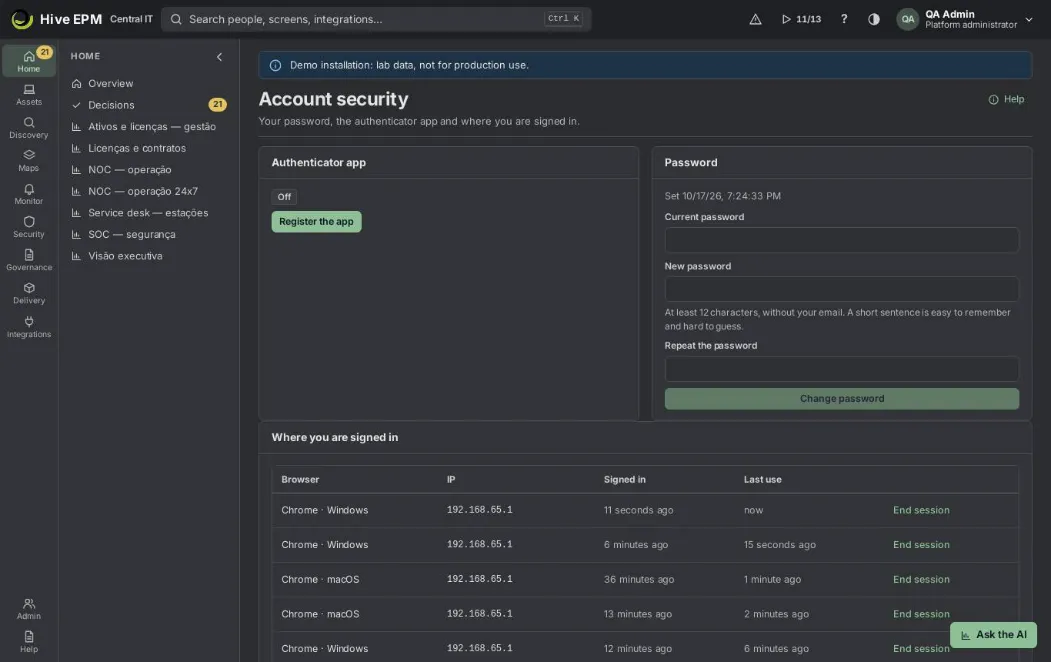
Hive has its own sign-in page at your company address. It shows only the ways to sign in that your company turned on, and the password, authenticator code, invitation and password reset all happen on that page. Only Sign in with your company account (SSO) sends you to your identity provider and back. After signing in, Account security (user menu) is where you manage your password, the authenticator app and your open sessions.
What you can do here
Sign in with the company account (OIDC or SAML), with your Hive account (e-mail and password) or with your domain user and password.
Confirm with the 6-digit code of an authenticator app, or with a recovery code.
Accept an invitation and create your password; reset a forgotten password.
Install Hive as an app from the sign-in page.
In Account security: change the password, register or change the authenticator app, generate new recovery codes and end sessions open in other browsers.
Switch the active profile from the user menu.
Sign in
- Open your company address. The page reads "Sign in to Hive" with your company name. Choose the Language at the bottom if needed.
- Choose one of the options shown: 3. Sign in with your company account (SSO) or (SAML) — the button may show a custom text chosen by your administrator. You return to the screen you were on as soon as the provider confirms who you are.
- E-mail and Password, then Sign in — for Hive accounts. When the company also uses the domain sign-in, the same fields accept user@domain and the domain password, which the collector checks in Active Directory over LDAPS.
- If your account has the authenticator app, the Authenticator code step asks for the 6-digit Code; click Confirm. Lost the phone? Type one of your recovery codes instead.
First sign-in of a privileged profile
Profiles marked as privileged (for example Platform administrator, Security analyst and Auditor) always require the authenticator app. If you do not have it yet, Hive shows Register the authenticator app:
- Scan the QR code with Google Authenticator, Microsoft Authenticator or another TOTP app (or use "Cannot scan? Type this key in the app").
- Type the code the app shows and confirm.
- Keep your recovery codes shows 10 one-time codes. Use Copy codes, store them safely and click I saved them, continue. They are not shown again.
Invitation and forgotten password
- Invitation: the e-mail link opens Create your password ("Welcome to …"). Type the New password twice and click Save password and sign in. The link is valid for 72 hours.
- Forgot your password?: type your e-mail and click Send link. If there is an account, a link arrives in a few minutes, valid for 1 hour. Choose a new password ends your other sessions.
- Passwords need at least 12 characters and must not contain your e-mail.
Account security
Open the user menu › Account security.
- Authenticator app — shows On or Off, since when, and how many recovery codes are left.
Buttons: Register the app (or Change phone), New recovery codes, and Turn off (only when your profile does not require it). New recovery codes and Turn off ask for the current code of the app; Change phone shows a new QR code, asks for the code of the new app and hands over new recovery codes.
- Password — for Hive accounts: Current password, the new one twice, then Change password ("Password changed. Your other sessions ended."). If your password belongs to the company directory, the panel says to change it where you usually do.
- Where you are signed in — each session with Browser (an MFA pill when confirmed with MFA), IP, Signed in, Last use and End session. The browser of an ended session asks for the password again.
Switch the active profile
If you have more than one profile, open the user menu › Switch active profile and choose one. Permissions and data scope change right away ("Active profile: … Permissions changed right away.").
Worked example: first day of a security analyst
Bruno was invited with the Security analyst profile (privileged).
- He opens the invitation e-mail at 09:00 and clicks the link (valid until 09:00 three days later). Create your password shows his e-mail; he types a 16-character sentence twice and clicks Save password and sign in.
- Because the profile is privileged, Hive shows Register the authenticator app. He scans the QR code with Microsoft Authenticator and types 482913 .
- Hive shows 10 recovery codes. He clicks Copy codes, pastes them in the company password vault and clicks I saved them, continue. Home opens.
- Next day he signs in with e-mail, password and a new 6-digit code. In Account security he sees "10 recovery code(s) left" and one session with the MFA pill.
Worked example: lost phone and a forgotten browser
Bruno loses his phone on a trip.
- On the sign-in page he types e-mail and password; at Authenticator code he types one recovery code instead of the 6-digit code and is in. That code no longer works; Account security now shows "9 recovery code(s) left".
- He clicks Change phone, scans the new QR code with the new phone and types its code. Hive hands over 10 new recovery codes, which replace the old ones.
- Under Where you are signed in he sees a session from the hotel computer (IP 198.51.100.24 ) and clicks End session.
- If he had no recovery code left, an administrator would use Reset authenticator in Admin › Users and profiles › People; he would register the app again on the next sign-in.
Pitfalls and limits
- After 5 wrong passwords the account waits 15 minutes ("After 5 attempts the account waits 15 minutes"). Many attempts from the same address are also slowed down for a few minutes.
- A session ends after 2 hours without use and after 12 hours at most; then you sign in again.
- Turn off of the authenticator is not offered when a profile you hold requires MFA.
- You cannot reset your own authenticator in People; ask another administrator.
- If no method is on, the page says "No sign-in method is on for this company. Ask your administrator."
- The sign-in may be refused outside the networks your company allows; use the company network or VPN.
Related
- Sign-in methods
- People and invitations
- Profiles and permissions
- First steps
Step by step: create and install the agent
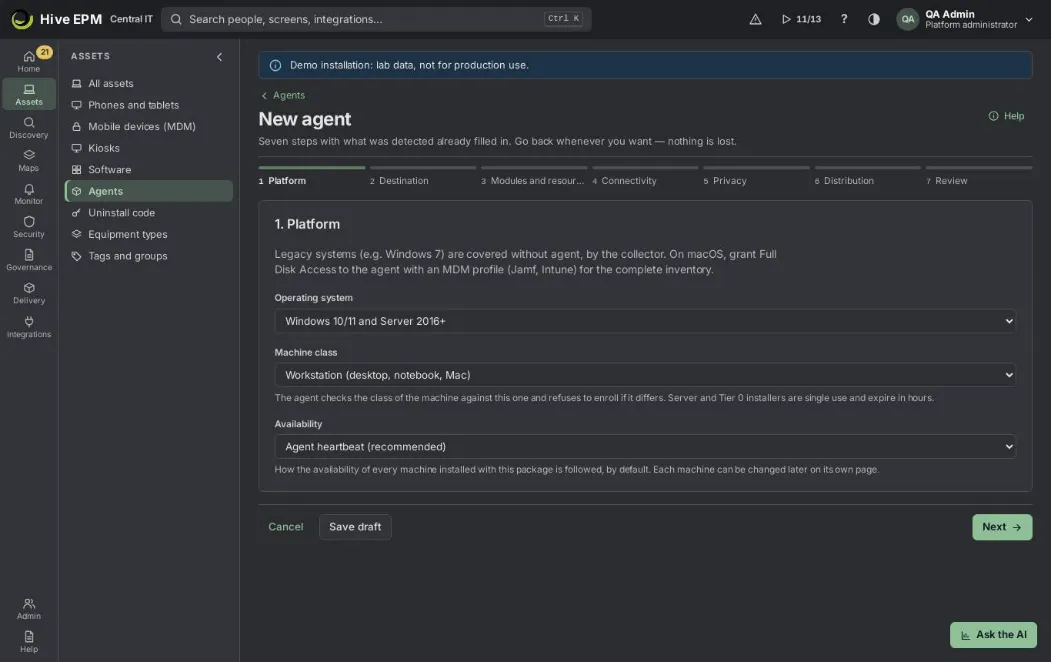
The New agent wizard (Assets › Agents › New agent) generates an installer already configured for your company: you choose the system, the class of machine, the modules, the network path and how it will reach the machines, and at the end you download a ready package with a one-line command. It needs the Manage agents permission. The wizard saves a draft as you go, so you can go back to any step without losing anything.
What you can do here
- Generate the Windows MSI, the Linux package or the macOS package (Intel and Apple Silicon in the same package).
- Limit the installer by machine class, number of machines, validity, machine name or network.
- Choose the update ring, the modules and the resource use of the agent.
- Test the proxy before generating.
- Get the commands for GPO, SCCM, Intune or Jamf, send links by e-mail or publish to Intune.
- Save the choices as an install profile to reuse them.
Step by step
Platform. Choose the Operating system (Windows 10/11 and Server 2016+, Linux with systemd, macOS 12+), the Machine class (Workstation, VDI / RDS host, Server, Tier 0) and the Availability (Agent heartbeat, Ping by the collector, or Do not follow). The agent checks the class of the machine and refuses to enroll if it differs. Older systems such as Windows 7 are covered without agent, by the collector. On macOS, grant Full Disk Access to the agent with an MDM profile for the complete inventory.
Destination. Give the Installer name (for example "Finance notebooks"), the Initial tags every machine receives and the Update ring (Pilot, Early or General). The ring decides when the machine receives new agent versions and cannot be changed later without reinstalling.
Modules and resource use. Tick the modules: hardware and software inventory, change detection, software usage metering, monitoring and alert rules. Run with low priority is on by default; you can also limit the CPU cores (0 = no limit) and the upload in KB/s (0 = no limit) for thin links or VDI. Expected use: inventory about 1% of CPU for a few seconds every 4 hours and 40 MB of memory.
Connectivity. Check the Gateway address (detected): it must start with https:// , be a name the machines reach and be in the gateway certificate — "localhost" only works on the server itself. Fill Proxy (host:port) only if the machines go out through a proxy; empty uses the system proxy. Test proxy runs from the Hive server and confirms the proxy answers and opens the tunnel to the gateway.
Privacy.Ask consent before every remote session is on by default. Replace user names with stable pseudonyms keeps the same code (user-…) for the same person, so reports still work, but the name does not leave the machine.
Distribution. Choose how the agent reaches the machines: download the package, one-line command, GPO, SCCM / ConfigMgr, Intune or Jamf Pro. Set How many machines can use this installer and the Installer validity (1, 7, 30 or 90 days). For Server and Tier 0 the installer serves one machine only and its validity is in hours (1 to 24, default 8). Optionally lock it to one machine name or to one network (for example 10.0.9.0/24 ).
Review. Check the summary and, if you want to reuse these choices, type a name in Save these choices as a profile. Click Generate installer.
After generating
The last screen shows Agent package ready, the download button, the one-line command (PowerShell as administrator on Windows; terminal with sudo on Linux and macOS), how many installations are allowed and until when the token and the link are valid (the download link works for 2 hours). Below it, the guide of the method you chose (for GPO it points to the directory; for SCCM, the install, uninstall and detection commands; for Jamf and Intune on macOS, the script), plus Link by e-mail and, when Microsoft Entra ID is connected, Publish to Intune.
On Windows the file is hive-agent.msi , already configured: double-click and confirm, or run msiexec /i hive-agent.msi /qn . On Linux and macOS, extract the package and run sudo sh install.sh . The agent runs as a service (HiveAgent on Windows) and only talks outbound; the machine shows Online in Assets › Agents in about a minute, and the full inventory arrives in a few minutes.
Worked example: 40 finance notebooks
- Open Assets › Agents and click New agent.
- Platform: Windows, Workstation, Agent heartbeat.
- Destination: name "Finance notebooks", tags Finance and Notebook , ring Early.
- Modules and resource use: keep inventory and usage metering, add change detection; keep low priority on; upload limit 256 KB/s because the branch link is thin.
- Connectivity: the gateway is https://gateway.corp.local ; the branch goes out by proxy.corp.local:3128 , so type it and click Test proxy — it passes.
- Distribution: Download the package, 40 machines, 7 days.
- Review: save as profile "Notebooks — low use" and click Generate installer.
- Download hive-agent.msi and give it to the field team, or send each person the Link by e-mail. Each notebook that installs it appears Online in Assets › Agents › Agents with the ring Early and the tags Finance and Notebook. After 40 installations, the installer shows 40 / 40 in Installers and refuses new ones.
Pitfalls and limits
- The download link expires in 2 hours; while the token is valid, Download again in Assets › Agents › Installers makes a new link.
- Tier 0 is for Windows or Linux servers; it is not available for macOS.
- Nothing shows up? On the machine, open C:\ProgramData\Hive\Agent\agent.log (Windows) and test the port to the gateway ( Test-NetConnection <gateway> -Port 443 ).
- A machine whose class does not match the installer is refused at enrollment; generate the installer with the right class.
Related
- Rolling out the agent
- Agents and collectors
- Step by step: create a collector
Step by step: create a collector
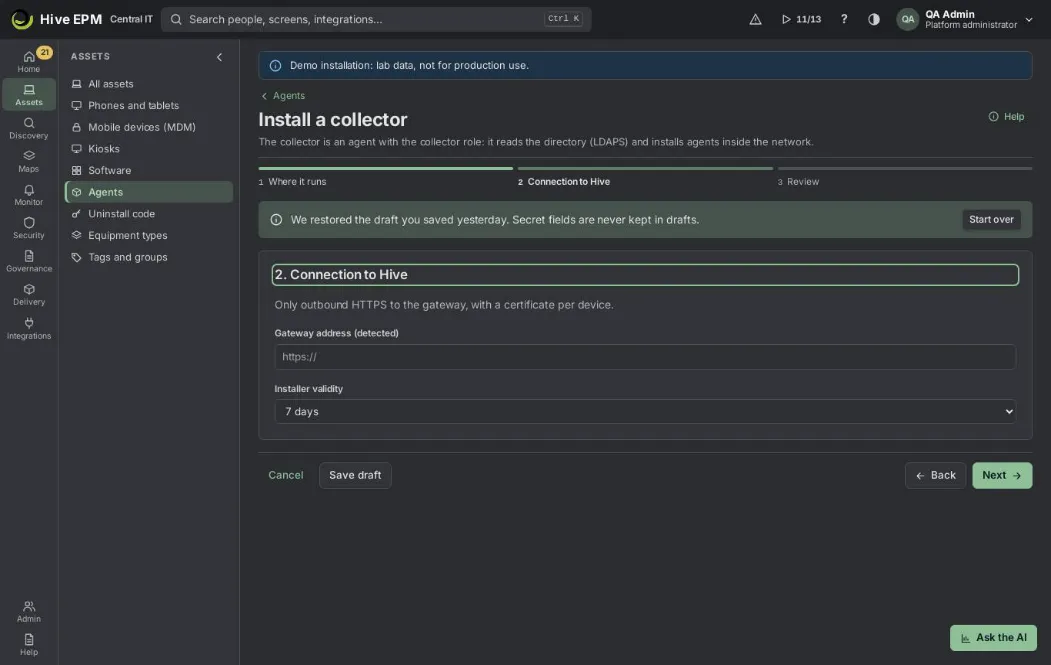
A collector is an agent with the collector role, installed on a server inside the network. It scans networks without agents (ICMP, ports, SNMP, SSH, WinRM, TLS), reads Active Directory by LDAPS, receives NetFlow, sFlow and IPFIX, and installs agents remotely. It only makes outbound calls to Hive: nothing opens from the internet to it. Create it with Assets › Agents › Install a collector (permission Manage agents).
What you can do here
- Generate the collector installer for Windows or Linux.
- Install it on a server that is always on and reaches the networks and domain controllers.
- Use it in discovery scans, directory connections and batch installations.
Step by step
Where it runs. Choose the Operating system (Windows 10/11 and Server 2016+, or Linux with systemd) and give the Collector name, for example COL-SP-01 . Use a server or VM inside the network, always on, that reaches the domain controllers on port 636 and the networks you want to scan.
Connection to Hive. Check the Gateway address (detected): a name the server reaches and that is in the gateway certificate. The collector only opens outbound HTTPS to the gateway, with a certificate per device. Installer validity is shown, but a collector installer always serves one server only and its token is valid for 8 hours.
Review. Check the summary and click Generate collector installer. The last screen shows Collector package ready, the download, the one-line command and the button Connect the directory.
After installing
Install the package on the server (on Windows the MSI or the PowerShell command as administrator; on Linux the terminal command with sudo). In a minute the server shows in Assets › Agents › Agents with the Collector label, and in Integrations › Directory › Connections under Collectors with its system, version and tasks in the queue. From then on it can be chosen in a scan (Discovery ›Discovery › New scan), in Connect directory and in batch installations.
Worked example: a collector for the São Paulo office
- In Assets › Agents, click Install a collector.
- Where it runs: Linux, name COL-SP-01 .
- Connection to Hive: the gateway is https://gateway.corp.local . Click Generate collector installer.
- Within 8 hours, run the one-line command with sudo on the VM 10.10.0.20 , which reaches 10.10.0.0/16 and the domain controller dc01.corp.local:636 .
- In Assets › Agents › Agents, COL-SP-01 appears Online with the Collector label.
- Click Connect the directory (or open Integrations › Directory) to read corp.local through it, then create a weekly scan of 10.10.0.0/16 in Discovery choosing COL-SP-01 .
Pitfalls and limits
- The collector runs only on a server class machine; its installer is single use and expires in 8 hours — generate a new one if the window passed.
- The download link expires in 2 hours.
- Installing the agent over ADMIN$ needs the SMB tools (smbclient and winexe) on the collector; WinRM and GPO do not.
- To receive flows, point switches, routers and firewalls to the collector IP: NetFlow v5/v9 and IPFIX on UDP 2055, sFlow on UDP 6343.
- Use one collector per isolated network or forest; each directory connection and each scan names its collector.
Related
- Agents and collectors
- Discovery area
- Step by step: integrate Active Directory
- Rolling out the agent
Step by step: integrate Active Directory
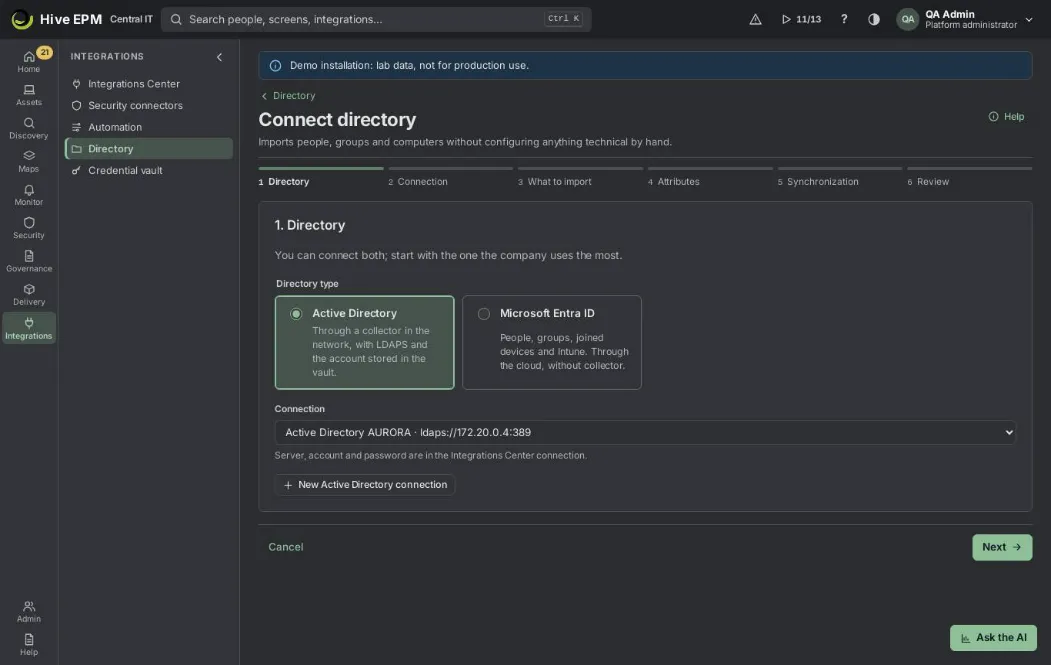
The Connect directory wizard (Integrations › Directory › Connect directory) sets up the import of people, groups and computers from Active Directory, read by a collector inside the network over LDAPS, or from Microsoft Entra ID, through the administrator consent. It needs Connect and manage integrations. The server, base DN, account and password live in an Active Directory / LDAP connection of the Integrations Center; the wizard uses it.
What you can do here
- Choose the directory type and the connection.
- Test the path collector → DNS → port 636 → certificate → sign-in → reading, and trust the server certificate by its fingerprint.
- Read the OUs and groups and choose what comes in, seeing the counts before confirming.
- Map the directory attributes to the fields of Hive.
- Choose the import frequency and start the first full import.
Before you start
- A collector inside the network that reaches a domain controller on port 636 — see create a collector.
- A read-only account in the domain for Hive, for example [email protected] .
- In Integrations › Integrations, an Active Directory / LDAP connection with the Domain controller (LDAPS) ( dc01.corp.local:636 ), the Base DN ( DC=corp,DC=local ), the Read-only service account and its password (stored in the vault). The wizard also has a button to create it.
Step by step
Directory. Choose Active Directory (through a collector in the network, with LDAPS and the account in the vault) or Microsoft Entra ID (people, groups, joined devices and Intune, through the cloud, without collector), then the Connection. You can connect both; start with the one the company uses the most.
Connection. Choose the Collector that reaches the domain controllers (same network as the DCs, port 636) and click Test connection. Each step shows its result. The certificate presented by the server appears with issuer, validity and SHA-256 fingerprint; Trust this certificate and test again pins it, so only this certificate is accepted from then on. You can only move on after a successful test.
What to import. Click Read OUs and groups: the collector lists the OUs (with people and computers in each), the groups and a sample of people. Tick OUs — none ticked means the whole domain; an OU inside another one is already included. Tick groups — none means all groups. Will be imported shows the counts before you confirm.
Attributes. Map the directory attributes that enrich the asset and its owner: Department ( department ), Manager ( manager ), Site / office ( physicalDeliveryOfficeName ), Cost center ( extensionAttribute1 ), Employee ID ( employeeID ) and Job title ( title ). Use the LDAP attribute name.
Synchronization. Choose the Frequency (every 5, 15, 60 — recommended —, 240 or 1440 minutes) and whether to Import automatically (off: imports only when you click Sync now). Only what changed is read (uSNChanged); departed people with assets become an event and computers are matched to assets by name and serial.
Review. Check the connection, collector, OUs, groups, attributes, frequency and certificate fingerprint, then Save and import (Active Directory) or Import now (Entra ID). The first import is full; the done screen follows it and offers See machines without agent.
Consent (Entra ID). Click Open administrator consent: the Microsoft portal opens with read-only permissions (User.Read.All, GroupMember.Read.All, Device.Read.All, DeviceManagementManagedDevices.Read.All) and, optionally, DeviceManagementApps.ReadWrite.All to publish the agent to Intune. An Entra administrator approves and comes back to Hive automatically —there is no secret to copy.
Worked example: connect corp.local
- Open Integrations › Directory and click Connect directory.
- Directory: Active Directory, connection "AD Corp · dc01.corp.local:636".
- Connection: collector COL-SP-01 · Online . Click Test connection. The certificate step shows a certificate issued by "Corp Root CA"; click Trust this certificate and test again and every step turns green.
- What to import: click Read OUs and groups. Tick Workstations-SP (420 people, 214 computers) and Servers (0 people, 38 computers), and the groups GG-Finance and GG-IT .
- Attributes: keep the defaults, but the cost center lives in extensionAttribute3 here — change it.
- Synchronization: every 60 minutes, import automatically.
- Review and Save and import. The done screen says "Directory connected and import started." and shows the import running on the collector.
- In Connections, the card shows the counts; in Machines without agent, the computers of those OUs that still have no agent.
Pitfalls and limits
- Without a collector the Active Directory steps cannot continue; install one first.
- If the test fails, the failing step says what happened and how to fix it (DNS, port 636 blocked, certificate not trusted, wrong password).
- After pinning a certificate, a renewed certificate on the DC must be trusted again.
- To sign in to Hive with the domain account, turn it on in Admin › Users and profiles › Authentication (see Authentication); this wizard only imports.
Related
- Directory and machines without agent
- Step by step: create a collector
- Rolling out the agent
Step by step: more collectors for agent data and package delivery
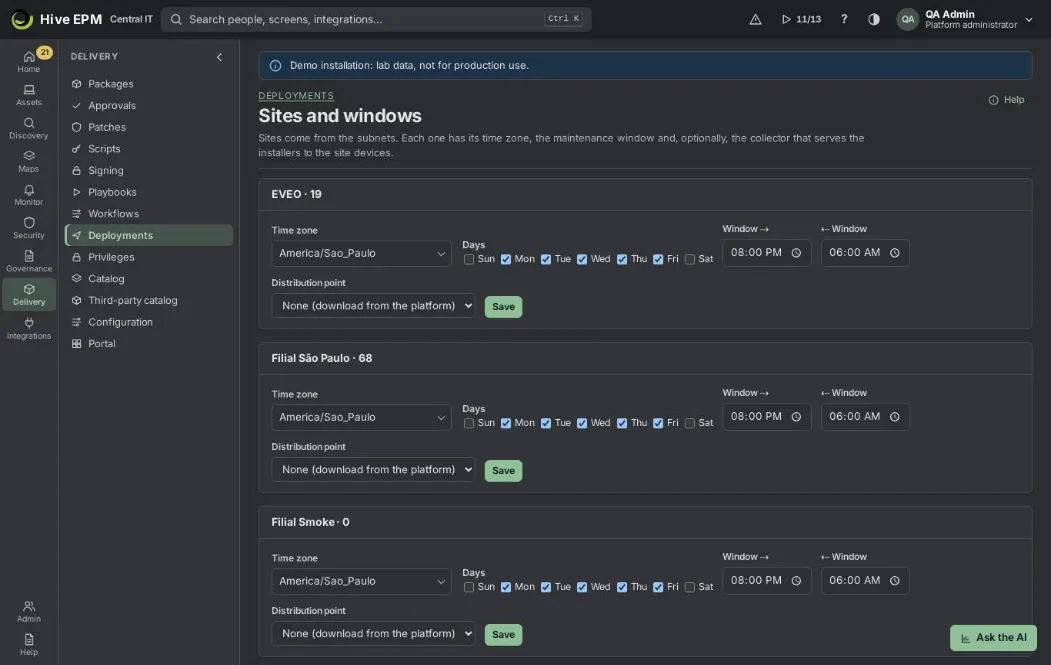
In Hive each kind of traffic has its own path. Agent data (inventory, metrics, events, task results) always goes from the agent to the gateway over outbound HTTPS, never through a collector. Package delivery (Store and deployments) can go through a collector in each location: it downloads the installer once and serves the machines of that network, which is what saves the branch link. This guide covers both: adding collectors as distribution points and making sure the agents of each office reach the gateway.
What you can do here
- Install one collector per office or isolated network and make it the Distribution point of that location.
- Pre-load packages on the collectors as soon as a deployment is approved.
- Choose, in a single deployment, another collector per location or the download straight from the core.
- Check that the agents of each office reach the gateway, which receives their data.
How agent data reaches Hive
- Every agent sends its data to the gateway address embedded in its installer (the Gateway address (detected) of New agent). It only needs outbound HTTPS (443) to that name; with no connection it keeps up to 7 days of data in a local queue.
- A collector does not receive data from other agents: it is itself an agent (role collector) that scans networks, reads the directory, receives NetFlow/sFlow/IPFIX and serves packages.
- For many offices or a large fleet, publish the gateway under one DNS name (or a load balancer) that every office resolves; more gateway instances can sit behind it, as the core nodes do (ADR- 0003). Changing the address of agents already installed is done by reinstalling with GATEWAY= on the MSI command line.[---
Step by step: a collector as distribution point
- Install the collector in the office, as in Step by step: create a collector: a server or VM always on, inside the office network. It appears in Assets › Agents with the Collector label.
- Create the location in Assets › Structure (New company or site) and register its subnet in Assets › Tags, tab Tags by origin, field Site, so that the machines of that office belong to it.
- Open Delivery › Deployments › Sites and windows, choose the location and, in Distribution point, pick the collector. Set the Time zone and the Window if you want deployments only outside business hours, and click Save ("Site saved.").
- Allow the office machines to reach the collector on TCP 47480 (the collector serves installers to the LAN on that port). The machine always checks the SHA-256 of what it downloads, so a cache problem never installs a different file.
- In a new deployment (Delivery › Deployments › New deployment), step Distribution, keep Collector of each location (recommended) and Pre-load on the collectors as soon as it is approved.
Worked example: São Paulo and Recife offices
- Install COL-SP-01 (Linux VM in 10.10.0.0/16 ) and COL-RE-01 (Windows Server in 10.20.0.0/16 ) with Install a collector.
- In Assets › Structure the sites São Paulo and Recife exist, and in Assets › Tags › Tags by origin the subnets 10.10.0.0/16 (site São Paulo ) and 10.20.0.0/16 (site Recife ).
- In Delivery › Deployments › Sites and windows, set Distribution point = COL-SP-01 for São Paulo and COL-RE-01 for Recife, Window 20:00–06:00, and Save.
- On the office firewalls, allow TCP 47480 from the workstations to their collector, and HTTPS 443 from every machine to the gateway name.
- Create a deployment of Microsoft 365 Apps to the group All workstations , keep Collector of each location and pre-load on. When it is approved, each collector downloads the package once over the WAN; at 20:00 the machines of each office install it from their collector.
- A machine with no site (outside the registered subnets) downloads straight from the core.
Pitfalls and limits
- Agent data does not pass through collectors: a branch without access to the gateway keeps data in the local queue (7 days) until the link returns.
- A location without a distribution point, or a machine without a location, downloads straight from the core.
- If the collector is off, the machine falls back to the gateway and the deployment continues (slower on the WAN).
- Choose the collector per location and Straight from the core change only that deployment; the default stays in Sites and windows.
- Pre-loading needs disk on the collector for the largest packages you deploy.
Related
- Step by step: create a collector
- Deployments
- Agents and collectors
- Rolling out the agent
Step by step: create a package and publish it in the Store
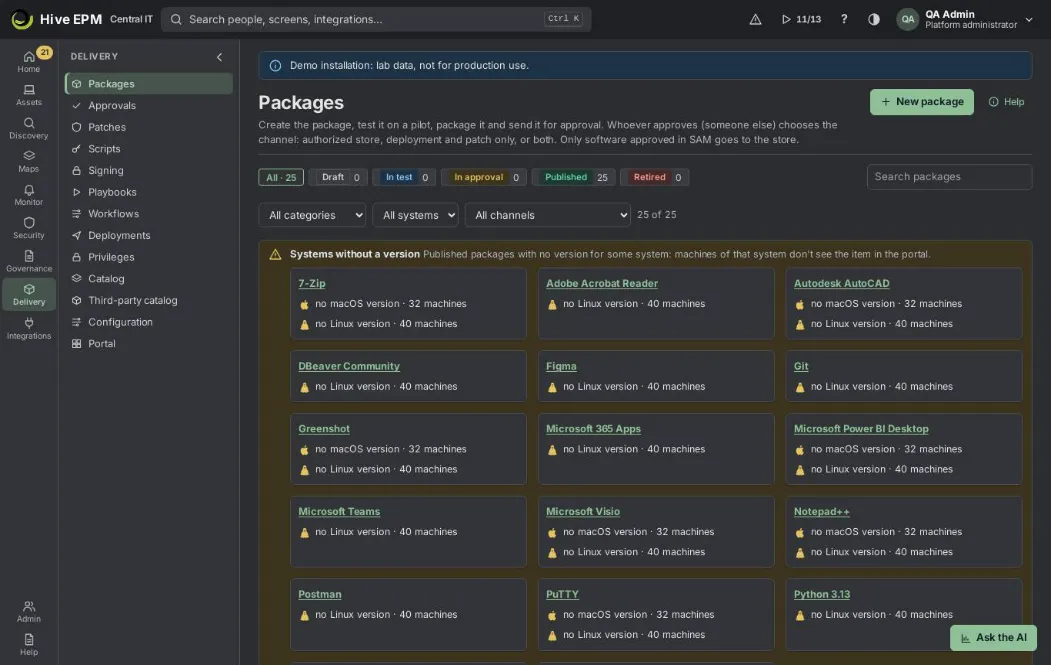
This guide takes one program from the installer to the people who use it. Each package goes through a pilot test and the approval of another person before reaching the Store or a deployment. You work in Delivery › Packages; people install from the store on their computer.
What you can do here
- Create the package and its first version.
- Test it on a pilot machine and confirm the silent commands.
- Send it for approval and publish it to the store, to deployments or to both.
- Check that people see it and can install it.
Step by step
- Open Delivery › Packages and click New package. Fill the name, publisher, category and the product of the software catalog; choose Approval before installing and Who sees it; click Save.
- On the package page, click New version: Send the installer (MSI, EXE, MSIX, PKG, DMG, DEB or RPM) or pick it from winget, Chocolatey, Homebrew, apt or dnf. Hive reads the type, publisher, version, signature and SHA-256.
- Choose a Pilot device and click Test on the pilot. Follow each step: requested, picked up by the agent, installing, finished. With no test machine, use Go on without the pilot and give the reason (the approver sees it).
- Confirm the install and uninstall commands and How Hive knows it installed (program name, file or registry key). Click Package and then Send for approval.
- Another person (license manager or security) checks SAM, hash, signature and critical or KEV vulnerabilities, chooses the channel (Authorized store only, Deployment and patch only or Store and deployment) and clicks Approve.
- Click Publish. Check the result in Delivery › Catalog.
- People open the store from the agent (Hive Store shortcut, the tray icon Open Hive Store or hive-agent store ) or signed in, in Delivery › Portal, and install.
Worked example: Notepad++ for the development team
- In Delivery › Packages › New package: Name "Notepad++", Publisher "Notepad++ Team", Category Development, approval No approval, Who sees it: department Development in the Structure, system Windows. Save.
- New version › winget, Chocolatey, Homebrew, apt or dnf: source winget, id Notepad++.Notepad++ , Version 8.6.9 , System Windows. Hive suggests winget install --id Notepad++.Notepad++ --exact --silent ... and detection Program name = Notepad++.Notepad++ .
- Choose the pilot DEV-NB-02 and click Test on the pilot. The winget id is not the name in the installed programs list, so the pilot reports "the installer ended but the program was not detected". - Click Go on without the pilot with the reason "winget id differs from the program name; install confirmed on DEV-NB-02".
- Set Program name = Notepad++ , click Package, then Send for approval.
- Marta (license manager) approves with the channel Authorized store only.
- Click Publish. In Delivery › Catalog, Notepad++ 8.6.9 shows "Who sees it: Development". A developer clicks Open Hive Store in the tray, clicks Install and Confirm; minutes later My requests shows Installed.
Pitfalls and limits
- Whoever sent the version does not approve it (unless self-approval is turned on in Delivery › Approvals).
- Only software approved in SAM goes to the store; a Deployment and patch only version does not need it but never shows in the store.
- The store opened from the agent installs without a per-request approval; per-request approval by the manager happens only in the signed-in portal.
Related
- Packages and store catalog
- Software store
- Third-party catalog
- Deployments
Step by step: create alerts
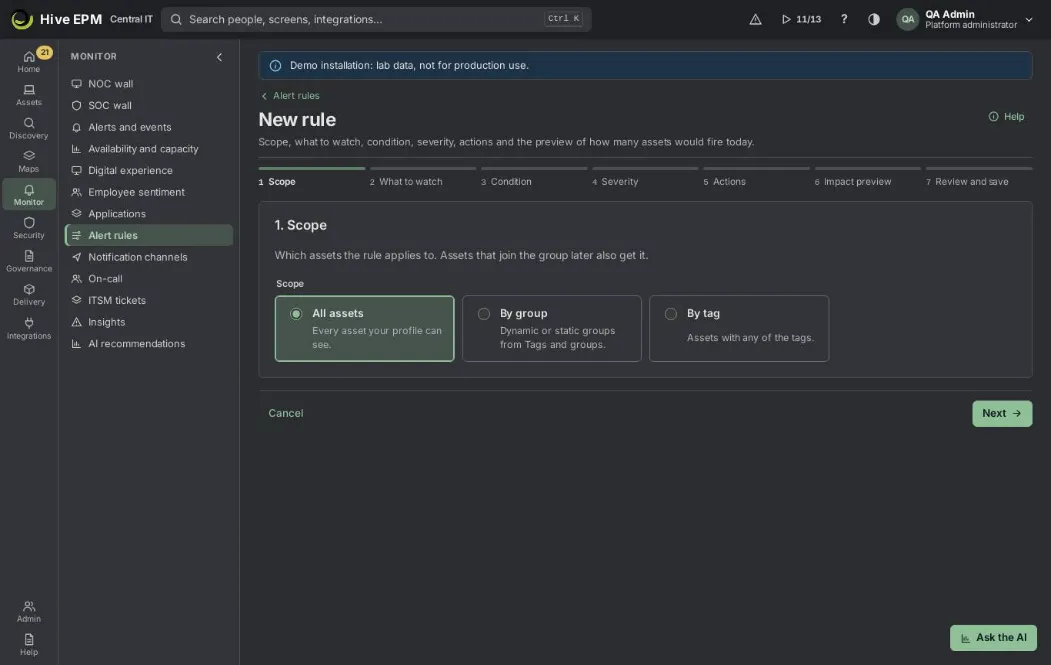
This guide takes you from zero to a working alert in four stages: where notices go, who is on call, the rule itself and the first alert. Everything is in the Monitor workspace.
What you can do here
- Connect a notification channel (e-mail, Teams, Slack, webhook, Telegram, WhatsApp or SMS).
- Create an on-call schedule for after-hours alerts.
- Create a rule from a monitoring template or with the rule wizard.
- Follow the first alert from opening to resolution.
Step by step
- Channels. Open Monitor › Notification channels and click Connect on the kind you want. Fill in the fields (secrets go to the vault) and click Send test on the new connection.
- On-call (optional). Open Monitor › On-call, click New schedule, choose Weekly or Daily, the handover day and time, the Time zone and the People, in turn order.
- Rule. Open Monitor › Alert rules:
- for servers and workstations, use Monitoring templates › New template and start from a ready template; or
- click New rule and go through Scope, What to watch, Condition, Severity, Actions, Impact preview and Review and save. Describe in words fills the wizard from a sentence.
- In Actions, tick the channels in Notify on, optionally an ITSM tool in Open a ticket on, an Automatic fix on the device and the Escalation (on-call at opening and up to 5 levels).
- Click Run the preview, check how many assets would fire today, name the rule and click Create rule.
- Alerts open in Monitor › Alerts and events. Acknowledge stops the escalation; Resolve ends it with a note.
Worked example: CPU alert for the ERP servers, with Teams and on-call
The ERP servers have the tag ERP . The team wants a Teams card when CPU stays above 90% for 10 minutes, and the on-call person called if nobody reacts in 15 minutes.
- Monitor › Notification channels › Microsoft Teams › Connect: name NOC Teams , paste the Channel webhook address, connect. Click Send test: "Hive: connection test ✓" appears in the channel.
- Monitor › On-call › New schedule: NameInfrastructure on-call , Weekly, Handover day Monday, Handover time 09:00, Time zone America/Sao_Paulo, people Ana → Bruno → Carla, Save. The card shows "On call now: Ana".
- Monitor › Alert rules › New rule:
- Scope: By tag, ERP .
- What to watch: A metric.
- Condition: Metric CPU in use, Fires when above, Warning at90 , Critical at98 , For at least 10 .
- Severity: Major.
- Actions: Notify onNOC Teams ; Escalation › Add escalation level, Without acknowledgment after (min)15 , On-call scheduleInfrastructure on-call , Who On call.
- Impact preview › Run the preview: "Would fire today 0 of 6 assets in the scope". Name it ERP CPU , click Create rule. Agents get it within a minute.
- During the month-end close, ERP-APP-02 stays at 94% for 10 minutes: the alert opens in Monitor › Alerts and events and the Teams card arrives.
- Nobody acknowledges; after 15 minutes Ana gets a push on her phone titled "[On call] …" and an e-mail if the schedule has an e-mail channel. She taps Acknowledge in the notification and the escalation stops.
Pitfalls and limits
- Creating rules, templates and schedules needs permission to administer alerts; connecting channels needs permission to administer integrations.
- A rule without a channel or escalation only records the alert in the queue.
- The impact preview is required before saving a rule.
- Escalation levels: up to 5, each waiting longer than the one before (1 to 1440 minutes).
Related
- Alerts, rules and monitoring templates
- Notification channels and on-call
- ITSM tickets
Step by step: build dashboards
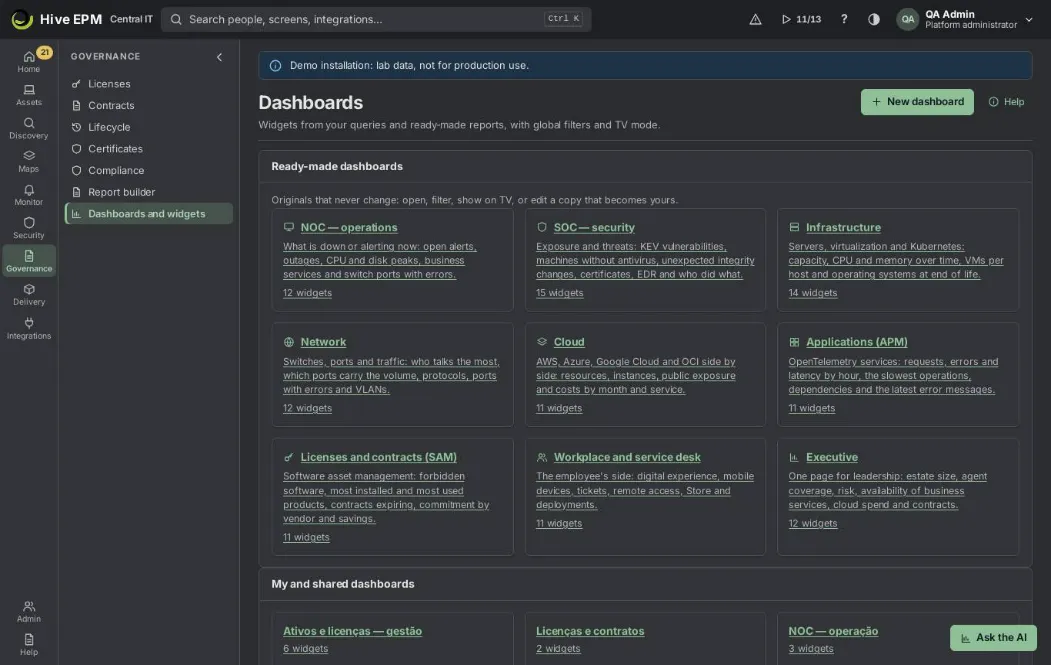
This guide builds a dashboard in Governance › Dashboards and widgets: start from scratch or from a copy of a ready-made dashboard, add widgets, arrange them, share the dashboard and put it on a TV. You need reports:write to create dashboards; people who only have reports:read see the dashboards shared with them.
What you can do here
- Create a dashboard, or edit a copy of a ready-made one (NOC, SOC, Executive and others).
- Add ready-made widgets, widgets built without code, saved queries and ready-made reports.
- Arrange and resize the widgets with the mouse or the keyboard.
- Choose who sees the dashboard, show it in TV mode and rotate several dashboards.
- Make a dashboard your home page.
Step by step
- Open Governance › Dashboards and widgets. Click New dashboard and give it a name, or open a ready-made dashboard and click Edit a copy. Both open in edit mode.
- Click Add widget: pick from Ready-made (search by name or filter by area), use Build without code, or choose Existing widget, saved search or report.
- Drag the widgets, or use the buttons on each one to move and resize them; then click Save layout.
- Use the Site and Period filters at the top: they apply to every widget.
- Open Sharing and TV: Who sees it, Update every (s), Rotate with and Switch every (s).
- Click TV mode on the screen of the wall; Esc returns.
- Optional: Use as home page to open this dashboard when you click Home.
Worked example: an executive dashboard for the monthly board meeting
The IT manager wants one screen for the board: devices, critical risk, cloud cost and contracts, visible only to the Manager / executive profile.
- In Governance › Dashboards and widgets, click New dashboard and name it "Board — monthly".
- Add widget › Ready-made, area Executive: add Active devices, Open KEV vulnerabilities and Cloud cost per month.
- Add widget › Ready-made, area Licenses and contracts (SAM): add Contracts ending in 90 days.
- Add widget › Build without code: What to show Assets, Kind of widgetNumbers and charts, Measure count, Split by Site, shape Donut. Click Add widget.
- Put the four numbers on the top row and the charts below with Wider and Taller; click Save layout.
- Set Period to Last 30 days.
- Sharing and TV › Who sees it › Only these profiles › Manager / executive. Save. The managers now find the dashboard in My and shared dashboards; they can Duplicate it but not change yours.
- During the meeting, click TV mode on the room's screen; the numbers refresh every 60 seconds.
Pitfalls and limits
- A ready-made dashboard never changes; always work on Edit a copy.
- Someone else's dashboard is read-only for you (only its author or an administrator changes it).
- A widget used on several dashboards asks Everywhere or Only here (copy) when you change it.
- Every widget shows only what the viewer's profile can see.
- TV refresh is at least every 30 seconds.
Related
- Reports and dashboards
- Step by step: SAM and HAM reports
- Business services
Step by step: register contracts
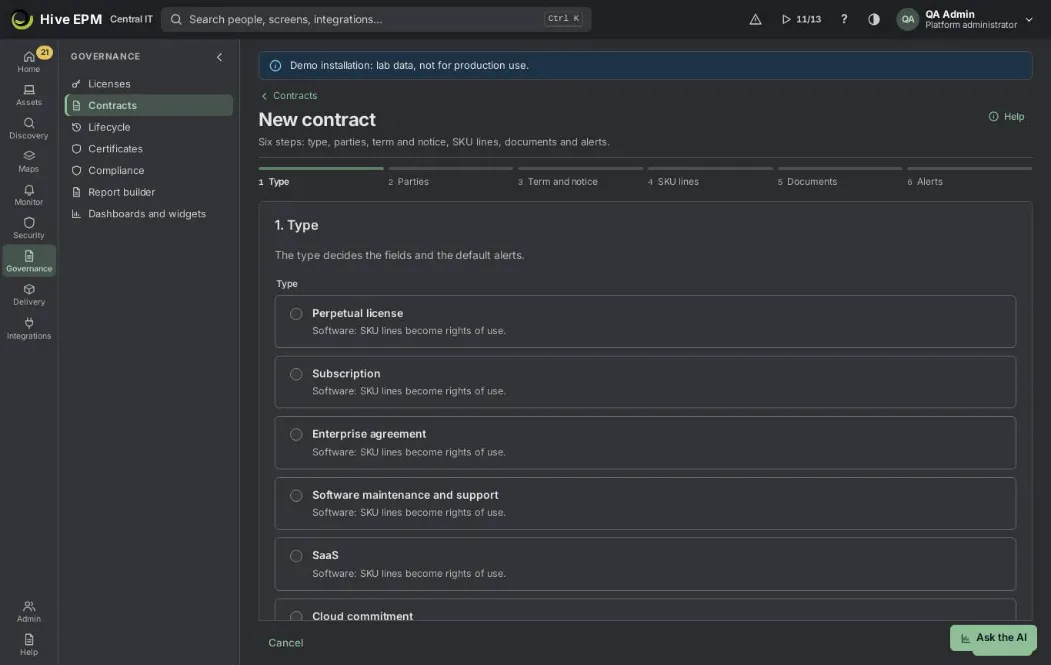
This guide takes a contract from the paper to Hive: the contract in Governance › Contracts, the SKU lines that become rights of use in Governance › Licenses, the documents, and the alerts and the renewal decision before the notice deadline. You need the licenses:admin permission (the License manager profile has it).
What you can do here
- Register a software contract whose lines feed the license position.
- Register a service or hardware contract (no lines) only to follow its dates.
- Keep the signed PDF and the amendments with the contract.
- Get the deadline alerts and record the renewal decision in time.
Step by step
- Open Governance › Contracts and click New contract.
- Type: choose the type that matches the contract (for example Enterprise agreement, Subscription, Software maintenance and support, Leasing). Hardware types add warranty and leasing dates.
- Parties: Contract number, Vendor or reseller, and an Owner and a Substitute to receive the alerts.
- Term and notice: Start, End, Notice period (days), Currency, Total value; turn on Renews automatically if it renews by itself. Check the calculated notice deadline.
- SKU lines: one line per product bought, with the SKU code, quantity and unit price. Known SKUs become rights of use; unknown codes wait in the curation queue.
- Documents: add the signed contract (PDF, DOCX, XLSX, PNG or JPG, up to 50 MB).
- Alerts: keep or change the alert days (1 to 730) and click Create contract.
- Check Governance › Licenses › Position: the lines are now in the acquired quantity of each SKU.
- Before the notice deadline, open the contract and use Record renewal decision; another license manager approves it.
Worked example: Microsoft enterprise agreement with SKU lines
The company signs an enterprise agreement EA-7781 with the reseller Alfa Software for 200 Microsoft 365 E3 and 30 Visio Plan 2 licenses, from 01/01/2026 to 31/12/2028, notice period 60 days.
- New contract › Type: Enterprise agreement.
- Parties: Contract number EA-7781, Vendor or reseller Alfa Software, Manufacturer Microsoft, Owner Rita Gomes, Substitute Caio Melo.
- Term and notice: Start 01/01/2026, End 31/12/2028, Notice period (days) 60, Currency BRL.
The box shows "Notice deadline: 01/11/2028 (60 days before the end)." 4. SKU lines: Add line with MSFT-M365-E3 , Quantity 200, Unit price 180. Add line again with the reseller code VIS-P2-ALFA , Quantity 30, Unit price 95.
- Documents: EA-7781-signed.pdf as Contract. Alerts: 120, 90, 60, 30. Create contract.
- The note says "Contract EA-7781 created. 1 line waits for curation.": the Microsoft 365 E3 line already became a right of use of 200; the reseller code VIS-P2-ALFA went to the curation queue.
- In Governance › Licenses › Purchases import, find VIS-P2-ALFA in the Curation queue, click Choose SKU, pick Visio Plan 2 and Resolve. The right of use of 30 is created and the code becomes a rule for the next invoices.
- Position now shows Microsoft 365 E3 with Acquired 200 and Visio Plan 2 with Acquired 30. 9. In 2028 the alerts arrive by themselves: the first expiry alert on 02/09/2028 (120 days before the end), the notice-deadline alerts on 02/10, 25/10 and 31/10/2028, and from 02/10 the contract is listed in Decisions until Rita records the renewal decision.
Pitfalls and limits
- Without an End there is no notice deadline and no expiry alert.
- An unknown SKU code creates no right of use until it is resolved in the curation queue.
- The same contract number cannot be used twice for the same vendor.
- Removing a contract also removes its documents and the rights of use created by its lines.
- A cancel decision is no longer possible after the notice deadline of a contract that renews automatically.
Related
- Contracts
- Licenses (SAM)
- Step by step: SAM and HAM reports
- Decisions
Step by step: SAM and HAM reports
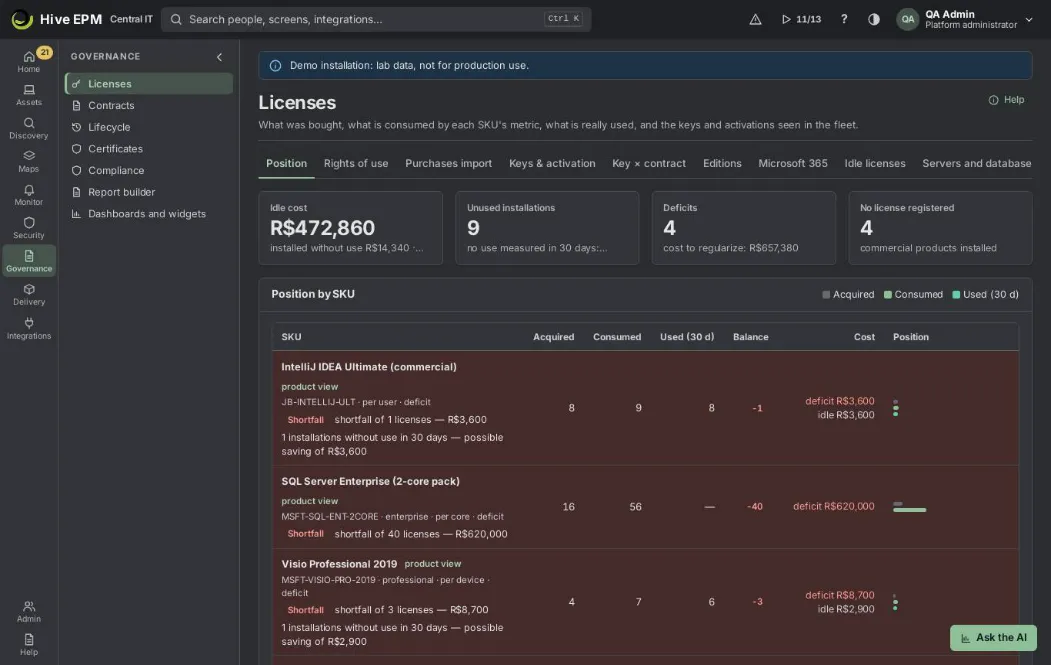
SAM (software asset management) answers "what did we buy, what do we use and where are we short"; HAM (hardware asset management) answers "what hardware do we have, where, and what covers it". In Hive the numbers come from Governance › Licenses and Governance › Contracts, the hardware from the inventory and Governance › Lifecycle, and the reports from Governance › Report builder, where any list can be exported or sent by e-mail on a schedule.
What you can do here
- Build the license position (bought × consumed × used) and act on shortfalls and idle licenses.
- List hardware by site, department, manufacturer and model, and see what is out of warranty or support.
- Turn any of these lists into a saved query, a dashboard widget or a scheduled e-mail.
Step by step
SAM (software)
- In Governance › Licenses › Rights of use, register what was bought, or import the invoices in Purchases import. Contracts with SKU lines (Governance › Contracts) create rights of use by themselves.
- Open Position: acquired, consumed by each SKU's metric (device, user, core, processor, concurrent, site) and used in 30 days (with usage metering).
- Act on the red rows (Shortfall: audit risk), on Idle licenses (cost to reclaim) and on No license registered (software without any right).
- For a report, open Governance › Report builder, click New query and choose Entitlements (purchases), Software installations, Software usage by day, Contracts or License recovery (savings). The Ready-made tab also has Most installed programs, Most used software (30 days), Prohibited software installed, Software not recognized, Contracts ending in 90 days and Committed value by vendor.
HAM (hardware)
- The inventory brings manufacturer, model, serial number, processor, memory and disk of each machine.
- Governance › Lifecycle shows the end of warranty and of support; Governance › Contracts ›Warranties and coverage shows the hardware Covered, with Coverage ended or Never covered.
- In Report builder › Ready-made, use Assets by site, Assets by department, Assets by manufacturer and model, Computers with up to 8 GB of memory, Operating systems at end of life and Disabled people with assets, or build your own query on Assets.
- Export downloads PDF, Excel (XLSX) or CSV; Schedule sends it by e-mail and to Teams, Slack or a webhook on the days and time you choose.
Worked example: monthly software purchases report for Finance
Finance wants, every Monday at 08:00, the licenses bought per vendor and product, with the total value.
- Open Governance › Report builder and click New query. In About, choose Entitlements (purchases).
- In Group and total, Add grouping by Vendor and again by Product; in Totals, keep Count and Add totalSum ofQuantity and Sum ofTotal.
- In Filters, Add filterEnds · is empty, and Add filter again with OR · Ends · after · today : only rights still in force, perpetual ones included.
- The Result on the right updates: one row per vendor and product. Switch to Chart to see bars.
- Click Save as new, name it "Licenses bought by vendor", tick Visible to everyone who can see reports and save.
- Click Schedule: Format Excel (XLSX), Days Mon, Time 08:00, Time zone America/Sao_Paulo, E-mails[email protected] . Save: the toast shows the next sending.
- Each Monday the e-mail arrives with the XLSX attached. Reports › Scheduled sending shows the history of each delivery and has Send now.
Worked example: hardware out of coverage at the São Paulo site
The operations manager needs the list of São Paulo computers by manufacturer and model, and to know which have no warranty or support.
- In Governance › Report builder › Ready-made, find Assets by manufacturer and model and click Copy and edit. The copy is saved in your Saved queries and opens in the query builder.
- Add filter: Site · is · São Paulo . Add the columns Serial number and Main user in Fields to show.
- Export › Excel (XLSX). The file brings the scope of your profile (someone who only sees another site gets nothing from São Paulo).
- Open Governance › Contracts › Warranties and coverage, set Situation to Never covered and check the São Paulo machines without any warranty or contract. Link the ones covered by a hardware maintenance or extended warranty contract with Link devices on that contract's Covered assets tab (paste the serial numbers).
- Back in the copy, click Save and then Make widget to place it on a dashboard.
Pitfalls and limits
- "Used (30 d)" and idle licenses need usage metering on the agents; without it, nothing is called idle.
- CAL metrics are not measured by the inventory.
- A schedule needs a saved query (or a ready-made report); an unsaved query can only be exported.
- Scheduled reports use the scope of the person who scheduled them; if that person is disabled, sending stops and the history says why.
- Exports bring up to 50,000 rows.
Related
- Licenses (SAM)
- Contracts
- Reports and dashboards
- Lifecycle
- Inventory