Licenses, contracts and delivery
Licenses (SAM)
Screen: Licenses (SAM) (1/2)
Screen: Licenses (SAM) (2/2)
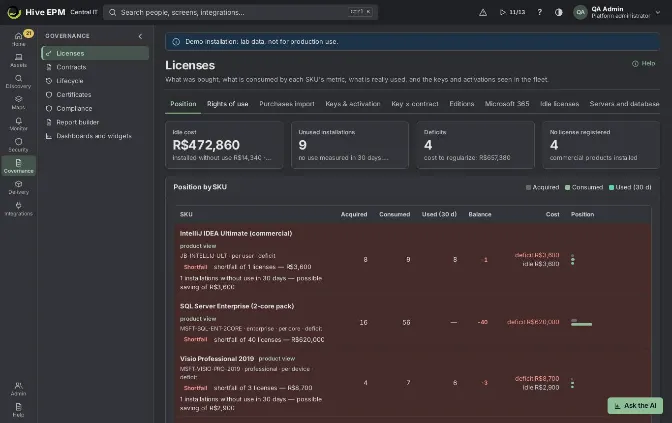
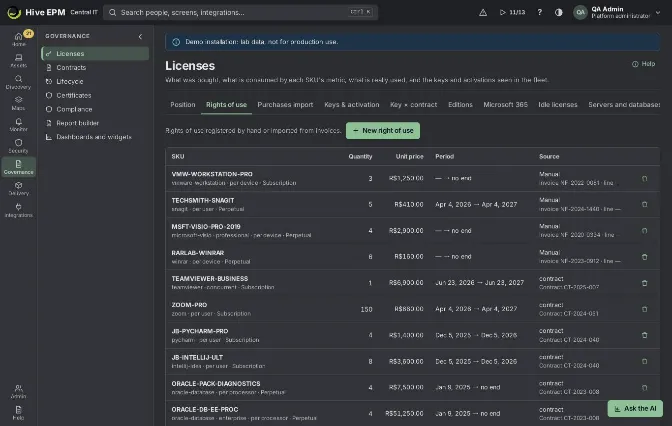
Governance › Licenses puts side by side what the company bought (rights of use), what each SKU's metric consumes in the inventory, what is really used in the last 30 days, and the keys and activations the agents see. The screen has ten tabs: Position, Rights of use, Purchases import, Keys & activation, Key × contract, Editions, Microsoft 365, Idle licenses, Servers and databases and Concurrency. Every number is calculated by the platform. You need licenses:admin to change anything; with assets:read only you can look.
What you can do here
See, per SKU, the acquired quantity, the consumption by the metric, the real use and the balance, with the cost of a shortfall, of idle installations and of licenses left on the shelf.

Register rights of use by hand, or import purchases from CSV, XLSX or NF-e XML and curate unknown codes once.

Check keys and activation (not activated, reused key, OEM from other hardware, unknown KMS, public key) and reveal a full key for 30 seconds with an audited permission.

Cross the key on each computer with the installed edition and the purchased program (Key × contract).

Compare the installed edition and version with what was bought, respecting downgrade rights (Editions).

Read Microsoft 365 subscriptions: purchased × assigned × used, idle assignments and the contract × tenant difference.

Reclaim licenses installed but not used and follow the saving (Idle licenses).

See SQL Server, Oracle, PostgreSQL, MySQL, Db2 and SAP instances with the licenses their metric needs (Servers and databases).

Compare the monthly simultaneous peak with the concurrent licenses (Concurrency).

Open the product view: everything about one product on one page.

Position
The four cards at the top are Idle cost (installed without use plus bought and not installed), Unused installations (no use measured in 30 days: candidates to reclaim), Deficits (with the cost to regularize) and No license registered.
The Position by SKU table has, for each SKU: Acquired (rights of use in force today), Consumed (by the SKU's metric), Used (30 d) (from usage metering), Balance and Cost. How the metric consumes:
Metric | What counts |
|---|---|
per device | each active asset with the product |
per user | each person once (a person with the product on three devices counts 1; a device without a main user counts as itself) |
per core | the cores of each installation, with the SKU's minimum per instance (4 for SQL Server) |
per processor | each installation |
concurrent | the measured simultaneous peak |
site | 1 when there is at least one installation |
user CAL, device CAL | not measured by the inventory |
An installation only counts for a SKU when its edition is the SKU's edition or one of its downgrade rights.
A negative balance turns the row red with a Shortfall pill ("shortfall of N licenses — cost"). Click the SKU name to open Who consumes (asset, user, edition, cores). Commercial products installed with no right at all are listed below the table, each with Register right of use.
Rights of use
- Open Rights of use and click New right of use.
- Pick the SKU from the catalog (for example "Office LTSC", "Windows Server"). Without a SKU, fill Normalized product (the catalog key, for example microsoft-visio ), Metric and Type (Perpetual, Subscription, Upgrade, Software Assurance).
- Choose the Licensing program (Retail, OEM, Volume, Subscription) or leave From the SKU.
- Fill Quantity, Unit price, Currency, Starts, Ends, Invoice, Invoice line and Note. For a SKU sold in packs the fields become Quantity of packs and Price per pack: Hive multiplies the quantity by the pack and stores the price per unit.
- Click Save right of use. The toast shows what was stored, for example "Right of use saved: 16 licenses at R$ 1,250.00 each." The position is recalculated at once.
Purchases import
- Open Purchases import, choose the File (CSV, XLSX or NF-e XML, up to 10 MB) and, optionally, the Reseller. Click Read file.
- In Which column is which, map at least the quantity and the SKU code or the description; the first 5 lines are shown. Tick Remember this mapping for the reseller to skip this step next time. 3. Click Import N rows. The result counts imported lines, lines sent to the curation queue, failures and duplicates skipped: the same invoice line never enters twice.
- In the Curation queue, use Choose SKU on each unknown code and Resolve. The code becomes a rule (Code rules) and the next invoices with it are recognized by themselves. Discard lines that are not licenses (services, hardware); Undo discard brings one back.
Keys and activation
The agent reports Windows, Office and firmware (OEM) keys with only the last 5 characters, the channel (Retail, OEM, OEM (OA3), Volume (MAK), KMS client, Subscription), the activation state and the KMS host. Use Filter by problem and Search device, product or last characters. When the system exposes the full key (the OEM key in the firmware, for example), it goes to the vault: Reveal (audited) shows it for 30 seconds to profiles with the See license keys permission, and every reveal is recorded.
Register your company's KMS servers in KMS hosts (Register host, or Mark as known on a host seen in the fleet). The "Unknown KMS" check only starts after the first host is registered; from then on, any other host is flagged.
Key × contract
For each Windows computer, the key the agent saw (edition and channel) is crossed with the installed edition and with the program of what was purchased. The findings are: Key from another channel, Volume without agreement (KMS/MAK without a volume agreement), Key of another edition, Edition not purchased, Upgrade without base (Enterprise by upgrade or subscription without the qualifying Pro license on the hardware), Evaluation key and No right registered. Click a finding chip to filter the list.
Editions
Installed edition against what was bought shows each installation as Covered, Covered by downgrade, Divergent ("edition above the one bought" or "version above the one bought") or Edition unknown (not compared, no alert). Subscription and Software Assurance cover newer versions. Exposure is the price difference to the right edition, when both prices are in the rights of use. The check runs every day; Check now runs it at once and opens or closes the system alert Upgrade without base license. The SKU lifecycle panel lists bought SKUs with an end of sale or support.
Microsoft 365
With Microsoft Entra ID connected and the administrator consent given, Hive reads the tenant (read-only) together with the Entra import, at most every 6 hours. The tab shows, per Subscription: Purchased, Assigned, Used in 30 days, No use, Disabled account, Registered contract (the rights of use of the matching SKU; "contract X × tenant Y" when they differ) and Waste / month (assignments without use, in disabled accounts or not assigned, times the average unit price). Below come the people with idle assignments and the computers with Microsoft 365 Apps whose user has no license that includes the apps. This tab needs licenses:admin.
Idle licenses
Each paid product shows how many installations are Without use for its period (Days without use, from 30 to 365, default 60) and the Idle cost per year by the price in the rights of use. An installation is only "without use" when the agent has measured its use for longer than the period: otherwise it shows Measuring or Use not measured and never counts as idle.
Servers and databases
The agent recognizes database servers by their services and processes (no table data is read) and reports engine, instance, version, edition, cores and whether it is running. Licenses per product sums what the metric needs against the rights of use: SQL Server per core with a minimum of 4 per server, Oracle Enterprise per processor (cores × 0.5); free editions (Express, Developer, Free) need none; other metrics stay Not calculated. With a read-only account, databases, tables and offenders also shows database sizes, largest tables, the costliest queries and blocked sessions.
Concurrency
For products with usage metering or concurrent licenses, the chart shows the highest simultaneous use per month in 12 months against the licenses valid in the month; red bars passed the limit. Create an alert rule for simultaneous use opens the alert rule wizard.
Product view
In Position, the product view link next to a SKU opens one page for that product: Position (acquired, consumed, used, balance), Contracts and rights (quantity, SKU, type, program, end, vendor), Edition divergences, Key × edition × contract and, for Microsoft 365 Apps, the Microsoft 365 panel.
Worked example: Microsoft 365 E3 position with a shortfall
The company bought 200 Microsoft 365 E3 licenses at R$ 180.00 each until 31/12/2026, and the agents found Microsoft 365 Apps on the computers of 214 people.
- In Rights of use, click New right of use, pick the SKU Microsoft 365 E3 (metric per user, Subscription), set Quantity 200, Unit price 180, Starts 01/01/2026, Ends 31/12/2026 and Invoice 4512. Click Save right of use.
- Open Position. The Microsoft 365 E3 row shows Acquired 200, Consumed 214 and Balance −14 in red, with Shortfall "shortfall of 14 licenses — R$ 2,520". The Deficits card counts 1.
- Click Microsoft 365 E3 to see Who consumes: one line per computer, with the user. A person with the apps on a notebook and a desktop counts once; computers without a main user count each.
- Open Microsoft 365. The tenant shows Purchased 220 and Assigned 214, and Registered contract shows "contract 200 × tenant 220": the tenant has 20 more than the rights registered in Hive. No use shows 9 assignments with no activity in 30 days.
- Decide: either register the missing purchase (a new right of use of 20, which turns the balance into +6), or free the 9 idle assignments in the Microsoft admin center. The next tenant read (with the Entra import, at most every 6 hours) and the position show the new numbers.
Worked example: reclaim unused Visio licenses
Microsoft Visio is installed on 40 computers; 12 have had no use for more than 60 days, and Visio costs R$ 1,100.00 per year per license in the rights of use.
- Open Idle licenses. Microsoft Visio shows "12 of 40 without use" and "R$ 13,200 per year idle". 2. Open the product. One person in Finance uses Visio only at year-end closing: on that line choose Do not recover for this person, write the Reason "Year-end closing, used in December" (at least 5 characters) and click Mark. The line shows Do not recover.
- Click Select the ones without use (11 selected) and Open removal ticket. The ticket goes to the connected ITSM tool; if none is connected, use Export the list instead, which marks them and saves a CSV.
- The 11 installations change to In recovery. Every 15 minutes Hive checks which were removed; Check removals now does it at once.
- When the inventory shows Visio uninstalled, the recovery becomes Recovered, the licenses return to the available balance in Position and Saved per year shows R$ 12,100.
Worked example: SQL Server editions and cores
Three servers run SQL Server: SQLPRD01 (Enterprise, 8 cores), SQLAPP02 (Standard, 2 cores) and SQLDEV03 (Express). The company bought 6 packs of SQL Server Standard (2-core pack).
- In Rights of use, pick the 2-core pack SKU, type 6 in Quantity of packs (×2) and the Price per pack. Hive stores 12 core licenses with the price per core.
- Open Servers and databases. SQLPRD01 needs 8 licenses, SQLAPP02 needs 4 (2 cores, minimum of 4 per server) and SQLDEV03 needs 0 (Free). Licenses per product shows 12 needed, 12 bought: Covered.
- Open Editions and click Check now. SQLPRD01 shows Divergent — "edition above the one bought": Enterprise is running and only Standard was bought. With an Enterprise price in the rights of use, Exposure shows the difference.
- Fix it by buying Enterprise core licenses for SQLPRD01 (the Enterprise SKU's downgrade covers Standard, Developer and Express) or by moving the instance to Standard. The next daily check, or Check now, closes the divergence.
Pitfalls and limits
Rights of use count only between Starts and Ends; an expired subscription leaves the position at once.

"Used (30 d)" and the idle lists need usage metering on the agent. Without it, nothing is called idle.

CAL metrics are not measured by the inventory; their consumption shows as not measured.

On Position, an Express installation counts against a Standard per-core SKU (Express is in its downgrade list), with the minimum of 4 cores; Servers and databases treats free editions as

needing no license. Compare both tabs before buying.
The Microsoft 365 tab is empty until Entra ID is connected with consent; the read is at most every 6 hours.

A recovery takes up to 500 installations at a time; "Open removal ticket" needs a connected ITSM tool.

Removing a right of use recalculates the position at once; the action is audited.

Related
Contracts

Step by step: SAM and HAM reports

Software catalog

Software usage

Integrations center

AI recommendations

Contracts
Screen: Contracts (1/2)
Screen: Contracts (2/2)
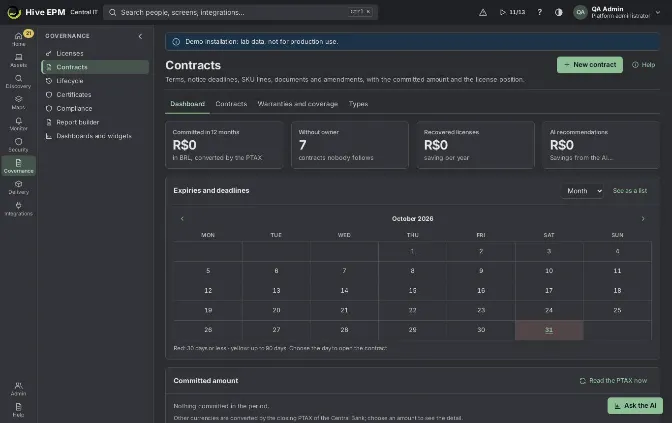
Governance › Contracts keeps every contract in one place with the dates that matter (end, notice deadline, true-up, price adjustment, warranty, leasing), the SKU lines that become rights of use, the documents and amendments, and the renewal decision. The screen has four tabs: Dashboard, Contracts, Warranties and coverage and Types. Viewing needs licenses:admin or audit:read; creating and changing contracts needs licenses:admin.
What you can do here
Follow expiries and notice deadlines on a calendar, and the committed value per period and vendor.

List, search and filter contracts, and export the list to CSV.

Register a contract with the six-step wizard.

Attach documents with versions, and register amendments that change the end, the value or the lines from a date on.

Record a renewal decision backed by the usage data, approved by a second license manager.

Receive alerts before each deadline, sent to the owner and the substitute.

See which hardware is covered by warranty, support, maintenance or leasing.

Create your own contract types, with custom fields and default alert days.

The Contracts screen
Dashboard: a banner lists the notice deadlines in the next 7 days. The cards show Committed in 12 months (in BRL, converted by the PTAX), Without owner, Recovered licenses and AI recommendations. Expiries and deadlines shows expiry, notice deadline, true-up, price

adjustment, end of warranty and end of leasing by Month or Quarter, as a calendar or a list (red: 30 days or less; yellow: up to 90 days). Committed amount groups the value by period and vendor; other currencies are converted by the Central Bank closing PTAX, read every 12 hours (Read the PTAX now reads it at once).
Contracts: Search (number, vendor, object), Type, Situation (Active, Notice soon, Renewed automatically, Ended), Only without owner and Export CSV.

Warranties and coverage: hardware Covered, Coverage ended or Never covered, by contract or by the warranty entered on the device, with the upcoming deadlines.

Types: the twelve built-in types (from Perpetual license to Outsourcing) and New type, with Covers hardware, custom fields (text, number, date, list) and Alert days before the deadline.

New contract
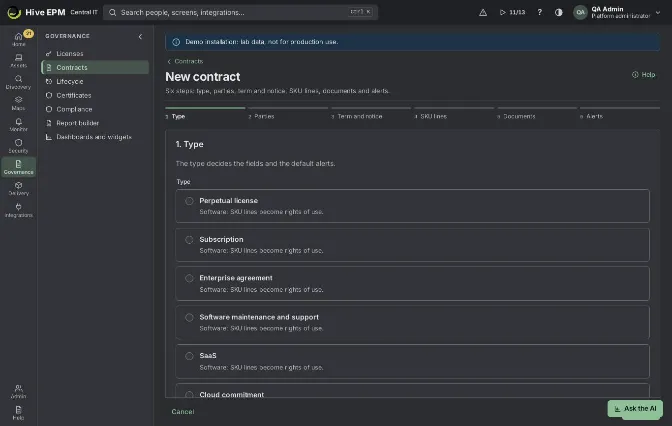
Click New contract. The wizard has six steps; each Next checks the step before moving on, and nothing is saved until Create contract.
Choose the type. The type decides the fields and the default alert days (120, 90, 60 and 30 days for the built-in types). Software types turn SKU lines into rights of use; hardware types add the end of warranty and of leasing and the Covered assets tab.
Fill Contract number and Vendor or reseller (required; the number must be unique for that vendor), and optionally Manufacturer, Object and Cost center. Choose the Owner, who receives the deadline alerts, and a Substitute. Without an owner, the alerts go to the license managers.
Set Start (required) and End (empty for no end), the Notice period (days), Currency (BRL, USD, EUR…), Total value, Adjustment index and Adjustment date, True-up date and, for hardware, End of warranty and End of leasing. The box below shows the calculated notice deadline (end minus the notice period). Turn on Renews automatically when the contract renews by itself if nobody gives notice. The step blocks an end before the start, a notice period without an end and a notice period longer than the term.
Add one line per SKU with Add line: SKU or reseller code, Quantity, Unit price, Kind of license and, if different from the contract, Line start and Line end. Each line becomes a right of use in the license position. An unknown code becomes "SKU pending curation" in the purchases curation queue; the right of use is created when the code is resolved. A contract can have no lines (services, hardware).
Use Add documents for the contract, proposal, invoice or amendment (PDF, DOCX, XLSX, PNG or JPG, up to 50 MB each) and set the Kind of document of each file. The files are sent right after the contract is created.
Review Alert days before the deadline: days before the end, separated by commas, from 1 to 730 (for example 120, 90, 60, 30). The alerts go to the owner and the substitute through the notification channels. Click Create contract; then Open the contract or Back to the list.
The contract page
Summary: the dates, the notice deadline ("date (N days before the end)"), the value, the owner and, in the Renewal decision panel, the unused licenses of each line, the idle cost and the suggestion from the data.

Lines: add, change or remove lines. A reduction that leaves installations without license asks for confirmation ("This change leaves a deficit").

Consumption: who consumes each line, by cost center, by business service and on virtualization hosts.

Documents: download (every download is audited) or remove; the same name sent again becomes a new version.

Amendments: New amendment with Takes effect on, New end, New total value, the document and what changes in the lines. See the contract on a date shows it as it was then; Back to today returns.

Covered assets (hardware types only): Link devices by pasting serial numbers; at the end of a leasing the device enters the return list.

Recommendations: the AI renewal recommendations for this contract.

Edit and Remove (removing also removes the documents and the rights of use created by the lines).

Renewal decision
- On Summary, click Record renewal decision.
- Choose Renew as is, Renegotiate, Reduce quantities (with the New quantity of each line) or Cancel. The option suggested by the data is marked Suggested by the data. Renegotiate and Cancel need a note.
- Click Record and request approval. The decision keeps the data of that moment and waits for another license manager: the person who proposed cannot approve. The approver uses Approve or Reject (with the reason).
- Once approved, the notice deadline alerts stop. For a contract that renews automatically, Cancel is no longer possible after the notice deadline: renegotiate instead.
Alerts
Hive checks the contracts every hour and sends each milestone once, by the alert engine and by e-mail:
Milestone | When | Severity |
|---|---|---|
Expiry | the contract's alert days before the end (default 120, 90, 60, 30) | warning; major from 30 days |
Notice deadline | 30, 7 and 1 day before, while there is no renewal decision | major; critical from 7 days |
Renewed automatically | the day after the notice deadline, if it renews automatically and nobody decided | info |
True-up, price adjustment, end of warranty, end of leasing | 30 days before | warning |
Of each group only the closest milestone is sent: a contract registered late does not receive a burst of old alerts. Contract notice deadlines in the next 30 days without a decision also appear in Decisions.
Worked example: support contract with a 90-day notice period
The infrastructure team signs a yearly support contract for the storage arrays with Datacenter Services Ltda, from 01/03/2026 to 28/02/2027, R$ 96,000.00, renewing automatically, with 90 days' notice to cancel. Today is 22/10/2026.
- In Governance › Contracts, click New contract.
- Type: choose Software maintenance and support.
- Parties: Contract number SUP-2026-014, Vendor or reseller Datacenter Services Ltda, Object "Storage support 24×7", Cost center INFRA-01, Owner Marina Lopes, Substitute Paulo Reis. 4. Term and notice: Start 01/03/2026, End 28/02/2027, Notice period (days) 90, Currency BRL, Total value 96000, and turn on Renews automatically. The box shows "Notice deadline: 30/11/2026 (90 days before the end)." 5. SKU lines: none (it is a service). Documents: add SUP-2026-014.pdf as Contract.
- Alerts: keep 120, 90, 60, 30 and click Create contract. The note confirms "Contract SUP-2026- 014 created." 7. What happens next: on 31/10/2026 Marina and Paulo receive the notice-deadline alert (30 days before) and the expiry alert (120 days before the end), and the contract appears in Decisions. On 23/11 the 7-day alert is critical, the contract shows Notice soon and the Dashboard banner lists "SUP-2026-014 (Datacenter Services Ltda) in 7 d".
- Marina opens the contract, clicks Record renewal decision, chooses Renegotiate with the note "Ask for 10% off and 4-hour response" and clicks Record and request approval. Another license manager approves it; the notice alerts stop.
- If nobody had decided, on 01/12/2026 Hive would send "Automatic renewal confirmed", the contract would show Renewed automatically, and Cancel would no longer be offered.
Pitfalls and limits
Without an End, there is no notice deadline and no expiry alert.

The notice period cannot be longer than the term, and the same number cannot be used twice for the same vendor.

Documents: PDF, DOCX, XLSX, PNG or JPG only, up to 50 MB each; an empty file is refused. If a document fails after the contract is created, the contract stays and the failure is listed.

An unknown SKU code creates no right of use until it is resolved in the curation queue of Licenses › Purchases import.

A perpetual line stays valid after the contract ends, with the maintenance marked as expired; a subscription line ends with the term.

A type can only be removed when no contract uses it.

Without an owner and a substitute, the alerts go to the people with the License manager profile.

Related
Step by step: register contracts

Licenses (SAM)

Decisions

Lifecycle

AI recommendations

Lifecycle, depreciation and responsibility terms
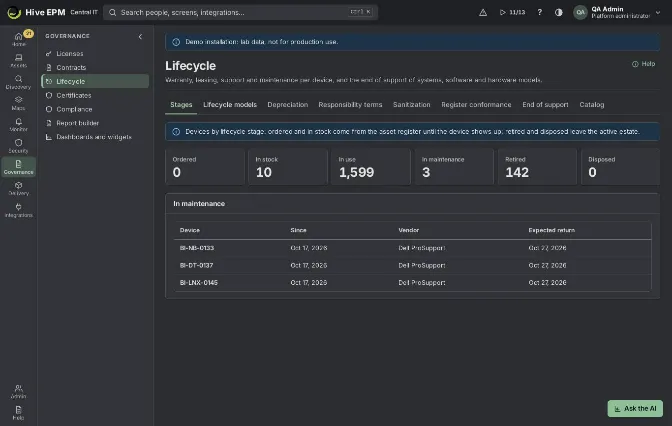
Screen: Lifecycle, depreciation and responsibility terms
Governance › Lifecycle follows each device from the order to the disposal: the stage it is in, how much it is still worth, when it should be replaced, who signed for it and how its data was erased. It also shows the systems, software and hardware models that are past or near the end of support, and compares your fixed-asset register with what Hive discovered. Most actions on a single device are done on the device page, in Management › Location, purchase and lifecycle.
What you can do here
Stages: count the devices that are Ordered, In stock, In use, In maintenance, Retired and Disposed, and see what is in maintenance and when it should come back.

Lifecycle models: set, per kind and model of equipment, the useful life, the refresh period, the warranty and the depreciation method.

Depreciation: see the fleet's purchase value, book value and depreciation, the refreshes due in 90 days and the devices fully depreciated but still in use.

Responsibility terms: follow the delivery and return terms issued on devices and whether the person accepted them.

Sanitization: list the numbered sanitization certificates (NIST SP 800-88) issued before disposal or reuse.

Register conformance: import the fixed-asset spreadsheet and see what is registered but not found, discovered but not registered, and the differences.

End of support and Catalog: see what is out of support or about to be, and add your own end-of- support dates.

On the device: stage, purchase data and documents
Open the device (Assets › All assets, click the name) and go to Management › Location, purchase and lifecycle. Three panels matter here:
Lifecycle stage: shows the Current stage: and every change with date, author and form. Change stage opens the form: New stage, Date (empty: today), the fields of the stage and a Note.

Ordered: Order or invoice.

In stock: Where it is stored.

In use: Who uses it.

In maintenance: Vendor or technician, Ticket, Expected return.

Retired: Reason (required, at least 3 characters).

Disposed: Destination (Sale, Donation, Recycling, Destruction, Returned to the lessor), Data wiped (required) and Certificate or document (optional).

Purchase, depreciation and documents: shows the purchase date, price, book value (and % depreciated), the lifecycle model, the refresh date and Warranty until. Its buttons are Purchase data, Responsibility term and Sanitization certificate.

Contracts, warranty and end of support: the contracts that cover the device, Set warranty for a warranty end without a contract, and what on the device is out of support.

Retired and disposed take the device out of the active estate (it stops counting in reports and alerts); moving it back to In use reactivates it. If the device is linked to a line of the imported register, that line follows the stage.
Lifecycle models and depreciation
- Open Governance › Lifecycle › Lifecycle models and click New model.
- Fill Lifecycle model (the name), Kind of device and, if you want, Model contains (text found in the device model, ignoring case).
- Set Useful life (months) and Refresh after (months) (6 to 240), Warranty (months) and Residual value (%) (0 to 100).
- Choose Depreciation: Straight line, Declining balance (twice the straight-line rate, applied month by month) or By usage (units). By usage asks Life in units and the Unit (hours, pages, km or cycles). Hours come from the active time measured by the agent; pages, km and cycles come from the Usage reading (optional) typed in the device's Purchase data.
- Save. The Devices column counts the active devices that use the model.
The most specific model applies to each device (kind and model > model > kind). On a device, Purchase data lets you fill Purchase date, Price, Invoice, the usage reading and choose a Lifecycle model other than Automatic (by kind and model). The book value never goes below the residual value. The refresh date is the purchase date plus the refresh months; the warranty is the one typed on the device or, without it, the purchase date plus the warranty months of the model.
Depreciation shows Purchased, Book value, Depreciated and Devices without purchase data, a note with how many devices have no model, the lists Refresh due in 90 days or overdue and Fully depreciated and still in use (up to 50 shown each) and the table of every device with a price.
Responsibility terms and the acceptance page
- On the device, in Purchase, depreciation and documents, click Responsibility term.
- Choose the Type (Delivery or Return), type the Person (up to 120 characters), the E-mail (receives the link) if you want it sent, and Accessories (comma separated).
- Click Issue term. The term gets a number (TR-year-sequence) and the window shows the Acceptance link. When an e-mail was given and the e-mail service is configured, the link is also sent by e-mail; otherwise hand the link to the person yourself.
- The person opens the link, with no sign-in. The page shows the company, the number, Responsibility term — Delivery (or Return), For and the name, the device, serial, model, asset tag (from the imported register, when there is one), the accessories and the conditions, plus the SHA-256 hash of the content.
- The person types the full name in Type your full name to accept and clicks I accept. The name must be the one in the term; upper and lower case, accents and extra spaces do not matter. 6. The state changes to Accepted. Hive keeps the typed name, the date and time, the IP address and the content hash, and records the acceptance in the audit trail.
Responsibility terms lists every term with Number, Device, Person and Status (Waiting for acceptance, Accepted or Cancelled, with the acceptance time). Document (PDF) opens the printable term in a new tab; save it as PDF from the browser.
Sanitization certificate
On the device, Sanitization certificate asks Level (NIST SP 800-88) (Clear, Purge or Destroy), Technique and Performed by (both required), Tool, Verified by, Date (not in the future), Result (Passed or Failed) and Note. Issue certificate numbers it (SAN-year-sequence), attaches the disks known from the inventory and the content hash, and opens the document to print. The Sanitization tab lists all certificates.
Register conformance
- Prepare a CSV with a header line and a column for the asset tag; the other columns are serial, name, model, location, cost center, responsible and stage. The separator is ; or , .
- In Register conformance, click Import register (CSV) and choose the file. Each import replaces the previous register.
- Hive matches each line with a device by serial number and, without it, by name. The toast says how many lines were imported and matched.
- Read Conformance, Registered, Registered, not found and Discovered, not registered, and filter the findings: Disposed but active, Different location, Different model, Different responsible, In stock but in use. Export CSV exports the filtered findings.
End of support and catalog
End of support crosses the catalog with the inventory: operating systems, installed software and hardware models (manufacturer + model) past or near the end of support. Change Support ending within (days) (default 365) to widen or narrow it; the indicators show Items, Devices out of support and Devices at risk, and clicking the device count lists sample devices. Alerts go out 180, 90 and 30 days before and at the end.
In Catalog, Add entry asks Type (Operating system, Software or Hardware model), Item, Match (text or regular expression, case-insensitive), End of support and Note. Built-in entries are marked Built in; yours are marked Company and can be removed. An entry with the same name as a built-in one replaces it.
Worked example: hand a notebook to an employee with a signed term
Mariana Souza Lima joins Finance and receives the notebook FIN-NB-042 with a charger, a mouse and a backpack.
- Open Assets › All assets, search FIN-NB-042 and open it. Go to Management › Location, purchase and lifecycle.
- In Lifecycle stage, click Change stage, choose In use, type Mariana Souza Lima in Who uses it and Save. The panel shows Current stage: In use and the new event.
- In Purchase, depreciation and documents, click Responsibility term. Keep Type = Delivery, type Mariana Souza Lima in Person, [email protected] in E-mail (receives the link) and charger, mouse, backpack in Accessories (comma separated).
- Click Issue term. The window says "Term TR-2026-0007 issued" and shows the Acceptance link. Close it; the panel lists TR-2026-0007 · Delivery · Mariana Souza Lima with Waiting for acceptance.
- Mariana opens the e-mail link on her phone. She sees the notebook, its serial and model, the three accessories and the conditions.
- She types Mariana Lima and clicks I accept: the page answers "Type your full name exactly as it appears in the term." She types mariana souza lima and clicks I accept again; this time it is accepted, because case does not matter.
- Back in Governance › Lifecycle › Responsibility terms, the row shows Accepted with the date and time. Click Document (PDF) and save the printable term in the employee's file.
Worked example: depreciation of the OptiPlex desktops
- In Lifecycle models, click New model: Lifecycle modelDesktops Dell OptiPlex , Kind of device computer , Model containsOptiPlex , Useful life (months) 60, Refresh after (months) 60, Warranty (months) 36, Residual value (%) 10, DepreciationStraight line. Save.
- On the desktop FIN-DT-015 (a Dell OptiPlex 7090), open Purchase data: Purchase date 2024- 03-15, Price 4500, InvoiceNF 88214 . Keep Automatic (by kind and model) and Save.
- The panel shows the model "Desktops Dell OptiPlex" (by rule). On 2026-10-22, after 31 months, the book value is 2,407.50 (46.5% depreciated: 4,500 minus 31/60 of 4,050), the refresh is 2029-03-15 and Warranty until 2027-03-15.
- Depreciation now counts the device in Purchased and Book value; in March 2029 it will appear in Refresh due in 90 days or overdue.
Worked example: maintenance, sanitization and disposal
- FIN-NB-009 has a broken screen. Change stage → In maintenance, Vendor or technicianDell ProSupport , TicketSR-104233 , Expected return 2026-11-05. Stages now lists it under In maintenance with the vendor and the expected return.
- The repair is not worth it. Click Sanitization certificate: LevelPurge, TechniqueCrypto erase , ToolDell Data Wipe , Performed byCarlos Mendes , Verified byAna Prado , ResultPassed. Issue certificate opens SAN-2026-0003 with the disk of the notebook; save it as PDF.
- Change stage → Disposed, DestinationRecycling, switch Data wiped on, Certificate or document (optional)SAN-2026-0003 . The notebook leaves the active estate and appears under Disposed in Stages.
Worked example: an in-house application reaches end of support
- The vendor of FinPlan Client 3 ends support on 2026-12-31. In Catalog, click Add entry: Type Software, ItemFinPlan Client 3 , Match^finplan client 3 , End of support 2026-12-31, Note Upgrade to version 4 . Save.
- In End of support, keep Support ending within (days) at 365. FinPlan Client 3 appears with the date and "in 70 days"; click the device count to see sample devices.
- Hive raises the alert at 30 days and at the end of support, so the upgrade can be planned.
Worked example: compare the fixed-asset register
- Finance exports the register as patrimonio.csv with the header asset
tag;serial;name;model;location;cost center;responsible;stage . |
|---|
- In Register conformance, click Import register (CSV) and choose the file. The toast shows, for example, "1200 line(s) imported, 1150 matched." 3. Click Registered, not found to see the devices the register says are in use but Hive never saw, and Different location to fix sites. Click Export CSV to send the list to Finance.
Pitfalls and limits
Viewing needs permission to read assets; changing stages, models, purchase data, issuing terms and certificates and importing the register need permission to change assets.

The Kind of device of a lifecycle model matches synonyms: laptop matches the devices the inventory classifies as notebook , and desktop or computer match desktops and workstations. Virtual machines ( vm ) only match a model without a kind or with the model name.

Depreciation needs both the price and the purchase date (by usage, the price and a reading or agent hours); without them the book value stays empty.

The term is accepted once. A term already accepted or cancelled shows its state and cannot be accepted again; the console has no cancel button (the API does). The acceptance link has no expiry date.

The e-mail with the link goes only when an address is given and the e-mail service is configured; the link always appears in the issue window.

The term text is generated in the console language (English, Portuguese or Spanish) and is frozen with its hash when issued.

Each register import replaces the previous one. Lines without an asset tag, or with an unknown stage, are reported as warnings in the toast (a line with an unknown stage is kept as In use); up to 50,000 lines are read. Column names are accepted in English, Portuguese or Spanish.

The conformance table shows up to 1,000 findings; Export CSV exports all of the filtered ones.

Retired asks for a reason and Disposed asks for the destination and whether data was wiped; the date cannot be in the future.

Related
Assets and inventory

Contracts

Step by step: SAM and HAM reports

Software usage

Organization structure

Software store
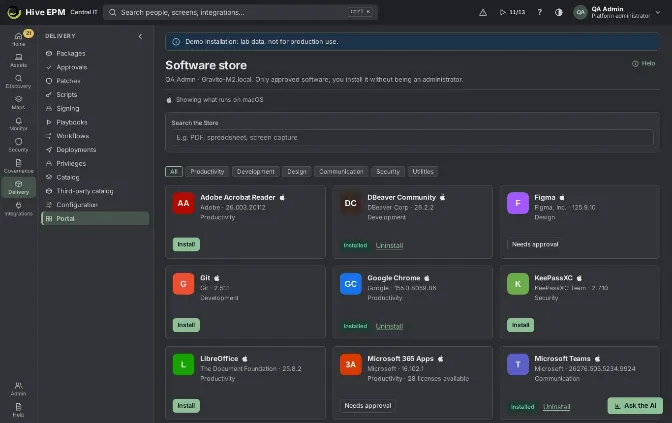
Screen: Software store (1/2)
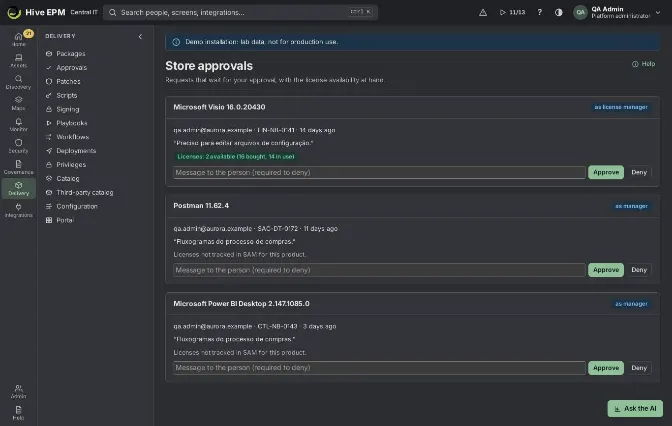
Screen: Software store (2/2)
The Software store lets people install approved software on their own computer without being administrators. It is not a mass deployment tool: every install starts with the person acting on their own device. People reach it from the agent on their computer or, signed in to Hive, in Delivery › Portal; the people who approve requests use Store approvals. Packages get into the store through Packages.
What you can do here
Open the store from the computer (shortcut, tray icon or command) and install, update or uninstall approved software.

In the signed-in portal, ask for software that needs approval, with a reason, and follow it in My requests.

Cancel a request that is still waiting for approval.

As a manager or license manager, approve or deny requests in Store approvals, with the license availability at hand.

Open the store from the computer
The agent installation creates the ways to open the store on each computer:
Windows (MSI, and install.ps1 or GPO), for all users: the Hive Store shortcut in the Start menu and on the Desktop. The Desktop shortcut is on by default; turn it off with STORESHORTCUT=0 in the MSI or -NoDesktopShortcut in install.ps1 .

Windows notification area: the Hive icon ( hive-agent tray ), started at logon from the Startup folder; it appears from the next logon. Its menu has Open Hive Store (the default item), Check

for surveys and About Hive agent (version, connected or not, last contact), in the language of Windows. Turn it off with TRAY=0 in the MSI or -NoTray in install.ps1 .
 | macOS: /Applications/Hive Store.app . |
|---|---|
 | Linux with a desktop: Hive Store in the applications menu ( /usr/share/applications/hive- |
store.desktop ).
On any system, the command hive-agent store .

The icon (the "tray" module) is on by default on workstations and VDI; on servers only when requested; on Tier 0 devices it never exists, and there is no store there. Uninstalling the agent removes the shortcuts and the icon.
All of them open the local address http://127.0.0.1:47482/store . The agent asks the core for a personal link bound to that computer, valid for 8 hours, and the browser is redirected to it, with no sign-in. The page (Software store, "On this computer: name · user") shows:
the catalog of that device: only versions approved and published to the store channel, filtered by the package visibility and the device system;

My requests of that device, with Cancel while a request still waits for approval;

the quick surveys from IT that are open for that computer, if any.

Click Install, Update to a version or Uninstall, then Confirm. The installation starts right away: through this link there is no per-request approval, because the version was already approved before it was published. The requester recorded in the audit trail is the computer's primary user (or the computer itself when no user is known).
Use the portal signed in
People whose profile uses the store open Delivery › Portal ( /store ) in Hive:
- Hive finds the computer you are using by the address you connect from; otherwise it uses the computer where you are the main user. The header shows your name and the device.
- Search with Search the Store or filter by category.
- On a card, click Install (or Needs approval when the package asks for it, or Update). Type an optional reason in Why do you need it? (optional) (up to 300 characters) and click Ask.
- Follow the status on the card and in My requests: Waiting for approval, In the queue, Installing…, Installed, Failed (with "What happened"), Denied or Cancelled. While something is installing, the page refreshes every 4 seconds.
- An installed item shows Installed and, when the package has an uninstall command, Uninstall.
Approve requests
Each package says who approves in Approval before installing: No approval, Manager, License manager or Manager and license manager.
Manager is the requester's manager in the directory (Active Directory or Entra ID) or a store administrator.

License manager is anyone whose profile manages licenses.

Approvers open Store approvals ( /store/approvals ). License managers and store administrators also find the requests in Delivery › Approvals (group Store requests) and in Home › Decisions. Each request shows the package, who asked, the device, the reason, your role ("as manager", "as license manager") and the licenses: "Licenses: N available (bought, in use)". Type a Message to the person and click Approve or Deny. The install starts as soon as every approval the package needs is in.
Worked example: Adobe Reader approved by the manager
Ana Souza (Finance) needs Adobe Acrobat Reader on her notebook FIN-NB-014. The package "Adobe Acrobat Reader" is published to the store with Approval before installing = Manager and visible to the Finance department. Her manager in Active Directory is Carlos Lima.
- Ana signs in to Hive on FIN-NB-014 and opens Delivery › Portal. The header shows "Ana Souza · FIN-NB-014".
- She types "PDF" in Search the Store. The card Adobe Acrobat Reader shows the button Needs approval.
- She clicks it, writes "Sign supplier contracts in PDF" in the reason and clicks Ask. The message "Request sent for approval. You will see the answer in My requests." appears; the card shows Waiting for approval.
- Carlos signs in and opens /store/approvals . The request shows "as manager", Ana, FIN-NB-014 and her reason. He types "OK for the contracts work" and clicks Approve. "Decision recorded." appears.
- Hive queues the install on FIN-NB-014. The agent downloads the package, checks the SHA-256 and installs it silently. In Ana's portal the card goes to Installing… and then Installed; My requests shows Installed.
- If Carlos had clicked Deny, the message would be required (at least 5 characters) and Ana would see Denied with his message in My requests.
Worked example: installing from the tray icon
Bruno, at the reception PC RCP-01, needs 7-Zip, which is published to the store channel with no approval.
- He clicks the Hive icon in the Windows tray and chooses Open Hive Store.
- The browser opens on his personal link: "On this computer: RCP-01 · user bruno.alves".
- On the 7-Zip card he clicks Install and then Confirm. "Installation started on this computer. Follow it below." appears.
- A few minutes later My requests shows Installed. The link stops working after 8 hours; opening the store again from the shortcut creates a new one.
Worked example: shared lab PCs with the Start menu only
The training lab has 24 shared Windows PCs (LAB-01 to LAB-24). IT wants the store available without cluttering the Desktop.
- IT installs the agent with msiexec /i hive-agent.msi /qn STORESHORTCUT=0 . The PCs get Hive Store in the Start menu only, and the Hive icon in the notification area from the next logon.
- A student on LAB-07 opens Start › Hive Store. The browser goes to http://127.0.0.1:47482/store and is redirected to LAB-07's personal link: "On this computer: LAB-07 · user …".
- The student installs Notepad++ with Install and Confirm.
- The next morning, 8 hours later, the tab left open shows "This store link has expired". Opening Start › Hive Store again (or Open Hive Store on the icon) creates a fresh link.
- On the domain controller DC-01 (Tier 0), there is no Hive Store shortcut and no icon: the store does not exist on Tier 0.
Pitfalls and limits
The icon appears only from the next logon after the installation. Servers have it only when requested; Tier 0 devices never have the store.

The personal link only works on the computer itself: the local address answers only on 127.0.0.1 and refuses navigation coming from another site. An expired link shows "This store link has expired": open the store again from the agent.

The link opened from the agent skips the per-request approval. If a package must be approved by the manager for each request, people must ask in the signed-in portal (Delivery › Portal).

The agent cannot open the store until the computer has sent its first inventory ("This agent does not open the store portal yet.").

Only versions published with the channel Authorized store only or Store and deployment appear; Deployment and patch only versions never show in the store.

With a License SKU on the package and no free license, the store refuses the install: "There is no free license for this software right now."

There is one open request per item and device ("There is already a request for this item on this device.").

Whoever asked cannot approve their own request. The directory manager is found by matching e- mails, so the directory must be connected and the manager's e-mail must be the one used to sign in to Hive.

Only a request waiting for approval can be cancelled. Uninstalling needs an uninstall command in the package.

Operating system on each card
Every store card shows the icon of its operating system (Windows, macOS or Linux), and a line at the top says which system the list is for, such as "Showing what runs on macOS" — the system of the computer the store was opened for. Items made for other systems do not appear.
Worked example: the store on a Mac
- On a MacBook, open the store from the menu bar icon.
- The top reads "Showing what runs on macOS"; Figma, Slack and Zoom show the Apple icon. 3. The Windows-only 7-Zip does not appear; ask IT if you need an equivalent.
Related
Packages

Step by step: create a package and publish it in the Store

Third-party catalog

Decision queue and approvals

Deployments

Licenses

Packages and store catalog
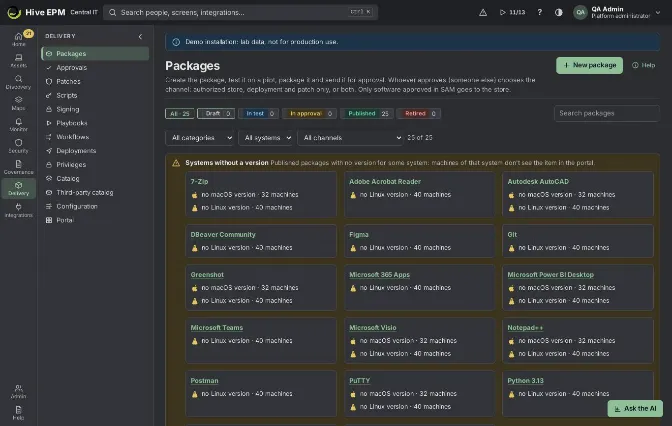
Screen: Packages and store catalog (1/2)
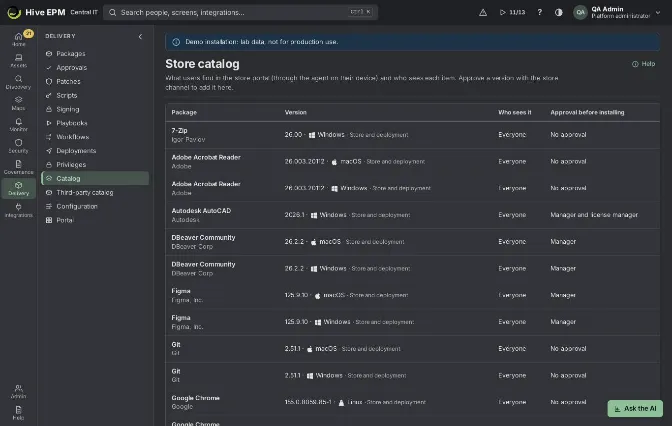
Screen: Packages and store catalog (2/2)
A package is a piece of software that Hive can install: the installer (or a package manager id), the silent commands, how Hive knows it is installed and who may see it. Each version goes through Send → Test→ Package → Approve → Publish before it reaches the store or a deployment. Packages are in Delivery › Packages; what people find in the store is in Delivery › Catalog.
What you can do here
Create a package and set its category, catalog product, approval, visibility, icon, license SKU and dependencies.

Add versions from an installer file or from winget, Chocolatey, Homebrew, apt or dnf.

Test each version on a pilot device, confirm the commands and the detection rule, and send it for approval.

Approve or reject a version (someone else) and choose its channel; publish, retire and restore versions.

See who has the software and offer the update to devices on older versions.

Check in Catalog what each person can find in the store.

The package list
Delivery › Packages lists every package with its lifecycle status: Draft (gray), In test (blue), In approval (yellow), Published (green) and Retired (red). The chips on top filter and count each status. You can also search, filter by category, system and channel (Clear filters resets them). The columns show the published versions with their channel, the versions in progress and their stage, who sees the package, the number of installations, the license (free of total) and the last change.
Create a package
- Click New package.
- Fill Name (required), Publisher, Description and Category.
- In Product of the software catalog, pick the product. It links the package to SAM: approval status, licenses and "who has it".
- Optionally fill License SKU (optional) (a SKU already registered in Licenses) and Depends on (installed before) (other packages installed first on each machine).
- Choose Approval before installing: No approval, Manager, License manager or Manager and license manager. It applies to requests made in the signed-in store portal.
- In Who sees it, pick sites and departments of the Structure (the whole subtree is included), Assets with these tags and the systems. Empty means everyone.
- Optionally send an Icon (PNG, JPEG, SVG or WebP up to 64 KB) and keep Publishing a new version retires the previous one on.
- Click Save. The package page opens.
Add and test a version
- On the package page, click New version.
- Choose Send the installer and pick the file (Installer (MSI, EXE, MSIX, PKG, DMG, DEB, RPM)), or choose winget, Chocolatey, Homebrew, apt or dnf and type the Package id in the source. Fill Version and System.
- Hive reads the file: type, installer framework, publisher, signature ("Signed by …" or "Not signed") and SHA-256, and suggests the silent install and uninstall commands and the detection rule. A warning shows when the installer does not look like the package.
- In Pilot device, choose a test machine with the agent and click Test on the pilot. The progress shows "Requested for …", "The agent picked up the task", "Downloading, checking the hash and installing" and "Finished", with the elapsed time and the installer output. The result reads "Installed and detected in N s (exit code N)" or "The pilot failed: …".
- With no test machine, click Go on without the pilot, explain in Why skip the pilot test and click Skip the pilot and package. The approver sees the reason.
Package, approve and publish
- After the pilot, confirm Install command, Uninstall command and How Hive knows it installed: Program name (part of the name in the installed programs list), File (a path) or Registry key. Click Package.
- Click Send for approval. Hive runs the Automatic checks: approved in SAM, hash matches the file sent, signature, and known CVEs (critical and KEV).
- Another person with the license manager or security profile opens the version, chooses Where this version can be used: Store and deployment, Authorized store only or Deployment and patch only, and clicks Approve (or Reject, with the reason).
- In Before publishing in the Store, link the package to a catalog product if it is not linked (Search the catalog / Link, or Create product and link) and, if the product is not approved, click Approve in the catalog.
- Click Publish. With the store channel, the version appears in the store for whoever may see it; with the deployment channel, it appears in New deployment.
Retire takes a version out of the store at once, uninstalls nothing and deletes the file in 30 days; Restore brings it back until then.
Who has this package
The Who has this package panel lists the devices by version, marking installs made outside the store and offers already made. Offer the update to who is on an older version shows the update suggestion on the store card of those devices; it is always an offer, never a forced install.
The store catalog
Delivery › Catalog shows each published version with a store channel, its system and channel, Who sees it and the approval rule. Versions published for deployment only are listed apart, in a note, because they do not show in the store.
Worked example: 7-Zip from an MSI file
- Download the 7-Zip MSI and save it as 7-Zip-24.08-x64.msi , so Hive reads the name "7-Zip" and the version 24.08 from the file name.
- In Delivery › Packages, click New package: Name "7-Zip", Publisher "Igor Pavlov", Category Utilities, product 7-Zip from the catalog, approval No approval, systems Windows, nothing else in Who sees it (everyone). Click Save.
- Click New version › Send the installer, pick the file, Version 24.08 , System Windows. Hive shows type msi, the SHA-256, install msiexec /i "" /qn /norestart , uninstall msiexec /x " " /qn /norestart and detection Program name = 7-Zip .
- Choose the pilot IT-LAB-W11 and click Test on the pilot. After about a minute: "Installed and detected in 38 s (exit code 0)." In the package list, 7-Zip shows In test.
- Keep the commands, keep Program name = 7-Zip (it matches "7-Zip 24.08 (x64 edition)") and click Package, then Send for approval. The status becomes In approval.
- Marta, the license manager, opens the version: the checks show the product approved in SAM, the hash matching and no critical CVE. She chooses Store and deployment and clicks Approve. 7. You click Publish. 7-Zip 24.08 now shows in Delivery › Catalog for everyone with Windows, and in New deployment for a mass install.
Pitfalls and limits
The installer can have up to 2 GB. A version number can exist only once per system ("This version already exists for this system.").

For MSI, PKG and DMG files the name and version come from the file name; name the file well, because the pilot uses the suggested detection. If the pilot is not detected, use Go on without the pilot with the reason (10 to 300 characters; the approver also sees the last pilot error) and fix the detection in the package step.

macOS packages have no standard uninstaller; for a DMG, check the uninstall command, which removes the app from /Applications by the file name.

Package only works after the pilot passed or was skipped; Publish only after approval.

Whoever sent the version cannot approve it, unless the company allows self-approval in Delivery › Approvals (recorded in the audit trail). Only the license manager or security approves package versions. Rejecting needs a reason of at least 10 characters.

Store channels need the package linked to a catalog product approved in SAM ("Only software approved in SAM goes to the store."). Deployment and patch only does not need it.

A License SKU must already exist in Licenses. A package cannot depend on itself or on a package that already depends on it.

Systems of each package and missing versions
The package list and the catalog show the icons of the systems each package has. On top of Packages, a warning per product lacking a version for a system that exists in the fleet: "Figma: no Linux version — 12 Linux machines don't see this item". The count is of active devices with the agent, within the data scope of your profile (sites, tags and groups); a system the package's visibility already excludes does not warn, and versions published for deployment only do not count.
Worked example: Figma for Linux
- Delivery › Packages shows "Figma: no Linux version — 12 Linux machines don't see this item". 2. Open Figma, New version, choose apt or send the .deb , System Linux, and test it on a Linux pilot.
- After Publish in the store channel the warning disappears and the 12 machines see Figma.
Related
Software store

Third-party catalog

Deployments

Step by step: create a package and publish it in the Store

Software catalog

Licenses

Third-party catalog
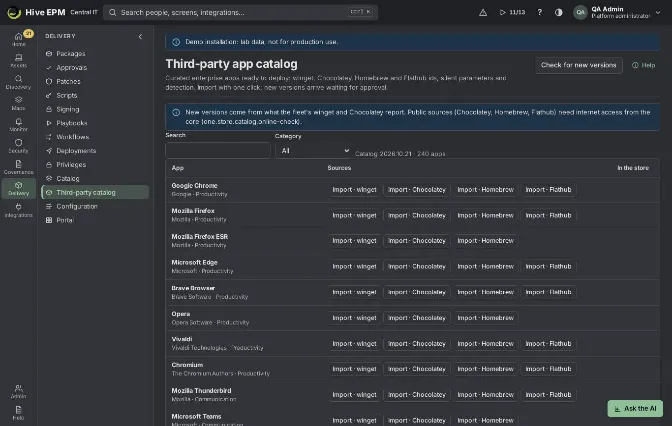
Screen: Third-party catalog
The Third-party catalog is a curated list of common business apps (browsers, PDF readers, archivers, communication tools and more) with their ids in winget, Chocolatey, Homebrew and Flathub, the silent parameters and the detection name. One click creates the store package and a version ready for approval, and Hive keeps looking for new versions. It is in Delivery › Third-party catalog.
What you can do here
Search the catalog by name, publisher or id and filter by category.

Import an app from one of its sources: Hive creates the package (or reuses the one with the same name) and a packaged version waiting for approval.

Turn the automatic update of an imported app on or off.

Check for new versions right away instead of waiting for the periodic check.

Step by step
- Open Delivery › Third-party catalog. The line under the filters shows the catalog version and the number of apps.
- Type in Search or choose a Category.
- In the Sources column, click Import · winget (or Chocolatey, Homebrew, Flathub). Apps marked "No package manager: send the installer to the store" must be created in Packages with the installer.
- A message confirms: "App imported: version N is waiting for approval." The In the store column shows "Imported · source" (a link to the package), the automatic update pill, the last version and its state, and the newest version known with where it came from (fleet or public source).
- Open the package and finish as for any package: another person approves the version and chooses the channel, the package is linked to an approved catalog product if it goes to the store, and you click Publish.
- Click the pill Automatic update on to turn it off (or on again). With it on, every new version found is created waiting for approval; nothing is published without someone approving it.
Worked example: Google Chrome kept up to date
- In Delivery › Third-party catalog, search "chrome". The row Google Chrome (Google · Productivity) shows the sources winget, Chocolatey, Homebrew and Flathub.
- Click Import · winget. Message: "Google Chrome imported: version 129.0.6668.90 is waiting for approval." (the version is the newest the fleet's winget reported; with no information it is "latest").
- The row shows "Imported · winget", Automatic update on and "Last version 129.0.6668.90: Waiting for approval".
- Click "Imported · winget" to open the package. The version comes already packaged with winget install --id Google.Chrome --exact --silent ... , the detection from the catalog and the pilot marked as skipped by the catalog.
- Marta (license manager) approves it with the channel Store and deployment. You link the package to the catalog product Google Chrome and click Publish.
- Two weeks later the periodic check finds 130.0.6723.59 reported by the fleet's winget. A new version appears in the package In approval; after Marta approves and you publish it, the previous version is retired (if the package retires the previous one on publish) and you can roll it out with a deployment.
Pitfalls and limits
Importing and checking need the store administrator profile.

New versions come from what the fleet's winget and Chocolatey report. Public sources (Chocolatey, Homebrew, Flathub) are consulted only when the core has internet access and the online check is turned on ( hive.store.catalog.online-check ); the note on top of the screen says which mode is active.

The periodic check runs every 6 hours; Check for new versions runs it now and reports how many apps were checked and how many new versions are waiting for approval.

Importing a version that already exists only shows "this version is already in the store".

An imported package is not linked to a catalog product: link it before publishing to the store channel (a Deployment and patch only version does not need it).

The last error of a check shows under the app ("Last check: …").

Related
Packages and store catalog

Software store

Deployments

Patches

Deployments
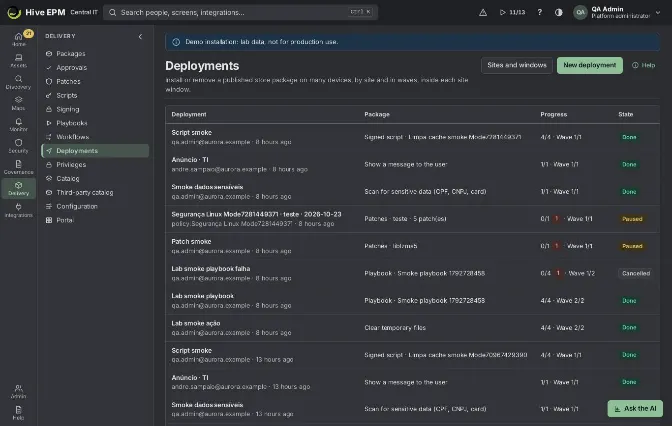
Screen: Deployments (1/3)
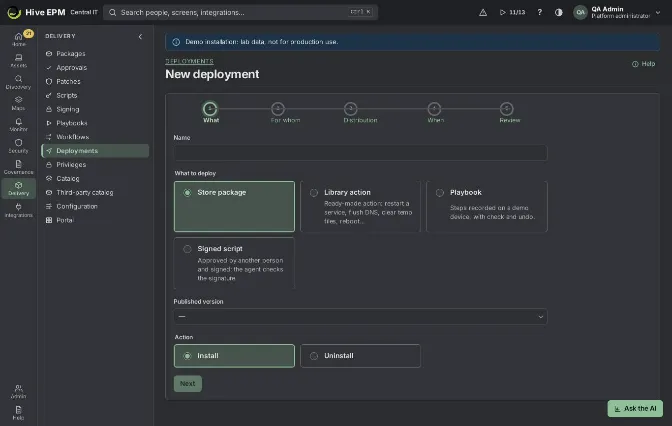
Screen: Deployments (2/3)
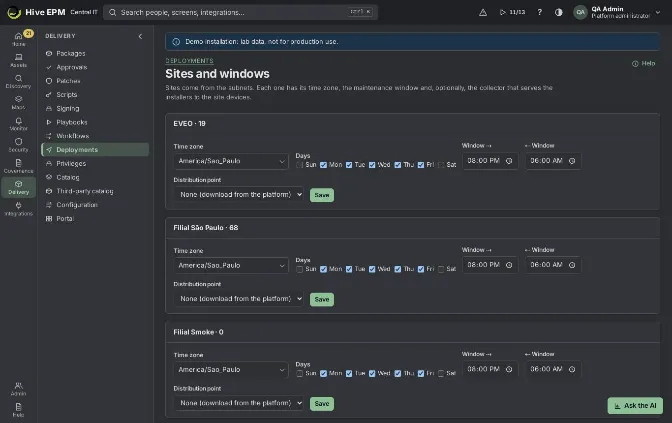
Screen: Deployments (3/3)
A deployment installs or removes software, or runs a ready-made action, a signed script, a playbook or patches, on many devices at once: in waves (rings), inside each site's maintenance window, with the approval of another person and an automatic pause when too many devices fail. Deployments are in Delivery › Deployments; the sites and their windows are in Sites and windows.
What you can do here
Create a deployment in five steps: What, For whom, Distribution, When and Review.

Approve or deny a deployment created by someone else.

Follow it by wave, by site and device by device; pause, resume or cancel it.

Set the time zone, maintenance window and distribution point of each site.

Create a deployment
- In Delivery › Deployments, click New deployment.
- What: give it a Name (3 characters or more) and choose what to deploy: 3. Store package: a Published version (only versions approved for deployment show) and the Action: Install or Uninstall; 4. Library action: restart, start or stop a service, flush DNS cache, clear temporary files, update group policy (Windows), reboot with a message and delay, collect inventory now, antivirus quick or full scan, update antivirus signatures, uninstall a program, show a message to the user and others; 5. Signed script or Playbook (only approved scripts and published playbooks); 6. Patches (when you come from the Patches screen), with the reboot choice.
- For whom: pick nodes of the Structure (company, sites, buildings, departments), groups, tags, switches and racks. Inside each field any value counts; between fields all must match. Only devices with the agent and the right system enter.
- Distribution (packages only): Collector of each location (the distribution point set in Sites and windows), Choose the collector per location for this deployment, or Straight from the core.
Keep Pre-load on the collectors as soon as it is approved on to download before the first wave.
- When: choose the Waves: Everything at once, Pilot, then the rest, Pilot, then one wave per site or 10%, then the rest. For a pilot, search and add the Pilot devices. Set Next wave only if success reaches (%) (95 by default), Respect the maintenance window of each site and, if needed, Wake devices that are off (Wake on LAN through the site collector).
- Review: the preview shows how many devices with agent each wave gets, by site, and how many have no site (they ignore windows). Click Create and send for approval.
Approve and follow
Every deployment starts Waiting for approval. Another store administrator opens it (from Delivery › Approvals or Home › Decisions) and clicks Approve or Deny. Approved deployments start on the next cycle.

The detail shows By wave and site (the current wave is marked) and Devices: device, site, wave, status (Pending, Waiting for the window, Sent, Installing, Installed, Removed, Failed, Cancelled, Skipped) and detail, including whether the package came from the site collector or from the platform.

A wave ends when all its devices finish. If the success is below the threshold, the deployment pauses by itself and shows why ("Wave 1: 80% success, below 95%."). Otherwise the next wave starts.

Pause stops sending new tasks, Resume continues and Cancel cancels the devices not yet sent; the ones already installing finish.

Sites and windows
In Delivery › Deployments › Sites and windows, each site (created with the subnets) has a Time zone, the Days and the Window (start and end). A window that ends before it starts crosses midnight (20:00 → 06:00). In Distribution point, choose a collector of the site: it downloads the installer once and serves it to the site's devices, which fall back to the platform when the collector does not have it. Click Save.
Worked example: Chrome to the pilot ring, then to everyone
The package Google Chrome 129.0.6668.90 is published with the channel Store and deployment. The company has the sites São Paulo (window Mon–Fri 20:00 → 06:00) and Recife (same window), 420 Windows devices in total.
- New deployment › What: Name "Chrome 129 – all Windows", Store package, version Google Chrome 129.0.6668.90 · windows, action Install. Next.
- For whom: in the Structure pick the whole company. Next.
- Distribution: keep Collector of each location and Pre-load on the collectors as soon as it is approved. The table shows São Paulo served by COL-SP-01 and Recife by COL-REC-01. Next.
- When: Pilot, then the rest; in Pilot devices add IT-LAB-W11, IT-NB-07, IT-NB-09, FIN-NB-014 and RCP-01 (5 devices). Threshold 95, window on. Next.
- Review: Wave 1 = 5 devices, Wave 2 = 415 devices (São Paulo 300, Recife 115). Click Create and send for approval. Message: "Deployment created. Another store administrator approves it." 6. Rafael, another store administrator, sees it in Delivery › Approvals › Deployments and clicks Approve. The collectors pre-load the installer.
- At 20:00 the pilot devices get the task. By 20:15 all 5 show Installed: 100% ≥ 95%, so Wave 2 starts inside each site's window. The next morning the detail shows 409 Installed, 4 Failed and 2 Pending (off; they get it when they come back, for up to 24 hours).
Rolling back. Suppose the pilot showed 3 of 5 Failed (60%): the deployment pauses by itself with "Wave 1: 60% success, below 95%." and Wave 2 never starts. Read the error of each device in Detail, then click Cancel. To remove Chrome 129 from the pilot devices, create a new deployment with the same package and the action Uninstall, targeting only those devices. Retire the version in Packages so nobody deploys it again. For Windows and Linux updates there is a dedicated rollback in Patches.
Pitfalls and limits
Only store administrators create and approve deployments. Whoever created it does not approve it, unless self-approval is allowed in Delivery › Approvals (recorded in the audit trail).

Versions approved for the store only do not show in What; a version must be published to be deployed ("Only published versions can be deployed.").

Up to 20 waves. The threshold is between 0 and 100.

A device that is off gets the task when it comes back, for up to 24 hours after the start; after that it counts as failed.

Devices without a site do not wait for a window. The SHA-256 of the installer is always checked, whatever the source.

The emergency brake (in Home › Decisions) stops every deployment from advancing until it is released.

There is no one-click rollback for a store package: pause or cancel, then deploy the action Uninstall (or another version).

Related
Packages and store catalog

Patches

Scripts and signing

Recorded playbooks

Decision queue and approvals

Structure

Scripts and signing
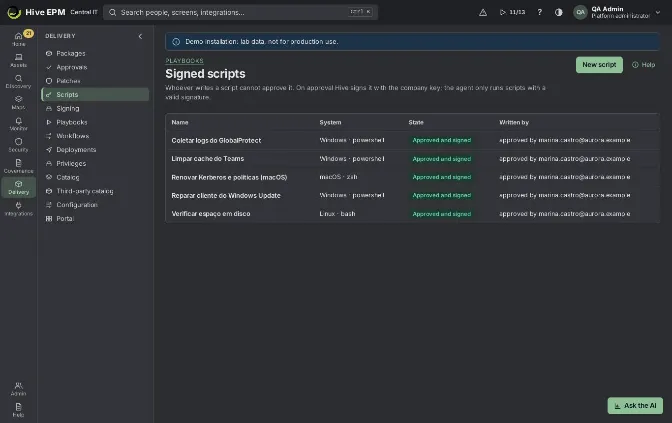
Screen: Scripts and signing (1/2)
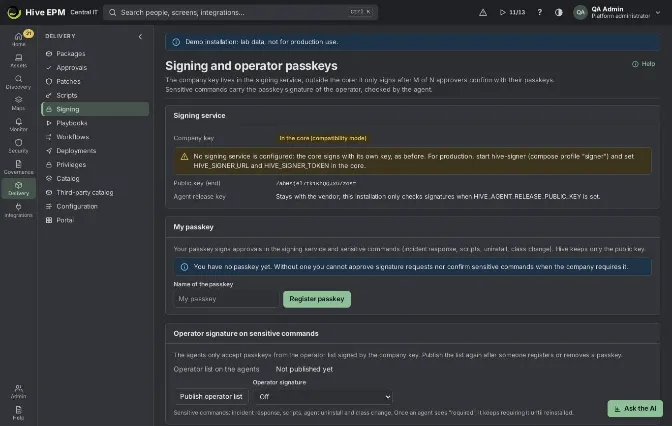
Screen: Scripts and signing (2/2)
Scripts keeps the company's signed scripts: whoever writes a script cannot approve it, and on approval Hive signs it with the company key; the agent only runs scripts with a valid signature. Signing holds the signing service status, the operators' passkeys, the signature requests waiting for approvers and the operator signature on sensitive commands. Both are in Delivery (Scripts and Signing).
What you can do here
Write a script (PowerShell on Windows; sh, bash or zsh on Linux and macOS), save it as a draft and have another person approve and sign it.

Deploy an approved script to many devices, or use it in a workflow or as the automatic fix of an alert rule.

Register your passkey and approve signature requests with it.

Choose the approvers (M of N) of the signing service and publish the operator list to the agents.

Write and approve a script
- In Delivery › Scripts, click New script.
- Fill Name, Description, System and, on Linux and macOS, Interpreter (Windows always uses PowerShell). Set Time limit (s) (600 by default) and write the Script. Exit code 0 means success. 3. Click Create draft. The script shows Draft (not signed) and its SHA-256.
- Another person with permission to change configuration opens it (from the list, Delivery › Approvals or Home › Decisions) and clicks Approve and sign.
- Without a signing service, the core signs it at once: Approved and signed by … on ….
- With the signing service, the script goes to Waiting for approvers (M of N) and appears in Signing› Signature requests waiting for approval; it is signed when M approvers confirm with their passkeys.
- With the script approved, a store administrator clicks Deploy: the new deployment opens with the script chosen.
Save (back to draft) after any change removes the signature; deployments already created keep their signed copy.
Signing service and passkeys
Delivery › Signing has four panels:
Signing service: where the company key is (In the signing service (online) or In the core (compatibility mode)), what happens when the service is down, how many approvals are needed ("2 of 3 approvers") and the end of the public key.

My passkey: type a Name of the passkey and click Register passkey (the browser asks for your fingerprint, face, PIN or security key). Hive keeps only the public key. Remove deletes it.

Signature requests waiting for approval: what will be signed, who asked, the approvals ("1 of 2") and Approve with passkey. You cannot approve what you asked, twice, or if you are not an approver.

Approvers (M of N) (settings administrators): tick the people with a passkey, choose Approvals needed (M) and click Register approvers. Changing them later (Propose new approvers) is itself a request that M current approvers must approve.

Operator signature on sensitive commands lists the operator passkeys published to the agents. After someone registers or removes a passkey, an administrator clicks Publish operator list. In Operator signature, choose Off, When the operator has a passkey or Required (the agent refuses without it). Sensitive commands are incident response, scripts, agent uninstall and class change.
Worked example: clear the print spooler on 20 machines
Twenty notebooks of the Sales floor keep losing print jobs. The signing service is configured with 2 of 3 approvers (Carla, Diego and Elisa), all with passkeys.
- Ana (IT) opens Delivery › Scripts › New script: Name "Clear print spooler", Description "Stops the spooler, deletes stuck jobs and starts it again", System Windows, Time limit 120 , Script: ``
Stop-Service -Name Spooler -Force Remove-Item -Path "$env:SystemRoot\System32\spool\PRINTERS\*" - |
|---|
Force -ErrorAction SilentlyContinue Start-Service -Name Spooler if ((Get-Service -Name |
|---|
Spooler).Status -ne 'Running') { exit 1 } `` She clicks Create draft.
- Bruno, another operator, sees Script · "Clear print spooler" in Home › Decisions, reviews the content and clicks Approve and sign. The state becomes Waiting for approvers (M of N). 3. Carla opens Delivery › Signing, finds the request ("1 of 2" after her) and clicks Approve with passkey; Windows Hello asks for her fingerprint. Diego does the same. The script shows Approved and signed by Bruno.
- Ana tags the 20 notebooks with spooler-fix in the asset list, opens the script and clicks Deploy.
In the deployment: For whom = tag spooler-fix ; When = Everything at once, threshold 90 , window off. Create and send for approval.
- Rafael approves the deployment. Each agent checks the signature with the pinned company key, the SHA-256 of the content and the system, and runs it. Within minutes the detail shows 19 devices finished with exit code 0 and 1 Pending (off; it runs when it comes back, within 24 hours). 6. Had anyone edited the script after the approval, it would be back to Draft (not signed) and could not be deployed until approved again.
Pitfalls and limits
Whoever wrote or last changed a script cannot approve it ("You wrote or last changed it: another person approves.").

Names are unique; the time limit goes from 5 to 3600 seconds and the script up to 200,000 characters.

Windows runs PowerShell; Linux and macOS run sh, bash or zsh.

The agent pins the company public key the first time and refuses scripts with an invalid signature, different content or another system.

Passkeys need a recent Chrome, Edge, Safari or Firefox over HTTPS (or localhost). Without a passkey you cannot approve signature requests nor confirm sensitive commands when the company requires it.

With the signing service set to required and down, nothing is signed ("The signing service did not answer."); in compatibility mode the core signs with its own key and records it in the audit trail.

Once an agent sees operator signature Required, it keeps requiring it until reinstalled.

Related
Deployments

Recorded playbooks

Workflows

Decision queue and approvals

Incident response

Workflows
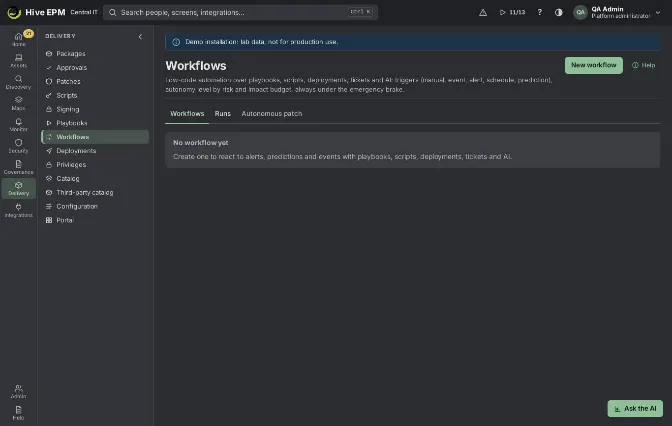
Screen: Workflows (1/2)
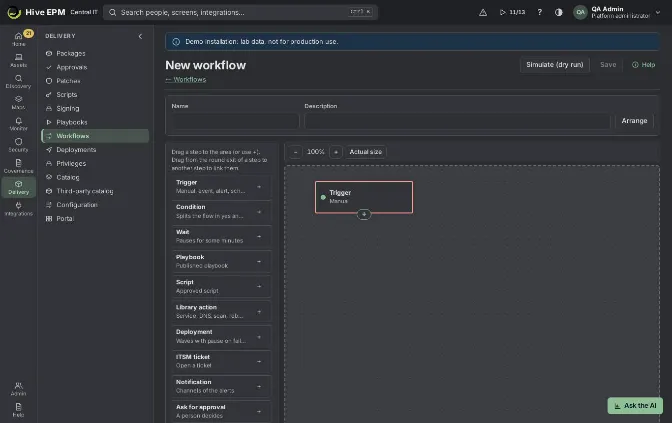
Screen: Workflows (2/2)
A workflow chains steps visually: a trigger (manual, event, alert, schedule or prediction), conditions, waits and actions over playbooks, scripts, library actions, deployments, ITSM tickets, notifications, approvals and AI. Each workflow has an autonomy level and an impact budget, and the emergency brake always stops it. Workflows are in Delivery › Workflows.
What you can do here
List workflows (Workflows tab), their runs (Runs tab) and the success criterion of patch policies (Autonomous patch tab).

Draw a workflow in the editor: drag steps, link exits, fill each step and fix what the validation shows.

Choose the autonomy level and the impact budget, simulate it (dry run) and publish versions.

Run it now, follow each run step by step, approve or reject waiting steps, cancel or rerun.

Build a workflow
- In Delivery › Workflows, click New workflow. Fill Name and Description.
- From the Steps list, drag a Trigger to the drawing area and choose when it starts: Manual (Run now), Alert (minimum severity, title contains), Event (an audit trail event such as deployment.* ), Schedule (every N minutes or daily at a time) or Prediction (SLA breach forecast or anomaly).
- Drag the next steps: Condition (field, comparison, value; exits yes and no), Wait (minutes), Playbook, Script, Library action, Deployment (playbook, script or library action in waves: 10% pilot, then the rest), ITSM ticket, Notification (alert channels), Ask for approval and AI step (the AI answers yes or no; it never acts).
- Link the steps: drag from the round exit of a step to the next one (or click the exit and then the step). Loops are not allowed.
- Click a step to fill it. Device steps choose Devices: The device of the trigger or A filter (tags, sites, groups), plus the system. Mark Destructive when the step removes or takes the device down.
- Fix everything listed in Validation until it reads "No problem found: the workflow can be published." 7. In Autonomy and impact budget, choose the level and fill Maximum devices per run, Failure rate that stops the run (%), Minimum results before judging the rate, Time zone, Allowed from (HH:mm), Allowed until (HH:mm) and Allowed days.
- Click Save, then Simulate (dry run): the simulation lists each step with what it would do ("would ask for approval", "would run alone (within the budget)", "would wait for the allowed hours") and the number of devices, changing nothing.
- Click Publish, write What changed (optional) and confirm. Turn Triggers on on for automatic triggers (off = manual runs only).
Autonomy levels
Level | What happens |
|---|---|
Suggest only | Nothing changes alone: each action becomes a suggestion in the decision queue (Apply suggestion or Reject). |
Run with approval | Notifications and tickets run; actions on devices wait for another person. |
Autonomous within the budget | Actions run alone within the maximum of devices, the allowed hours and the failure rate; above the budget it asks for approval. |
Destructive actions (reboot, stop service, uninstall a program, or a step marked destructive) always need a second person, at any level. Making a workflow autonomous needs the sensitive action "Autonomous workflows" in your profile.
Follow a run
Runs lists each run with workflow, version, start, trigger, state, devices and failures. The run page shows Devices / budget, Device results, Failures and Failure limit, the Trigger context and each step with its state (Running, Waiting, Waiting for approval, Suggested, Done, Failed, Skipped, Unavailable, Rejected, Canceled), decision, exit and Input and output. On a waiting step, type a Note (optional) and click Approve (or Apply suggestion) or Reject; who started the run cannot decide. Cancel run drops queued tasks and pauses deployments opened by the run; Run again starts a new run.
Autonomous patch
The Autonomous patch tab lists the patch policies of Patches. Configure turns on Use the success criterion: each ring is judged by the experience score of its devices before and after the install (Maximum experience drop (points), Days observing after the ring, Minimum devices with score) and, optionally, by the post-change sentiment. A test ring that gets worse does not reach production and a production ring is paused. In When a ring fails, choose Propose the rollback (it goes to the decision queue) or Roll back alone (needs "Autonomous workflows"). Ring checks shows each result, with Roll back and Dismiss.
Worked example: onboarding new notebooks
Every Monday IT receives new notebooks for new hires. After the agent is installed, the technician adds the tag onboarding to them. The published playbook "Workstation baseline" sets the power plan and corporate settings; the Teams channel "Service desk" exists in Monitor › Channels.
- New workflow: Name "Onboarding – new notebooks", Description "Inventory, baseline and notice to the service desk".
- Drag a Trigger: Manual.
- Drag Library action › Collect inventory now; Devices = A filter, Tags onboarding , System Windows. Link the trigger to it.
- Drag Playbook › "Workstation baseline", same filter. Link it after the inventory.
- Drag Notification › channel "Service desk", message "Onboarding finished for the notebooks tagged onboarding". Link it last.
- Autonomy and impact budget: Run with approval, Maximum devices per run20 , allowed Mon–Fri 08:00–18:00. Save.
- Simulate (dry run): "Nothing was changed. With this context, the actions would reach 6 device(s) in total"; both device steps show "would ask for approval", the notification "would run".
- Publish with the note "First version". Click Run now and confirm. The run opens: the inventory step is Waiting for approval.
- Bruno (not the person who started it) sees "Workflow: step waiting for a decision" in Home ›Decisions, opens the run and clicks Approve. The 6 agents collect inventory. The playbook step waits again; Bruno approves it, and the playbook runs on the 6 notebooks.
- The notification goes to Teams and the run ends Done with 6 device results and 0 failures. The technician removes the tag onboarding from the 6 notebooks.
Pitfalls and limits
A workflow has one trigger and up to 60 steps; every step must be connected to the trigger.

Run now from the editor starts the run without a device, so The device of the trigger only works for alert and event triggers that carry a device; use a filter for manual runs.

AI steps need an AI provider configured; ITSM ticket steps need an ITSM connection that opens tickets; notification steps need at least one channel.

The emergency brake holds every run until it is released; simulations still work.

Deleting a workflow removes its versions and runs; what already ran on devices is not undone.

Restore puts an older version in the draft; publish again to make it run.

Related
Recorded playbooks

Scripts and signing

Deployments

Patches

Decision queue and approvals

Alerts
