Reports and dashboards
Reports and dashboards
Screen: Reports and dashboards (1/3)
Screen: Reports and dashboards (2/3)
Screen: Reports and dashboards (3/3)
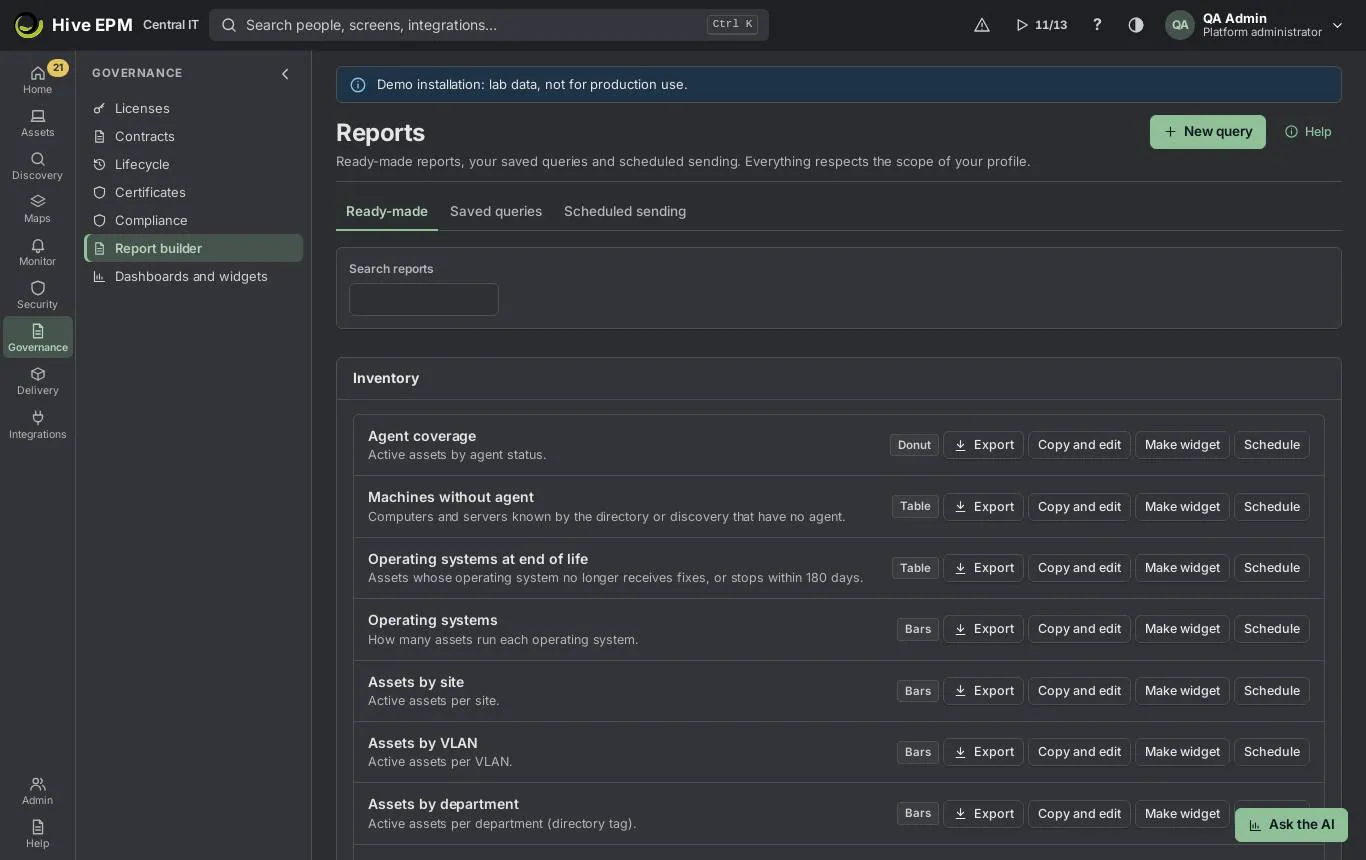
Governance › Report builder opens Reports: ready-made reports, your saved queries and scheduled sending, plus the query builder, where you build a query without writing code. Governance › Dashboards and widgets puts widgets together on one screen, with global filters, sharing and a TV mode. Everything respects the scope of your profile: someone who sees one site only sees that site, also in exports and in reports sent by e-mail. Viewing needs reports:read; saving, scheduling and building dashboards need reports:write.
What you can do here
Open, export, copy, schedule or turn into a widget any ready-made report.

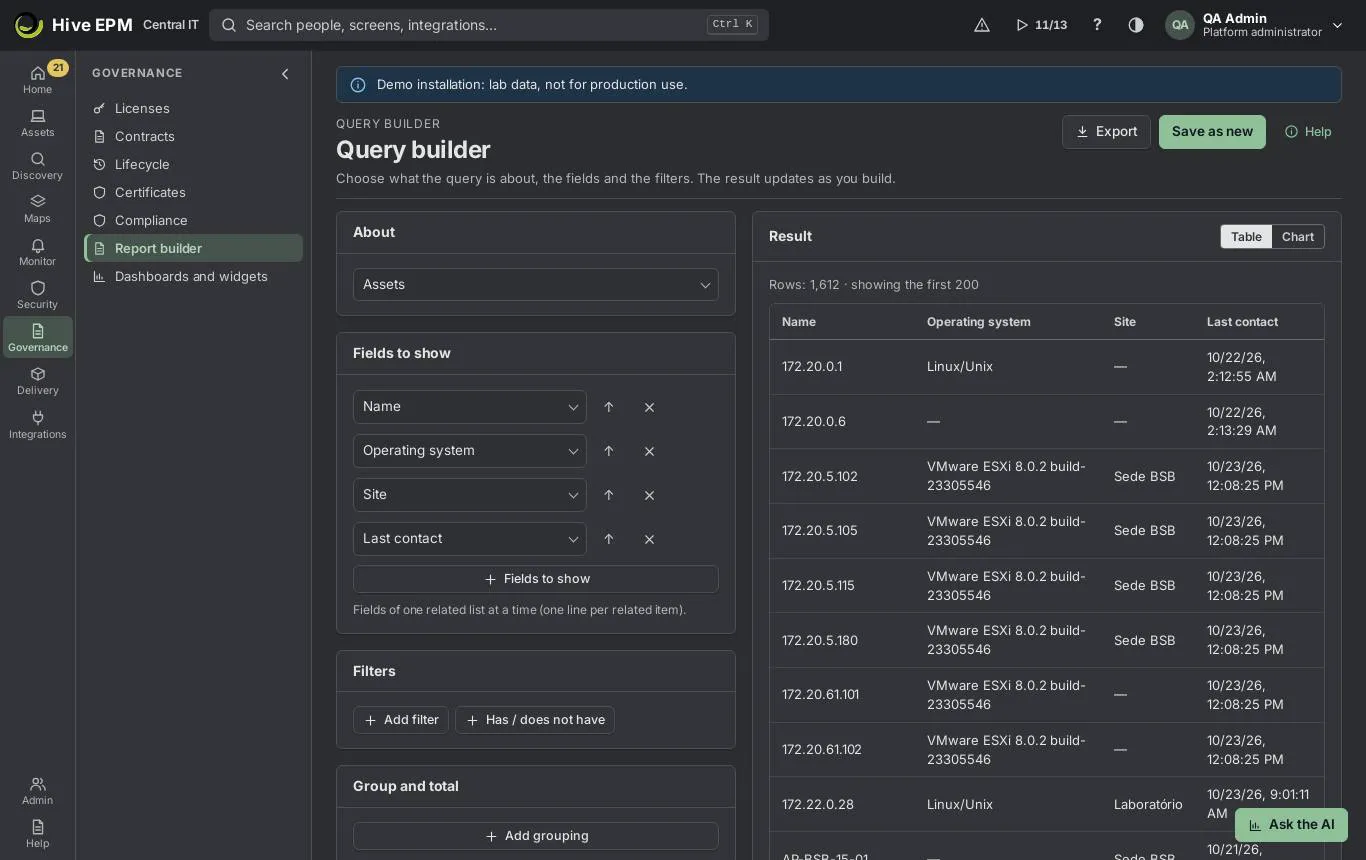
Build a query: choose the subject, the fields, filters, groupings, totals and calculated fields, with a live result.

Export to PDF, Excel (XLSX) or CSV, and schedule sending by e-mail, Teams, Slack, webhook or SMTP.

Build dashboards of widgets, filter them by site and period, share them and show them on a TV.

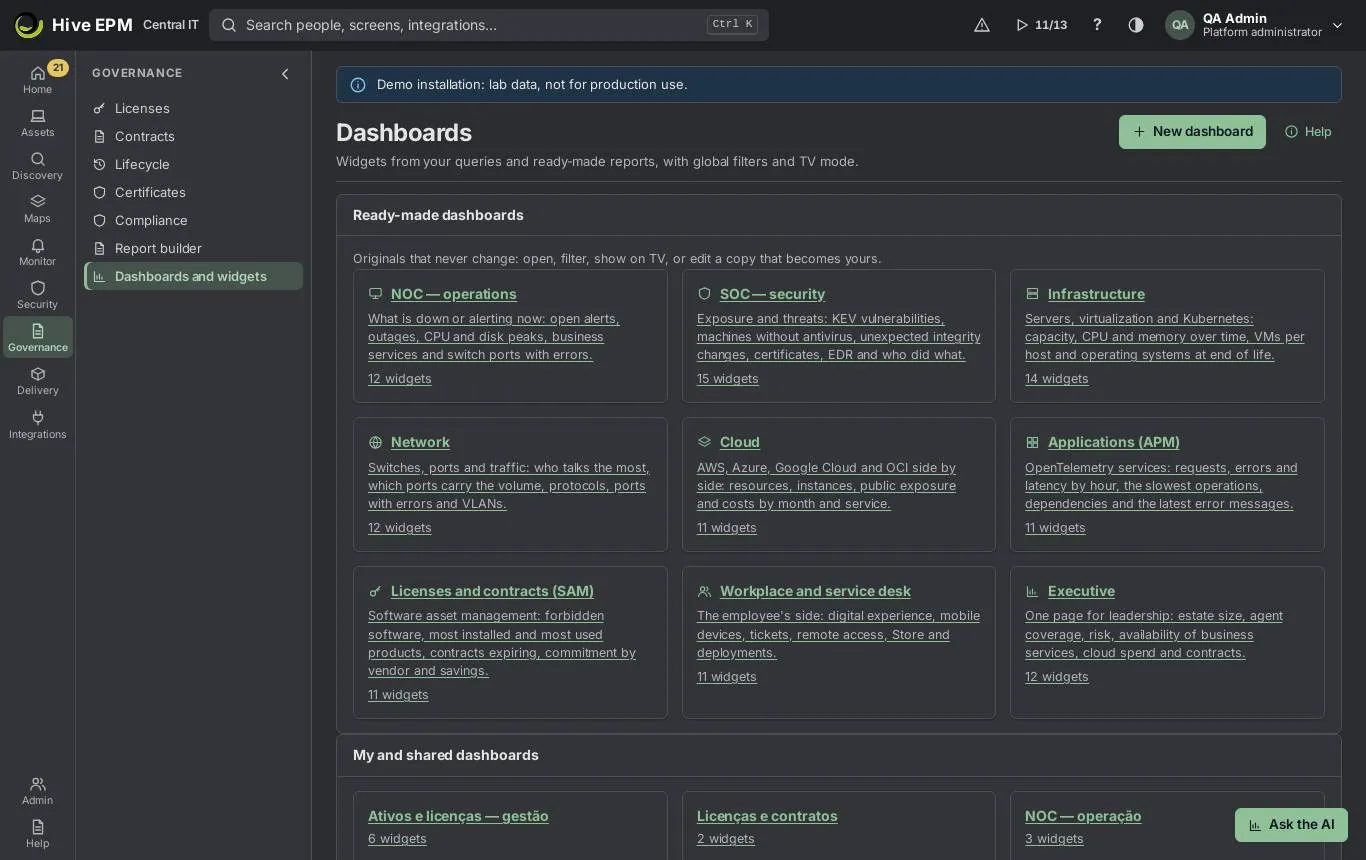
Open the nine ready-made dashboards (NOC, SOC, Infrastructure and more) and edit a copy.

Build a widget without code, including a live topology of a business service.

Make any dashboard your home page.

Reports
The Reports screen has three tabs:
Ready-made: reports by subject (Inventory, Security, Alerts, Changes, Software, Contracts, People), with Search reports. Click a name to open it in the query builder. Each one has Export, Copy and edit (saves a copy in your queries and opens it), Make widget and Schedule.

Saved queries: yours and the ones shared with you, with the author, the date and where each is used ("N widgets · N schedules"). Removing a query takes its widgets off the dashboards and stops its schedules.

Scheduled sending: each schedule with the next and last sending, Send now, Pause / Resume and the History of each delivery.

Building a query
- Click New query. In About, choose the subject: Assets, Software installations, Vulnerabilities, Alerts, Changes, Agents, Software usage by day, Contracts, Entitlements (purchases), People, Performance (per hour), Cloud resources and costs, Virtual machines, Certificates, Tickets and more. Only subjects your profile can see are listed.
- In Fields to show, add the columns (up to 30). Fields of a related list appear under "Related: …" (for example the asset of a performance row); one related list at a time.
- In Filters, Add filter: field, condition and value, joined by AND or OR (up to 20). Dates accept YYYY-MM-DD or today , today+30 , today-7 . Has / does not have answers questions such as "assets that do not have antivirus X": choose the related list and what to look for in it.
- In Group and total, Add grouping (up to three fields; dates by day, week, month or year) and Add total: Count, Distinct count of, Sum of, Average of, Smallest, Largest (up to six). Compare with the previous period shows the first total of the previous period and the change.
- In Calculated fields, New calculated field opens the Formula assistant: add, subtract, multiply, divide, percentage, round, days since a date, days between two dates and join texts (up to ten).
- Choose Sort by and Up to N rows (up to 5,000).
The Result on the right updates 0.4 s after each change, as a Table or, when grouped, a Chart. Save as new asks for Name, Description and Visible to everyone who can see reports. A saved query only changes by its author (or an administrator); others see "This query belongs to … Save a copy to change it."
Export and schedule
Export downloads the result as PDF, Excel (XLSX) or CSV, with up to 50,000 rows, in your scope.

Schedule (on a saved query or a ready-made report) asks for Name, Format, Days (Mon to Sun), Time, Time zone, E-mails (press Enter after each address), Channels (Teams, Slack, webhook, SMTP) connected in the Integrations center and Language of the report. The e-mail carries the file and a link; Teams and Slack get the summary with the link.

The schedule runs with the data scope of the person who created it. If that person is disabled, sending stops and the history says why.

Dashboards
- In Governance › Dashboards and widgets, click New dashboard, give it a name, and it opens in edit mode.
- Add widget offers the Ready-made gallery (the widgets of the ready-made dashboards, copied into yours), Build without code, and Existing widget, saved search or report, shown as Number (KPI), Number with limits, Gauge, Bars, Horizontal bars, Line, Area over time, Stacked bars, Donut, Table, Alert list, Heat map or Live topology.
- In Edit, drag the widgets, or use the buttons on each one (Move left/right/up/down, Wider, Narrower, Taller, Shorter) with the keyboard; nothing overlaps. Remove from the dashboard takes a widget out. Save layout keeps it, Discard changes throws it away.
- The Site and Period filters (Last 7, 30 or 90 days, Whole period) apply to every widget.
- A widget can be on several dashboards. Change widget on a shared widget asks Everywhere or Only here (copy).
- Sharing and TV: Who sees it (Everyone who can see reports, Only these profiles, People and teams I choose, Only me), Update every (s) (30 to 3,600, default 60), Rotate with other dashboards and Switch every (s) (10 to 3,600, default 30). TV mode fills the screen and refreshes by itself; Esc or Exit TV mode returns.
- Someone else's dashboard is read-only for you: Duplicate or Edit a copy to have your own.
Ready-made dashboards
The first panel, Ready-made dashboards, has nine originals: NOC — operations, SOC — security, Infrastructure, Network, Cloud, Applications (APM), Licenses and contracts (SAM), Workplace and service desk and Executive. They read alerts, outages, CPU, memory and disk per hour, switch ports, network flows, cloud and costs, Kubernetes, virtual machines, telemetry, certificates, vulnerabilities, EDR, audit, remote access, mobile devices, tickets, the Store and deployments.
A ready-made dashboard never changes. Open it, filter it, show it in TV mode or make it your home page.

Edit a copy creates a dashboard of yours with copies of every widget; changing the copy never touches the original or anyone else's dashboard.

Widget without code
On a dashboard of yours, Edit › Add widget › Build without code:
- What to show: the source (the same subjects as the query builder).
- Kind of widget: Numbers and charts, List (table) or Service topology (live map).
- For numbers: the Measure (count, sum, average, largest, smallest, distinct) and the Field; Split by a field (dates with a Time grouping by hour, day, week, month or year) and Then by (series). 4. For a list: the Columns.
- Only when: the conditions, joined by "and" or "or"; Order and How many rows.
- The shape, and Limits and unit: Attention from (yellow), Critical from (red), Low values are bad (e.g. score), Unit and Gauge maximum.
The Preview shows the result while you build; Add widget puts it on the dashboard.
Live topology
In the widget builder, choose Service topology (live map) and the Business service. The map shows the machines of the service in columns by layer, with the traffic between them, and refreshes every 30 seconds. The border color is the health (OK, Degraded, Down, No news), the number is the open alerts, and a click opens the asset. A dashboard can hold one topology per service, as many as you like.
Dashboard as home page
On any dashboard, yours or ready-made, Use as home page makes Home open it ("This dashboard now opens when you go to Home."). Home then shows Open the standard home page. Click Home page (undo) on the dashboard to go back to the usual Home.
Worked example: machines with low disk, exported to CSV and e-mailed every weekday
The service desk wants the computers whose disk passed 90% in the last 24 hours, every weekday at 07:30.
- In Governance › Report builder, click New query. In About, choose Performance (per hour). 2. In Fields to show, add Asset · Name (in the "Related: Asset" group), then Target (the disk), Hour and Peak.
- In Filters: Metric · is · disk.used_pct ; ANDHour · in the last (days) · 1; ANDPeak · ≥ · 90. 4. Sort byPeak, descending. The Result shows, for example, 14 rows: FIN-NB-022 C: 97.4 at 03:00, SRV-FILE01 D: 93.1… 5. Export › CSV downloads report.csv now.
- Click Save as new, name it "Low disk (24 h)" and save. Schedule appears in the header.
- Schedule: Format CSV, Days Mon to Fri, Time 07:30, Time zone America/Sao_Paulo, E-mails [email protected] and, in Channels, the Teams connection. Save: "Schedule saved. Next sending: …".
- Every weekday at 07:30 the e-mail arrives with the CSV and Teams gets the summary with the link. In Reports › Scheduled sending, Send now tests it at once and History shows "Delivered" or the error of each recipient.
Worked example: an edited copy of the NOC dashboard on the wall TV
The operations team wants the NOC dashboard with the peak disk use per server instead of the switch ports, rotating with the SOC on the TV.
- In Governance › Dashboards and widgets, open NOC — operations and click Edit a copy.
The copy "NOC — operations (copy)" opens in edit mode: "Copy created — it is yours to change." 2. On the Switch ports with errors widget, click Remove from the dashboard.
- Add widget › Ready-made, type "disk" in Search widgets and pick Peak disk use per server (%) (from Infrastructure). Make it Wider twice and Save layout.
- Open Sharing and TV: Who sees it › Only these profiles › Infrastructure / NOC analyst; Update every (s) 60; Rotate with your copy of the SOC dashboard; Switch every (s) 45. Save.
- On the wall TV's browser, open the copy and click TV mode: the bar shows "NOC — operations (copy) · updates every 60 s" and the screen switches to the SOC copy every 45 s.
- On your own computer, click Use as home page on the copy: from now on Home opens it. The original NOC dashboard stays untouched for everyone else.
Worked example: a no-code widget of open alerts per site
- On your dashboard, Edit › Add widget › Build without code.
- What to show: Alerts. Kind of widget: Numbers and charts. Measure: count. Split by: Asset · Site.
- Only when: State · is · Open.
- Shape: Horizontal bars; Limits and unit: Attention from 5, Critical from 10.
- The Preview shows one bar per site; Add widget, then Save layout. The Site and Period filters of the dashboard now apply to it too.
Pitfalls and limits
Results always follow the scope of your profile; the same report shows different rows to different people.

The builder preview shows the first 200 rows; exports bring up to 50,000.

A schedule needs a saved query or a ready-made report; an unsaved query can only be exported.

A ready-made dashboard and someone else's dashboard cannot be changed: edit a copy.

TV refresh is at least every 30 seconds; rotation at least every 10 seconds.

Removing a saved query removes its widgets from every dashboard and stops its schedules.

Related
Step by step: build dashboards

Step by step: SAM and HAM reports

Business services

Integrations center

AI recommendations
