Monitoring and security Decision queue and approvals
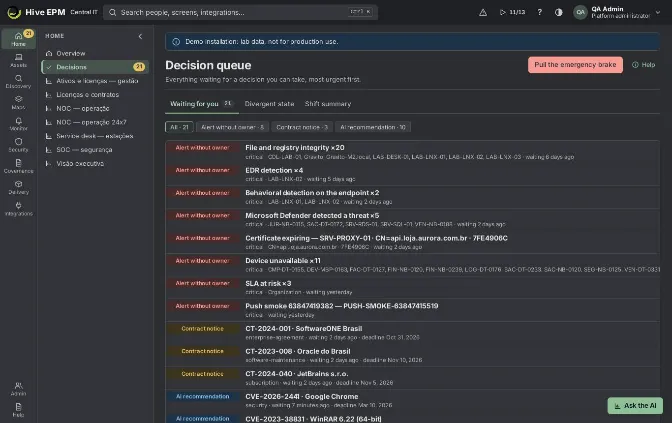
Screen: Decision queue and approvals (1/2)
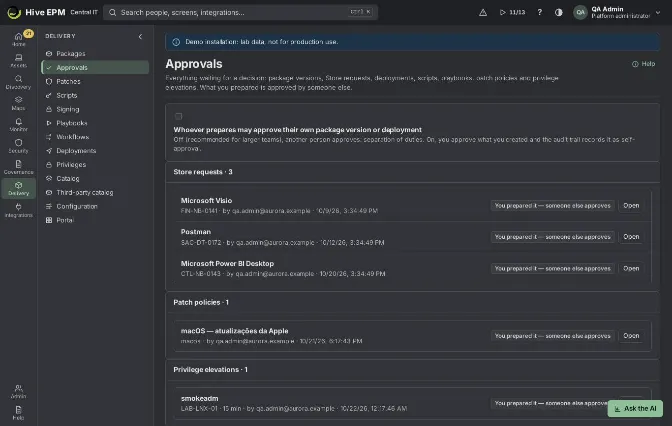
Screen: Decision queue and approvals (2/2)
Hive asks a second person before anything risky reaches the devices: package versions, store requests, deployments, scripts, playbooks, patch policies and privilege elevations. Home › Decisions gathers everything waiting for a decision you can take, most urgent first, and holds the emergency brake. Delivery › Approvals lists the delivery items waiting for approval, grouped by type.
What you can do here
See, in Decisions, everything waiting for you: approvals, critical alerts without an owner, contract notices, leasing returns, AI recommendations and more.

Filter the queue by type and open each item where it is decided.

Pull or release the emergency brake (administrators).

Check the Divergent state and the Shift summary tabs.

In Approvals, see the delivery items by type and turn self-approval on or off (settings administrators).

Decision queue
Home › Decisions (tab Waiting for you) lists what waits for a decision you can take: deployments, patch policies, store requests and package versions, scripts, remote access, incident response, USB exceptions, temporary administrators, removal rules, workflow steps, risk acceptances where you are the approver, AI recommendations, critical alerts without an owner for more than 15 minutes, contract notice deadlines in the next 30 days without a renewal decision, leasing returns and purchases to curate.
Each line shows the type, the title, the detail, how long it has been waiting and the deadline. Click the title to open the place where you decide.

The chips on top filter by type ("All · N").

What you prepared yourself does not show: someone else decides.

A deadline within 7 days moves the item up. The number next to Decisions in the menu updates every minute.

Approvals
Delivery › Approvals groups what waits for approval: Package versions, Store requests, Deployments, Scripts, Playbooks, Patch policies and Privilege elevations, oldest first. Each line says who prepared it and when, with Decide (opens the item) or, for what you prepared, the mark "You prepared it — someone else approves" and Open. You only see the groups your profile can approve.
The option Whoever prepares may approve their own package version or deployment (settings administrators) is off by default: another person approves (separation of duties). Turned on, small teams can approve their own package versions and deployments, and each self-approval is recorded in the audit trail. Scripts, patch policies and store requests always need another person.
Emergency brake
Pull the emergency brake (administrators) stops every automation of the company at once: deployments do not advance, patch policies do not create deployments, alerts do not run automatic fixes, workflows hold and configuration profiles only check, without correcting. Nothing already done is undone. A reason is required; it goes to the audit trail and to the alert channels, and a red notice shows on every screen until someone clicks Release the brake, also with a reason. Automations resume where they stopped.
Divergent state and shift summary
Divergent state lists devices where Hive or the directory disagree with what the device reports: retired but still reporting, active but silent for 7 days, disabled in AD/Entra but in use, and a different serial number, main user, name or Windows version. Fix the wrong source and the line disappears.

Shift summary counts what happened in the last 4 to 24 hours in your scope: alerts opened, resolved and still open, the rules that fired most, deployments, device changes, silent devices and decisions waiting. With the AI on, Summarize with the AI writes the handover text from these numbers only.

Worked example: four eyes on a deployment
Lucas prepares the deployment "VPN client 7.4 – Recife" for 115 devices; Rafael is the other store administrator.
- Lucas clicks Create and send for approval. In his Delivery › Approvals, the line shows "You prepared it — someone else approves" and the button Open; it does not appear in his Decisions.
- A minute later Rafael's menu shows Decisions with one more item. He opens it: Deployment · "VPN client 7.4 – Recife" · waiting 1 min.
- Rafael checks the targets and the waves on the deployment page and clicks Approve. The deployment starts on the next cycle; the audit trail records who created and who approved it. 4. If Lucas had tried to approve it himself, Hive would answer "Whoever created the deployment does not approve it."
Worked example: emergency brake during a bad rollout
At 21:10 the service desk reports printers failing on the machines that just got a driver package.
- Rafael opens Home › Decisions, clicks Pull the emergency brake and types "Printer driver 5.2 breaking printing – investigating".
- All running deployments stop advancing; the red notice "Emergency brake pulled: automations stopped." shows on every screen and the alert channels get the reason.
- After cancelling the driver deployment, Rafael clicks Release the brake with the reason "Driver deployment cancelled". The other deployments continue where they stopped.
Pitfalls and limits
The queue only shows what your profile can decide; an empty queue reads "Nothing waiting for you."

Self-approval covers only package versions and deployments.

The emergency brake does not undo anything already applied.

Related
Deployments

Packages and store catalog

Scripts and signing

Patches

Software store

Audit trail

Alerts, rules and monitoring templates
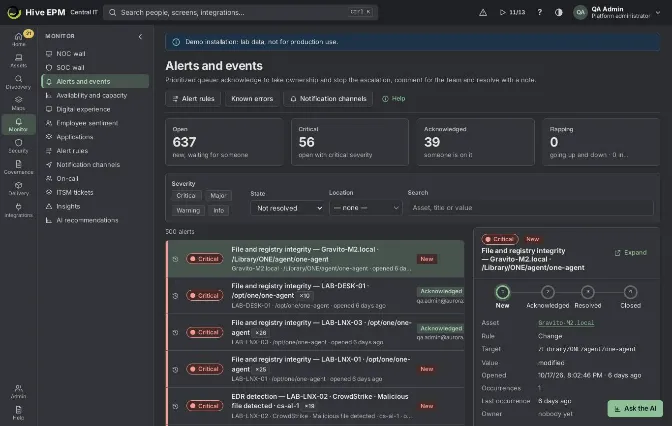
Screen: Alerts, rules and monitoring templates (1/4)
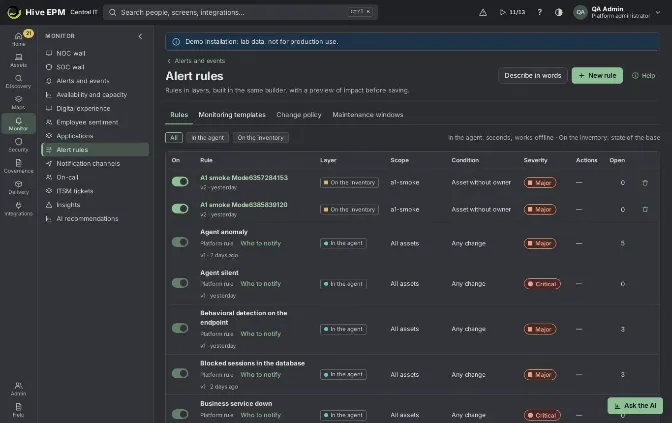
Screen: Alerts, rules and monitoring templates (2/4)
Screen: Alerts, rules and monitoring templates (3/4)
Screen: Alerts, rules and monitoring templates (4/4)
Alerts tell you when something on a device needs attention: a full disk, a stopped service, a forbidden change, an outdated agent. Everything lives in the Monitor workspace: Monitor › Alerts and events is the work queue, Monitor › NOC wall is the screen for the wall display, and Monitor › Alert rules holds the rules, the monitoring templates, the change policy and the maintenance windows. Known errors opens from the header of the Alerts screen.
What you can do here
Work the alert queue: acknowledge, take ownership ("I'm on it"), comment, escalate, resolve, close or open a ticket.

Watch the NOC wall in TV mode on a big screen.

Record what solved a problem as a known error, so the solution is suggested on the next matching alert.

Create alert rules with the 7-step wizard, with an impact preview before saving.

Apply monitoring templates (Windows server, Linux server, Workstation, SQL Server, Web server) to a tag or group, with exceptions per asset.

Choose which device changes raise alerts (Change policy) and schedule maintenance windows.

Alerts and events
The queue shows alerts sorted by severity and then by age, and refreshes every 30 seconds. The KPI strip at the top counts Open, Critical, Acknowledged and Flapping alerts.
- Open Monitor › Alerts and events.
- Filter by Severity (Critical, Major, Warning, Info), State (default Not resolved; also In progress, New, Acknowledged, Flapping, Resolved, Closed), Location (includes the units below it) and Search (asset, title or value).
- Click an alert to open its detail: asset, rule, target, value, occurrences, owner, the timeline and the occurrences grouped in the event. Expand opens it in a larger window.
- Use the buttons (they need permission to administer alerts): 5. Acknowledge — the alert becomes yours and the escalation stops.
- I'm on it — takes ownership; the alert goes to Acknowledged.
- Escalate now — runs the next escalation level of the rule right away.
- Resolve — asks for an optional note ("What was done").
- Close — ends the event for good; the next detection opens a new event.
- Open a ticket — opens the ticket form of Monitor › ITSM tickets for this alert.
- Write in Comment for the team and click Publish comment.
How events are formed:
Occurrences. Each detection of a rule on the same device and target joins the event that is still open or acknowledged; the counter (×N) goes up. Only after Resolve or Close does the next detection open a new event. Occurrences are kept for 90 days.

Flapping. If the same alert was resolved or closed twice or more in the last 30 minutes, the new one opens as Flapping: it does not notify, escalate or run the automatic fix. It stays like that until someone acknowledges, resolves or closes it.

Grouped (parent down). When a device above in the dependency path (VM → host → access switch → uplinks) has the "Device unavailable" alert open, the alert of the device below opens without notifying or escalating, linked to the parent. When the parent comes back, alerts that are still failing are released and notified. Security detections (EDR, IOC, Defender) are never grouped.

Situations. Below the queue, Situations groups alerts that started together: the same business service (2+ devices within 30 min), the same site (3+ devices within 15 min) or the same rule (3+ devices within 15 min).

NOC wall
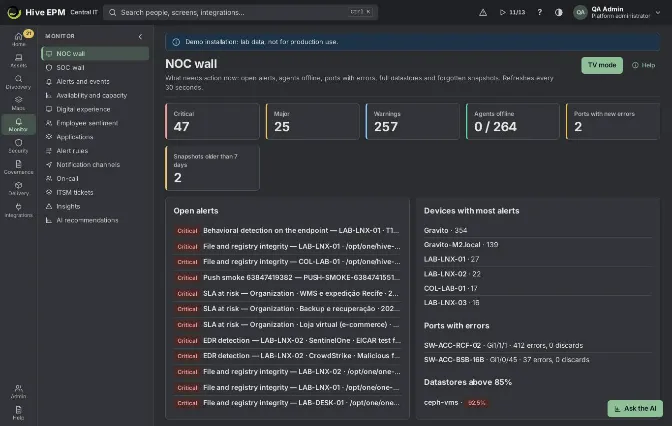
Monitor › NOC wall brings together what needs action now and refreshes every 30 seconds:
tiles Critical, Major, Warnings, Agents offline (offline/total), Ports with new errors and Snapshots older than 7 days;

Open alerts (the 12 most severe and newest), Devices with most alerts, Ports with errors and Datastores above 85%.

The wall counts only new (open) alerts; acknowledged and flapping ones are not shown. TV mode takes the whole screen; Leave TV mode returns.
Known errors
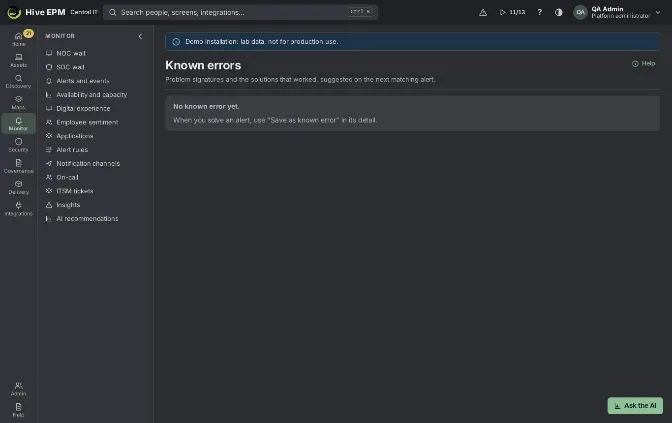
A known error is a problem signature plus the solution that worked. When a new alert matches it, the solution appears in the alert detail as a suggestion. A known error does not silence, acknowledge or resolve alerts.
- In an alert you solved, click Save as known error.
- Fill in Title, Text that identifies the alert (optional) — a piece of the title, target or value; the alert rule is already the signature — Cause (optional) and Solution that worked (at least 5 characters).
- Save. The alert timeline records "Recorded as known error".
- On the next alert of the same rule (and containing the text, if you typed one), the detail shows "Known error: <title>" with the solution. Click It worked to count the use.
Known errors (button in the Alerts header, or All known errors in the alert) lists all of them with Signature, Solution that worked and Uses, with Edit and Remove. New known errors are created only from an alert.
Alert rules
Monitor › Alert rules has four tabs: Rules, Monitoring templates, Change policy and Maintenance windows.
On the Rules tab, filter by layer (In the agent, On the inventory), turn each rule on or off with the On switch (with Undo), and see scope, condition, severity, actions and open alerts. Rules that come from a template, the change policy rule and platform rules (such as Device unavailable) are locked: change templates in the template, and for platform rules use Who to notify to choose channels, on-call and escalation. Deleting a rule resolves its open alerts; its versions stay in the history.
Describe in words builds a rule from a sentence with the AI; review it in the wizard before saving.
Create a rule (wizard)
Scope. Choose All assets, By group (dynamic or static groups) or By tag (type the exact tag, like "Department: Finance", and press Enter). Assets that join later also get the rule.
What to watch.A metric (CPU, memory, disk, service, process, ping, TCP port, web address, certificate, database, web and application server), Combined condition (up to 6 conditions with AND/OR/NOT and "no data for N minutes"), A change on the device, The state of the inventory (no contact, no owner, outdated agent, no agent, no antivirus, firewall off, disk not encrypted, KEV vulnerability, license problems and more), Software usage, A port policy, Network traffic (flows) or Applications (OpenTelemetry).
Condition. Built by choosing, with the sentence "The rule reads:" updated as you go. For a metric: Metric, Which one (C:, /var, * = any), Fires when above/below, Warning at, Critical at (optional), Returns to normal at (optional hysteresis) and For at least (minutes; 0 = right away).
Severity. Info, Warning, Major or Critical. For a metric with thresholds, the alert opens as Warning when it passes Warning at and raises to Critical by itself above Critical at.
Actions.Notify on (channels of Monitor › Notification channels), Open a ticket on (ITSM connections), Automatic fix on the device (restart, start or stop a service, flush DNS, clear temporary files, update group policy, reboot, collect inventory, antivirus scans and signatures, a published playbook or an approved signed script; at most 3 times a day per device and rule; Resolve the event when the fix works) and Escalation (on-call at opening and up to 5 levels).
Impact preview. Click Run the preview (required): Hive shows how many assets in the scope would fire today, with up to 10 examples. Metric rules can also Simulate the last 7 days. More than 150 hits shows "Too many hits".
Review and save. Type the Rule name, keep Turn on when saving on (off saves without evaluating) and click Create rule (or Save new version when editing). Agents get metric rules at the next check-in (up to 1 minute) and evaluate them locally, even offline; the platform evaluates the other kinds every minute or when the inventory reports changes.
Monitoring templates
A template is a set of items applied to a tag or group; each item becomes a locked rule named "Template · Item", and new assets with the tag get the rules by themselves.
Open Monitor › Alert rules › Monitoring templates and click New template.
Ready template. Start from Windows server, Linux server, Workstation, SQL Server or Web server, or choose Blank and add the items one by one.
Apply to.By tag (for example "Servers") or By group. There is no "all assets" option for templates.
Items. Each item becomes a rule. Adjust Item name, Metric, target, Fires when, Warning at, Critical at, For at least and Severity (or "Same as the template"); use Add item and Remove item. The warning must come before the critical threshold.
Review and save. Type the Template name, Description, Default severity and Notify on, keep Template on and click Create template (or Save template). Saving creates or updates one rule per item.
Exceptions for one asset
To treat one machine differently, use Exception for one asset: choose the item and the Asset, then either change Warning, Critical, Clears at or For at least (empty fields inherit the template) or tick Turn this rule off on this asset (its open alerts on that asset are resolved). The Reason is required. Exceptions apply to metric items; service items can only be turned off.
Change policy and maintenance windows
Change policy lists each kind of change (software, services, ports, operating system, hardware, network, identity, security) with a switch and a severity. Restore recommended brings back the default; Exceptions by group override it for a group (when several groups apply, the strictest setting wins). Save policy applies from the next inventory.

Maintenance windows › New window: Name, Scope (tags), Sites, Devices, When (Once with start and end, or Every week with day, start and Duration (minutes)), then Schedule window. Nothing chosen = all devices. Inside the window a detection is recorded only as an occurrence: no event, no notification, no ticket, no automatic fix. An event already open on a device that enters a window shows In maintenance: it leaves the NOC wall and the escalation until the window ends.

Worked example: disk above 90% on servers, from a template
Central IT wants a warning when any Windows server's C: drive passes 90% for 10 minutes, and critical at 95%. The servers carry the tag Servers .
- Open Monitor › Alert rules › Monitoring templates and click New template.
- In Ready template, choose Windows server.
- In Apply to, choose By tag and type Servers , then press Enter.
- In Items, open the disk item (target C: ): change Warning at from 85 to 90 , keep Critical at95 and For at least10 minutes. Keep CPU, memory and the Event Log and Windows Time services.
- In Review and save, name it Windows servers — production , choose Notify on the Teams channel "NOC" and click Create template.
- The template shows "Applied to Servers · assets in scope: 42 · rules: 5". On the Rules tab, five locked rules appear, such as "Windows servers — production · Disk C:".
- SRV-FILE-01 reaches 91% for 10 minutes: an alert opens as Warning in Monitor › Alerts and events and the NOC channel receives the card. If the disk passes 95%, the same event raises to Critical.
- SRV-BACKUP-02 is always above 90% by design: use Exception for one asset, choose the disk item and SRV-BACKUP-02, set Warning97 , Reason "Backup volume, kept full on purpose", and Save exception.
Worked example: a recurring alert, a known error and silencing the asset
The print spooler of PRN-SRV-03 stops every Monday and the "Spooler" service rule fires.
- In Monitor › Alerts and events, open the alert of the "Spooler" rule on PRN-SRV-03 and click I'm on it.
- You restart the service and clean the queue folder. Click Resolve with the note "Restarted Spooler, cleared C:\Windows\System32\spool\PRINTERS".
- Click Save as known error. Title: "Spooler stops with a stuck job"; Text that identifies the alert: Spooler ; Solution that worked: "Stop Spooler, delete the files in spool\PRINTERS, start Spooler." Save.
- Next Monday the alert opens again; the detail shows "Known error: Spooler stops with a stuck job" with the steps. After fixing it, click It worked: the counter shows "Solved 2 time(s)".
- To stop being notified while the vendor fixes the driver, the known error is not enough (it only suggests the fix). Either: 6. add an automatic fix to the rule: Actions › Automatic fix on the device › Restart service, service Spooler , with Resolve the event when the fix works on; or 7. if the rule comes from a template, add Exception for one asset on PRN-SRV-03 and tick Turn this rule off on this asset; or 8. schedule a Maintenance window: Every week, Monday, 06:00, 120 minutes, Devices PRN- SRV-03.
Pitfalls and limits
Viewing alerts needs permission to read alerts; acknowledging, resolving, rules, templates and windows need permission to administer alerts.

A known error never silences an alert; use a maintenance window, a template exception or an automatic fix.

Escalation stops only when the alert is acknowledged (Acknowledge or I'm on it). Flapping alerts and alerts grouped under a down parent do not escalate.

Automatic fixes run at most 3 times a day per device and rule, and not when the device has no agent.

Combined conditions: at most 6, evaluated every minute; values older than 15 minutes do not count.

Template rules are changed only in the template; rule-level edits are refused.

Maintenance windows: up to 1000 devices; weekly duration up to 10080 minutes.

Related
Notification channels and on-call

Step by step: create alerts

ITSM tickets

Business services

Playbooks

SOC wall
Screen: SOC wall
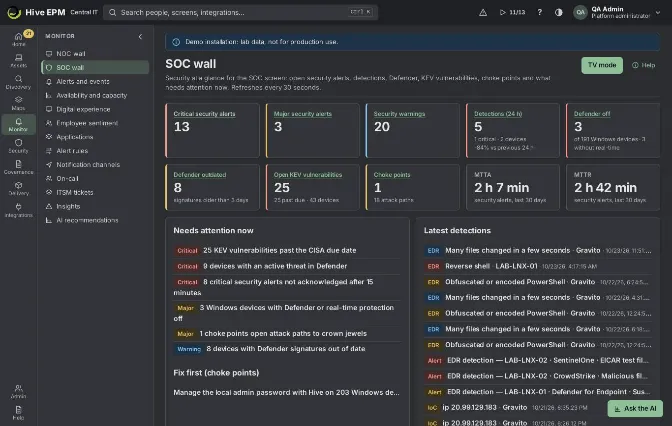
The SOC wall is the security twin of the NOC wall: one screen for the TV in the security room that answers "are we under attack, and what do we fix first?". Open Monitor › SOC wall. It refreshes every 30 seconds and the numbers are recalculated at most every 15 seconds, so many screens can stay open at the same time.
What you can do here
See the open security alerts by severity (EDR, Defender, indicators of compromise, decoys, agent tampering and blocked applications).

Follow the detections of the last 24 hours against the 24 hours before, and the trend by hour (24 h) and by day (7 days).

Read the Latest detections feed and the Most affected devices (7 days).

Work the Needs attention now list, most serious first; each line opens the screen that solves it.

Put the wall in TV mode on a big screen (full screen, larger type).

What each number means
Critical security alerts, Major security alerts, Security warnings: security alerts that are not resolved or closed and not in maintenance.

Detections (24 h): native EDR detections (except false positives), new Defender threats, indicator hits, vendor EDR alerts, decoys touched and agent tampering. Below: how many are critical, on how many devices, and the change against the previous 24 hours.

Defender off: Windows devices with Defender off or without real-time protection, out of the Windows devices that reported Defender status.

Defender outdated: Defender signatures older than 3 days.

Open KEV vulnerabilities: distinct CVEs from the CISA KEV catalog still open on active devices; below, how many are past the CISA due date.

Choke points: the fixes that break attack paths to crown jewels, from the last calculation of Attack paths.

MTTA and MTTR: average time to acknowledge and to resolve the security alerts opened in the last 30 days.

Step by step
- Open Monitor › SOC wall.
- Read Needs attention now from the top: critical items first, then major, then warnings.
- Click a line to open the screen that solves it (alerts, Defender, indicators, vulnerabilities, identities, cloud posture, attack paths or external surface).
- On the TV, click TV mode. The wall takes the whole screen; Leave TV mode brings back the menu.
Worked example: a Monday morning in the SOC
Lia starts her shift and looks at the TV in the security room.
- Detections (24 h) shows 14, "+250% vs previous 24 h", and Critical security alerts shows 2. 2. Needs attention now starts with "2 critical security alerts not acknowledged after 15 minutes" and "1 devices with an active threat in Defender" (the Trojan is still running).
- In Latest detections, FIN-NB-014 appears three times: EDR "LSASS memory read", Defender "Trojan:Win32/Wacatac" and IoC "ip 203.0.113.45". Most affected devices (7 days) shows it at the top.
- Lia clicks the EDR line, opens Detection and hunting, confirms the detection and isolates the device from Incident response.
- Back on the wall, the line "3 KEV vulnerabilities past the CISA due date" stays. She opens it and plans the patch with the team; the first choke point shown says that patching SRV-DC-01 breaks 3 paths.
- At the end of the shift, MTTA is 9 min and MTTR 2 h 5 min for the last 30 days.
Pitfalls and limits
Viewing the wall needs alerts:read . Defender and cloud posture need assets:read ; KEV, choke points and external surface need vulnerabilities:read ; admins without MFA need users:read . What you cannot see is simply not shown.

With a data scope (sites, tags or groups) only the devices in the scope count; cloud, external surface, identities and attack paths are shown only to people who see the whole company.

Choke points come from the last calculation of attack paths (hourly); the wall does not recalculate them.

Defender threats count once, when Hive first sees them; the same threat repeated in later reports does not count again.

Indicator hits from network flows without an identified device appear in the feed but not in Most affected devices.

MTTA and MTTR show "—" when no security alert was acknowledged or resolved in the last 30 days.

Related
Alerts

Detection and hunting

Microsoft Defender

Indicators of attack

Attack paths

Vulnerabilities

Identities

Notification channels, on-call and personal notifications
Screen: Notification channels, on-call and personal notifications (1/3)
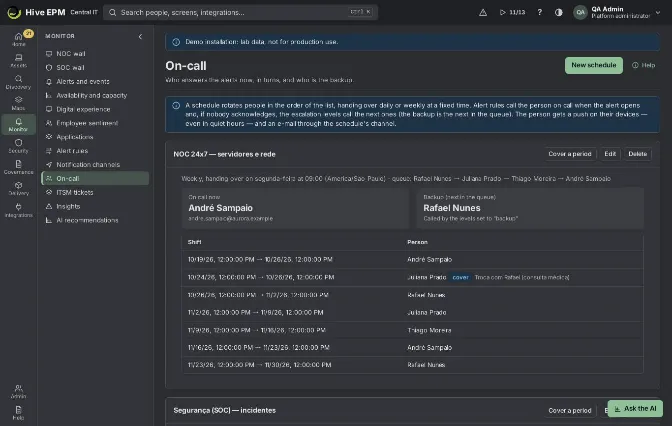
Screen: Notification channels, on-call and personal notifications (2/3)
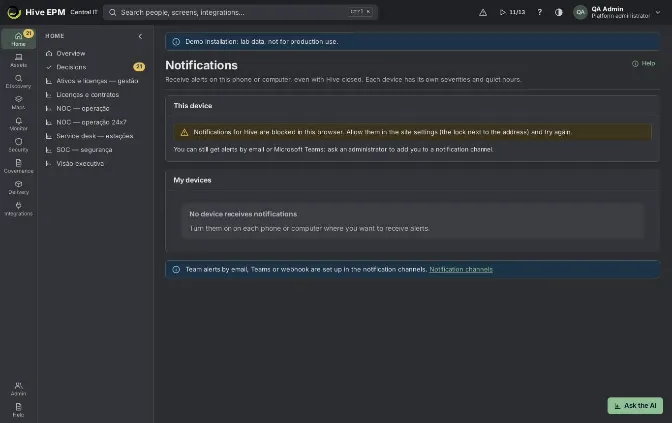
Screen: Notification channels, on-call and personal notifications (3/3)
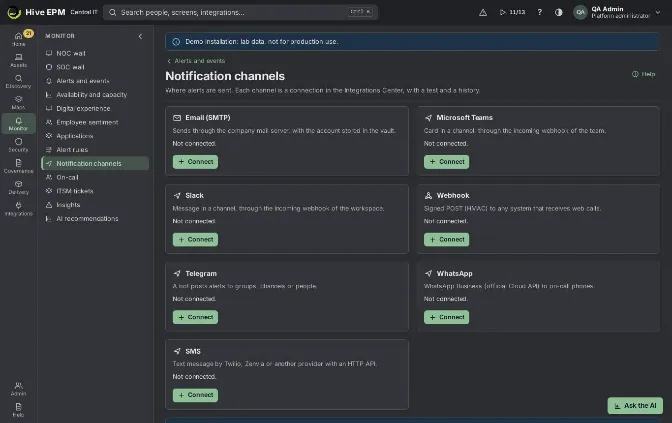
Alerts reach people in three ways: notification channels shared by the team (Monitor › Notification channels), the on-call schedule that says who answers now (Monitor › On-call), and push notifications on each person's own phone or computer (user menu › Notifications on my devices). Each channel is a connection of the Integrations Center, with a test and a history.
What you can do here
Connect e-mail (SMTP), Microsoft Teams, Slack, webhook, Telegram, WhatsApp and SMS channels, and send a test.

See which rules use each channel ("Used by").

Create on-call schedules that rotate people daily or weekly, and cover a period for a shift swap or vacation.

Turn on push notifications on your own devices, with your severities and quiet hours.

Notification channels
- Open Monitor › Notification channels. There is one card per kind; click Connect (or Add another). This opens the connection form of the Integrations Center.
- Fill in the fields; secret fields go to the vault and are never shown again.
- Back on the card, click Send test on the connection.
- In the alert rule (Actions › Notify on) or in an escalation level (Escalate to), tick the channel.
Channel | Fields | How it sends | What Send test does |
|---|---|---|---|
E-mail (SMTP) | SMTP server, Port (587), Sender, Recipients (comma-separated), user:password (optional) | Company mail server; with a user it uses AUTH and STARTTLS | Only opens a connection to the server; no e-mail is sent |
Microsoft Teams | Channel webhook address | Message card in the channel | Posts "Hive: connection test ✓" |
Slack | Incoming webhook address | Message in the channel | Posts the same test message |
Webhook | Destination (https), HMAC signing secret | Signature Signed POST with the event hive.alert.<event> and the headers X-Hive-Timestamp , X-Hive-Event and X-Hive- | Sends a signed hive.test event |
Telegram | Bot token (from @BotFather), Chat ids (group, channel or person) | Bot API sendMessage , one message per chat id | Reads the bot account; no message is sent |
Phone number ID, Permanent access token, Phone numbers (E.164), Approved template name, Template language code | WhatsApp Business Cloud API (Meta) | Reads the phone number at Meta; no message is sent | |
SMS | SMS provider (Twilio, Zenvia or generic), Account SID (Twilio), Auth token / API token, Sender, Provider API address and Request body (generic), Phone numbers (E.164) | Provider API; text cut at 320 characters with the link kept | Reads the account at the provider (generic: checks the address only) |
Channels notify when an alert opens, changes severity and is resolved; an escalation level sends only to its own channels.
On-call schedules
- Open Monitor › On-call and click New schedule.
- Name (unique), Rotation: Weekly (each person covers 7 days, handover on the chosen day) or Daily (24 hours).
- Handover day (weekly), Handover time and Time zone (an IANA name, like America/Sao_Paulo).
- People, in turn order: choose a person in Add person, click Add, and order with the arrows.
The first covers the current shift; the queue starts over after the last. Only active users who can see alerts appear.
- E-mail channel: Push notification only or an SMTP channel; the e-mail goes to the address of the person on call.
- Save. The card shows On call now, Backup (next in the queue) and the next shifts (6 weekly or 14 daily).
Cover a period puts someone else over the queue: choose the Person, From, Until (default 12 hours) and a Note, such as "vacation". The cover replaces only the person on call; the backup stays the next in the queue.
Escalation in the rules
In the rule wizard (Actions › Escalation) or in Who to notify of a platform rule:
On-call at opening: a schedule and Who (On call or Backup), called when the alert opens.

Add escalation level (up to 5): Without acknowledgment after (min), counted from the opening, an On-call schedule with Who, and channels in Escalate to. Each level waits longer than the one before (1 to 1440 minutes) and must call a channel or the on-call person.

The on-call person gets a push on all their devices, titled "[On call] …", even in quiet hours and whatever severities they chose, plus the e-mail through the schedule's channel. Acknowledge (or I'm on it) stops the escalation; Escalate now runs the next level.
Notifications on your devices
- Open the user menu (your avatar) › Notifications on my devices.
- In This device, choose Severities that notify (default Critical and Major) and, if you want, Quiet hours with Starts at, Ends at and Time zone. Quiet hours can cross midnight.
- Click Turn on notifications and allow them in the browser.
- Use Send a test; Preferences changes the choices; Turn off on this device stops them. My devices lists every device, with the last delivery or the last error.
Only the alert title and a short text go in the notification; tapping it opens the alert. If you can administer alerts on that asset, the notification has an Acknowledge button. On iPhone and iPad it needs iOS 16.4 or later with Hive added to the home screen (Safari › Share › Add to Home Screen).
Worked example: Telegram bot for the NOC group
- In Telegram, talk to @BotFather, create the bot hive_noc_bot and copy its token. Add the bot to the group "NOC Central IT" and get the group chat id, for example -1001234567890 .
- In Monitor › Notification channels, click Connect on Telegram. Paste the token in Bot token, type -1001234567890 in Chat ids, and connect.
- Click Send test: the result says the account was read. No message is posted by the test. 4. Open the rule ERP CPU in Monitor › Alert rules, go to Actions and tick the Telegram connection in Notify on. Save the new version.
- The next alert posts "[Hive] MAJOR ERP CPU — ERP-APP-02 (94) <link>" in the group; when it is resolved, "[Hive] Resolved: …" follows. The card on the channels screen shows "Used by: ERP CPU".
Worked example: WhatsApp and SMS only for critical alerts
Channels have no severity filter of their own: severity comes from the rule. So send the critical cases through rules whose severity is Critical.
- Connect SMS with SMS provider Twilio, the Account SIDAC… , the Auth token, the Sender +15005550006 and the phone numbers +5511990001111, +5511990002222 . Or connect WhatsApp with the Phone number ID, the Permanent access token, the numbers and the approved template hive_alerta (needed to start a conversation outside the 24-hour window).
- Create the rule SQL engine stopped : Scope tag SQL , A metric › Service running, Service name MSSQLSERVER , SeverityCritical, Notify on the SMS (or WhatsApp) channel and the Teams channel.
- Keep the SMS channel out of the warning and major rules; they notify only Teams and e-mail. 4. When MSSQLSERVER stops on SQL-PRD-01, both phones get "[Hive] CRITICAL SQL engine stopped — SQL-PRD-01 …" (at most 320 characters), and Teams gets the card.
- For personal push, each person can also keep only Critical in Severities that notify.
Worked example: weekly on-call rotation with escalation
- Monitor › On-call › New schedule: Infrastructure on-call , Weekly, Monday, 09:00, America/Sao_Paulo, people Ana → Bruno → Carla, E-mail channel the SMTP channel Mail relay . Save: "On call now: Ana", "Backup: Bruno".
- In the rule Device unavailable (a platform rule), click Who to notify: Channels when it opensNOC Teams ; On-call at openingInfrastructure on-call , Who On call.
- Add escalation level: Level 1 after 15 min → Infrastructure on-call , Who Backup. Level 2 after 45 min → Escalate to the SMS channel of the managers.
- Saturday 02:10, SW-CORE-02 goes down. Ana gets the push and the e-mail at once. At 02:25 nobody acknowledged: Bruno is called. At 02:55, the managers get the SMS. When Ana taps Acknowledge, the escalation stops.
- Ana is on vacation the next week: click Cover a period, Person Carla, From Monday 09:00, Until the next Monday 09:00, Note "Ana on vacation". Carla appears with the "cover" tag in the shifts.
Pitfalls and limits
Connecting and testing channels needs permission to administer integrations; schedules and covers need permission to administer alerts.

Telegram, WhatsApp and SMS go to the fixed destinations of the connection, never to the on-call person; the on-call person is reached by push and by the schedule's e-mail.

The test of Telegram, WhatsApp, SMS and e-mail does not send a message; the first real alert confirms the delivery.

A schedule that rules escalate to cannot be deleted; change those rules first.

Platform rules such as "Device unavailable" appear in the rules list after their first alert.

There is no button to remove a cover; it ends at its Until time.

Quiet hours hold all your personal pushes, including critical ones, except on-call calls.

Hive does not call internal network addresses from the cloud; webhooks need a public https address.

Related
Alerts, rules and monitoring templates

Step by step: create alerts

Integrations Center

Digital experience
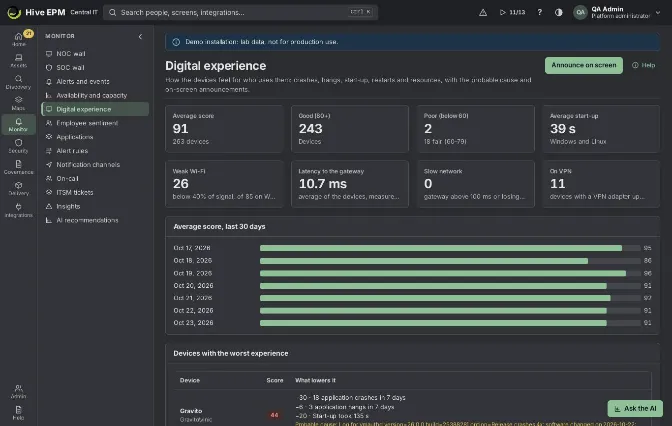
Screen: Digital experience
Digital experience (Monitor › Digital experience) shows how the devices feel for the people who use them. The agent sends, with each inventory, the start-up time, the applications that crashed or hung, system crashes, the network quality and the heaviest processes; Hive turns that into a score from 0 to 100 per device, points to the probable cause and lets you put a message on the users' screens.
What you can do here
See the Average score, how many devices are Good (80+), fair (60–79) and Poor (below 60), and the Average start-up.

See the network of the estate: Weak Wi-Fi, Latency to the gateway, Slow network and On VPN.

Follow the Average score, last 30 days.

Find the Devices with the worst experience and read What lowers it and the Probable cause.

List the Blue screens, kernel panics and unexpected shutdowns (30 days).

Compare the Score by department and the Score by application.

See employee sentiment next to the score (Sentiment beside experience), when surveys have answers.

Announce on screen: send a message to the devices of chosen sites or tags.

On each device, see the Digital experience panel in the asset's Monitoring tab.

How the score is calculated
Each device starts at 100 and loses points for what the agent reports (never below 0):
What | Points lost |
|---|---|
Application crashes in 7 days | 3 per crash, up to 30 |
Application hangs in 7 days | 2 per hang, up to 20 |
Start-up over 60 s / over 120 s | 10 / 20 |
Not restarted for more than 14 days | 10 |
Blue screens or kernel panics in 30 days | 15 each, up to 30 |
Unexpected shutdowns in 30 days | 5 each, up to 10 |
Wi-Fi signal below 55% / below 40% | 5 / 10 |
Gateway above 30 ms / above 100 ms, or 25% or more packets lost | 5 / 10 / 10 |
CPU, memory or disk at 90% or more | 10 each |
Where the data comes from: on Windows, the Event Log (application crashes and hangs, BugCheck blue screens with their code, Kernel-Power 41 unexpected shutdowns); on Linux, systemd (start-up time, core dumps) and pstore for kernel panics; on macOS, the diagnostic reports, including panic reports. The agent also reads the active Wi-Fi (network, signal, rate, channel), VPN adapters that are up, and pings the default gateway. Only program names, counts and numbers are sent — no command lines, window content or addresses visited.
The lowest score of each day is kept for the trend.
Step by step: find what hurts a device
- Open Monitor › Digital experience.
- In Devices with the worst experience (the 20 lowest scores), read the lines under What lowers it: each one shows the points lost, for example "−20 · Start-up took 140 s".
- If a line Probable cause appears, it names the application and the software change found before the crashes.
- Click the device name. It opens the asset on the Monitoring tab, where the Digital experience panel shows the score, start-up time, the crashes and hangs per application, the system crashes, the Wi-Fi line (network, signal, rate), the gateway latency and loss, the VPN, and the processes that use the most CPU and memory now.
Worked example: Excel keeps crashing after an update
On Monday the help desk gets three calls from the Finance team about Excel closing by itself.
- In Monitor › Digital experience, Score by application shows excel with score 58 and "41 crashes or hangs in 7 days"; under Devices affected, "12 of 80 where it is installed (15%)".
- Devices with the worst experience lists FIN-NB-014 with score 52: "−24 · 8 application crashes in 7 days", "−10 · Not restarted for 21 days", "−10 · Memory at 93%".
- Below it, in orange: "Probable cause: EXCEL crashes 8x; software changed on 2026-10-17: changed Microsoft 365 Apps for enterprise".
- Score by department confirms it: Finance has score 61 and 9 Poor devices, while the other departments are above 80.
- The team rolls back the update with a deployment to the Finance devices. After the next inventories, the crashes leave the 7-day count, FIN-NB-014 goes back above 80 and the Average score, last 30 days goes up again.
Worked example: warn users and fix it automatically
- In Monitor › Alert rules, click New rule, choose The state of the inventory in What to watch and the condition Poor digital experience (score below 60). A second rule can use Application crashing (an application crashed 5 or more times in 7 days).
- In Scope, choose the group "Finance notebooks".
- In Actions, choose the ticket system in Open a ticket on and, under Automatic fix on the device, choose Playbook and the published playbook "Clear Office cache and restart". Turn on Resolve the event when the fix works.
- Save. From now on, when a Finance notebook drops below 60, the event opens with a ticket and the agent runs the playbook (at most 3 times a day per device and rule).
Worked example: announce a maintenance on screen
The VPN concentrator of the São Paulo office will be restarted at 18:00.
- In Monitor › Digital experience, click Announce on screen.
- Title: "IT maintenance". Message: "The VPN will be unavailable today from 18:00 to 18:30. Save your work before then."
- In Sites (empty: all) type São Paulo ; leave Tags (empty: all) empty.
- Click Send. The toast says "Announcement sent to 143 device(s)." The message appears for whoever is using each of those devices with an agent.
- The announcement goes out as a deployment named "Anúncio · IT maintenance", already approved, and stays in the deployment history and in the audit trail.
Pitfalls and limits
The page is empty ("No experience data yet.") until agents send the experience with the inventory; devices without an agent have no score.

Only active assets count; the lists follow the scope of your profile.

Probable cause appears only when an application crashed at least twice; Hive looks at the software changes of that device in the last 10 days, the one that names the application first. It is a hint, not a proof.

Average start-up comes from Windows and Linux.

Score by department needs devices assigned to departments in Discovery › Structure; without that it says "Assign devices to departments in Structure to compare them."

Score by application counts "where it is installed" by matching the application name with the installed software, so the share is approximate.

Announce on screen needs the alerts administration permission. It needs at least one site or tag, and the message has up to 500 characters of plain text. Sites are matched by name; with sites and tags together, a device must match both. Only devices with an agent receive it; if none matches, Hive answers "No device with an agent matches the targets."

Devices with the worst experience shows the 20 lowest scores; the system crash list shows the last 50.

Related
Employee sentiment

Alerts and rules

Recorded playbooks

Deployments

Organization structure

Employee sentiment surveys
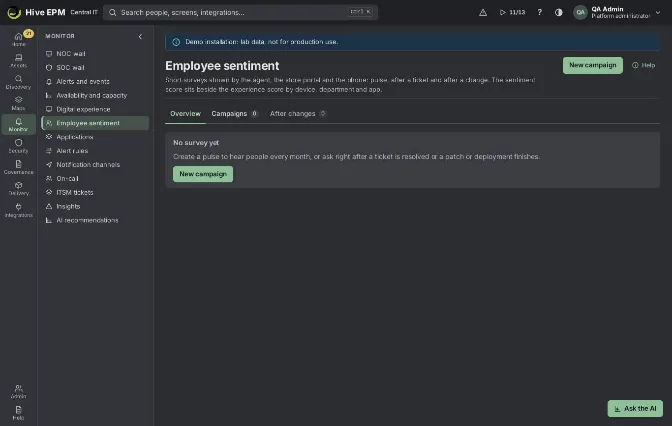
Screen: Employee sentiment surveys
Monitor › Employee sentiment asks people short questions about their computer and IT — every few weeks, right after a ticket is resolved or after a patch or deployment — and shows the answers as a 0 to 100 score next to the digital experience score. The question appears on the person's computer through the agent and opens a small survey page; no sign-in is needed.
What you can do here
Create campaigns of three kinds: Pulse (periodic), After a ticket and After a change.

Choose 1 to 3 questions answered with a Score 1 to 5 or an Emoji, and allow an optional comment.

Decide the Anonymity: Identified (only with the person's consent), Department only or Anonymous.

Target an Audience by departments, groups and tags, and check How many devices? before sending.

Follow the Overview: score, response rate, trend, results by department, by app and by device, and comments.

See the Results of each campaign and the verdict of each change in After changes.

Create and run a campaign
- Open Monitor › Employee sentiment and click New campaign.
- Type the Name and choose the Kind. The questions are prefilled with a template for that kind; change the texts if you want.
- Optionally write an Introduction (optional) shown above the questions.
- In Questions (1 to 3), set each Question and Answer with (Emoji or Score 1 to 5); use Add question or Remove.
- Keep or turn off Allow an optional comment.
- Choose the Anonymity. For Department only and Anonymous, set Minimum of answers to show a group (at least 3, default 5).
- In Audience, click the departments and groups and type tags. Nothing chosen means every workstation with an agent. Click How many devices? to see how many devices the audience reaches today.
- Optionally fill App (optional) to link the answers to an application.
- Set the timing: Every (days) for a pulse, or Wait before asking (minutes) for the other kinds; Rest days per device (a device that got any survey in this period is not asked again) and Open for (days). For After a change, choose Patch, Deployment or both.
- Click Save. The campaign is created as Draft.
- In Campaigns, click Activate. A pulse goes out to its audience within about a minute and then every N days; the other kinds wait for their trigger.
In Campaigns, each row shows the kind, the number of questions, the Status, the Anonymity, the Response rate (answered of invited) and the Sentiment. The buttons are Results, Edit, Activate, Pause, Send now (active pulse only), Close and Delete.
What the employee sees
- The agent shows a notice in the user's session: "Quick survey from IT", with Answer and Later.
With nobody signed in, the survey waits in the local store portal under Quick surveys from IT.
- Answer opens the survey page in the browser, with the company, the campaign name and the computer. After a ticket or a change, a line says which ticket or change it is about.
- The person answers each question with a button from 1 to 5 (Very bad to Very good) or an emoji, and may write a Comment (optional) of up to 1,000 characters.
- A note explains what happens to the answer. In an identified campaign, a checkbox asks for consent to link the answer to the person and the computer; without it, only the department is kept. 5. Send records the answer ("Thank you!"). Not now skips this survey. Don't ask on this computer (90 days) skips it and stops surveys on that computer for 90 days.
- A link that was already answered, skipped, closed or expired shows that the survey is no longer open.
Read the results
Overview (last 90 days): Sentiment score (0 to 100, with the average "of 5"), Response rate, Answers and Active campaigns (with how many were skipped by users), the weekly Trend, By department with the experience score beside it, By app, By device (identified answers) and the latest Comments.

Results of a campaign: the average and the 1 to 5 distribution of each question, By trigger, By department, the trend and the comments. Below the minimum of answers, only the count is

shown.
After changes: each patch or deployment followed by an After a change campaign, with Invited, Answers, Sentiment and the Verdict: Good (average 3.5 or more), Mixed, Bad (below 2.5) or Waiting for answers.

On the device page, Monitoring shows the Employee sentiment panel with the identified answers, the latest surveys and, when there is one, the date until which the user asked not to be surveyed. Monitor › Digital experience shows Sentiment beside experience.

The 0 to 100 score is the 1 to 5 average on the experience scale: 1 = 0, 3 = 50, 5 = 100.
Worked example: quarterly pulse for Finance
The IT manager wants to hear the Finance team every quarter, without exposing anyone.
- In Monitor › Employee sentiment, click New campaign. NameFinance pulse – quarterly , Kind Pulse (periodic). Keep the two template questions ("How satisfied are you with your computer and the tools you use?" with Emoji, "How easy is it to get your work done without IT getting in the way?" with Score 1 to 5).
- Introduction (optional): Two quick questions from IT. It takes less than a minute. Keep Allow an optional comment on.
- AnonymityDepartment only, Minimum of answers to show a group 5.
- In Audience, click the Finance department (its sub-departments come along). Click How many devices?: "48 device(s) today".
- Every (days) 90, Rest days per device 7, Open for (days) 5. Click Save: the campaign appears in Campaigns as Draft.
- Click Activate. Within about a minute, the 48 Finance workstations get the "Quick survey from IT" notice.
- Five days later the open invitations expire. Campaigns shows Response rate 65% (31 of 48) and a sentiment of 72. Results shows each question's average and distribution, Finance By department and the comments, with no device or name, because the campaign is department only.
- Ninety days after the first round, Hive sends the next one by itself; devices surveyed by another campaign in the last 7 days are skipped.
Worked example: check that a patch did not hurt users
- New campaign: NameAfter patches , KindAfter a change, keep the template question ("How is your computer working since the recent change?" with Emoji), AnonymityDepartment only. 2. Leave Audience empty (every workstation), Wait before asking (minutes) 60, Open for (days) 3, and keep only Patch on. Save and Activate.
- The next patch deployment finishes on 120 workstations. One hour after each one finishes, the person gets the survey, which says which change it is about.
- After changes lists the patch with Invited 120, Answers 47, Sentiment 38 and VerdictBad (average below 2.5). Open Results to read the comments and decide on a rollback.
Worked example: satisfaction after a ticket
- New campaign: NameService desk CSAT , KindAfter a ticket, AnonymityIdentified, Wait before asking (minutes) 30. Save and Activate.
- When an ITSM ticket linked to a device is resolved, the person on that device gets the survey 30 minutes later, with "About the ticket:" and the ticket title.
- Joana ticks the consent box and answers 2 with the comment "Took three days". Her answer appears in By device (identified answers) and on the device's Monitoring tab, so the service desk can follow up. A colleague who does not tick the box is counted only by department.
Pitfalls and limits
Viewing needs permission to read assets; creating, editing, activating, pausing, sending, closing and deleting campaigns need alert administration.

Only active devices with a workstation or VDI agent are surveyed. Servers, decoy devices, devices whose user chose Don't ask on this computer (90 days) and devices surveyed within the Rest days per device are skipped.

Send now works only for an active pulse; it respects the rest days and restarts the Every (days) count from that moment.

Every (days) goes from 1 to 365, Rest days per device from 0 to 180, Wait before asking (minutes) up to 10,080 (7 days) and Open for (days) from 1 to 30.

Once a campaign has answers, its questions and anonymity cannot change; create a new campaign instead.

Close expires the invitations still open. Delete removes the campaign and all its answers and cannot be undone.

In Department only and Anonymous campaigns, groups with fewer answers than the minimum stay hidden, and the answer keeps only the day, not the time. Anonymous keeps no department either.

After a ticket only covers tickets linked to a device and resolved after the campaign was created (and in the last 3 days).

A computer that is off keeps the invitation queued; Hive retries the delivery (up to 12 attempts) until the survey is shown or the invitation expires.

Related
Digital experience

ITSM tickets

Patches

Deployments

Organization structure

Tags and groups

File and registry integrity
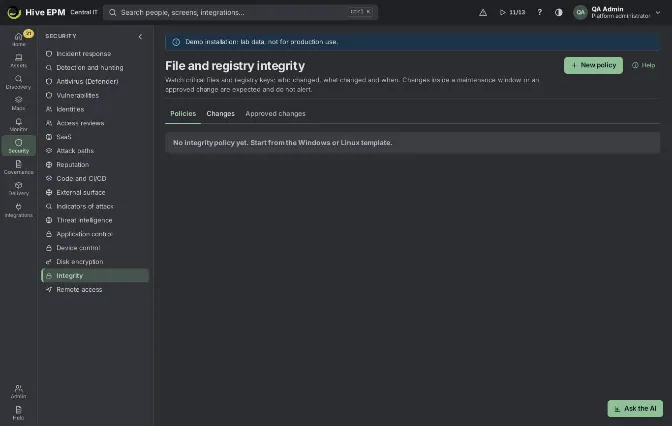
Screen: File and registry integrity
Security › Integrity watches critical files and registry keys: who changed them, what changed and when. Changes inside a maintenance window or an approved change are expected and do not alert; the others open an alert. It is a base for requirements such as PCI DSS 11.5, ISO 27001 and the CIS Controls.
What you can do here
Policies tab: create a policy with New policy, edit it, delete it, and see items, assets and changes in the last 7 days.

Changes tab: every change in the period, filtered by Expected or Not expected, with who changed it; open a change to see before and after and, for text files, the lines changed.

Approved changes tab: Register approved change with the change ticket, the period and the tags of the assets it covers.

On each asset, tab Integrity: each monitored path As the baseline or Differs from the baseline, and Approve as the new baseline.

Create a policy step by step
Click New policy (needs alerts:admin ). The assistant has four steps.
Template: start from Windows — base (hosts, Run/RunOnce keys, services, Winlogon, LSA, audit policy, drivers), Linux — base (/etc/passwd, shadow, group, sudoers, sshd_config, crontab and cron.d, PAM, systemd units), macOS — base (LaunchAgents, LaunchDaemons, configuration profiles, sudoers), Web servers and databases (IIS, Nginx, Apache, PostgreSQL and SQL Server configuration) or Start empty. Then choose For which system.
Items: adjust the list of files, folders and registry keys and the Severity of each. Use Add with the browser to pick paths from a reference asset with an agent (the answer arrives in up to 15 seconds), or Type a path. For folders choose Subfolders and what to **Exclude (like \*.log). Mark Keep content (readable difference)** on text configuration files to see the lines added and removed.
Where: the Tags and Groups of the assets that receive the policy. Empty: every asset of the chosen system.
Preview: type the Policy name and the Periodic check (seconds) (10 seconds to 1 day; 300 by default) and see how many items and assets are monitored and the Cost on the agent (Low, Medium, High). Save policy: agents get it in the next policy refresh (up to 5 minutes).
What arrives with each change
Files: created, changed or deleted, with SHA-256, size, permissions, owner and modification time, before and after. Registry: value and type before and after.

On Linux the agent warns at once and, running as root, tells the process and the user who changed it; on the other systems the periodic check finds the change. The agent keeps the events while offline and sends them later.

For files with Keep content, the change shows the lines added and removed, with passwords, keys and connection strings masked on the agent itself before they leave the machine.

The agent's own binary, configuration and service are always monitored with critical severity (Agent protection) and cannot be turned off by a policy. A legitimate agent update rebuilds that baseline by itself.

Worked example: watch sudoers and sshd on the Linux servers
- Marta clicks New policy, picks Linux — base, system Linux.
- In Items she keeps /etc/sudoers , /etc/sudoers.d (with Subfolders) and /etc/ssh/sshd_config , sets them to Critical and marks Keep content on sshd_config . With Add with the browser on SRV-APP-01 she adds /opt/erp/conf/app.properties , excluding nothing.
- Where: tag linux-server . Preview: name Linux servers – access control , check every 300 seconds; 14 items on 22 assets, cost Low. Save policy.
- Tuesday 02:13, someone edits /etc/ssh/sshd_config on SRV-APP-04 . The alert opens at once as critical. In Changes, the row shows user deploy , process vim , Not expected; opening it shows the diff: - PermitRootLogin no / + PermitRootLogin yes .
- The team reverts the file and investigates. Next week, for the planned SSH hardening, Marta uses Register approved change: ticket CHG-2291 , start Thursday 22:00, end Friday 02:00, tag linux-server . The edits made in that window show Expected with "approved change CHG-2291" and do not alert.
- After the hardening, on each server's Integrity tab she clicks Approve as the new baseline; the current version becomes the expected one, with a record in the audit trail.
Pitfalls and limits
Creating policies, approved changes and approving baselines need alerts:admin .

An approved change lasts up to 31 days and needs the ticket and the assets or tags it covers.

Changes during the asset's maintenance window are also expected.
The registry and the browser of registry keys exist only on Windows. On Windows and macOS the

periodic check sets how fast a change is found; who changed it may be unknown ("The system
did not say who changed it.").
Large folders with Subfolders raise the cost on the agent: check the Preview before saving.

The reports Unexpected integrity changes and Integrity changes by asset in the report library

bring who, what, when and whether it was approved, ready for the audit.
Related
Alerts

Reports

Compliance

Detection and hunting

Audit trail

Remote access
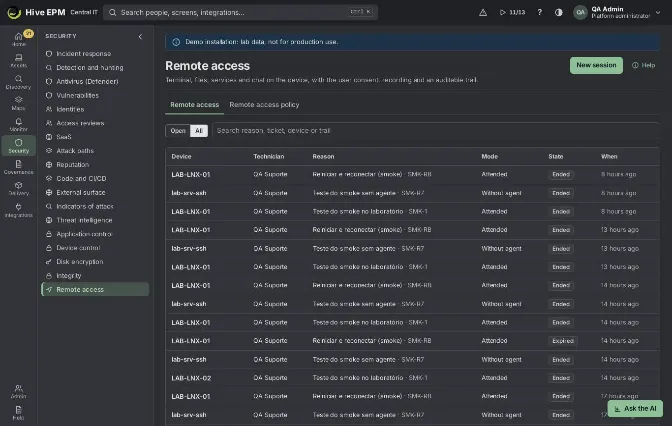
Screen: Remote access (1/2)
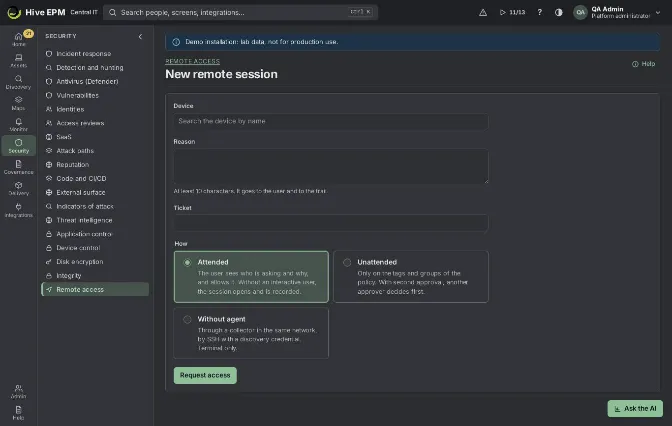
Screen: Remote access (2/2)
Security › Remote access opens, from the browser, the screen, a terminal, file transfer, services and processes, chat and a voice call with a device, with no VPN and no extra program. The connection is encrypted WebRTC between your browser and the agent, through the platform TURN server. Every session has a reason, a chained trail and a recording kept encrypted for the period set in the policy.
What you can do here
See the sessions (Open or All) and search by reason, ticket, device or text in the trail. Technicians see their own sessions; approvers and auditors see all.

New session: attended (the user consents), unattended (where the policy allows, with a second approver) or Without agent (SSH through a collector).

In a session: Connect, work in the Screen, Terminal, Files, Services, Processes and Chat tabs, call the user by voice, invite colleagues to follow, Lock screen, Reboot and reconnect and End session.

Trail and Check integrity; Recording for auditors and approvers.

Remote access policy (administrators): who can be reached without the user, approvals, consent time, channels, watermark and recording retention.

Start a session step by step
- Click New session (or Remote access on the device page; needs remote:access ).
- Search the Device, write the Reason (at least 10 characters; the user sees it and it goes to the trail) and the Ticket (required when the policy says so).
- Choose How:
- Attended: the signed-in user sees who is asking, the reason and the ticket and has the consent time (30 seconds by default) to allow or deny. With nobody signed in, the session opens and is recorded.
- Unattended: only on devices with the policy tags or groups. With Unattended access needs a second approver on (the default), another person with remote:approve decides first; the technician never approves their own session.
- Without agent: a collector in the same network opens an SSH terminal with a discovery credential (the port comes from the credential, 22 otherwise). Terminal only.
- Click Request access. The state goes through Awaiting approval (unattended), Awaiting the user (attended), Connecting and Active.
- Click Connect. The tabs appear according to the channels allowed. End session closes everything; the user can also end it on their side.
Trail, recording and retention
The Trail keeps the request, approval, consent, channels opened, files sent and downloaded (with SHA-256), services and processes touched, messages, power actions, voice calls and the end. Each event is chained to the previous one by hash; Check integrity recomputes the chain of the trail and of the recording ("Trail and recording intact.").

The terminal output and the screen frames are recorded. Each part is encrypted (AES-GCM) with the company's recording key, kept in the vault, and written by the core to its recordings folder on disk; the database keeps only the hashes.

Recording (needs audit:read or remote:approve ) plays the Screen and Terminal recordings at 1×, 2×, 4× or 8×. Opening a recording goes to the audit log.

When the session ends, Hive schedules the deletion of the recording after Keep recordings for (days) of the policy: 180 days by default, 7 to 3,650. The Recording tab shows "This recording is deleted on …"; after that, "The recording was deleted at the end of the retention period. The trail stays."

Worked example: a technician fixes a Finance notebook and an auditor reviews it
- Ana (Finance) opens ticket INC-5150 : the ERP client does not start on FIN-NB-014 .
- Paulo (technician) opens Security › Remote access › New session, device FIN-NB-014 , Reason "ERP client does not start, check the service and logs", TicketINC-5150 , HowAttended. Request access: state Awaiting the user, "Waiting for the user to allow it (30 s at most)." 3. On her screen Ana sees Paulo's name, the reason and the ticket, and allows. The state goes to Active; Paulo clicks Connect: "Connected to FIN-NB-014 (Windows). User: ana." The banner "This session is recorded" stays on, and the watermark with his name and the time is on the screen.
- In Services he restarts ERPClientService ; in Files he downloads C:\ERP\logs\client.log (the trail keeps its SHA-256); in Screen he clicks Take control and opens the ERP to confirm. He sends "Fixed, you can use it" in Chat and clicks End session.
- Three months later, Vera (auditor, audit:read ) opens Security › Remote access, All, searches INC-5150 , opens the session and clicks Check integrity: "Trail and recording intact." In Recording she plays the Screen at 4× and reads the Terminal part. Her viewing is written to the audit log. The tab says the recording is deleted 180 days after the session ended.
The Terminal tab is missing in this example on purpose: see the device classes in the limits below.
Worked example: call the user by voice
- During the active session, Paulo clicks Call the user (voice). The agent opens, in the browser of Ana's session, a one-time page: "The technician is calling you", with Answer and Decline. 2. Ana answers; they talk through the computer microphone, peer to peer through the same relay.
The page says "The voice is not recorded." 3. Either side clicks Hang up. The trail keeps that the call happened, who answered and when it ended, never the audio. Without a user signed in, the call shows "Could not ring (no user session)"; unanswered, "Not answered".
Several technicians, lock and reboot
The technician who drives can invite a colleague by login (Invite to follow). Invited technicians (with remote:access ), approvers and auditors click Follow the screen while the session is active: each has their own connection, sees the same screen and does not control. Up to 5 observers; joining and leaving go to the trail.
Lock screen locks the user's session at once (Windows desktop, Linux through logind, macOS by putting the display to sleep with password on wake).

Reboot and reconnect: the machine reboots and, when the agent is back, Hive sends the same session again by itself, without asking for consent again, and the screen reconnects. If the machine is not back in 15 minutes, the session expires.

Where recordings are stored. Each piece of the recording is encrypted (AES-GCM) before it leaves the server, and its hash is chained to the previous one. By default the pieces stay on the server disk; the installation can keep them in an S3-compatible object storage instead (AWS S3, MinIO or another service with the S3 API), under <company>/<session>/<piece>.bin in the configured bucket. The storage only ever sees encrypted data. Recordings made before a switch keep playing, because each piece remembers where it was stored.
Retention. The default is 180 days after the session ends (from 7 to 3650 days, in the policy). Once a minute the server deletes the pieces of expired sessions from wherever they are stored; if the storage does not answer, it tries again on the next round and the recording stays listed until it is really deleted.
Pitfalls and limits
Device classes (ADR-0004): the remote terminal is on demand on every class, so it needs a basis: an approved JIT grant for remote-terminal (Assets › Agents › Classes) or an approved session. In an attended session on a workstation, without a grant, the session opens without the Terminal channel. On servers the screen, files, processes and terminal are all on demand: use an unattended session with the second approval, or a JIT grant. Tier 0 machines have no remote access.

A request that waits for approval expires after 30 minutes; an attended request expires if the user does not answer; a connection that does not open expires after 5 minutes.

One open session per technician and device. Only the technician who opened the session drives it; approvers and auditors only follow.

Voice is not available in sessions without agent, or when the policy turns it off.

If it does not connect: the browser and the agent must reach the TURN server (port 3478 UDP or TCP). On Windows the terminal is PowerShell without a pseudo-terminal: what you type appears after Enter.

Screen capture: on Linux it uses X11 (ImageMagick, and xdotool for control); on macOS screencapture (grant the agent Screen Recording; the mouse needs cliclick); on Windows a helper in the user's session.

Related
Agents

Audit trail

Decisions

Discovery

Privileges and temporary administrator

Configuration profiles
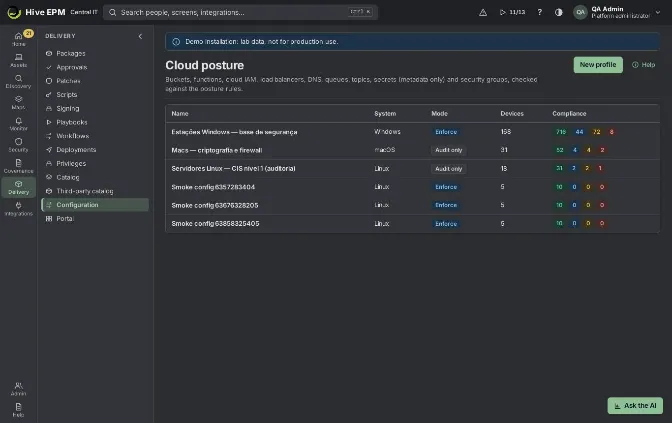
Screen: Configuration profiles
A configuration profile declares how devices must be: services, registry values, settings files, kernel parameters, local administrators, firewall, browser policies and more. The agent checks it at the chosen
interval and, in Enforce mode, corrects what is different. Profiles are in Delivery › Configuration.
What you can do here
Create a profile for one system, choose the mode, where it applies and how often devices check it.

Add items of many kinds, including a rotated local administrator password.

See each device and item as Compliant, Different, Corrected, Error or Not applicable, with the expected and found values.

On a device page, see in the Configuration tab the profiles that reach it and reveal or rotate its local administrator password.

Create a profile
- In Delivery › Configuration, click New profile.
- Fill Name, Description and System (Windows, Linux or macOS).
- Choose the Mode: Audit only (shows what is different; changes nothing) or Enforce (corrects what is different and records each fix in the audit trail).
- In Where it applies, pick sites, tags and groups; empty applies to every device of the system. 5. Set Check every (minutes) (30 by default) and keep Profile on.
- Click Add item for each setting (see the table) and fill its fields.
- Click Save: "Profile saved. Devices get it in up to 5 minutes."
Item | What it sets |
|---|---|
Service | Startup (Automatic, Manual, Disabled or Do not change) and state (Running or Stopped). |
Registry value (Windows) | Path, value name, type (DWORD or string) and value. |
Line of a settings file | A setting and value in a file (for example PermitRootLogin no in sshd_config ), with an optional service restart. The original file is kept once as .one-bak . |
Kernel parameter (Linux) | A sysctl value. |
Local administrators | Allowed administrators and, optionally, Remove the others (built-in accounts stay). |
Firewall | Firewall must be on. |
Browser policy | Chrome, Edge, Brave, Chromium or Firefox: blocked, allowed or mandatory extensions, blocked or allowed sites, home page, password manager, private window, or any other policy by name. |
Local administrator password | A random password per device, kept in the vault and rotated (see below). |
Scheduled task | Turns an existing task on or off: Task Scheduler path, systemd timer or launchd label. |
Power | Minutes until sleep and until the display turns off when plugged in (0 = never). |
USB drives, Blocked programs, Disk encryption required, Microsoft Defender | Explained in their own articles: Device control, Application control, Disk encryption and Defender. |
Compliance
The profile page shows Devices and items: each device and item with Compliant, Different, Corrected, Error or Not applicable, the Expected and the Found value. Until the first check: "No result yet: the agents check within the profile interval." On the device page, the Configuration tab lists the profiles that reach it.
Local administrator password
The item Local administrator password (fields Account, Rotate every (days), Length) makes Hive create a random password for each device, keep it in the vault and rotate it. The new password reaches the agent only in memory and becomes current only when the agent confirms; without confirmation it stays pending in the vault and both are shown. In the device Configuration tab, people allowed to change configuration click Show password and answer Why do you need it? (kept in the audit trail); once shown, the password rotates again within 4 hours. Rotate now changes it at once, with the device on.
Worked example: harden SSH on the Linux servers
The 40 Linux servers have the tag linux-server ; some still accept root login over SSH.
- New profile: Name "Linux servers – SSH baseline", System Linux, Mode Audit only, Where it applies: tag linux-server , Check every60 .
- Add item › Line of a settings file: Path /etc/ssh/sshd_config , Setting PermitRootLogin , Value no , Separator a space, restart service sshd .
- Add item › Firewall: Firewall must be on. Save.
- Within 5 minutes the agents report: 34 Compliant, 6 Different on the SSH line (Found yes , Expected no ).
- After checking with the server owners, change the mode to Enforce and Save. On the next check, the 6 servers show Corrected: the agent rewrote the line, kept the original as sshd_config.one-bak , restarted sshd and recorded each fix in the audit trail.
- A week later someone sets PermitRootLogin yes again on one server. At the next check (within 60 minutes) the agent corrects it and the item shows Corrected again.
Worked example: rotate the local administrator password
- New profile: Name "Windows – local admin password", System Windows, Mode Enforce, no scope (all Windows devices).
- Add item › Local administrator password: Account Administrator , Rotate every (days)30 , Length20 . Save.
- Each device gets its own password, kept in the vault. On FIN-NB-014, a technician opens Configuration, clicks Show password, types "BIOS update on site, ticket 4521" and sees it; the audit trail records who and why, and the password rotates again within 4 hours.
Pitfalls and limits
Check every goes from 5 to 1440 minutes. Profile names are unique and have at least 3 characters.

A Linux power item only manages "never sleep". USB control on macOS needs an MDM.

Rotation: 1 to 365 days and 14 to 64 characters.

With the emergency brake pulled, profiles only check, without correcting.

Deleting a profile stops the checks; nothing already changed is undone.

Related
Device control

Application control

Disk encryption

Defender

Compliance

Kiosks and shared devices

Recorded playbooks
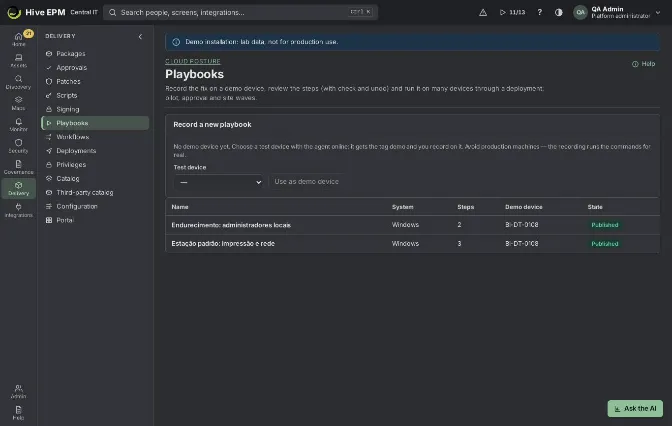
Screen: Recorded playbooks
A playbook is the fix for a problem, recorded on a demo device and then repeated on many devices through a deployment. Each step can have a check (skip what is already done) and an undo (go back if a later step fails). Playbooks are in Delivery › Playbooks.
What you can do here
Mark a test device as demo device and record commands on it.

Let Hive detect what changed on the demo device by other means (services, local administrators, programs).

Review the steps: check, undo, order, extra commands and screen steps.

Publish the playbook and deploy it to many devices with pilot, approval and site waves.

Record
- In Delivery › Playbooks, under Record a new playbook: if there is no demo device yet, choose a Test device with the agent online and click Use as demo device (it gets the tag demo ). Avoid production machines: the recording runs the commands for real.
- Type the Name, choose the Demo device and click Start recording. Hive takes a snapshot of services, local administrators and programs.
- In the Recorder, type a Command and click Run on the demo device. The output shows on screen; a command that ends with exit code 0 becomes a step ("Step N"), one with an error does not. Commands run in PowerShell on Windows and in /bin/sh on Linux and macOS.
- You may also change the device by other means (remote access, installers). Click Finish recording: Hive compares it with the starting snapshot. A service that changed becomes a step (with its previous state for the undo), and so does a change in the local administrators. Programs installed or removed are listed apart in Programs changed on the demo device: install them with a store deployment.
Review and publish
- Each command step has Command, Check (optional) and Undo (optional). Exit code 0 in the check means "already done": the step is skipped; the check also runs after the command to confirm it worked. The undo runs if a later step fails.
- Use Move up and Move down, remove steps, Add command or Add screen steps.
- Screen steps are gestures on the logged-in user's screen, one per line: click X Y (or click X Y right ), dblclick X Y , key ctrl+s , type text and wait 500 (milliseconds). Use them for what only exists in the interface (an installation wizard, a settings window).
- Click Save draft, or Save and publish ("Playbook published. It can now be deployed."). Editing a published playbook returns it to draft.
Run
On the playbook page click Deploy (or, in New deployment, choose Playbook). Pilot, site waves, window, approval by another person and the success threshold apply as in any deployment, and the deployment keeps its own copy of the steps. On each device, if a step fails, the agent undoes the steps already applied, last to first, and skips the rest; below the success threshold the deployment pauses.
Worked example: reset the Windows Update cache
Some notebooks are stuck downloading updates. The fix is to stop the update service, clear its download folder and start it again.
- In Record a new playbook, choose the Test device IT-LAB-W11 and click Use as demo device.
Name "Reset Windows Update cache", demo device IT-LAB-W11, Start recording. 2. In the Recorder run, one at a time: `` Stop-Service -Name wuauserv -Force Remove-Item -Path
"$env:SystemRoot\SoftwareDistribution\Download\*" -Recurse -Force -ErrorAction SilentlyContinue |
|---|
Start-Service -Name wuauserv `` Each ends with exit 0 and becomes Step 1, 2 and 3.
- Click Finish recording. The service wuauserv ended in the same state it started, so no extra service step is added; "Recording finished. Review the steps." appears.
- On Step 3, add the Check: if ((Get-Service -Name wuauserv).Status -ne 'Running') { exit 1 } . On Step 1, add the Undo: Start-Service -Name wuauserv .
- Click Save and publish, then Deploy. In the deployment choose the tag wu-stuck (37 notebooks), Pilot, then the rest with 3 pilot devices, threshold 95, window on. Create and send for approval.
- After another administrator approves, the pilot runs inside the window. On a pilot device where Step 2 fails, the agent runs the undo of Step 1 (starts the service again) and marks the device Failed; with 2 of 3 successful (67%), the deployment pauses before the rest. You fix the command, publish the playbook again (it went back to draft when edited) and create a new deployment.
Pitfalls and limits
The demo device needs the tag demo , the agent online and Windows, Linux or macOS.

A playbook has up to 100 steps; commands have up to 4000 characters. Names are unique.

Finish the recording before editing. Only a reviewed draft can be published.

Programs are not carried by the playbook: install them with a store deployment.

Screen steps need a logged-in user with a screen; otherwise the step fails and the previous steps are undone.

Related
Deployments

Scripts and signing

Workflows

Packages and store catalog

Remote access

Business services, SLA and capacity
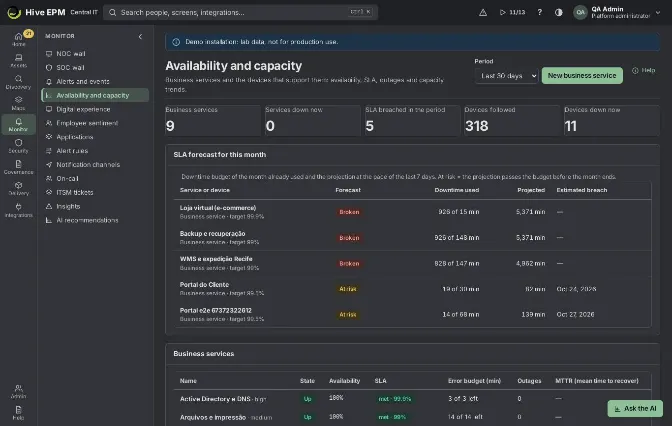
Screen: Business services, SLA and capacity
A business service (ERP, e-commerce, payroll) is made of the devices that support it. Monitor ›Availability and capacity shows every business service and every followed device with availability, SLA, outages and capacity trends; click a service to open its page, where you set components, redundancy and the SLA target.
What you can do here
See the KPIs of the period (Last 7, 30, 90 or 365 days in Period): business services, services down now, SLA breached, devices followed and devices down now.

Check the SLA forecast for this month.

Create a service with New business service and edit it in Settings.

Group components in Redundancy groups (minimum up).

Follow a service on its page: last 30 days, Components, End to end traffic and Suggested components.

See Capacity: highest CPU, memory and disk usage now, the 7-day average and peak, and when disks fill up.

Step by step: create a business service
- Open Monitor › Availability and capacity and click New business service (needs alerts:admin ).
- In Settings, fill Name (2 to 120 characters, unique), Description, Owner and Criticality (low, medium, high or critical).
- Set the SLA target (%) (default 99.5). Tick SLA only in business hours (Mon–Fri) and fill From and To (default 08:00 to 18:00) if only those minutes should count.
- If some components back each other up, click Add group in Redundancy groups and fill Key (letters, digits, - and _), Name and Minimum up.
- In Components, type in Add device (search by name) and pick the devices (up to 500). For each one set the Role and the Group: Required or one of your redundancy groups.
- Click Save: "Business service saved." and the page of the service opens.
How the state is calculated
Every minute the core evaluates each service from its components:
A required component that is down takes the service down.

In a redundancy group, the service stays up while at least the minimum is up; below that, it goes down. With a member down but the minimum kept, the service is degraded (running without redundancy), which does not count as an outage.

A component counts as down only if its availability is followed (device page, Monitoring tab); otherwise it shows "availability not followed (counts as up)".

A service outage opens the event Business service down (critical) and coming back resolves it ("Service back up"). An outage caused only by components in a maintenance window opens no event and does not count against the SLA (gray on the timeline).

SLA, error budget and forecast
The service page shows the Last 30 days: Availability, SLA (met or breached), Error budget (min) ("left of total"), Outages, MTTR and MTBF. Followed devices can have their own SLA target.
The SLA forecast for this month lists each service and device with an SLA target: downtime already used, the projection at the pace of the last 7 days and the Forecast: Within, At risk (the projection passes the budget before the month ends, with the estimated breach date) or Broken (budget already spent). Each item raises the alert SLA at risk once per month per status (major when at risk, critical when broken), resolved with "Back within the SLA budget".
End to end and suggested components
On the service page, End to end — last n minutes shows each component with its health, agent online or offline, open alerts and the inbound traffic split into internet, internal and from other hops, with the top sources, plus the volume Between hops. The data comes from the NetFlow/IPFIX/sFlow flows that the firewall and switches send to the collector; without them the panel says so.
Suggested components lists the devices the service talks to that are not components yet, found from the components by the agent's traffic, the switches' NetFlow and the database sessions. Approve, Turn down, Restore and Search now work as described in Service path and logical map.
Worked example: ERP with two web servers and one database
- New business service, NameERP , OwnerERP team , Criticality critical, SLA target (%)99.9 , tick SLA only in business hours (Mon–Fri) 08:00 to 18:00.
- Add group: Keyweb , NameWeb servers , Minimum up1 .
- Components: add erp-web-01 and erp-web-02 with Roleweb and GroupWeb servers ; add erp-db- 01 with Roledatabase and GroupRequired. Click Save.
- On each device page, Monitoring tab, choose how to check it (for example Ping by the collector), so their availability is followed.
- At 10:05 erp-web-02 goes down: the service shows Degraded (no redundancy); no event, no SLA minutes lost.
- At 10:20 erp-db-01 goes down: the service goes Down, the event Business service down opens with "Down: erp-db-01". At 10:32 it comes back and the event is resolved. The page shows 1 outage, MTTR 12 min, and the error budget for business hours drops by 12 minutes.
- On Saturday a 3-hour outage of erp-db-01 does not count: it is outside the business hours.
Worked example: SLA forecast at risk
- On the 10th of the month, ERP has used 9 of its 13 min of budget (0.1% of about 13,200 business- hour minutes in the month).
- SLA forecast for this month shows ERPAt risk, projected 24 min, with the estimated breach date; the alert SLA at risk (major) opens once.
- After a quiet week the projection falls under the budget, the item goes back to Within and the alert is resolved.
Worked example: disk filling up
- In Capacity, the disk D: of erp-db-01 shows 87% now, 7-day peak 88% and Full in "19 days". 2. Grow the volume; on the next readings the forecast moves out.
Pitfalls and limits
Creating, editing and removing services needs alerts:admin ; viewing needs alerts:read .

A component without followed availability always counts as up.

Each redundancy group needs a key and at least 1 member up; a component can only point to an existing group.

Remove service removes the service and its history; the devices stay.

End to end needs flows sent to the collector; without them only health and alerts are shown.

Related
Service path and logical map

Alerts

Map builder

Network map

Incident response
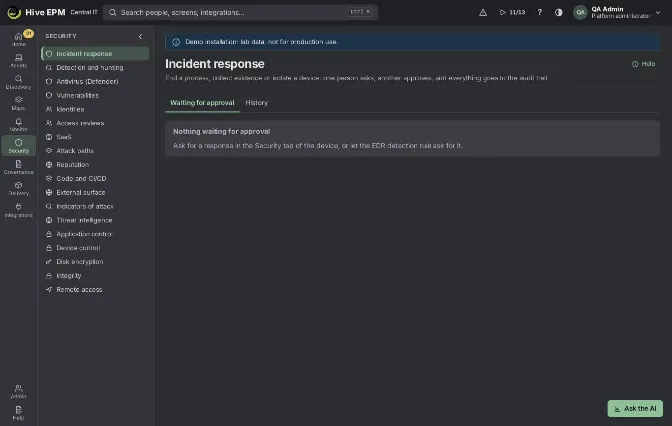
Screen: Incident response
Incident response acts on a device from the console with two people: one asks, another approves, and everything goes to the audit trail and to the alert timeline. You ask on the device page (tab Security, panel Incident response) or from a detection; the requests are decided in Security › Incident response or in Decisions.
What you can do here
Waiting for approval tab: requests made by other people, with Approve (Approve and run) and Reject (with the reason).

History tab: every request with its state (Waiting for approval, Running on the device, Done, Failed, Rejected, Expired (24 h)), who asked, who decided and the result.

Download evidence of a collection, exactly as stored, and Give back a quarantined file.

The actions
End a process: by name (every process with that name, up to 50) or by process ID (ended only if it still has that name). With the SHA-256 of the executable, only that program is ended. Protected system processes and the agent itself are refused.

Collect evidence: processes with the executable hash, network connections, signed-in users, persistence and the hash, size and date of the files you list, never their content. The evidence is stored with its SHA-256; the downloaded file has the same hash, and each download goes to the audit trail.

Isolate from the network: through the Hive agent (system firewall), which blocks all traffic except the channel with Hive, DNS and DHCP and ends by itself at the Safety expiry (minutes) (5 minutes to 7 days, 240 by default), even without Hive; or through the EDR sensor (Defender, CrowdStrike, SentinelOne) connected in Integrations. On servers you can keep up to 20 Service ports kept open (servers).

Release from network isolation: the agent removes its firewall rules (or the EDR releases the device).

Quarantine a file: the file leaves its place and goes to the agent quarantine (only the system reads it), optionally only if it still has a given SHA-256. Give the file back returns it to where it was.

Restore from a shadow copy (Windows): copies a file back from the newest shadow copy taken before the time you give; the current file stays next to it with .before-restore .

Give back what Defender quarantined: Defender puts the file back (use only for a known false positive).

Step by step
- Open the device, tab Security, panel Incident response, and choose the action (needs alerts:admin ).
- Fill in the action fields and the Reason (10 to 1,000 characters; it goes to the audit trail and the alert). Click Ask for approval: "Request created: another administrator approves in Decisions." 3. Another person with alerts:admin opens Decisions or Security › Incident response, reads the reason and the effect, and clicks Approve › Approve and run. If your company requires operator signatures, the approval asks for that person's passkey. The task goes to the device right away.
- Follow the state in History. A request without a decision in 24 hours turns Expired (24 h).
Automatic response per alert (SOAR)
In an alert rule (for example the EDR detection rule), in Who to notify, the section Response when the alert opens offers: Isolate through the EDR (No, Ask for approval or Automatic from a severity, with Isolate automatically from), Collect evidence from the device and Collect the diagnostic package. Evidence and diagnostics do not change the device and run right away; isolation waits for approval unless it is automatic for that severity. With the ITSM ticket and a playbook this builds the sequence isolate → open ticket → collect diagnostics.
Worked example: ransomware on a Finance notebook
- 10:02 — Detection and hunting raises "Mass encryption of files (ransomware pattern)" on FIN- NB-014 : 1,240 files changed, 1,180 renamed to .locked , in C:\Users\ana\Documents . The device Timeline around that moment shows the process that started just before: C:\Users\ana\AppData\Local\Temp\svc_upd.exe .
- 10:04 — Lia opens FIN-NB-014 › Security › Isolate from the network: Isolate throughHive agent (system firewall), Safety expiry (minutes) 480, reason "Ransomware pattern detected, stop spreading". Ask for approval.
- 10:05 — Marcos approves in Decisions. The panel shows "Isolated until 18:05". The notebook only talks to Hive.
- Lia asks Collect evidence (files to hash: the svc_upd.exe path) and End a process by name svc_upd.exe with its SHA-256 from the timeline; Marcos approves both. Download evidence gives a JSON whose SHA-256 matches the one in the request.
- She asks Quarantine a file for C:\Users\ana\AppData\Local\Temp\svc_upd.exe , approved; the file moves to the agent quarantine.
- For Ana's spreadsheet she asks Restore from a shadow copy: path C:\Users\ana\Documents\budget-2027.xlsx , Before (date and time)2026-10-21T09:55:00-03:00 . The restored file comes back and the encrypted one stays as budget-2027.xlsx.before-restore .
- After the clean-up, she asks Release from network isolation; once approved, the agent removes its firewall rules. Had nobody released it, the agent would have released the device by itself at 18:05.
Pitfalls and limits
Whoever asks never approves their own request; both need alerts:admin .

A device without an agent can only be isolated or released through a connected EDR; the other actions need the agent.

Isolation by the agent ends at the safety expiry even if Hive is unreachable: pick a time long enough for the investigation and ask again if needed.

Releasing is never held by the reach limit; the other actions are impact tasks and, above the class limit (by default 200 workstations or 5 servers per hour), wait for a second person in Assets › Agents › Classes.

System files and the agent's own files cannot be quarantined. A file is given back only if nothing else is at its original path.

Shadow copies exist only on Windows and only if Volume Shadow Copy was on before the attack.

Related
Detection and hunting

Indicators of attack (IoC hunting)

Antivirus (Microsoft Defender)

Alerts

Decisions

Playbooks

Detection and hunting
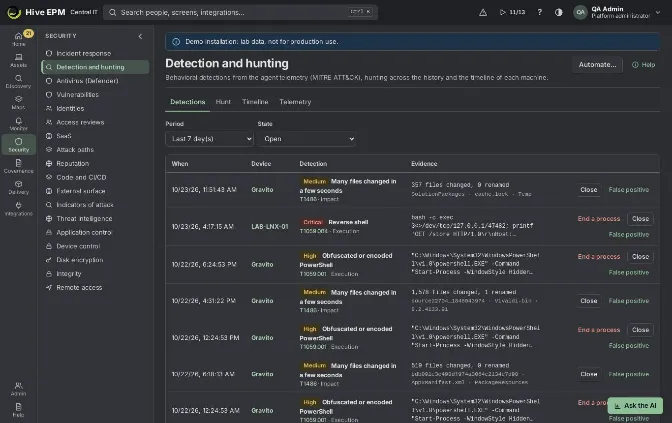
Screen: Detection and hunting
Security › Detection and hunting turns the agent telemetry into behavioral detections (MITRE ATT&CK), lets you search the process history of the machines and shows the timeline of each machine.
What you can do here
Detections: what the rules found in the last 1, 7, 30 or 90 days, filtered by Open, Closed, False positive or All, with the evidence; Close or mark False positive with a note; End a process from a detection.

Hunt: search the history by device, type (Process started, File burst), process, command line, user, parent (Started by), SHA-256 and period.

Timeline: processes, file bursts, detections, alerts, inventory changes and connections of one machine, in order; from a detection it opens around that moment.

Telemetry: turn each part on or off and set the retention.

Telemetry
The agent reports every new process (command line, parent, user and SHA-256 of the executable) and bursts of file changes in the user folders (only counts, extensions and up to 10 sample paths; file contents are never read). Connections come from the machine flows. In Telemetry (needs settings:admin ) you set Process telemetry, File bursts in user folders, Executable publisher (checks the signature of each new executable; off by default because on Windows it costs a PowerShell call per new program) and Keep telemetry for (days) (1 to 90, 14 by default). Older events are deleted every hour; detections stay. Agents apply the change on their next policy check.
Detections (MITRE ATT&CK)
The rules run in Hive as the telemetry arrives:
Detection | Technique | Severity |
|---|---|---|
Obfuscated or encoded PowerShell | T1059.001 | High |
Credential dumping from LSASS | T1003.001 | Critical |
Shadow copies or recovery deleted | T1490 | Critical |
Autostart added to the Run key | T1547.001 | Medium |
Scheduled task created from the command line | T1053.005 | Medium |
Cron job changed from the command line | T1053.003 | Medium |
System binary used to download or run code | T1218 | High |
Office application started a shell | T1566.001 | High |
Reverse shell | T1059.004 | Critical |
Event logs or shell history cleared | T1070.001 | High |
Mass encryption of files (ransomware pattern) | T1486 | Critical |
Many files changed in a few seconds | T1486 | Medium |
Each detection opens a security alert that is never suppressed, enters the correlation and the map, and can isolate the machine through the alert rule. The same rule on the same device and evidence within 10 minutes is counted once.
Step by step: hunt
- Open Security › Detection and hunting, tab Hunt.
- Fill the filters you need: every text filter is "contains", without case; SHA-256 and the device are exact.
- Choose the Period (last 1, 24, 168 or 720 hours) and click Search. Up to 500 events come back.
- On a process row, use End a process or Quarantine a file: both create an incident response request that another person approves.
Worked example: hunt encoded PowerShell started by Office
A phishing wave used Word documents that start PowerShell with an encoded command.
- In Hunt: Processpowershell , Command line-enc , Started bywinword , Period last 168 hours. Search.
- Three events come back, all on HR-NB-07 , user carla , the last one yesterday at 16:41, with the full command line and the executable SHA-256.
- The Detections tab already has "Office application started a shell" and "Obfuscated or encoded PowerShell" for HR-NB-07 . Lia opens Timeline for that device with Last 6 hour(s) around the detection: the Word process, the PowerShell process, a connection to an external IP and a scheduled task created a minute later.
- From the PowerShell row she clicks End a process; Marcos approves in Decisions. She also asks evidence collection in Incident response.
- A second hunt by the SHA-256 of the dropped file, without device, finds no other machine. 6. She closes both detections with Close, note "Contained, ticket INC-5133". A third detection from the IT team's own admin script she marks False positive, with the reason.
Pitfalls and limits
The agent looks at processes every 3 seconds: a program that starts and ends faster may not appear.

File bursts are not watched on macOS yet.

Hunting returns at most 500 events; narrow the filters or the period.

Closing, marking false positives, ending processes and quarantining need alerts:admin ; the telemetry settings need settings:admin .

What you see depends on the retention: events older than Keep telemetry for (days) are gone.

Related
Incident response

Indicators of attack (IoC hunting)

Antivirus (Microsoft Defender)

Alerts

File and registry integrity

Antivirus (Microsoft Defender)
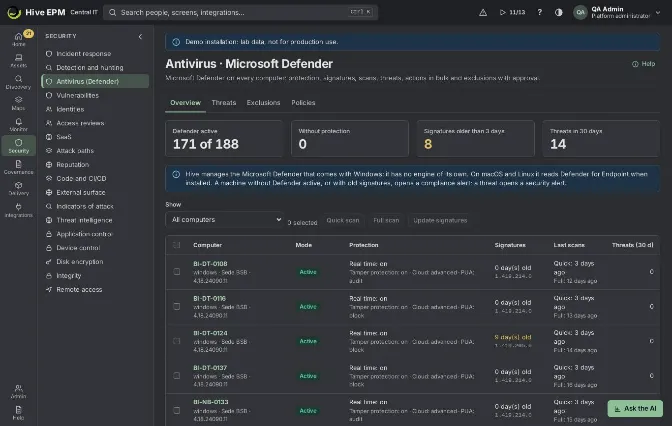
Screen: Antivirus (Microsoft Defender)
Security › Antivirus (Defender) manages the Microsoft Defender that comes with Windows: protection state, signatures, scans, threats, actions in bulk and exclusions with approval. Hive has no antivirus engine of its own; on macOS and Linux it reads Defender for Endpoint (mdatp) when it is installed.
What you can do here
Overview: for each computer, the Mode (Active, Passive (another antivirus), EDR block mode, Off, Not installed), real-time protection, tamper protection, cloud protection, PUA, number of exclusions, signature age, last quick and full scans and threats in 30 days. Filter by All computers, With a problem or With threats.

Select computers and run Quick scan, Full scan or Update signatures in bulk.

Threats: what Defender found in the last 30 days, where, and the result; Give back (quarantine) a file Defender quarantined, with another person's approval.

Exclusions: Ask for an exclusion (folder or file, extension or program) with a reason; another person approves before it reaches the machines; Remove takes it out of Defender too.

Policies: how to set Defender with a configuration profile.

Alerts
A threat found by Defender opens the security alert Microsoft Defender detected a threat: critical when the threat is still active, otherwise by severity (severe → critical, high → major, others → warning). It opens only the first time Hive sees that threat on that computer.

A Windows computer without Defender, with Defender off, with real-time protection off while active, or with signatures older than 3 days opens the compliance alert Microsoft Defender not protecting (major when Defender is off, warning otherwise). It closes by itself when the computer is healthy again.

The agent reports every 15 minutes, and again right after a scan or update asked from the console.

Step by step: policies and exclusions
- Open Delivery › Configuration, New profile, system Windows, choose the mode and Where it applies.
- Add item › Microsoft Defender and set Real-time protection, Behavior monitoring, Cloud protection (Off, Basic, Advanced (recommended)), Send samples to Microsoft (Safe samples automatically (recommended), Ask the user, All samples automatically, Never) and Potentially unwanted apps (PUA) (Block, Audit only, Off). Save.
- Tamper protection is only read: it is changed in Intune or the Defender portal. When it is on, Windows may refuse changes from any tool.
- For an exclusion, open Exclusions, click Ask for an exclusion, choose the Type (Folder or file, Extension, Program), the Value and Why it is needed (10 to 500 characters), and click Ask. Another person with config:write clicks Approve; the request also shows in Decisions.
- Profiles do not accept exclusions; they only come through this tab.
Worked example: an outbreak on two notebooks
- Monday 9:10, the alert Microsoft Defender detected a threat opens as critical for SALES-NB-22 : Trojan:Win32/Wacatac.B!ml , still active, in C:\Users\joao\Downloads\proposal.pdf.exe .
- In Overview, filter With threats: SALES-NB-22 and SALES-NB-31 show threats in 30 days. Select both and click Full scan: "Sent to 2 computer(s); 0 without agent." Then Update signatures on the whole Sales filter.
- The results arrive with the next Defender report: last full scan "a few minutes ago", threats now quarantined (the Threats tab shows the result per file).
- One file on SALES-NB-31 turns out to be the sales team's own macro tool, a false positive. Lia clicks Give back (quarantine): this creates an incident response request "Give back what Defender quarantined" with the threat name; another administrator approves it and Defender puts the file back.
- To stop new false positives, Lia opens Exclusions › Ask for an exclusion: Program, pricingtool.exe , "Sales pricing tool signed by our vendor, flagged by ML on every update".
Marcos approves; on the next policy refresh the computers apply it. When the vendor fixes the signature, Lia clicks Remove and Hive takes it out of Defender as well.
Pitfalls and limits
Scans and updates need alerts:admin ; exclusions need config:write , and whoever asked cannot approve. A bulk action takes 1 to 1,000 computers; computers without an agent are skipped.

Exclusions apply to every Windows computer managed by Hive; the form has no target. Path exclusions need a full Windows path ( C:\Build or %ProgramData%\Tool ); extensions like .tmp ;

programs like tool.exe or a full path ending in .exe . Quotes, semicolons and line breaks are refused.
Removing an exclusion in Hive removes it from Defender; exclusions added outside Hive are left as they are.

With the emergency brake pulled, profiles and exclusions are only checked, not applied.

Defender in Passive (another antivirus) mode does not count as off; signature age is still checked.

Related
Incident response

Configuration profiles

Detection and hunting

Alerts

Compliance

Privileges and temporary administrator
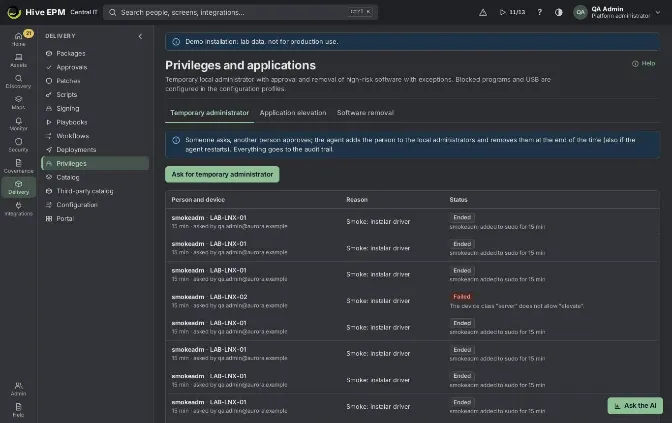
Screen: Privileges and temporary administrator
Nobody needs to be a permanent local administrator. In Delivery › Privileges › Temporary administrator someone asks for local administrator rights for one account on one device, for a limited time and with a reason; another person approves; the agent adds the account to the local administrators and takes it out at the end. The Software removal tab of the same screen has its own article.
What you can do here
Ask for temporary administrator for a local or domain account on a device, for 15 minutes to 8 hours, with a reason and an optional ticket.

Approve or Deny requests made by other people.

End now an elevation that is still active.

Follow every request with its state: Waiting for approval, Starting, Active (with "until …"), Ended, Denied or Failed (with the agent's message).

Step by step
- Open Delivery › Privileges (tab Temporary administrator) and click Ask for temporary administrator (needs assets:write ).
- In Device, type part of the name and pick it in Choose the device. When the device has a main user, Account is filled with it.
- Check Account: a local account ( ana ) or a domain account ( AURORA\ana ). The built-in root , administrator and administrador accounts are refused.
- Choose For how long: 15, 30, 60, 120, 240 or 480 minutes.
- Write the Reason (5 to 500 characters) and, if you have one, the Ticket (optional). Click Send for approval.
- Another person with agents:admin or settings:admin clicks Approve in the list, or in Decisions. Whoever asked never sees Approve on their own request.
- The state goes to Starting and, when the agent confirms, to Active with the end time. The agent adds the account to the local administrators group: Administrators on Windows, admin on macOS, wheel or sudo on Linux.
- At the end of the time the agent removes the account: it schedules the removal itself when it grants the rights, and Hive, which checks every minute, also sends the removal when the time is up, so it happens even if the agent restarted in between. End now removes it before the time.
Just-in-time grants (JIT) and device classes
Each agent has a class (ADR-0004): Workstation, VDI host, Server or Tier 0. The class sets a ceiling of what the agent accepts, and the console can only lower it.
Temporary administrator is on for workstations and VDI hosts, off for servers and absent on Tier 0. On a server the request can be approved, but the agent refuses it and the state goes to Failed with "The device class "server" does not allow "elevate"." For a server, use a privileged account managed outside Hive.

Some capabilities are on demand (JIT) or conditioned for a class, for example the remote terminal on any class, scripts and the Store on servers, or uninstalling on servers. They only reach the device with a basis the core signs and the agent checks: an approved JIT grant, an approved task (deployment, incident response, Store request, remote session), a maintenance window (conditioned only) or, on workstations, the ring rollout.

To ask for a JIT grant, open Assets › Agents › Classes, section On-demand grants (JIT), choose the device in Ceiling of one device and click Ask for a grant on the capability: 5 to 480 minutes (60 by default) and a reason of 10 to 500 characters. Another person with agents:admin

approves; it can be revoked at any time. A capability that is already on, or that the class does not allow, cannot be granted.
Worked example: Ana installs a printer driver
Ana, from Finance, needs to install the driver of a new label printer on her notebook FIN-NB-014 .
- Paulo (service desk) opens Delivery › Privileges, clicks Ask for temporary administrator, types FIN-NB and picks FIN-NB-014 · [email protected] . Account is filled with ana ; he changes it to AURORA\ana , the domain account she signs in with.
- For how long: 30 minutes. Reason: "Install the Zebra ZD421 label printer driver". Ticket (optional): INC-4821 . Send for approval. The list shows "30 min · asked by [email protected]" and Waiting for approval.
- Marta (endpoint administrator) sees the request in Decisions and clicks Approve: "Approved; the agent grants it now." The state goes to Starting and, a few seconds later, Active · until 14:42.
- Ana installs the driver. At 14:42 the agent removes AURORA\ana from the local administrators and the state shows Ended. Had she finished earlier, Paulo could click End now.
- The audit trail keeps the request, the approval, the start and the end, with the ticket.
Worked example: why the database server is refused
Paulo asks for 60 minutes of administrator for svc-deploy on SRV-SQL-02 . Marta approves. The agent of SRV-SQL-02 has the class Server, so the request ends in Failed with "The device class "server" does not allow "elevate"." This is by design: on servers a compromised console must not be able to hand out administrator rights. For a one-off change, the team uses a deployment approved by another person, whose approval travels as the signed basis, or asks a JIT grant in Assets › Agents › Classes for a capability that is on demand for servers (scripts, for example).
Pitfalls and limits
Only one person cannot do it alone: the requester never approves their own request. Approvers need agents:admin or settings:admin .

The device needs a Hive agent; otherwise the approval is refused ("The device has no Hive agent.").

The console offers 15 minutes to 8 hours; the API accepts 5 to 480 minutes.

The removal sent by Hive waits for the device: if it is off when the time ends, the task stays queued for up to 7 days and goes out when the agent comes back. A device off for longer: check it, for example with the Local administrators item of a configuration profile and its Remove the others (built-in accounts stay) switch.

Requests have no automatic expiry while waiting: deny the ones you do not want.

Too many impact tasks at once (more than 200 workstations per hour by default) are held for a second person in Assets › Agents › Classes.

Related
Software removal rules

Application control

Agents

Decisions

Audit trail

Software removal rules
Screen: Software removal rules
A removal rule keeps a high-risk program off your devices: it says which program, on which devices, and who is an exception. Once another person approves it, Hive looks for the program every hour and sends an uninstall to each device where it finds it. You find it in Delivery › Privileges › Software removal.
What you can do here
Create a rule with New removal rule: the program (exact name or any name that contains it), the system (Windows or Linux), where it acts (sites and tags) and the exceptions (devices, groups or people).

See Where it is before and after approval: how many devices would lose the program and how many the exceptions keep.

Approve a rule written by someone else (four eyes).

Run now instead of waiting for the hourly pass.

Edit, turn off (Rule on) or Remove a rule.

Follow each rule's state (Waiting for approval, On, Off), how many removals it sent and when it last ran.
Step by step
- Open Delivery › Privileges and the Software removal tab.
- Click New removal rule (needs the permission to change configuration, config:write ).
- Fill in Rule name and Program, typed as the inventory shows it (2 to 200 characters: letters, digits, spaces and . _ + ( ) - ).
- Leave Exact name (off: any name that contains it) on to match only that exact name (case does not matter), or turn it off to catch every name that contains the text, such as versions in the name.
- Choose the System: Windows or Linux. One rule covers one system.
- Limit where it acts with Sites (empty: all) and Tags (empty: all). Sites are matched by name and tags by their text; when you fill both, a device must match both. Empty means every device of that system with a Hive agent.
- Add Exceptions: Devices (ID) (paste the device ID from the device page), Groups (ID) (devices in these groups keep the program) and People (the main user of the device, such as ana or [email protected] ; only the part before the @ is compared). Up to 500 of each kind.
- Keep Rule on and click Save. The rule shows Waiting for approval.
- Click Where it is to see the list: each device, the program name found and an Exception tag on the devices that keep it.
- Another person with the permission to administer packages ( store:admin ) clicks Approve. The request also appears for them in Decisions. Whoever created the rule never sees the Approve button for it.
- From then on the rule runs every hour. Click Run now to create the removal deployment right away.
Worked example: remove qBittorrent from workstations
The security team found qBittorrent on several notebooks. Carla (service desk, config:write ) writes the rule and Bruno (packages administrator, store:admin ) approves it.
- Carla opens Delivery › Privileges › Software removal and clicks New removal rule.
- Rule name: Remove qBittorrent . Program: qBittorrent . The inventory shows names like qBittorrent 4.6.5 , so she turns Exact name off.
- System: Windows. Sites: empty. Tags: workstation , the tag the team puts on notebooks and desktops, so servers are left out.
- Exceptions: in Devices (ID) she pastes the ID of LAB-SEC-07 , the malware lab notebook; in People she types rafael , the researcher who tests torrent traffic. She saves.
- She clicks Where it is: "37 device(s) to remove, 2 kept by the exceptions." LAB-SEC-07 and Rafael's notebook show the Exception tag.
- Bruno opens Decisions, sees Remove qBittorrent , opens the tab and clicks Approve. The rule turns On. If Carla tried to approve her own rule, Hive would refuse: "Whoever created the rule does not approve it." 7. Bruno clicks Run now: "Removal deployment created." Hive creates one deployment per program name found. With qBittorrent 4.6.5 and qBittorrent 5.0.1 in the inventory, two deployments appear in Delivery › Deployments, named Remove qBittorrent · remover qBittorrent 4.6.5 and Remove qBittorrent · remover qBittorrent 5.0.1 . They are already approved (the rule's approval counts), have a single wave and start running.
- On each notebook the agent looks for the program among the installed programs of the machine.
An MSI package is removed with msiexec /x … /qn /norestart ; any other installer runs its quiet uninstall command or its uninstall command with /S . If the program is already gone, the device answers "not installed".
- The rule row now shows "37 removal(s) sent" and when it last ran. Every hour the rule runs again: devices that already received the removal are not sent again while the program is still listed, and new devices with qBittorrent get their own removal.
What happens if a user reinstalls it: on the first hourly pass after the inventory of that notebook stops listing qBittorrent, Hive clears the "sent" mark for that device and program. When the user installs it again and the next inventory lists it, the following pass sends a new removal. The program comes back, and it is removed again.
Worked example: block it first, then remove what is installed
Removing installed copies does not stop a portable qbittorrent.exe run from the Downloads folder. Combine the rule with application control:
- In Delivery › Configuration, click New profile: name Block qBittorrent , system Windows, mode Enforce, Where it applies: tag workstation .
- Add item › Blocked programs. In Mode on the device choose Only record (test first). Under Rules checked by the agent (any system), click Add rule: type Name, value qbittorrent.exe , action Deny. Save; devices get the profile in up to 5 minutes.
- For a week, watch Security › Application control: qbittorrent.exe appears with the result Would be blocked, the number of devices and how many times it ran. Nothing is stopped yet. 4. Meanwhile the removal rule above uninstalls the installed copies every hour.
- When the list holds no surprises (only qBittorrent, only where you expected), edit the item and switch Mode on the device to Block. From then on the agent ends qbittorrent.exe about one second after it starts, the screen shows Blocked and the Application blocked alert opens for each device and program.
See Application control for the details of the rules.
Pitfalls and limits
Approval: creating, editing, removing and Run now need config:write ; approving needs store:admin and must be done by someone other than the creator. The emergency brake stops the hourly pass and refuses Run now ("The emergency brake is pulled").

Back to approval: changing the program, the exact-name switch, the system, the sites or the tags sends the rule back to Waiting for approval. Changing the name, the exceptions or Rule on does not.

The editor shows sites and tags only. Groups and departments can be used as scope only through the API; saving the rule in the console again sends only sites and tags.

Exceptions by ID: devices and groups are typed by ID, not by name. A device matches the People exception by its main user.

What is found: only active devices with a Hive agent, of the chosen system, whose inventory lists the program. On Windows the agent uninstalls programs installed for the whole machine; a copy installed only for one user, or a portable program, is not removed (block it with application control).

Hourly pass: the first pass runs about 90 seconds after the core starts and then once an hour. Where it is lists up to 2,000 devices (the window shows the first 200).

Maintenance windows: the removal deployment respects the deployment window of each site; a device in a site outside its window waits ("waiting-window"). Devices offline are retried; once the deployment has been running for 24 hours, a device still offline is marked failed ("device offline").

Device classes (ADR-0004): uninstalling is on for workstations; on VDI hosts and servers it is conditioned and needs a signed basis (an approval, a maintenance window or a JIT grant). The rule's approval travels with each removal as that basis, so servers in scope do not need a JIT grant for it; a manual uninstall on a server without an approval would. On Tier 0 machines (domain controllers, the Hive servers, CA, backup) uninstalling is never allowed and the task fails with "The device class "tier0" does not allow "uninstall"."

Reach limit: by default a class accepts impact tasks on at most 200 workstations, 200 VDI hosts, 5 servers or 1 Tier 0 machine per hour. Above that, tasks are held and wait for a second person in Assets › Agents › Classes (Held by the reach limit); not approved in 24 hours, they are refused. Keep server-wide removals small or approve the held tasks.

Removing a rule keeps the deployments it already sent.

Related
Application control

Privileges and temporary administrator

Deployments

Configuration profiles

Decisions

Agents

Application elevation
Screen: Application elevation
Application elevation lets a person run one specific program as administrator without becoming an administrator of the device. Rules say which programs: by file hash (SHA-256), by publisher (the Authenticode signer on Windows, the team ID on macOS) or by path with wildcards. Each rule elevates automatically, asks for approval or denies. You find it in Delivery › Privileges › Application elevation.
What you can do here
Create a rule with New rule: name, mode (Elevate automatically, Request and approval or Deny), SHA-256 hash, Publisher, Path, scope (Groups and Tags) and Maximum duration (minutes).

Edit a rule (turn it off with Enabled) or remove it. Removing a rule sends the programs it allowed back to the default, Request and approval.

Ask for an elevation with Request elevation: Device (search, then Choose the device), Account, Path, SHA-256 hash, Publisher and Reason, then Send request.

Approve or Deny requests in the Requests queue, with a Note (optional). Whoever asked never approves.

Filter the queue by Status: Waiting for approval, Starting, Running elevated, Denied, Refused, Ended or Failed.

Step by step
- Open Delivery › Privileges and the Application elevation tab.
- Click New rule (creating, changing and removing rules needs agents:admin or settings:admin ).
- Fill in at least one of SHA-256 hash, Publisher and Path. When you fill more than one, the program must match all of them. The path accepts the wildcards * and ? (Windows paths compare without case, / equal to \ ) and cannot be too broad.
- Choose the Mode. A program that matches no rule follows Request and approval with 60 minutes.
- Limit the rule with Groups and Tags (empty means every workstation and VDI host).
- Choose the Maximum duration (minutes) (5 to 480). On macOS and Linux it is how long the one-shot sudo rule lives; on Windows the agent does not use it (see the limits).
- Click Save.
- When a person needs a program elevated, someone with assets:write clicks Request elevation and fills in the device, the account, the path (without wildcards), the hash or publisher when known and the reason (5 to 500 characters). The core picks the rule using exactly what was typed.
- With Elevate automatically the request goes straight to the agent; with Deny it is Denied at once. Otherwise an administrator with agents:admin or settings:admin approves or denies it. Approved, the agent checks the file and starts only that process elevated.
Worked example: let the finance team run the bank token installer
Ana (service desk) needs the finance notebooks to run C:\Program Files\BankCo\TokenSetup\setup.exe as administrator, but nobody in finance should be a local administrator.
- Ana opens Delivery › Privileges › Application elevation and clicks New rule.
- Name: Bank token installer . Mode: Request and approval.
- Publisher: BankCo S.A. (the signer's simple name, as Windows shows it in the file's digital signature); Path: C:\Program Files\BankCo\*\setup.exe . Both must match, so a renamed copy signed by someone else does not pass.
- Tags: finance . Maximum duration (minutes): 30. She clicks Save.
- Carla, from finance, calls the desk. Ana clicks Request elevation, chooses FIN-NB-12 , types the account carla , the path, the publisher BankCo S.A. and the reason Install the new bank token , and clicks Send request. Without the publisher the rule would not match and the request would follow the default.
- Bruno ( agents:admin ) opens the Requests queue, reads the reason, clicks Approve and then Approve again in the dialog. Ana could not approve her own request.
- The agent on FIN-NB-12 reads the file, computes its SHA-256, checks that the valid Authenticode signer is BankCo S.A. , and starts only setup.exe elevated in Carla's session through a one-shot scheduled task. Carla is in the Administrators group only for the few seconds the task takes to start.
- The request shows Running elevated. The audit log records who asked, who approved and when the process started; the request keeps the hash the agent computed.
- Carla finishes the installation. On Windows the agent does not end the process after 30 minutes: it simply runs until the installer closes.
Pitfalls and limits
Servers and Tier 0 always refuse. By ADR-0004 the server class does not allow elevation and Tier 0 has no elevation module. A device whose class is still unknown is refused too. The core refuses the request and the agent refuses the task again; the request shows Refused.

Path alone is weak. Anyone who can write to the folder can replace the file. Combine the path with the publisher or use the hash.

The hash breaks on every update. A new version of the program has a new hash; update the rule or match by publisher.

Deny wins. When a deny rule and an allow rule match the same program, the program is denied. Among the other rules the most specific wins: hash, then publisher, then path.

Matching uses what was typed. A rule with a hash or publisher only matches a request that gives the same hash or publisher. The agent then compares them with the real file: a changed hash or another signer makes the request Failed.

Windows: the agent checks the hash again right before the start, runs the program through a one-shot scheduled task (highest run level) in the person's session, adds the person to Administrators only while the task starts and removes the task right after. No kernel driver is used. The duration is not enforced: the process is not ended when it runs out.

macOS and Linux: the agent writes a one-shot sudoers rule bound to the file hash ( sha256: digest), validated with visudo , and removes it at the end of the duration; the person runs the program with sudo . A process already running keeps running. The publisher is the codesign team ID on macOS; Linux has no publisher check, so a request with a publisher fails there.

What is audited: rule changes, request, decision and the start (or failure) of the process. The end of the process and of the duration is not reported yet, so a request stays Running elevated; Ended is not set yet.

Related
Privileges and temporary administrator

Application control

Decisions

Agents

Application control
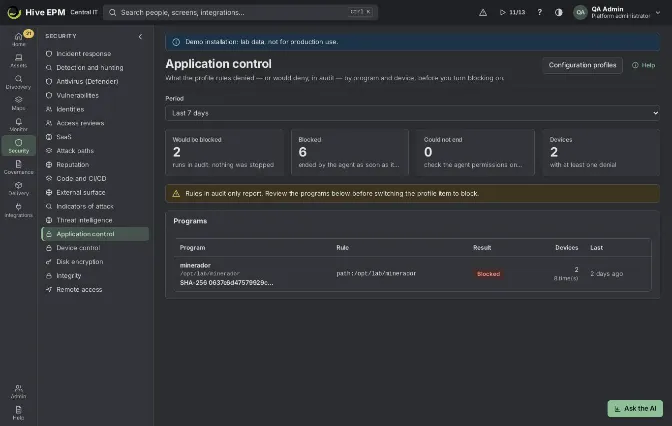
Screen: Application control
Application control decides which programs may run on your devices. The rules live in the Blocked programs item of a configuration profile; the Security › Application control screen shows what those rules denied, or would deny while still in audit, per program and device, so you can turn blocking on without surprises.
What you can do here
See, for the last 1, 7, 30 or 90 days, how many runs Would be blocked (audit), were Blocked, or Could not end, and on how many Devices.

List each denied program with its path, SHA-256, publisher, the rule that matched, the result, devices, times and when it was last seen.

Click a program's SHA-256 to see which devices ran it and who was signed in.

Jump to Configuration profiles to write or change the rules.

How the rules work
A Blocked programs item has two layers:
Programs to block (file name or full path): applied by the operating system before the program starts. Windows uses AppLocker (the Windows and Program Files folders stay allowed and administrators are not blocked); Linux uses fapolicyd when it is installed. Add other browsers (keep only Chrome and Edge) fills the list with the other common browsers.

Rules checked by the agent (any system): the agent looks at every new process about once a second and compares it by SHA-256 of the file, signed Publisher (Authenticode on Windows, codesign on macOS; the text you type is searched inside the publisher name), Path ( * matches anything) or Name ( putty.exe , with or without .exe ). A Deny rule always wins over an Allow rule.

Allowlist: deny what no rule allows turns the logic around: anything that no allow rule covers is denied, except programs in the system and installed-program folders. Protected system processes and the agent itself are never touched.

Mode on the device decides what happens on a match: Only record (test first) only reports (Would be blocked); Block ends the process right after it starts (Blocked) and opens the Application blocked alert, one per device and program. The agent blocks only when the item is on Block and the profile mode is Enforce; a profile in Audit only keeps every rule in audit.
Step by step
- Open Delivery › Configuration and click New profile (or edit an existing one). Choose the system, the mode and Where it applies (sites, tags and groups; empty applies to every device of that system).
- Click Add item and choose Blocked programs.
- Keep Mode on the device on Only record (test first).
- Fill Programs to block and/or click Add rule under Rules checked by the agent: pick the Rule type (SHA-256, Publisher, Path, Name), type the Value and choose Deny or Allow.
- Save. Devices receive the profile in up to 5 minutes.
- Open Security › Application control, choose the Period and review the Programs list. Click a SHA-256 to see the devices.
- When the list holds only what you meant to stop, edit the item and switch Mode on the device to Block (with the profile in Enforce).
Worked example: block qBittorrent in audit, then enforce, while a removal rule cleans up
- In Delivery › Configuration, create the profile Block qBittorrent : system Windows, mode Enforce, Where it applies: tag workstation .
- Add item › Blocked programs. Mode on the device: Only record (test first). Add rule: Name qbittorrent.exe , Deny. Save.
- In Delivery › Privileges › Software removal, create the rule Remove qBittorrent (program qBittorrent , exact name off, Windows, tag workstation ) and ask a colleague to approve it. See Software removal rules.
- After a day, Security › Application control with Last 7 days shows Would be blocked: 54 on Devices: 12, footnote "runs in audit: nothing was stopped". The Programs list has qbittorrent.exe with the rule name:qbittorrent.exe and the path C:\Program Files\qBittorrent\qbittorrent.exe on 10 devices and C:\Users\joao\Downloads\qbittorrent_portable\qbittorrent.exe on 2. You click the SHA-256 of the portable copy and see the two notebooks and the users.
- The removal rule uninstalls the copies in Program Files on its hourly passes. The portable copies are not installed programs, so the removal rule does not touch them.
- A week later nothing unexpected showed up. You edit the item and switch Mode on the device to Block. On the next policy refresh, when João opens the portable copy, the agent ends it about one second after it starts. The screen shows Blocked, and the Application blocked alert opens for his notebook with "Blocked C:\Users\joao\Downloads\…\qbittorrent.exe (name:qbittorrent.exe)".
- If a row shows Could not end, check the agent permissions on that device: the program kept running.
Pitfalls and limits
The agent rules end a program after it appears (it is checked about once a second); a very short run may finish first. To stop it before it starts on Windows or Linux, also put it in Programs to block (AppLocker or fapolicyd). AppLocker does not block administrators.

Programs to block on macOS needs an MDM; on macOS use the agent rules.

Hash rules need the 64-character SHA-256; a new version of the program has a new hash. Name rules are easy to dodge by renaming the file; Publisher or Hash are harder.

Turning the Allowlist on without testing can stop line-of-business programs installed outside Program Files: always start with Only record.

An item accepts up to 200 programs to block and 500 agent rules. Events are kept for 180 days.

Only what the agent rules decide reaches this screen, sent by the agent in batches every 30 seconds; AppLocker and fapolicyd decisions are not listed here.

Related
Software removal rules
Configuration profiles

Privileges and temporary administrator

Alerts

Device control (USB)

Applications (OpenTelemetry)
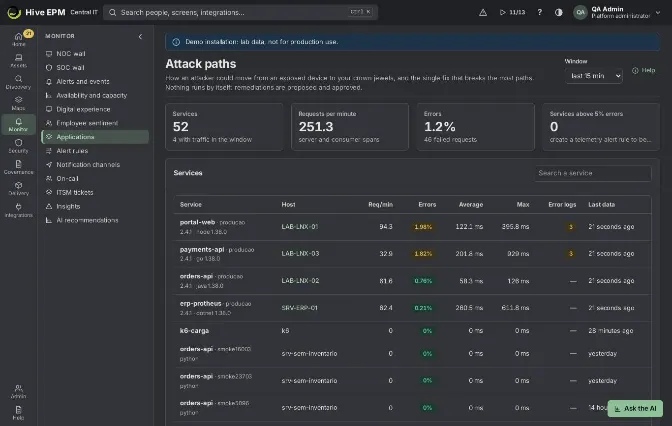
Screen: Applications (OpenTelemetry)
Applications (Monitor › Applications) shows the services that send OpenTelemetry to Hive: requests per minute, error percentage, average and maximum latency, error logs, the host they run on and who calls whom. You send traces, metrics and logs over OTLP/HTTP with the token of an integration account; nothing is installed on the application server by Hive.
What you can do here
See every service that sends telemetry, with Req/min, Errors, Average, Max, Error logs and Last data, in a Window from the last 15 minutes to the last 30 days.

Search a service by name, environment or host.

Open a service to see its traffic map (Called by on the left, Calls on the right), requests and errors per minute, its operations and the last warnings and errors from the logs.

Click a box of the map (another service, a database, an outside API) to see the calls between it and the service.

Open Who calls whom, the dependency graph of all services.

Jump from the Host column to the asset when the host is a device in the inventory.

Get the OTLP address and a ready OpenTelemetry Collector configuration to copy.

Send telemetry to Hive
- Create an integration account with the scope Telemetry (OpenTelemetry: send metrics, traces and logs) and copy its token (the link Create the integration account (Integrations › API) on
this screen opens that page). The token is shown only once.
- Point the OpenTelemetry Collector, or the application's SDK directly, to the address shown on the screen: https://<your Hive address>/api/v1/otlp , with the header Authorization: Bearer <token> .
Hive accepts OTLP/HTTP in protobuf or JSON, with or without gzip, on /v1/traces , /v1/metrics and /v1/logs .
- In the resource of each application, set service.name , deployment.environment.name and host.name .
Hive groups by service and environment, and links the service to the asset whose name, hostname or FQDN equals host.name (or k8s.node.name ).
- Open Monitor › Applications. Services appear as soon as the first batch arrives; choose a Window and click a service name.
The screen shows this Collector configuration (copy it and replace the token variable):
exporters: |
|---|
otlphttp/hive: |
|---|
endpoint: https://<your Hive address>/api/v1/otlp |
|---|
headers: |
|---|
Authorization: "Bearer ${env:HIVE_TOKEN}" |
|---|
service: |
|---|
pipelines: |
|---|
traces: { receivers: [otlp], exporters: [otlphttp/hive] } |
|---|
metrics: { receivers: [otlp], exporters: [otlphttp/hive] } |
|---|
logs: { receivers: [otlp], exporters: [otlphttp/hive] } |
|---|
What Hive does with each signal
Traces: spans are summed per minute, service, environment, kind and operation. Server and consumer spans count as requests; spans with status Error count as errors. The operation is the HTTP method and route ( GET /orders/ ) when http.route is set. Client and producer spans become dependencies: the peer is peer.service , server.address:port , messaging.destination.name , rpc.service or, for databases, db.system/db.name .

Logs: counted per minute and severity; for each minute the last message is kept as a sample. Error logs counts error and fatal; the service page lists warnings and errors.

Metrics: points of hosts that are in the inventory become metrics of the asset with the otel. prefix (for example otel.http.server.duration ), shown in the asset's Monitoring tab. The same tab has the panel Applications on this device with the services of that host in the last 15 minutes.

Worked example: watch the checkout service of the online shop
The team runs checkout and catalog (Java, OpenTelemetry agent) on srv-shop01 , already an asset with the Hive agent, and a PostgreSQL database shop .
- In the API and integration accounts page, the administrator creates the account "OTel Collector –shop" with the scope Telemetry (OpenTelemetry: send metrics, traces and logs) and copies the token.
- On srv-shop01 the Collector gets the configuration copied from the screen, with HIVE_TOKEN set to the token. The Java agents run with OTEL_SERVICE_NAME=checkout (and catalog ),
OTEL_RESOURCE_ATTRIBUTES=deployment.environment.name=prod,host.name=srv-shop01 and export to the local Collector.
- A minute later Monitor › Applications shows Services 2. checkout · prod has 420 Req/min, Errors 0.4% (green pill), Average 85 ms, Max 1,900 ms, and the Host column is a link to srv-shop01 . 4. Clicking checkout opens Map of checkout · prod: on the left Called by shows nothing yet (calls come from the browser), on the right Calls shows catalog and postgresql/shop (marked "external dependency"), each line with the number of calls and the average time.
- Below, Data of checkout shows the bars of requests and errors per minute and the operations: POST /cart/checkout with 3,100 calls and 12 errors, GET /cart with 9,400 calls.
- Clicking the postgresql/shop box changes the panel below to Data of postgresql/shop: 18,000 calls, 0 errors, average 4 ms.
- On the asset srv-shop01 , the Monitoring tab now lists checkout and catalog under Applications on this device.
Worked example: be warned when checkout fails
- Go to Monitor › Alert rules and click New rule.
- In What to watch choose Applications.
- In Condition: Measure = Error percentage, Alert above (%) = 5, In the last (min) = 10, Service (empty = all) = checkout .
- In Severity choose Major; in Actions choose the channel of the shop team; save in Review and save.
- Hive checks the rule every minute. When checkout goes above 5% errors in the last 10 minutes, one alert opens for checkout@prod with a text such as "7.2% errors (31 of 430) in 10 min", linked to srv-shop01 . When the rate falls back under 5%, the alert resolves by itself ("The service is back within the limit").
Other measures: Average latency with Alert above (ms), and Requests per minute (below) with Alert below (req/min) to catch a service that stopped receiving traffic.
Pitfalls and limits
Only an integration account with the Telemetry scope can send; a person's session or another scope gets "Sending telemetry needs an integration account with the telemetry scope."

A batch can have up to 8 MB (after gzip is undone); larger batches are refused — lower the batch size of the exporter. Each batch is read up to 50,000 spans or log records.

Without service.name the service appears as unknown_service . Without host.name (or k8s.node.name ) the service has no host and no link to an asset; the host must be an active asset with the same name, hostname or FQDN.

Metrics only become asset history when the host is in the inventory; metrics of other hosts are not kept.

Span and log minutes, and services with no data, are kept for 30 days. If the chosen window has no calls, Who calls whom shows the last traffic seen in 30 days and says so.

The KPI Services above 5% errors and the red pill use 5%; the yellow pill starts at 1%.

Seeing the screen needs permission to read assets; telemetry alert rules follow the rule's scope: a service whose host is outside the scope does not fire.

Related
Alerts and rules

API and integration accounts

Service path and logical map

Web and application servers

Assets and inventory

Indicators of attack (IoC hunting)
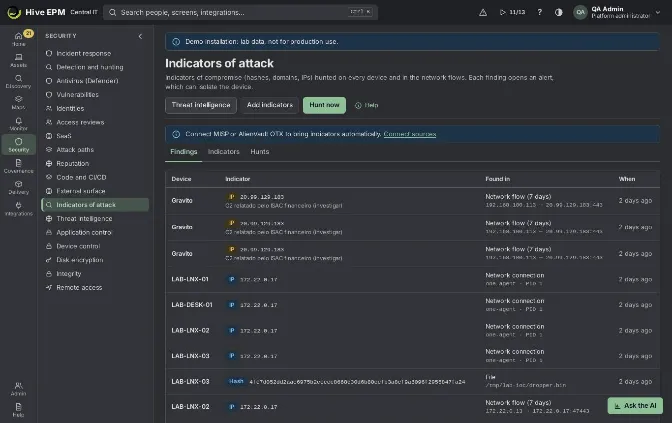
Screen: Indicators of attack (IoC hunting)
An indicator of compromise is a file SHA-256, a domain or an IP address tied to an attack campaign.
Security › Indicators of attack keeps your indicators and hunts them on every device with an agent
and in the network flows; each finding opens an alert, which can isolate the device.
What you can do here
Add indicators by pasting a list, with the alert severity to use when one is found.

Bring indicators automatically from MISP or AlienVault OTX and Read now the sources.

Hunt now on every device, optionally including the files in user and temporary folders.

See the Findings (device, indicator, where it was found, when), the Indicators (source, expiry,

findings, Remove) and the Hunts (who started, devices that answered, findings).
Where the indicators come from
By hand: Add indicators, one per line. The type is detected (64-hex SHA-256, domain or IP); type,value also works ( sha256,… , domain,… , ip,… ). Lines starting with # are ignored. Up to 20,000 lines at a time; invalid lines are reported back.

MISP: connect it in Integrations with the address and the automation key; the attributes marked for IDS in the last 30 days come in (sha256, domain, hostname, ip-dst, ip-src).

AlienVault OTX: connect it with the account key; the indicators of the pulses you subscribe come in.

The sources are read every 6 hours. After each read, if any indicator was added or changed since the last hunt, a hunt starts by itself (shown as automatic in Hunts).
Where the hunt looks
Running process: the SHA-256 of each running executable.

Network connection: the IP on the other side of the open connections.

DNS cache (Windows): the domain and its subdomains.

File (only with Also check the files in user and temporary folders): Downloads, Desktop and temporary folders of each user and the system temporary folders, up to 50,000 files and 3 minutes per device.

Network flow (7 days): the IPs in the flows of the last 7 days from switches and clouds, even for devices without an agent ("network flow (device not identified)" when Hive cannot tell which device).

Only what matched leaves the device. Each finding opens the Indicator of compromise found alert with the indicator's severity.
Step by step
- Open Security › Indicators of attack.
- Click Add indicators (needs alerts:admin ), paste the list in Indicators, one per line, write a Description (campaign, ticket) and choose the Alert severity when found (Critical, Major, Warning or Minor). Click Add. The message tells how many were added and how many lines were invalid.
- Click Hunt now, decide on Also check the files in user and temporary folders and click Start the hunt.
- Follow the Hunts tab: " of answered" and running while it runs (a hunt is considered finished after 30 minutes at most).
- Read the Findings tab. Click the device to open its Security tab.
Worked example: a phishing campaign alert from the CERT
The national CERT sends a bulletin about a campaign with two hashes, a domain and an IP.
- Lia opens Add indicators and pastes: `` # CERT bulletin 2026-117
sha256,9f2c4e1b7a0d3c5e8f6a1b2c3d4e5f60718293a4b5c6d7e8f9a0b1c2d3e4f5a6 |
|---|
3b8d0e2f4a6c8e0a2b4c6d8e0f1a3b5c7d9e1f3a5b7c9d1e3f5a7b9c1d3e5f7a invoice-portal.example.net |
|---|
203.0.113.45 ` Description: CERT 2026-117 – fake invoice`. Alert severity when found: Critical. Add: "4 indicators added (0 invalid lines)." 2. She clicks Hunt now, turns on Also check the files in user and temporary folders (the campaign drops the file in Downloads) and Start the hunt. In Hunts the row shows "[email protected] · 4 indicators · with files" and "312 of 340 answered", then all who are online (only agents seen in the last day are asked).
- Findings shows two rows: FIN-NB-014 , the second hash, File, C:\Users\ana\Downloads\invoice_0425.exe ; and 203.0.113.45 in Network flow (7 days) from FIN-NB- 014 to port 443 the day before.
- The Indicator of compromise found alert opened as critical for FIN-NB-014 . Lia asks to isolate it and to quarantine the file in Incident response; another person approves.
- A week later the CERT closes the bulletin. Lia removes the four indicators with Remove so they stop being hunted.
Pitfalls and limits
Adding, removing, reading sources and hunting need alerts:admin ; viewing needs assets:read .

Indicators added by hand do not expire; remove them when the campaign is over. Indicators from MISP and OTX come with the Major severity and expire 90 days after the last read that brought them.

A manual import does not hunt at once: click Hunt now, or wait for the automatic check every 6 hours.

Hunts reach only agents seen in the last day. A device that was off will be checked on the next hunt.

The DNS cache is read only on Windows; on other systems domains are not hunted on the device.
The file scan reads hashes only in the listed folders and stops at 50,000 files or 3 minutes per device.

At most 20,000 active indicators go into one hunt (the most recently updated first).

Related
Incident response

Detection and hunting

Vulnerabilities

Alerts

Integrations

Threat intel: TAXII, STIX and YARA
Screen: Threat intel: TAXII, STIX and YARA
The Threat intelligence screen, in the Security menu right below Indicators of attack (that screen also has a Threat intelligence button), widens the IoC hunting with the standard formats of threat intelligence: it reads indicators from TAXII 2.1 servers, imports and exports STIX 2.1 bundles and keeps YARA rules that the agents match against files. Everything that comes in lands in the same indicator list and is hunted like any other indicator. The screen has three tabs: TAXII sources, STIX and YARA rules.
What you can do here
Add TAXII 2.1 sources in TAXII sources and list the server's Collections.

Import a STIX 2.1 bundle in STIX, pasting the JSON or using Read from file.

Export STIX with Hive's active indicators and their sightings, to share with a SIEM or a threat intelligence platform (TIP).

Write YARA rules, validate them, enable or disable them, choose the severity and the scope by device tags.

TAXII 2.1 sources
- In TAXII sources, click Add source and fill in the Name, the API root URL (for example https://taxii.example.com/api1/ ) and the Collection ID. Optionally give a Username and Password or a Bearer token; secrets are stored encrypted and never shown again. Click Save.
- On the source's row, Collections lists the collections the server offers, with each id and whether you can read it (readable / no read access); the configured one has a check mark. A source cannot be edited: if the id is wrong, Delete the source and add it again with the right id. 3. The enabled sources are read every 6 hours together with the MISP and OTX feeds, and on demand with Read now, which shows "N added, N skipped in N pages".
Each read asks only for objects added after the last read ( added_after ) and follows the server's pagination ( more / next ), up to 20 pages of 1,000 objects and 20,000 indicators per read. The indicators come in with the source taxii:<source name> and severity Major. Deleting a source keeps the indicators already imported.
STIX 2.1 import and export
In the STIX tab, paste the bundle into STIX bundle (JSON) or use Read from file ( .json , up to 20 MB), give a Source name, choose the Severity (default Major) and click Import. The result reads "N added, N skipped, N invalid".
The import reads the indicator objects (pattern type stix , not revoked) whose pattern compares one of these:
[file:hashes.'SHA-256' = '...'] [ipv4-addr:value = '...'] and [ipv6-addr:value = '...'] [domain-name:value = '...'] [url:value = '...'] — the URL becomes its domain.
Bare observables (SCOs) also count: file with a SHA-256 hash, ipv4-addr , ipv6-addr , domain-name and url . Comparisons joined by OR in one pattern yield one indicator each. Patterns with AND (or FOLLOWEDBY , REPEATS , WITHIN ), files with only MD5 or SHA-1 and other object types are skipped and counted. valid_until becomes the expiry, and indicators already expired are not imported. Every imported indicator gets the severity chosen on the import, and the source is stix:<source name> .
Export STIX downloads hive-indicators.stix.json , a STIX 2.1 bundle with the active indicators as indicator objects with patterns, and the findings as sighting objects (one per indicator and device, with count and first/last seen; where_sighted_refs is the identity of this Hive installation).
YARA rules
- In YARA rules, click New rule, give a Name and an optional Description, and paste the rule text into YARA source (one source may hold several rules). Click Validate: it shows Valid: <rule names> or Invalid: <error>. The source is also checked on Save.
- Choose the Severity (it becomes the alert severity of a match), keep Enabled on and fill Device tags (empty runs on every device). Click Save.
- On Indicators of attack, click Hunt now, tick Also check the files in user and temporary folders and start the hunt. The enabled rules go to the agents in scope, which match them with a built-in engine — no external yara binary and nothing extra to install.
A match appears in the hunt Findings with type YARA, Found inFile, the path, the rule name and the matched string ids, and opens the "Indicator of compromise found" alert.
Supported YARA subset:
Text strings with nocase , wide , ascii and fullword ; hex strings with ?? and nibble wildcards, jumps [n-m] and alternatives ( 01 | 02 ) ; regular expressions in Go (RE2) syntax, with the i and s flags (no backreferences or lookarounds).

Conditions: true , false , $a , #a , $a at N , any / all / none / N of them , of ($a, $b*) , filesize (with KB / MB suffixes), uint8 / uint16 / uint32(offset) and their be variants, comparisons, and , or , not and parentheses.

private and global are accepted and ignored.
Not supported, rejected by the validator: import / include and modules ( pe , math …), for loops, in ranges, @a and !a , external variables, references to other rules, xor / base64 and arithmetic.

Worked example: a CERT TAXII feed and a YARA rule
- Lia opens Threat intelligence › TAXII sources, clicks Add source: NameCERT feed , API root URLhttps://taxii.cert.example/api1/ , Collection ID given by the CERT, a Bearer token. She clicks Save, then Collections on the row to confirm the collection is readable.
- She clicks Read now: "1240 added, 0 skipped in 2 pages". In Indicators of attack › Indicators they show the source taxii:CERT feed ; the next reads bring only the new ones.
- A partner sends campaign-117.json . In STIX she clicks Read from file, sets Source name campaign-117 , keeps Major and clicks Import: "38 added, 4 skipped, 0 invalid" (AND patterns or MD5 only).
- In YARA rules she clicks New rule, NameFakeInvoiceDropper , and pastes into YARA source: ``
rule FakeInvoiceDropper { strings: $a = "invoice_portal" nocase wide ascii $b = { 4D 5A ?? ?? [4-16] |
|---|
50 45 } condition: uint16(0) == 0x5A4D and filesize < 2MB and all of them } ` Validate shows "Valid: FakeInvoiceDropper". Severity Critical, Device tags finance`, Save.
- On Indicators of attack she clicks Hunt now with Also check the files in user and temporary folders. Findings shows FIN-NB-014 , type YARA, File, C:\Users\ana\Downloads\invoice_0425.exe , strings $a , $b , and the critical alert opens.
- At the end of the week she clicks Export STIX and sends the bundle, with the sighting on FIN-NB- 014 , to the SOC's SIEM.
Pitfalls and limits
Adding or deleting sources, reading them, importing and managing rules needs alerts:admin , as in IoC hunting; seeing the screen and Export STIX need assets:read .

A source cannot be edited; to change the URL, collection or credentials, delete it and add it again (the indicators already imported stay).

A TAXII read stops at 20 pages or 20,000 indicators; the rest comes on the next read. TAXII indicators always come in as Major.

STIX patterns with AND , MD5/SHA-1-only hashes and other object types (malware, attack-pattern, relationships) are not imported; they are only counted. Revoked and already expired indicators are skipped too.

YARA rules run only when the hunt includes files, and only in the folders the file scan covers (up

to 50,000 files and 3 minutes per device); files above 32 MB are skipped.
A rule source is limited to 1 MB, 1,000 strings per rule and 10,000 matches per string. Rules with

modules, for loops or other unsupported features are refused — rewrite them with strings and
simple conditions.
Regular expressions run over the bytes read as UTF-8; for binary bytes use hex strings.

Related
Indicators of attack (IoC hunting)

Detection and hunting

Incident response

Send events to the SIEM

Integrations

Device control (USB)
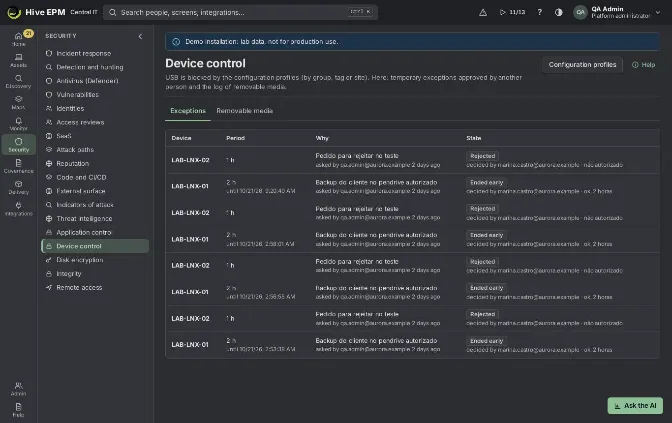
Screen: Device control (USB)
USB storage is blocked or allowed by the USB drives item of the configuration profiles, which target
devices by site, tag or group. Security › Device control holds what the profiles do not: temporary
exceptions approved by another person, and the log of removable media plugged in and removed.
What you can do here
Exceptions tab: see every USB exception (waiting, active, ended), Approve or Reject requests made by others, and End now an active one.

Removable media tab: for the last 1, 7, 30 or 90 days, each flash drive or USB disk Plugged in and Removed, with vendor, model, label, serial number, size, file system, signed-in user and whether it happened under an approved exception.

Jump to Configuration profiles to change the USB policy.

Step by step
- Set the policy: in Delivery › Configuration, add the USB drives item to a profile and choose Allowed, Read only (Windows) or Blocked. Keyboards, mice and phones keep working; only storage is controlled. On Windows the agent uses the USBSTOR service; on Linux the usb-storage module (read-only becomes blocked there). macOS needs an MDM.
- When someone needs USB on a blocked device, open the device page, tab Security, panel USB and removable media, and click Ask for a USB exception (needs assets:write ).
- Choose the Period (1, 2, 4, 8, 24 or 72 h), write the Reason (10 to 500 characters) and click Ask for approval. "Request created: another administrator approves in Decisions." 4. Another person with config:write opens Decisions or Security › Device control and clicks Approve (with an optional note) or Reject (with the reason). Whoever asked cannot approve.
- On approval the device receives its policy again at once, with USB allowed until the end of the period. The state shows Active and "until …".
- At the end of the period Hive ends the exception (checked every minute) and the device blocks USB again by itself. End now ends it earlier: "Exception ended: the device blocks USB again."
Worked example: Finance hands year-end files to the auditors
The profile Finance baseline blocks USB drives on every device with the tag finance . On Friday, Ana has to copy the closing spreadsheets to the external auditor's encrypted Kingston IronKey.
- Paulo opens FIN-NB-014 › Security › Ask for a USB exception: Period 72 h, Reason "Copy the 2026 closing files to the external auditor's encrypted drive, ticket INC-5120". Ask for approval. 2. Marta sees it in Decisions, opens Device control and clicks Approve, note "Only the auditor's IronKey". The exception shows Active · until Monday 10:15.
- Ana plugs in the drive. Removable media shows Kingston IronKey · S/N 0019E0… · 16 GB · exFAT, Plugged in, user ana , "under an approved exception". Later Removed.
- On Monday at 10:15 the exception turns Ended and FIN-NB-014 blocks USB again; a request nobody decided within 48 hours would have been rejected by itself.
What this example cannot do: Hive has no allow list per USB model or serial number, and one exception lasts at most 72 hours on one device. Allowing "only the IronKey model, for the whole Finance team, for 7 days" is not supported. The options are: one exception per device, asked again when it ends (a device can have only one request waiting at a time), or change the profiles so those devices are no longer reached by a profile that blocks USB. Either way, the media log shows which model was actually used.
Pitfalls and limits
An exception allows all USB storage on that device during the period, not one drive.

Exceptions are per device and need a Hive agent and a profile that blocks USB; without a blocking profile there is nothing to lift.

Requests waiting more than 48 hours are rejected automatically ("no decision in 48 h").

File contents are never read; the log records the media, the user and the time only.

macOS USB control needs an MDM; on Linux, Read only (Windows) behaves as Blocked.

Related
Configuration profiles

Decisions

Application control

Disk encryption

Audit trail

Disk encryption
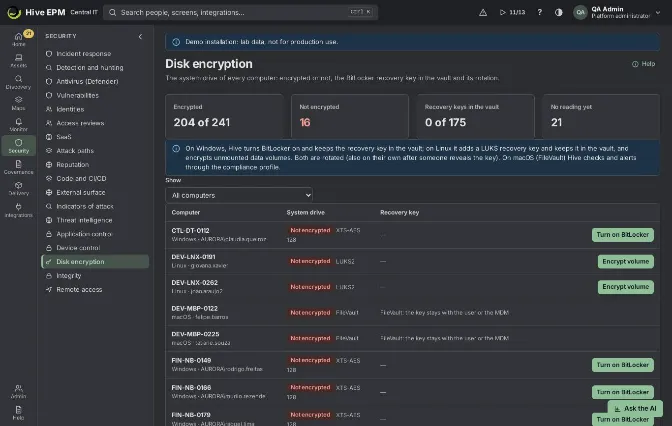
Screen: Disk encryption
Security › Disk encryption shows the system drive of every computer (encrypted, not encrypted, or no reading yet) and the recovery key Hive keeps in the vault. On Windows Hive turns BitLocker on and keeps and rotates its recovery key; on Linux it adds a LUKS recovery key, keeps it and can encrypt unmounted data volumes; on macOS (FileVault) it checks and alerts through the compliance profile.
What you can do here
See the counters: Encrypted, Not encrypted, Recovery keys in the vault and No reading yet, and filter by All computers, Not encrypted, Encrypted without a key in the vault or No reading yet.

On a Windows row: Turn on BitLocker (when not encrypted), Read the key now (encrypted but no key in the vault) and Rotate key (key in the vault).

On a Linux row: Encrypt volume (an unmounted data volume, or just store the key of an already encrypted system disk) and Rotate key.

See when the key was stored, rotated and last shown (and by whom), a pending rotation and the last error.

On the device page, tab Security, panel BitLocker recovery key: Show the key with a reason.

Step by step
- To require encryption on many computers, open Delivery › Configuration, create a profile for Windows in Enforce, choose Where it applies and Add item › Disk encryption required. Save.
Computers get it in up to 5 minutes; the agent turns BitLocker on where it is off. In Audit only it only reports.
- For one computer, use Turn on BitLocker on its row (needs config:write ). The agent encrypts the used space of the system drive in the background with a recovery password protector and sends the key to the vault right away.
- Keys reach the vault in three ways: when Hive turns BitLocker on from this screen, with Read the key now, and by a daily pass that asks every online Windows computer that is encrypted and has no key stored (or a key older than 30 days). Only metadata stays in the database; the key itself is in the vault.
- To show a key, open the device, tab Security, panel BitLocker recovery key › Show the key, write the reason (5 to 300 characters) and confirm. The viewing goes to the audit trail.
- After a key is shown, Hive queues a rotation on its own: the agent creates a new recovery password, stores it in the vault and only then removes the old one. If the new one cannot be created, nothing is removed. Rotate key does the same on demand.
Worked example: enforce BitLocker on the Sales notebooks
- Marta creates the profile Notebooks encrypted : Windows, Enforce, Where it applies: tag notebook , item Disk encryption required. Save: "Profile saved. Devices get it in up to 5 minutes." 2. On Security › Disk encryption, filter Not encrypted: 18 notebooks at first. Over the next minutes they move to Encrypted as the agents turn BitLocker on (encryption of the used space continues in the background).
- She filters Encrypted without a key in the vault: the notebooks encrypted by the profile appear until the daily pass collects their keys. To avoid waiting, she clicks Read the key now on each: "Key requested from …". The key column changes to "In the vault since …".
- One notebook shows "Last action failed: BitLocker was not turned on: …". Its TPM needs attention; the desk opens a ticket.
Worked example: a user stuck at the BitLocker recovery screen
- After a firmware update, SALES-NB-22 asks for the recovery key at boot. João calls the desk.
- Paulo opens the device in Hive › Security › BitLocker recovery key › Show the key, reason "User at the recovery screen after the BIOS update, call 7781". He reads the 48-digit recovery password to João. The panel shows "This viewing is in the audit trail." and "This key will be replaced by a new one as soon as the machine is back online, so it only works this time." 3. João types it and Windows starts. Hive had queued the rotation; when the agent is back the old password is removed and a new one stored. The row shows "rotated a few minutes ago" and "last shown by [email protected]".
- If the notebook stays off for long, the row keeps "rotation waiting for the machine" (see the limits below): click Rotate key once it is online.
Pitfalls and limits
Turning BitLocker on, reading and rotating keys, and showing a key need config:write . BitLocker actions only work on Windows; LUKS actions only on Linux.

Device classes (ADR-0004): reading and rotating keys works on every class. Turning encryption on is conditioned on servers (it needs an approval, a maintenance window or a JIT grant in Assets › Agents › Classes) and Tier 0 machines are only checked.

Key rotation and escrow wait for the computer: if it is off, the task stays queued for up to 7 days and goes out when the agent comes back. After that, the row keeps "rotation waiting for the machine": click Rotate key when it is back.

The daily key pass only asks computers that are online at that moment.

Linux: Encrypt volume works on an unmounted data volume (an empty volume becomes LUKS2; ext2/3/4 is encrypted in place and becomes 32 MiB smaller). The system disk is encrypted at install time; leave the device empty to only store its key.

macOS (FileVault): the key stays with the user or the MDM; Hive does not encrypt.

Related
Configuration profiles

Compliance

Device control (USB)

Audit trail

Agents
