Project
Within a Workspace, a purpose is set for a Project. In it, team members will be added to work on a specific project, which will consist of an individual Task.
Before You Begin
Have a screen of Workspace;
Procedure
Access the projects page through Menu Home > Workspaces;
Choose the Workspace in which you want to create a project;
To create a project, click on the button located at the top right of the page, "+ Add Project";

In the example above, a project called "Reception Organization" was created within the "Administration" Workspace.
After selecting a Workspace from the Main Screen, you can click on the title of a project to view more options.
Project Options
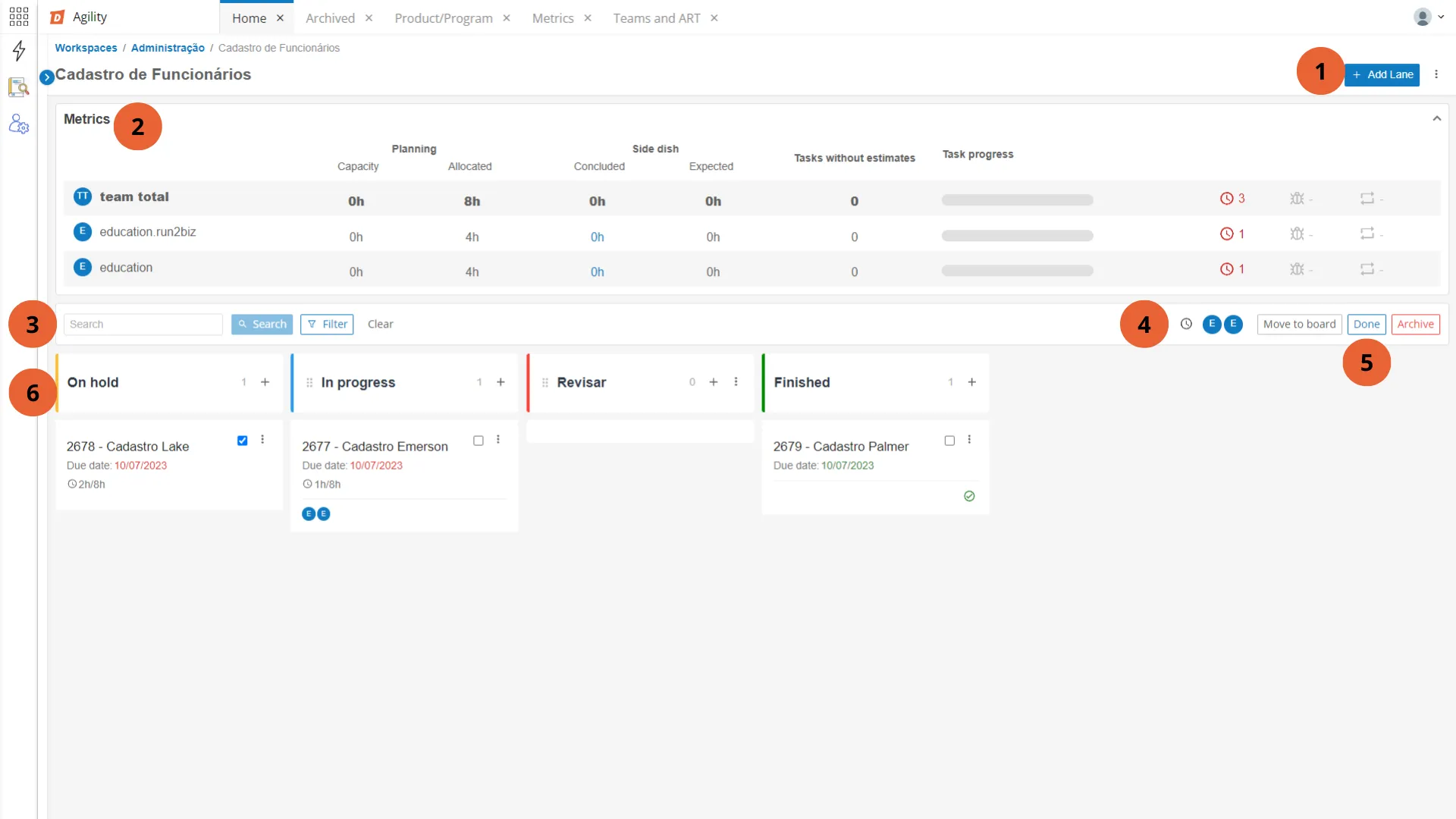
Option | Description |
|---|---|
1. Add Lane and Options | Button to create a new lane and view more project options. |
2. Metrics | Click the arrow on the left side to expand the view of project metrics. |
3. Search and Filters | Search the Project for specific tasks by name or number, or add and remove task view filters. |
4. Estimated Hours and Members | Click on the clock icon to include an estimate of hours for project completion. Colored circles represent the members involved in the project. |
5. Task Actions | Below Add Lane, action buttons for the tasks are displayed. The buttons are enabled only when one or more tasks are selected. |
6. Lane List | View of the Project lanes, with their respective Tasks. |
1. Add Lane and Options
Add Lane
Click the "Options" button next to Add Lane to:
Option | Description |
|---|---|
**Edit Board ** | Allows changing the name and members of the selected Project; |
Archive Board | Allows archiving the selected Project, after user confirmation; |
Reload Lanes | Reorganizes the lanes to the default structure; |
**History ** | Shows the history of all project movements; |
Metrics
Displays the project metrics for the entire team and for members. For more information, see Project Metrics
3. Search and Filters
The search box allows searching for task names. The Filter button allows filtering by deadline, setting a start date and an end date for the search. The search will be performed on all Tasks.
4. Estimated Hours and Members
5. Task Actions
Below Add Lane, action buttons for the tasks are displayed. The buttons are enabled only when one or more tasks are selected.
- Move: Sends the Task to another Project within the same Workspace. A list of Projects will be displayed to select the task's destination.
- Complete: Updates the selected task, marking it as Completed and moving it to the Completed lane.
6. Lanes
In the list of Lanes, 3 default lanes are presented side by side along with the lanes created by the user. The default lanes are On Hold, In Progress, and Completed.
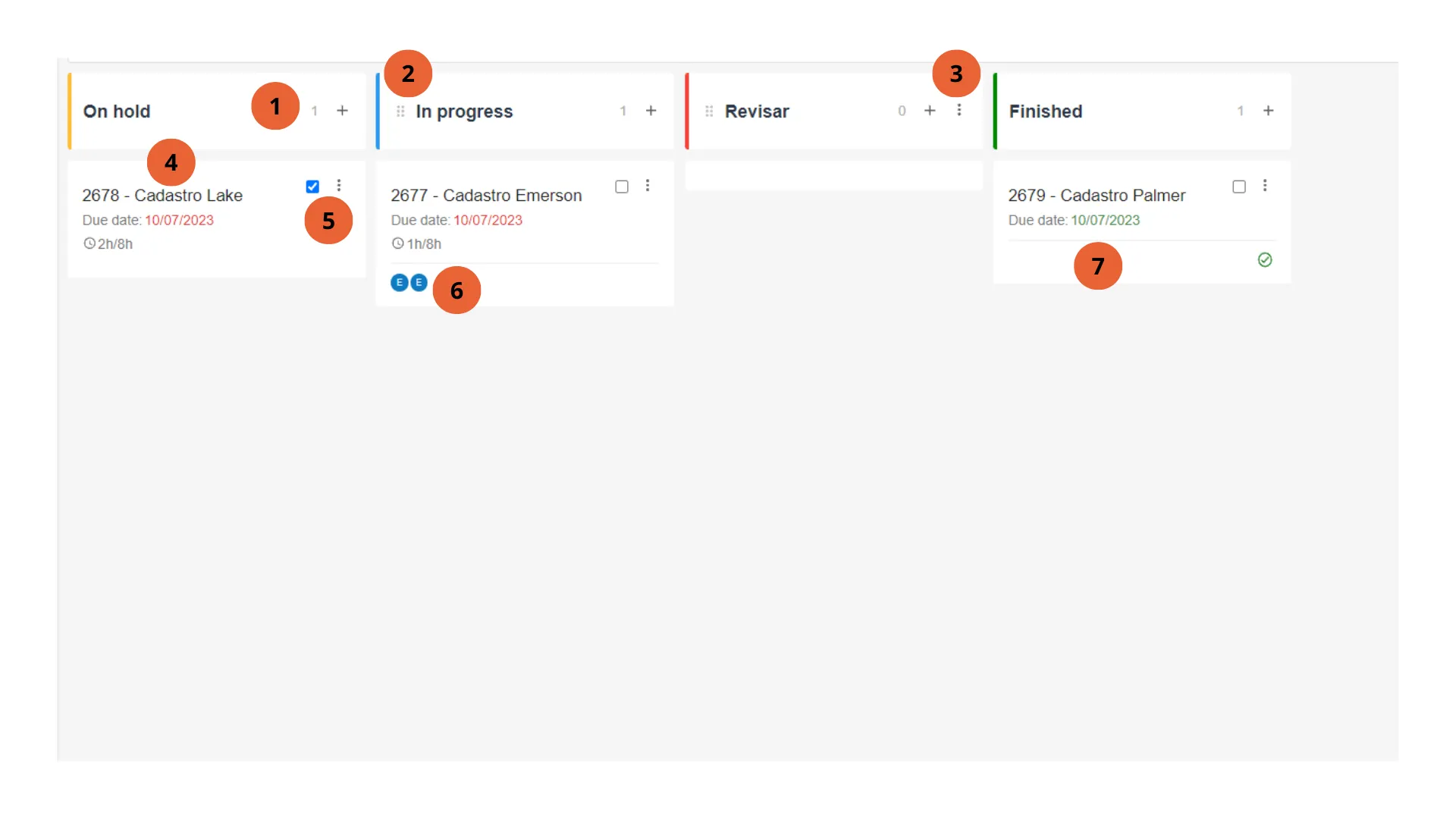
1. Add Tasks
Next to the Lane name is a number indicating the number of tasks it contains, and you can add tasks by clicking the + icon. The new task will be added just below the list, with a field to enter the Name, and buttons to Save or Cancel.
2. Lane Order
Clicking and dragging the icon allows you to change the order of the Lanes.
3. Lane Options
For the lanes added by the user, there is the option to edit the lane name and delete the lane.
4. Task List
Below each lane, you can see a list of tasks. Each task displays:
- The task Name;
- A checkable box to select one or more tasks;
- The Due Date of the task;
- The hours posted/estimated hours for Task completion;
- The list of Members;
- The list of tags;
5. Task Options
Select the icon with 3 dots to view the Task Options:
- Move: Allows moving the task to another Workspace.
- Mark as Bug: Allows marking the task as a bug, putting it at the top of the list where it is located and with a special bug tag.
- Duplicate: Allows duplicating the task to another Workspace.
All tasks can be moved and dragged between the lanes. When moving a task to the completed lane, it will be marked as completed. When moving it back to another lane, it loses the completed mark.
6. Members
Below the Task information, a list of circles indicates the Members responsible for the task.
7. Completed
When moving the Task to the Completed lane, or selecting a Task and clicking on the Complete option, it will be marked with a green checkbox indicating its completion.
Glossary
Lane
In the context of Kanban, a lane is a horizontal division in a Kanban board or visual representation of the stages of a workflow. Each lane represents a category, stage, or specific type of work within the Kanban system.
Card
In the context of project management and agile methods, a "card" is a physical or digital representation of a task, work item, or user story. Cards are used to visualize and track activities on a Kanban board, Scrum board, or any other visual management tool.
Tasks
In the context of project management and workflow, tasks are specific activities that need to be executed to achieve a goal or complete a job. They are the basic units of work that make up a project or to-do list.