Task
In project management and workflow, tasks are specific activities that need to be executed to achieve a goal or complete a job. They are the basic units of work that make up a project or a to-do list.
Before You Begin
Have a screen of Workspace;
Have a Project created;
If you want a lane in addition to the system's defaults (On Hold, In Progress, and Completed), create a lane.
Procedure
Access the tasks through Menu Home > Workspaces and choose the project where you want to create a task.
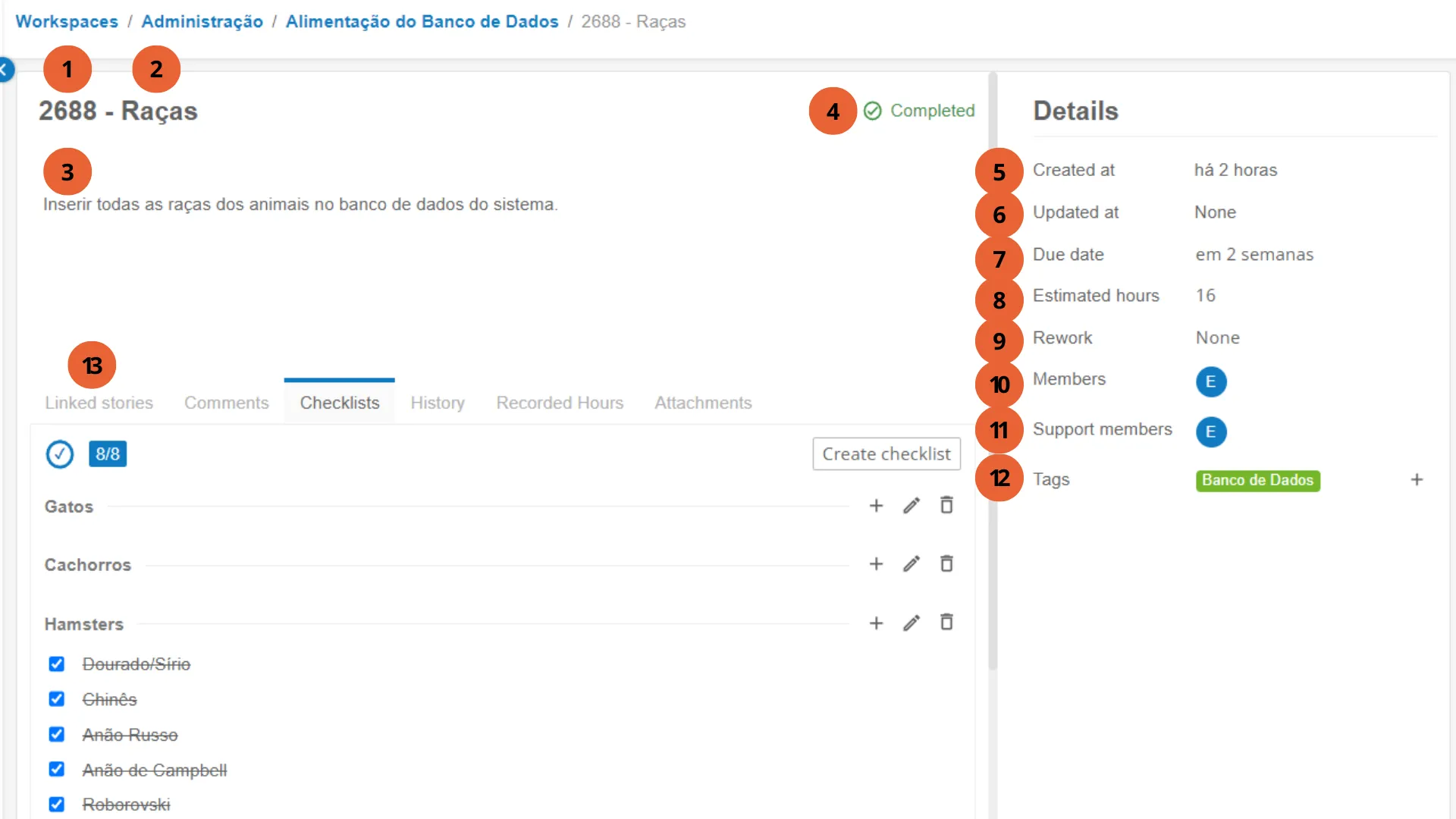
Here is the Administration Workspace, with a project called "Database Feeding" and a task to register the Breed.

Items
These are the main elements of the task in Agility:
Item | Description |
|---|---|
1 - Task Number | The task number (preceding its name) is automatically created by the system. |
2 - Task Name | When selected, it can be edited. |
3 - Description | Task description. |
4 - ✅ Checkbox | If the task is completed, a checkmark will be displayed next to the task name. |
Task Details
On the right side of the screen, there is a box containing the Task Details.
Field | Description |
|---|---|
5 - Created at | Displays how long ago the task was created; |
6 - Updated at | Displays the date of the last update to the task; |
7 - Due Date | Displays the task's due date, defined by the user. The field can be selected, and a calendar will appear for the user to choose the task's due date; |
8 - Estimated Hours | Displays how many hours have been estimated for the task's completion, defined by the user. When selected, an option will appear for the user to select the number of hours; |
9 - Rework | Presents an option to select the source task of the rework. This task will be marked as the rework of the source task; |
10 - Members | Displays the members assigned to the task, defined by the user. When selected, an option will appear for the user to add members to the task; |
11 - Support Members | Displays the supporting members assigned to the task, defined by the user. When selected, an option will appear for the user to add members to the task |
12 - Tags | Displays the tags assigned to the task, defined by the user. When selected, an option will appear for the user to add tags to the task; |
13 - Lower Tab | Lower tab with specific tools for the task |
Lower Tab
In Image 2, the number thirteen (13) refers to the lower tab of each task. Each section of the tab has a different function:
Linked Stories
At the bottom of the screen, there is a division with some tabs (13 to 18). The Linked Stories tab....
Item | Description |
|---|---|
Linked to | Allows linking the task to a user story from a program or product; |
Related to | Allows relating the task to a user story from a program or product; |
Blocked by | Allows blocking the task, due to some dependency, to a user story from a program or product; |
Comments
The comments tab lists the comments made, along with the user's name. Comments are used for integrated communication among task members, facilitating corrections and changes to small specific details.
Item | Description |
|---|---|
Add a comment | Click the button to add a comment for the members of this task |
Save | To send the comment |
Cancel | To cancel form submission |
Edit/Delete | If the comment is from the logged-in user, the option to edit and delete the comment will be shown |
Checklist
When adding a checklist, a list will be created in this same tab. The checklist serves to ensure that nothing important is forgotten during the execution process.
Item | Description |
|---|---|
Create Checklist | Click the button to add a checklist. |
+ Button | Adds checkboxes for each checklist item; they function as topics. |
Save | Serves to save both the checklist and the topics of each list. |
History
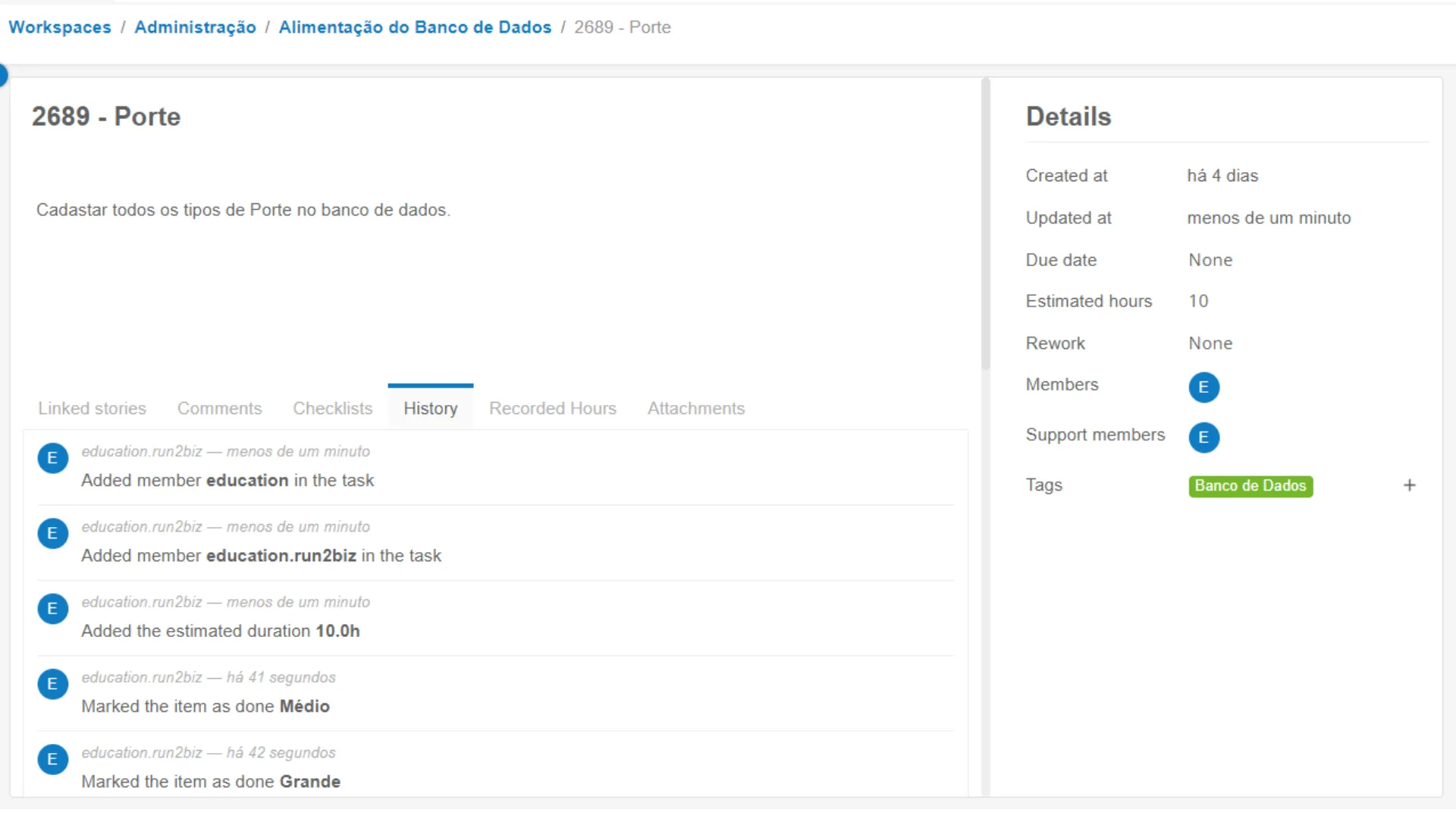
The History tab presents a list of all actions performed on the task, such as added members, estimated hours, among others.
Logged Hours
In the Logged Hours tab, you can record the hours worked to control and maintain task progress.
Item | Description |
|---|---|
Date | Enter the date you want to start working; usually the current day |
Start Time | Add the time you started working on the task. |
End Time | Add the time you finished the desired activities. |
Description | Enter a brief description of the activities performed. |
Attachments
The last tab, Attachments, allows you to add attachments to the task and download available attachments.
Glossary
Card
In the context of project management and agile methods, a "card" is a physical or digital representation of a task, work item, or user story. Cards are used to visualize and track activities on a Kanban board, Scrum board, or any other visual management tool.
User Stories
In the context of agile software development methods, such as Scrum, "user stories" are a technique used to capture requirements or desired functionalities from system users. They are a way of describing users' needs in simple and understandable terms, with a focus on benefits and expected results.