Integrations Integrations Center
1
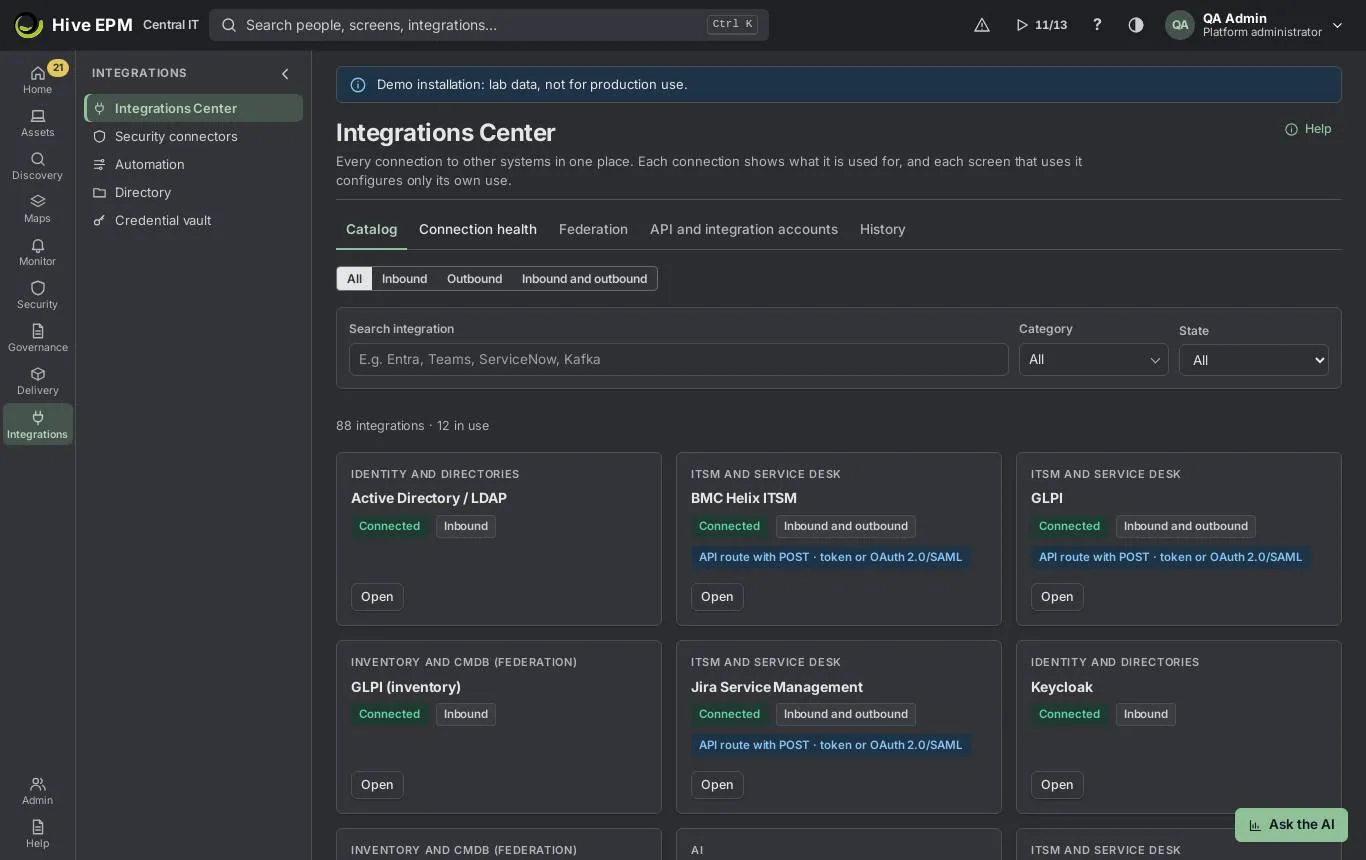
Screen: Integrations Center (1/2)
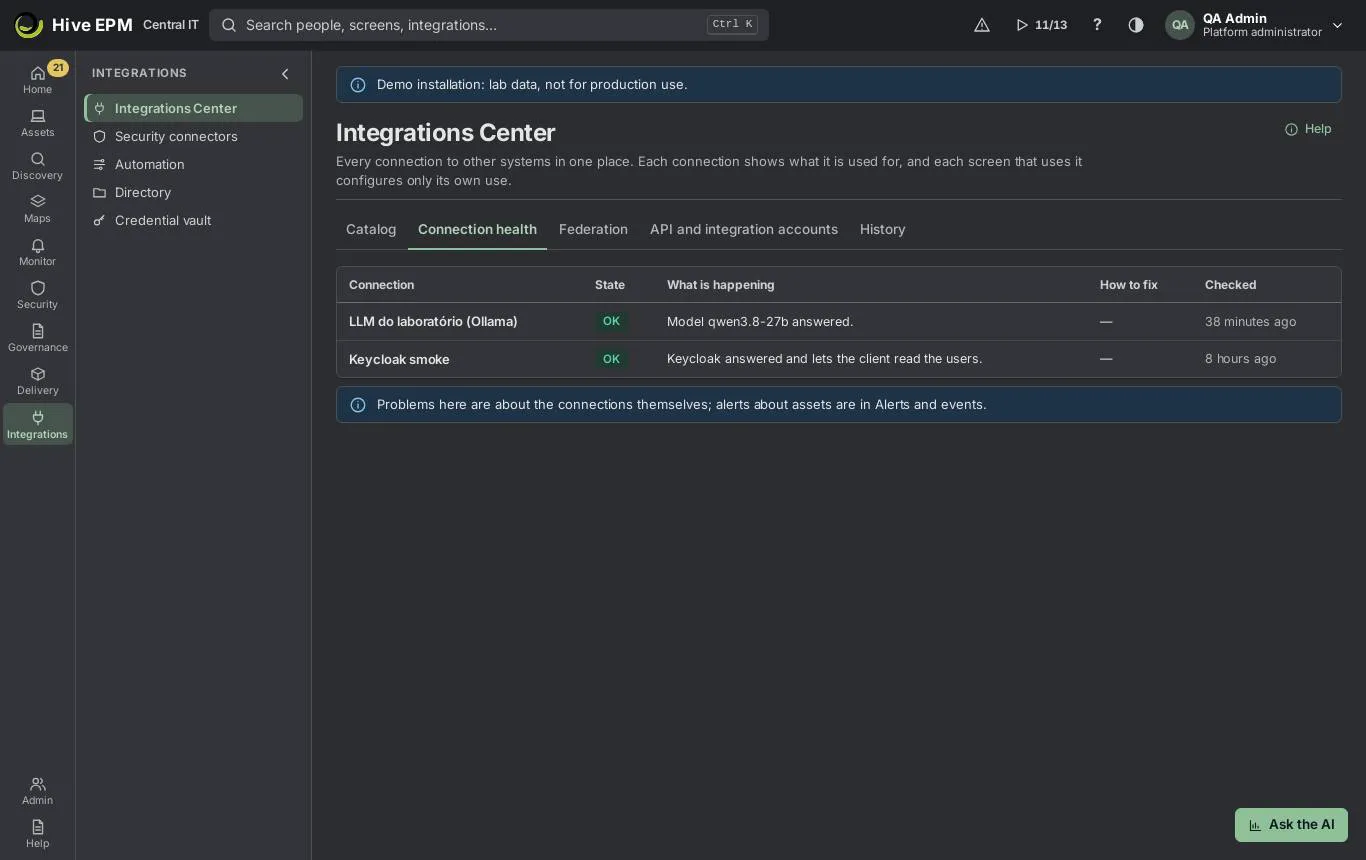
Screen: Integrations Center (2/2)
All connections with other systems live in one place: Integrations › Integrations Center. Each connection shows what it is used for, and each screen that uses it (alerts, directory, ITSM, reports) configures only its own use. The tabs are Catalog, Connection health, Federation, API and integration accounts (with permission to administer the API) and History.
What you can do here
Find an integration in the Catalog by direction, category, state or name, and connect it.

Test a connection step by step, edit it, turn each of its uses on or off, or disconnect it.

Follow problems in Connection health and changes in History.

Publish Hive events to an event bus (Kafka, RabbitMQ, Azure Service Bus, AWS SNS, Google Pub/Sub).

Catalog
- Open Integrations › Integrations Center. The Catalog tab opens.
- Filter by Direction (All, Inbound, Outbound, Inbound and outbound), by Category (Identity and directories, Messaging and notifications, Event buses and queues, ITSM and service desk, Clouds, Virtualization and Kubernetes, MDM, Security and reputation, SIEM and logs, BI, AI, GRC and risk, Inventory and CMDB) and by State (Connected, Attention, With error, Available), or type in Search integration.
- Integrations already connected come first, with Open. The others show Connect: 4. most open the connect form below;
- clouds, virtualization, Kubernetes and MDM (Intune, Jamf, Workspace ONE) open their own screen; 6. Grafana, Power BI and GRCS open the New integration account wizard with the scopes already chosen.
Connect
Click Connect on a catalog card. The form has three steps.
Fill in the fields of the integration. Secrets (tokens, passwords, keys) go straight to the vault and are never shown again. Addresses must be public https addresses.
Right after you connect, Hive tests the connection step by step and shows where it fails and how to fix it (for example "Update the credential in the vault" or "Check the address").
Review and click Connect. The first use is turned on; turn on the others in the connection page with Open the connection.
The connection page
Test connection runs the test again; Edit connection changes the fields (secret fields stay blank: type only to replace them); Disconnect stops every use and deletes the secrets from the vault (the history stays in the audit trail).

Uses of this connection: one switch per use. For example, Microsoft Entra ID connected once serves sign-in, directory import, publishing the agent to Intune, e-mail through Microsoft 365, Teams and Microsoft 365 licenses. A use that needs extra permission shows Open consent; after approving at the provider, confirm with I approved at the provider.

Connection data shows the values (secrets masked), who created it and the last successful test; Health shows the warnings of this connection.

Connection health and history
Connection health lists, per connection, the result of the last test: State (OK, Attention, Error), What is happening, How to fix and Checked. Problems about assets are in Monitor › Alerts and events, not here.

History shows When, Who and What changed: connected, edited, disconnected, use turned on or off, consent granted and tests.

Event buses
Connect Apache Kafka, RabbitMQ, Azure Service Bus, AWS SNS or Google Pub/Sub and choose the Events to publish: alerts, device changes, audit trail, vulnerabilities, compliance, metrics, endpoint telemetry, integrity and agent events. Only devices with this tag (optional) limits the device events to one tag. Each event is a CloudEvents 1.0 JSON ( type like hive.alert.opened or hive.asset.changed , sourceone/<company> ), with the type also in the Kafka header, the RabbitMQ routing key, the Service Bus label and the SNS and Pub/Sub attributes.
Hive writes the event in an outbox in the same transaction as the fact and delivers every few seconds; a failure is retried after 15 s, 1 min, 5 min, 15 min, 1 h, 3 h, 6 h and 12 h, then marked as failed. On the connection page, Events published shows Waiting in the outbox, Delivered in 24 h, Gave up after the retries and the last error; Send the failed ones again requeues them. Test connection publishes a hive.test event right away.
Credentials: Kafka user:password for SASL (optional); RabbitMQ user:password and the exchange; Service Bus KeyName:Key of a policy with Send; SNS accessKeyId:secretAccessKey with sns:Publish and the topic ARN; Pub/Sub the JSON key of a service account with Pub/Sub Publisher.
Worked example: publish alerts to Kafka
- Catalog, Category Event buses and queues, Apache Kafka › Connect.
- Bootstrap serverskafka1.centralit.com.br:9093,kafka2.centralit.com.br:9093 , Topichive-events , Events to publish Alerts and Device changes, credential hive:<password> . Connect.
- The test publishes hive.test ; the consumer sees {"specversion":"1.0","type":"hive.test",…} . 4. When the alert "ERP CPU" opens on ERP-APP-02, the topic receives hive.alert.opened with key = the alert id. Events published shows "Delivered in 24 h: 1".
- If the broker is down for an hour, events wait in the outbox and go out when it comes back; after the last retry they count in Gave up after the retries until you click Send the failed ones again.
Worked example: Workspace ONE UEM, Intune and Jamf from the catalog
- In Catalog, choose Category MDM. The cards Microsoft Intune, Jamf Pro and Workspace ONE UEM appear.
- Connect on any of them opens Assets › Phones and tablets › Sources without the app, where the source is created (they do not appear as connections in Connection health or History).
- Intune needs Microsoft Entra ID connected first: connect Microsoft Entra ID from the catalog with administrator consent, then pick it in the Intune source.
- Each source imports every 6 hours; see UEM integrations: Workspace ONE, Intune and Jamf for the fields and how devices are merged.
Worked example: a failing Teams connection
- Connection health shows "NOC Teams · Error · The destination refused the authentication · Update the credential in the vault".
- Open the connection, Edit connection, paste the new Channel webhook address and save. 3. Test connection: "The connection works." The row in Connection health returns to OK; History records the edit and the test with your name.
Pitfalls and limits
Viewing needs permission to read integrations; connecting, editing, testing and disconnecting need permission to administer integrations.

For security, Hive does not call internal network or cloud-metadata addresses from the cloud. Reach internal systems (Active Directory, SCCM, GLPI on the internal network) through the collector.

ITSM, service desk and CMDB tools use a token, Basic, a fixed header, OAuth 2.0 client credentials or OAuth 2.0 with a SAML assertion; the tool returns status by calling Hive's inbound route with an integration account token.

Connection health shows test results; it does not watch credential expiry by itself.

Federation sources (SCCM, OCS, GLPI…) are tested by the collector in Federation, not by Test connection.

Related
Notification channels and on-call

ITSM tickets, CMDB and approved changes

Bring machines from other inventory and CMDB tools

UEM integrations: Workspace ONE, Intune and Jamf

Send events to the SIEM

API and integration accounts

Security connectors
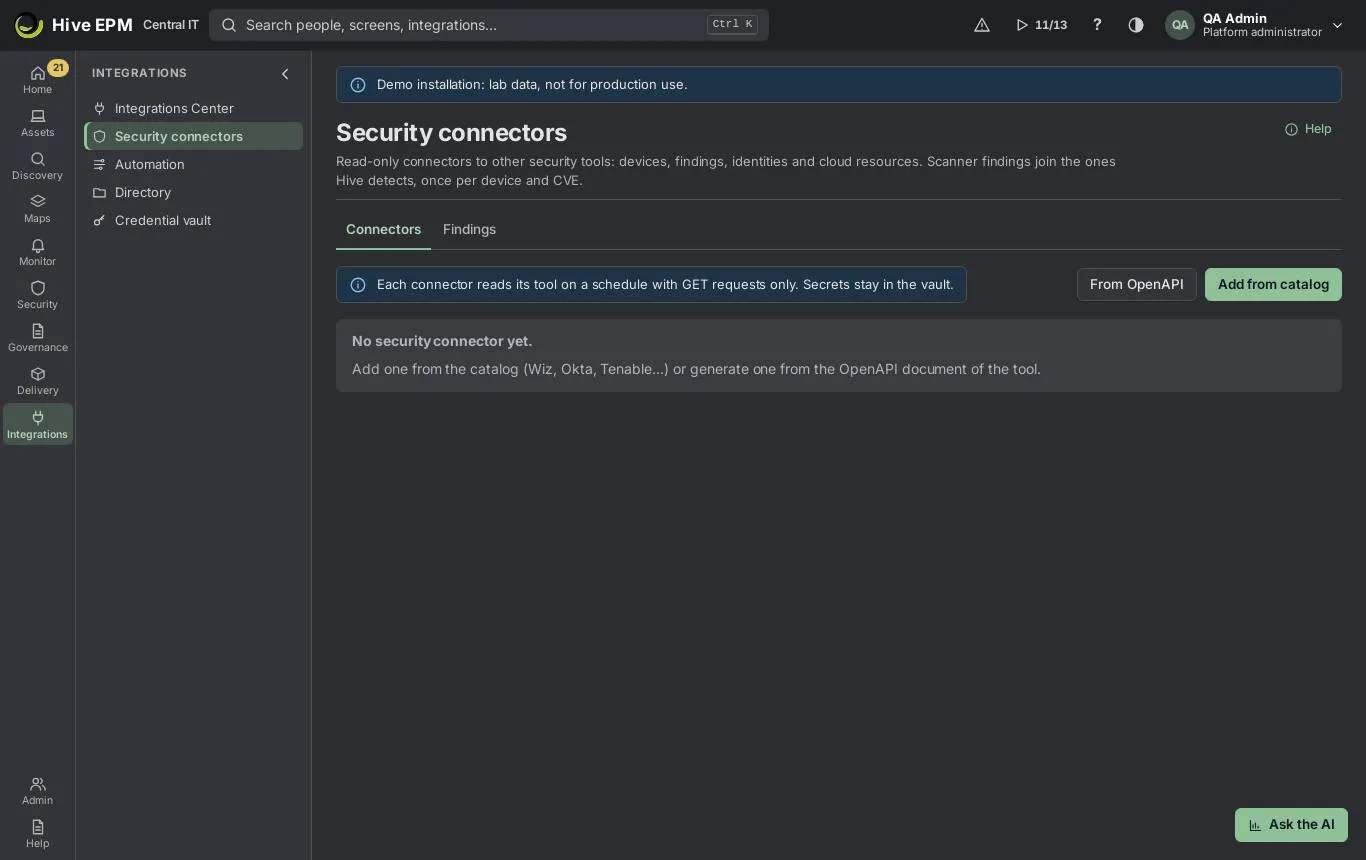
Screen: Security connectors
Security connectors bring data from other security tools into Hive with a read-only account: devices, findings (CVEs), identities and cloud resources. Third-party scanners (Tenable, Qualys and Rapid7 InsightVM) add their findings next to the ones Hive detects itself, so the same CVE on the same device appears once, with every source that saw it. It is in Integrations › Security connectors, with two tabs: Connectors and Findings.
What you can do here
Add from catalog a connector for Wiz, Prisma Cloud, Zscaler ZIA, Netskope, Okta, Microsoft Entra ID, Vanta, Drata, Tenable Vulnerability Management, Qualys VMDR or Rapid7 InsightVM.

Generate a connector for any other tool From OpenAPI: pick a GET operation and map its fields.

Test connection, Run now, or let the schedule read the tool every Read every (minutes) (60 by default; from 15 to 10,080).

Import file exported by a scanner (Tenable, Qualys or Rapid7 JSON) when the tool cannot be reached from Hive. Only scanner rows have this button.

See the Findings tab: each device and CVE once, with the Sources that reported it ( hive , tenable , qualys , rapid7 ).

Remove a connector.

Seeing the connectors needs integrations:read ; adding, testing, running, importing and removing need integrations:admin ; the Findings tab needs vulnerabilities:read .
How a connector works
The definition says how to authenticate (API key, OAuth 2.0 client credentials or user and password), which GET endpoints to read, how to follow the pages and which JSON fields become a device, a finding, an identity or a cloud resource. A connector generated from OpenAPI uses API key or User and password.

Secrets (API key, client secret, password, access and secret keys) go to the vault and never come back on the screen or in the API.

Only GET requests are made. Hive never changes anything in the other tool.

Devices are matched with the inventory by the same rules as the cloud and the hypervisors: hardware UUID, MAC, IP and name, from strongest to weakest. When two devices could be the one, it does not match.

Worked example: connect Tenable and import its findings
- In Tenable Vulnerability Management, create an API user with read-only access and generate its access and secret keys.
- In Hive, open Integrations › Security connectors and click Add from catalog (needs integrations:admin ).
- In Tool, choose Tenable Vulnerability Management. Keep the Base URL https://cloud.tenable.com , type Tenable in Name, paste the Access key and the Secret key, and click Save: "Connector saved." 4. Click Test connection: the message starts with "Connection OK:".
- Click Run now ("Read started."). After the read, the Read column of the row shows, for example, "1,430 findings imported" and, below it, "212 devices (198 in the inventory) · 1,430 findings · 0 identities · 0 cloud resources".
- If the Tenable cloud cannot be reached from your network, export the vulnerabilities as JSON in Tenable, click Import file on the row, choose it in File (.json) and click Import file.
- Open the Findings tab and type CVE-2024-3400 in Search CVE or device: the device FW-EDGE-01 shows the sources hive and tenable on a single line.
Worked example: generate a connector from OpenAPI
- Download the OpenAPI 3 (JSON) document of the tool, for example openapi.json of an internal asset API published on the internet.
- Click From OpenAPI, paste the document in OpenAPI document (JSON) and click List operations.
- In GET operation, choose /v1/devices . Hive suggests the Items path (for example data.items ) and lists the fields of each item.
- In Entity, choose Devices and map External ID to id , Name to name , Hostname to hostname and IP to ip_address .
- Check Name and Base URL (both filled from the document: its title and its first https:// server).
In Authentication, keep API key with API key headerX-API-Key , paste the key in API key and click Save.
- Click Test connection and then Run now: the devices read show up in the Read column of the row.
Pitfalls and limits
Connectors are read-only: only GET requests, and only on the endpoints of the definition.

The base URL must be https:// and public. Internal and cloud-metadata addresses are blocked (SSRF protection) unless the platform administrator allowed them.

Each read follows at most 50 pages per endpoint; pages beyond that are not read, so narrow the endpoint if the tool has more.

The OpenAPI document must be OpenAPI 3 in JSON, up to 5 MB; only its GET operations are listed.

Qualys is imported from the JSON output of the host detection API only (XML is not read).

Findings are deduplicated by device and CVE: a finding of a device that does not match the inventory is counted but does not enter the Findings tab.

Removing a connector removes what it imported and its secret in the vault. Nothing changes in the other tool.

Related
Integrations Center

Cloud

ITSM tickets, CMDB and approved changes
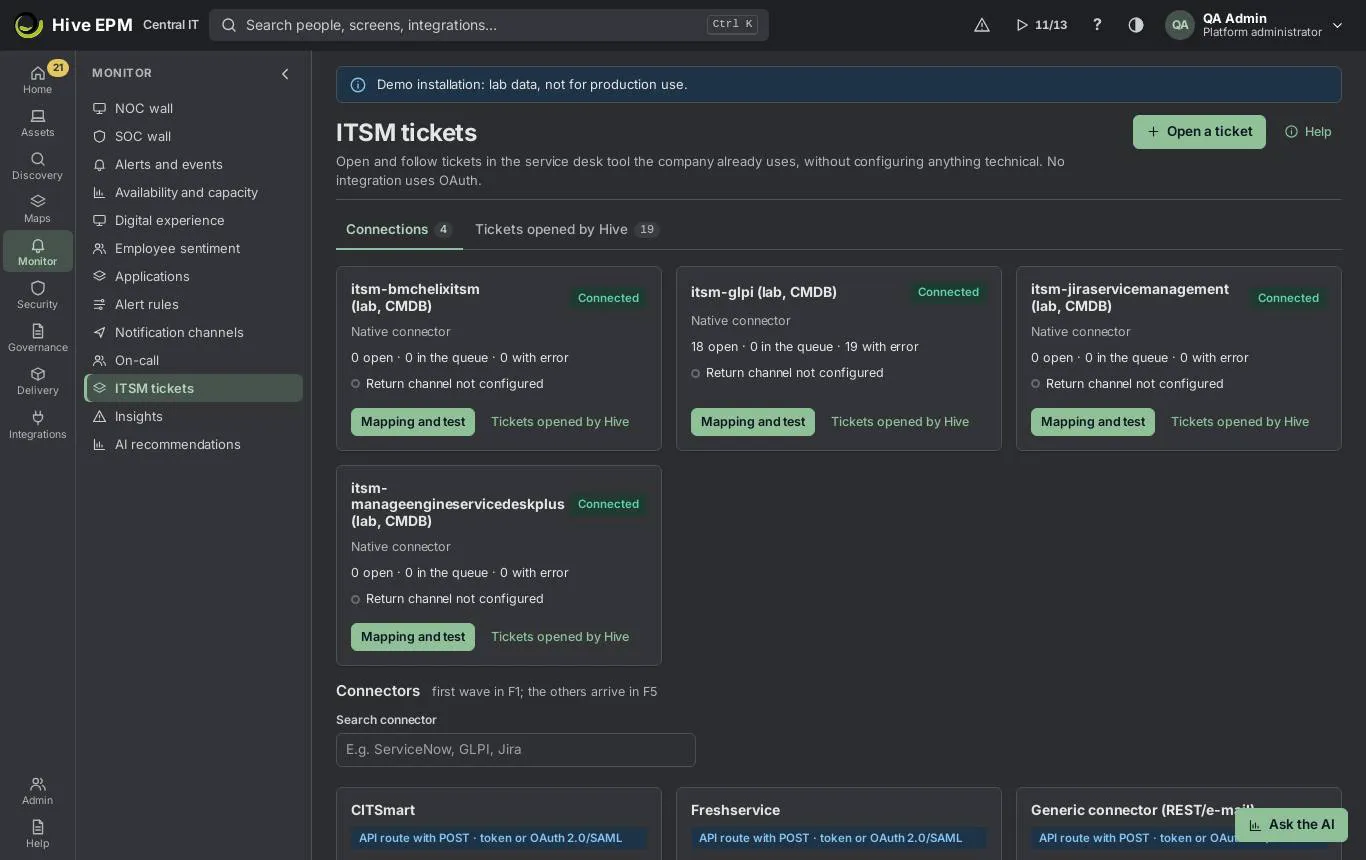
Screen: ITSM tickets, CMDB and approved changes
Hive opens tickets in the service desk tool the company already uses, receives the status back, sends devices to the tool's CMDB and reads the approved changes. Everything is in Monitor › ITSM tickets; each tool is a connection of the Integrations Center. Hive always calls the tool's API route with POST, using a credential stored in the vault; the tool calls Hive's inbound route with an integration account token.
What you can do here
Connect ServiceNow, Jira Service Management, GLPI, Freshservice, ServiceDesk Plus, TOPdesk, Zendesk, CITSmart or the generic connector.

Map severity, support groups, categories, locations and the configuration item, see a preview and test with a real ticket.

Open tickets by hand or from alert rules, and follow them in Tickets opened by Hive.

Configure the return channel so a ticket resolved in the tool resolves the alert in Hive.

Send devices as CIs to the CMDB and read the approved changes.

Connect a tool
- Open Monitor › ITSM tickets. Under Connectors, search the tool and click Connect. 2. Fill in Instance address, Route to open a ticket (POST) (comes filled for each tool) and Integration credential: 3. Fixed token (Bearer), User and password (Basic) or Fixed header (Name: value);
- OAuth 2.0 — get the token, then POST: the token address, Client id (the secret goes in the credential) and How the client is sent to the token address; 5. OAuth 2.0 with SAML assertion: SAML issuer, integration user (NameID), audience and the signing key and certificate in PEM.
- Type the secret in Credential (stored in the vault) and connect.
- Back in Connections, the card shows the state, "open · in the queue · with error" counts and whether the return channel is configured. Click Mapping and test.
Mapping and test
On the connection page:
Severity → priority: priority, urgency and impact for Info, Warning, Major and Critical, as the tool expects (empty = the connector default).

Support group by tag: lines Tag → Support group (the first asset's tags; the first matching line wins) and Group when no tag matches.

Category by kind of rule: metric, change, inventory state, software usage and Default category.

Location and configuration item: Site in Hive → Location in the tool, Identify the CI by (asset name or serial number) and Caller (optional).

Behavior: Resolve the alert when the ticket is resolved (needs the return channel) and Grouping window (minutes, default 10; 0 = no grouping): repeated alerts of the same rule within the window become one ticket with all assets. Reopen the ticket if the problem comes back: when the same rule fires again on the same device and target within 7 days, the previous ticket is reopened in the tool (or gets a note, where the API cannot reopen) instead of a new one.

Return status: which tool status means Resolved, Closed or Open (e.g. 6 → Resolved in ServiceNow).

Click Save mapping; each save is a new version.

On the right, Preview of a ticket › See preview shows how a ticket would look with the last asset seen. Test the connection › Test now opens a real test ticket ("Hive connection test — you can ignore this ticket") and resolves it, step by step.
Tickets
From a rule: in the rule wizard, Actions › Open a ticket on.

By hand: Open a ticket in the header (or in an alert or asset): Tool, Title, Description, Severity, then Open ticket.

Tickets opened by Hive lists the tickets with filters Status (In the queue, Open, With error, Resolved, Closed) and Tool. If the tool is down, the ticket waits in the queue and is sent again (30 s, 2 min, 10 min, 30 min, then every hour, for about 2 days); the error and the fix appear under the title. Send again retries a ticket with error now.

Return channel
In Return channel (tool → Hive), click Issue token (needs permission to administer integrations and the API). Copy the token: it is shown only once. Configure the tool to call POST /api/v1/inbound/tickets with Authorization: Bearer <token> and a body like:
{"connectionId": "<connection id>", "externalId": "INC0012345", "status": "resolved", "comment": "Disk |
|---|
cleaned", "author": "maria"} |
|---|
Comments go to the ticket and to its alerts; a resolved or closed status resolves the alerts when Resolve the alert when the ticket is resolved is on. Replace token revokes the old token at once.
CMDB and approved changes
In the CMDB and approved changes panel of the connection:
Send devices to the CMDB and Device types sent (Computer, Server, Switch, Printer, Smartphone). Only CIs that changed since the last run are sent; ServiceNow uses IRE (identification and reconciliation), so CIs are not duplicated. The device ↔ CI link is kept.

Read approved changes: approved changes (scheduled or in implementation) with their window and CIs. Hive reads them by itself from ServiceNow, Freshservice, ServiceDesk Plus, GLPI, Jira Service Management, TOPdesk and SolarWinds; other tools send them to POST

| /api/v1/inbound/changes . |
|---|---|
 | Sending and reading run every 10 minutes after the panel is saved once; Sync now and Read |
changes now do it right away. The table lists each Approved change, its Window and Devices.
While an approved change covers a device (its window with 30 minutes of slack before and after), the changes Hive sees on that device are authorized: they raise no change-rule or change-policy alert, and the device history shows "authorized by CHG…". An approved change is not a maintenance window: metric, availability and other alerts still open and notify.
Send approved changes from any tool
POST /api/v1/inbound/changes with the token of an integration account with the scope Tickets and changes in Read and send mode (the return channel token works):
{"connectionId": "<ITSM connection id>", |
|---|
"replace": false, |
|---|
"items": [{"id": "CHG0034567", "number": "CHG0034567", "title": "Upgrade ERP database", |
|---|
"state": "scheduled", "startsAt": "2026-10-24T22:00:00-03:00", "endsAt": "2026-10-25T02:00:00- |
|---|
03:00", |
|---|
"cis": ["SQL-PRD-01", "ERP-APP-02"], "url": "https://tool/change/34567"}]} |
|---|
id , startsAt and endsAt are required (dates with offset, end not before start); cis are asset names or short host names; up to 500 items per call. replace: true means "this is the full list": changes of that connection missing from it are removed. The answer is {"saved": n, "ignored": n} .
Worked example: connect ServiceNow
- In ServiceNow, create the integration user svc_hive with permission to create incidents, and an API key (or use OAuth).
- Monitor › ITSM tickets › Connectors, search "ServiceNow", Connect. Instance address https://centralit.service-now.com , keep the route /api/now/table/incident , Integration credential
Fixed token (Bearer), paste the key (for ServiceNow Hive sends it in the x-sn-apikey header). Connect.
- Mapping and test: Critical → priority 1, urgency 1, impact 1; Major → 2/2/2; tag Department: Finance → group Support N2 Finance ; Default categoryHardware ; Return status 6 → Resolved, 7→ Closed. Save mapping.
- See preview with Critical and "Disk in use": title, priority 1, group and CI appear. Test now: "Opening and resolving work." with a link to the test ticket.
- Issue token, copy it, and create in ServiceNow the Business Rule plus REST Message that posts to /api/v1/inbound/tickets (the screen lists the steps).
- In the rule Windows servers — production · Disk C: , tick ServiceNow in Open a ticket on. When SRV-FILE-01 fills its disk, INC0012345 opens; if SRV-FILE-02 fills within 10 minutes, it is added to the same ticket. When the analyst resolves the incident, the alert is resolved in Hive with the comment.
Worked example: connect GLPI
- In GLPI, enable the REST API and create a user token for hive .
- Connect GLPI: Instance addresshttps://glpi.centralit.com.br (reachable over the internet), route /apirest.php/Ticket , Integration credentialFixed token (Bearer) with the user token in the credential. Hive opens a GLPI session with it ( initSession ) for each call and closes it afterwards. 3. Return status 5 → Resolved, 6 → Closed; Save mapping; Test now.
- Issue token and configure the GLPI Webhook plugin to post to the inbound route.
- Turn on Send devices to the CMDB with Computer and Server: Hive looks for the computer by serial in GLPI before creating it.
Worked example: an approved change during the ERP upgrade
- The change CHG0034567 "Upgrade ERP database" is approved in ServiceNow for Saturday 22:00 to 02:00, with CIs SQL-PRD-01 and ERP-APP-02. With Read approved changes on, it appears in the table within 10 minutes (or click Read changes now), with the "in the window" tag during the window.
- Saturday 22:40 the DBA installs a new SQL Server build and stops the SQL Server Agent service.
The software and service changes on SQL-PRD-01 are recorded as "authorized by CHG0034567": no change alert opens.
- To also hold the metric and service alerts during the work, schedule in Monitor › Alert rules ›Maintenance windows a window Once, Saturday 22:00 to Sunday 02:00, Devices SQL-PRD-01 and ERP-APP-02. Detections inside it are only recorded as occurrences.
- A tool Hive does not read by itself (for example TOPdesk without access) can send the same change with POST /api/v1/inbound/changes as shown above.
Pitfalls and limits
Screens need permission to read integrations; connecting, mapping, testing and Send again need permission to administer integrations.

Only the connectors of the first wave can be connected from this screen; the others show the phase when they arrive.

The test ticket does not appear in Tickets opened by Hive.

Resolving the alert in Hive only adds a comment to the ticket; it does not resolve the ticket.

The generic connector replaces the markers , , ,

, , and in the body.
Hive does not call internal addresses from the cloud; the tool must be reachable over the internet.

Related
Integrations Center

Alerts, rules and monitoring templates

API and integration accounts

Bring machines from other inventory and CMDB tools

Ticket automation
Screen: Ticket automation (1/2)
Screen: Ticket automation (2/2)
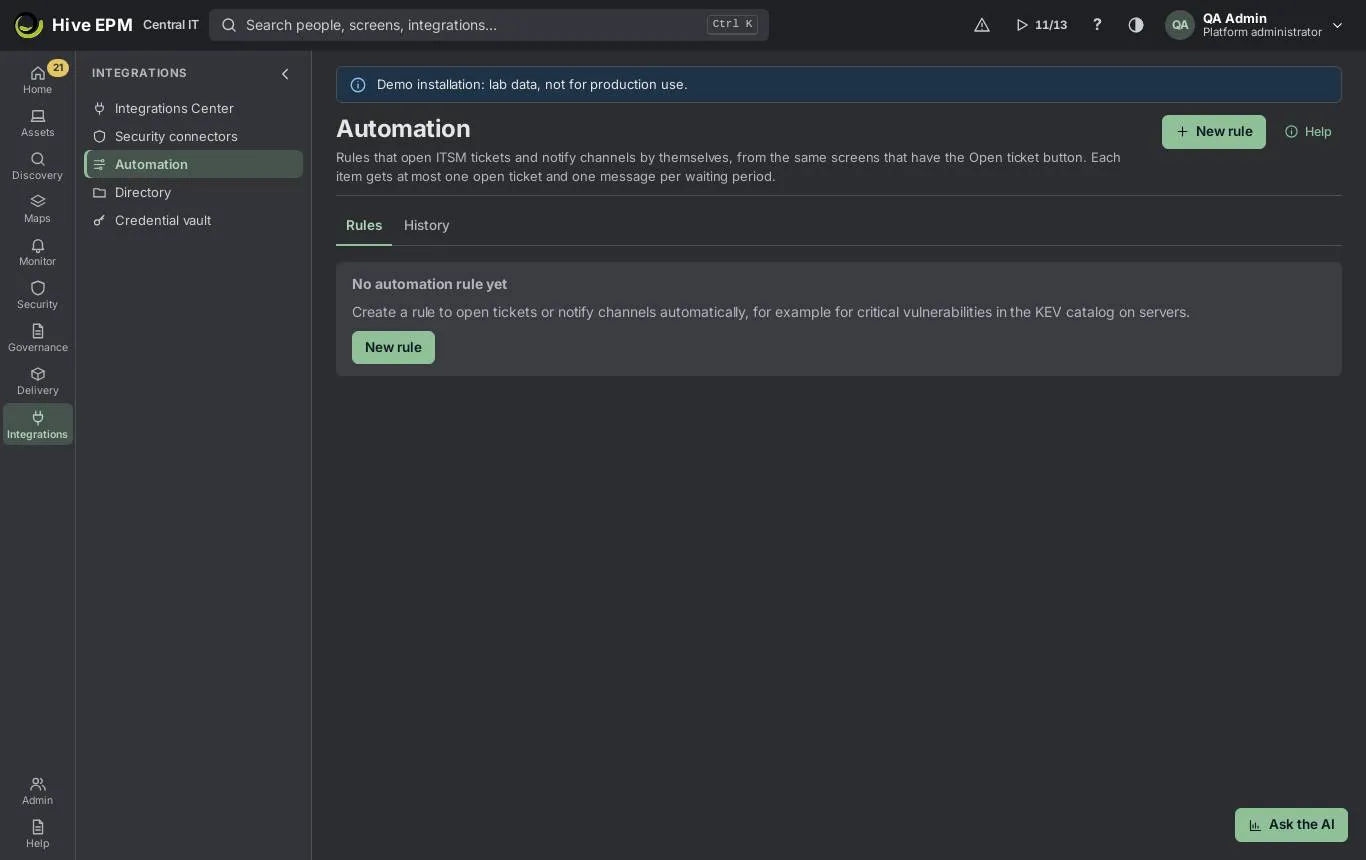
Automation acts by itself on the items of the screens that have the Open ticket button. You pick the screen, the conditions and the actions: Open a ticket in a connected ITSM tool, Notify channels (e-mail, Microsoft Teams, Slack, webhook, Telegram, WhatsApp, SMS or whoever is on call), or both. From then on every item that matches gets the ticket and/or the message, with no one clicking. It is in Integrations › Automation.
The ticket is the same one the Open ticket button of that screen opens: the vulnerability ticket lists the CVE, the affected assets, the due date and the fix; the insight ticket carries the evidence; the license recovery marks the installations as in recovery. The ticket stays linked to the item, so the ticket list, the return from the tool and the screen itself show it. The message goes through the same channels the alert rules use (Monitor › Notification channels), with a link that opens the item in Hive.
What you can do here
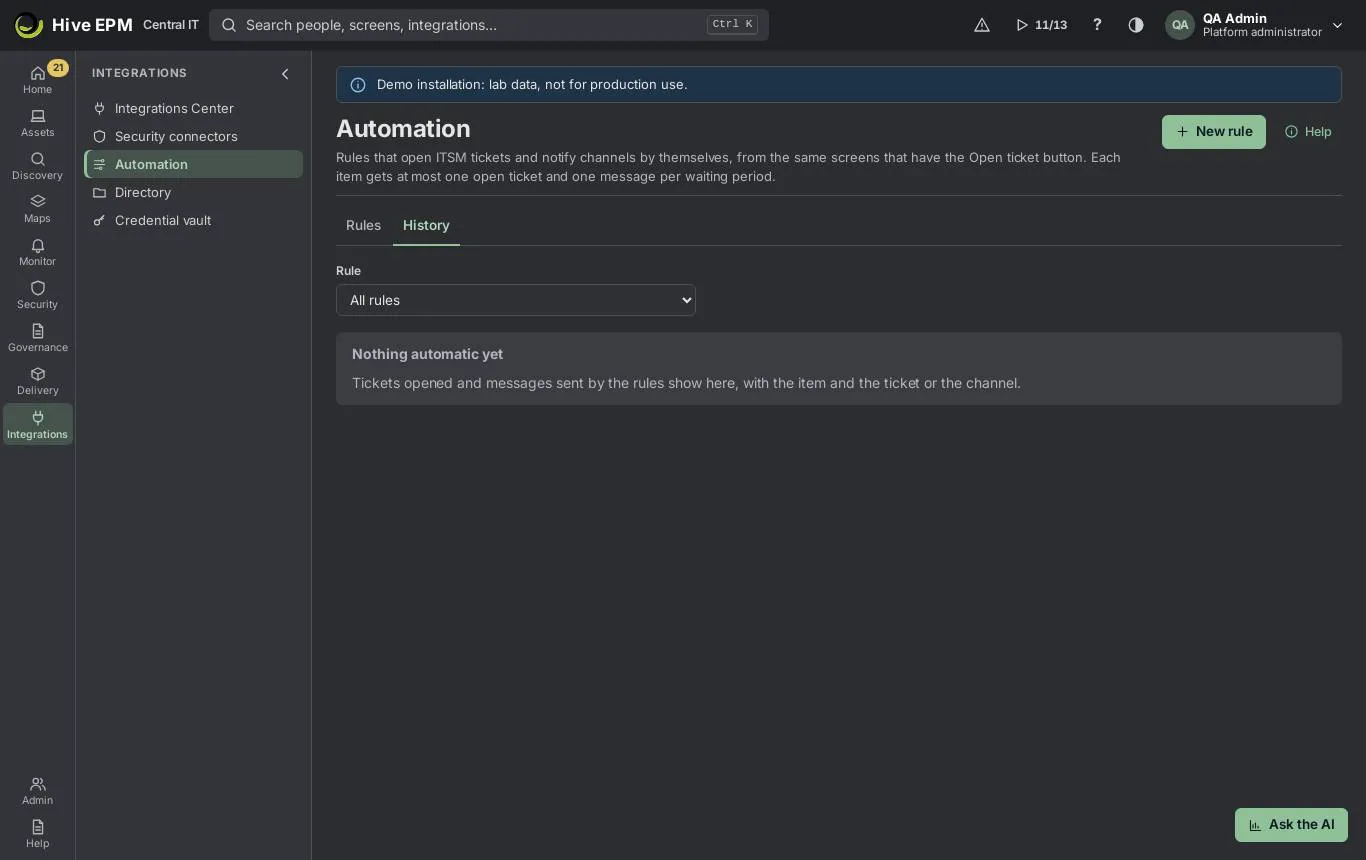
See the rules with the screen, the Actions (the ITSM connection and/or how many destinations are notified), the limits, the Last check (items matched, tickets opened, items notified) and what the rule did In 24 h.

Turn a rule on or off with the switch, Run now to check it without waiting, Edit or Delete it (needs integrations:admin ). Deleting a rule keeps the tickets it opened.

Open the History tab: every automatic ticket and every message with the rule, the item, the ticket (with the link to the tool) or the channel, and the Result (with the error when a channel refused it). Filter by rule.

Use Automate… next to the Open ticket button (alerts, vulnerability, asset, insights, license recovery, AI recommendation) or in the header of Cloud posture, External surface, Identities,

Attack paths and Detection and hunting: the wizard opens with that screen already chosen.
Reading the rules and the history needs integrations:read ; creating, changing and running them needs integrations:admin .
The screens a rule can watch
Screen | One ticket or message per | Conditions |
|---|---|---|
Alerts | open, acknowledged or flapping alert (not suppressed, not in maintenance) | severity, rule type, state, text, age, scope |
Vulnerabilities | CVE (all affected assets in one ticket; accepted risks are left out) | severity, KEV only, EPSS, text, age, scope |
Assets | active asset | criticality, state, text, days without contact, scope |
Insights | open insight without a ticket | severity, KEV, EPSS, text, age, scope |
License recovery | product with idle installations | product, text, scope |
AI recommendations | new or in review recommendation | urgency, kind, state, text, age |
Cloud posture | open finding | severity, rule, text, age |
External surface | finding (expired certificate, exposed admin port, dangling DNS...) | severity, type, text |
Identities | identity finding (admin without MFA, stale account, old key, SoD conflict) | severity, code, text |
Attack paths | choke point | kind, text, scope |
Detections | open EDR detection | severity, ATT&CK technique, state, text, age, scope |
Scope is tags, groups, sites and asset types: the item matches when at least one of its assets is inside every scope field you filled.
Step by step
- Open Integrations › Automation and click New rule (or Automate… on the screen you want to automate).
- Screen: pick the card of the screen whose items the rule watches.
- Conditions: fill only what must be true; empty fields do not filter. All filled conditions must be true at the same time.
- Actions: tick Open a ticket, Notify channels or both. For the ticket, choose the ITSM connection (connect one in Integrations › ITSM first) and, if you want, the Ticket title, Ticket description, Ticket severity, Priority, Urgency, Impact, Assignment group and Category (they override the mapping of the connection only for this rule). For the message, tick the Channels (create them in Monitor › Notification channels), optionally an On-call schedule (the person on call, or the next in line, gets an e-mail through the schedule's channel), the Message
title, the Message and the Quiet hours. Titles and texts can use the placeholders , , , , , , , , and ; empty fields keep the text of the Open ticket button (ticket) or a standard message (notification).
- Name and limits: type the Rule name, set Per hour (at most), Per day (at most) and Days before acting again on the same item.
- Preview and save: Hive lists the items that match now and what the rule would do with each one: for the ticket Would open, Already has a ticket, Waiting or Over the limit; for the message Would notify, Waiting, Quiet hours or Over the limit, with the list of destinations (Would notify: ...). Nothing is opened or sent in this step. Click Save rule.
- The rule is checked every 5 minutes, and a few seconds after a new alert or a new vulnerability. Follow the tickets and messages in History or in Integrations › ITSM.
Worked example: e-mail the security team and post in Teams for KEV vulnerabilities on servers, without a ticket
The security team wants to know right away when a CVE that is being exploited (CISA KEV) shows up on a production server. They do not want a ticket for it, only an e-mail to the team mailbox and a post in the SOC channel of Teams, and nothing at night except critical ones.
- In Monitor › Notification channels the team already has two channels: E-mail Security (SMTP, to [email protected] ) and Teams SOC (incoming webhook of the SOC channel). Both were tested with Send test.
- Carla opens Integrations › Automation and clicks New rule.
- Screen: Vulnerabilities. Next.
- Conditions: Severity at least = High; she turns on Only CVEs in the CISA KEV catalog; under Scope (assets) she ticks the asset type server and types the tag prod . Next.
- Actions: she leaves Open a ticket unticked and ticks Notify channels. Under Channels she ticks E-mail Security and Teams SOC . Message title = [KEV] on servers .
Message = . Servers: . Patch within 48 hours.Quiet hours from 22:00 to 07:00 , Time zoneAmerica/Sao_Paulo , and she ticks Critical items notify even in quiet hours. Next. 6. Name and limits: Rule name = KEV on servers - notify . Limits: 10 per hour, 30 per day, 7 days before acting again on the same item. Next.
- Preview and save shows 3 match and 10 notifications fit the limits now , with the line Would notify: E-mail Security, Teams SOC and three CVEs as Would notify. No ticket column result appears, because the rule does not open tickets. She clicks Save rule.
- Within five minutes the mailbox receives three e-mails with the subject [Hive] MAJOR [KEV] CVE-2026-21001 on 2 servers (or CRITICAL), and the Teams channel shows the same three posts, each with Open in Hive, which opens the CVE page. History shows six lines Notified: one per CVE and per channel.
- At 23:40 a new high KEV CVE shows up: the preview of the rule would show it as Quiet hours, and it is sent at 07:00. A critical one at the same time goes out at once. The three earlier CVEs are not notified again for seven days.
To also open a ticket for the same items, edit the rule and tick Open a ticket too: the ticket and the message are counted and deduplicated separately.
Pitfalls and limits
One open ticket per item. If the item already has an open ticket on the same connection (opened by hand, by an alert rule or by another automation rule), the rule does not open another one: the result is Already has a ticket.

One message per item in the waiting period. After the rule notified an item, it does not notify it again during the Days before acting again on the same item, even if the item is still there. A rule that notifies needs at least 1 day. For tickets, 0 opens again as soon as the ticket is closed.

Limits are counted separately.Per hour and Per day count tickets and notified items apart: a rule with both actions and 10 per hour can open 10 tickets and notify 10 items in the same hour. A notified item counts once, whatever the number of channels. Items over the limit are only counted as Over the limit; they are handled on a later check, when the limit has room again.

Quiet hours hold the message, not the ticket. Inside the window the message waits (nothing is recorded, nothing counts in the limits) and goes out on the first check after the window. Tickets are opened at any time. Alert rules have no quiet hours of their own; this window is the same idea as the quiet hours of the push notifications on the phone.

Channel errors. Each channel is tried on its own: if one fails and another delivers, the item counts as notified and the history shows the failed channel with the reason. If every destination fails, the rule tries the item again after an hour. A deleted channel shows Channel no longer exists. in the history.

On call. The person on call gets the message by e-mail through the e-mail channel of the schedule, like the alert escalation. Without a channel or without a person with e-mail, the history shows the reason.

Message language. The labels (severity, Open in Hive) follow the default language of the company, as in the alert messages; the titles and texts you type are sent as they are.

Vulnerability tickets and messages are per CVE. The scope decides whether the CVE matches (at least one asset in the scope), but the ticket and the message list every affected asset, as the Open ticket button does.

License recovery changes state. Like the button, the automatic ticket marks the idle installations as in recovery; a message alone changes nothing.

AI recommendations are not approved. The rule opens the ticket or sends the message; approving or rejecting is still a decision of a person.

Assets need a condition. A rule on Assets without any condition is refused, because every asset would get a ticket or a message.

Failure. If the tool refuses the ticket, the history shows Failed with the reason and the rule tries the same item again after an hour. A ticket that is accepted but not yet sent follows the normal retry of the ITSM queue.

Checks. Rules run every 5 minutes; alerts and new vulnerabilities trigger a check in seconds. Other screens are only checked by the 5-minute cycle. Each check reads at most 2000 items per screen.

Related
ITSM tickets, CMDB and approved changes

Vulnerabilities

Alerts

Insights

Integrations center

Bring machines from other inventory and CMDB tools
Screen: Bring machines from other inventory and CMDB tools
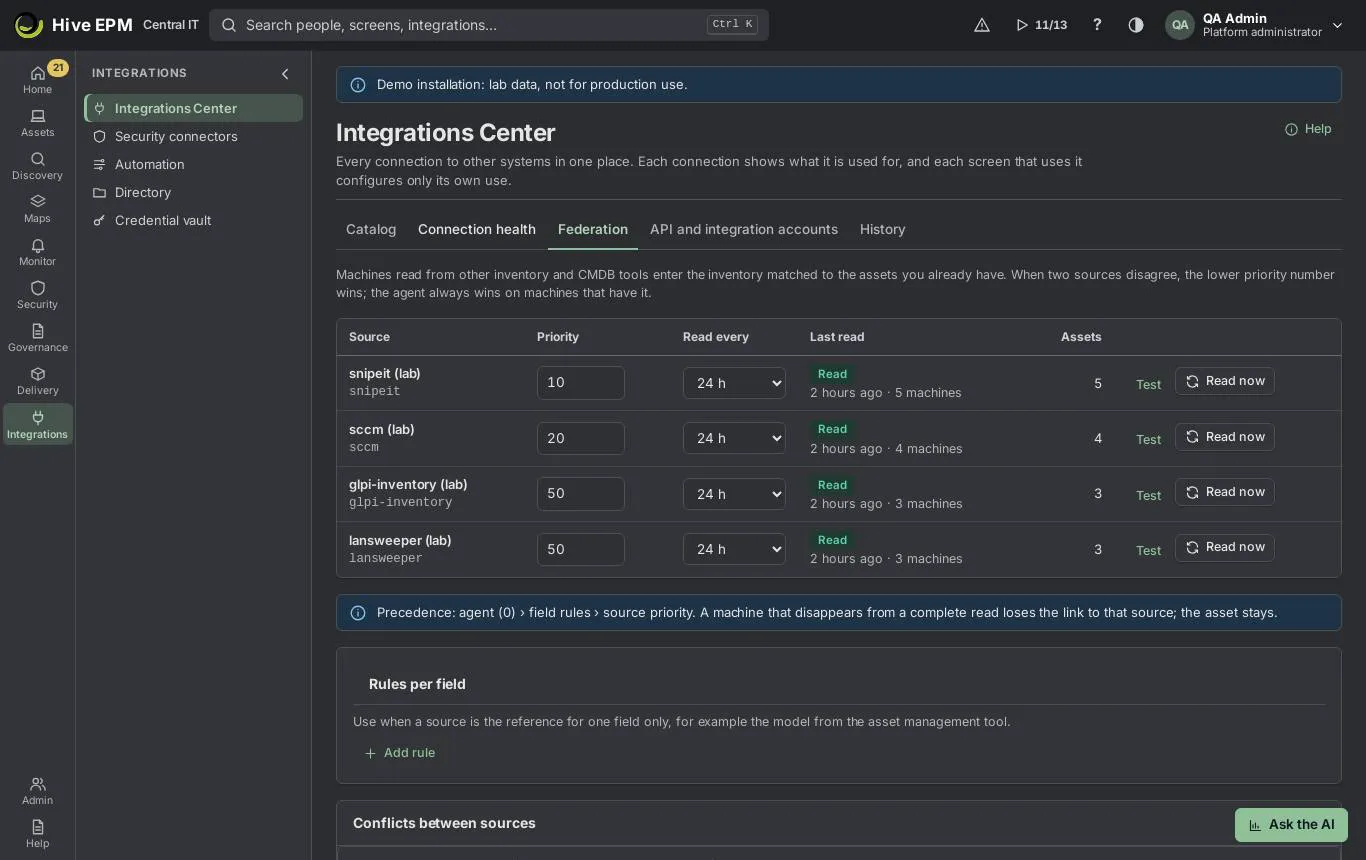
Hive reads the machines that other inventory and CMDB tools already know and puts them in the inventory, matched to the assets you have. Sources: Microsoft SCCM/MECM (AdminService), OCS Inventory NG, Quest KACE SMA, ServiceNow CMDB, GLPI, Snipe-IT, ManageEngine Endpoint Central, Lansweeper, Ivanti Neurons or Endpoint Manager, Tanium, BMC Helix Discovery or CMDB, and another Hive. The reading is done by a collector in the network of the tool, so the tool does not need to be published on the internet. The sources are managed in Integrations › Integrations Center › Federation.
What you can do here
Connect an inventory or CMDB tool and test it through the collector.

Read now or every 1, 6, 12, 24, 48 or 168 hours.

Decide who wins when sources disagree: source Priority and Rules per field.

See the Conflicts between sources and, on each asset, the Sources tab.



Step by step
- Connect. In Integrations Center › Catalog, choose the Category Inventory and CMDB and click Connect on the tool. Fill in Address of the tool, the user (when the tool asks) and the password or token (it goes to the vault).
- Test. In the Federation tab, click Test on the source: the collector reaches the tool and reads one machine ("<name> answered: the collector reached the tool and read a machine.").
- Read. Click Read now. The Last read column shows Reading, then Read with the number of machines, or Failed with the error and the fix.
- Schedule. In Read every, choose 1, 6, 12, 24, 48 or 168 h (default 6).
- Priority. Type a number from 1 to 1000 in Priority (default 50); the lower number wins.
- Rules per field (optional): Add rule, choose the field (Name, FQDN, Serial number, Hardware UUID, Manufacturer, Model, Operating system, OS version, Main user), the source and a priority, then Save rules.
How a machine becomes an asset
First by the link already known (the id in that tool). Then by the same matching the agent uses: hardware UUID, serial number, network card (MAC) and name. When two assets could be the one, nothing is linked.

A machine no asset matches becomes a new asset, with the source shown.

A machine that disappears from a complete read loses the link and the values of that source; the asset stays.

Who wins
Precedence: agent (0) › field rules › source priority. On machines with an active agent, values seen by the agent are kept.

Between tools, the lowest priority wins: the field rule's priority for that field, otherwise the source's priority.

Name and user are compared without domain and case, so "SRV01" and "srv01.corp.local" do not count as a conflict.

Conflicts between sources lists Asset, Field, Value in the asset and What each source says. The asset's Sources tab (Management group) shows, field by field, the value in use, Provided by and what each source says, with its priority.

Links the discovery does not see
Another tool can declare where a machine is connected when Hive does not read the switch or the hypervisor (needs write access to assets):
PUT /api/v1/assets//switch-port with switchRef (id, name or serial of the switch), port (e.g. Gi1/0/12) or ifIndex , and optional vlan .
PUT /api/v1/assets//host with hostRef (the host of a VM).
The link enters the maps, the alert dependencies and the service path. What discovery observes wins: a port read by SNMP in the last day refuses the declaration, and the host read from the hypervisor comes
first. DELETE on the same route removes the declared link.
Worked example: SCCM as the main source, Snipe-IT for the model
Central IT has 1,200 machines in SCCM and the asset management team keeps the official model in Snipe-IT.
- Install a collector in the data center (see Step by step: create a collector).
- Catalog › Microsoft SCCM / MECM (AdminService) › Connect: address https://sccm01.corp.local , account CORP\svc-hive-read , password. Connect.
- Catalog › Snipe-IT › Connect: address https://assets.centralit.com.br , API token.
- Federation: Test on SCCM ("SCCM answered…"), then Read now: "SCCM read: 1,200 machines applied to the inventory." 1,050 matched existing assets by UUID, serial or MAC; 150 became new assets with the source SCCM.
- Set SCCM Priority10 and Snipe-IT 20 . Rules per field › Add rule: Model → Snipe-IT, priority 1 . Save rules: "Rules saved; the assets were evaluated again." 6. Open NB-FIN-044 › Sources: Model "Latitude 5440" provided by Snipe-IT (priority 1), while SCCM says "Latitude 5440 (0C08)". Operating system comes from the agent (priority 0).
- Conflicts between sources shows 37 machines where SCCM and Snipe-IT disagree on the serial number; the team fixes them in Snipe-IT and the next read clears them.
Worked example: declare the switch port of a printer
The printer PRN-3F-01 is on a switch Hive does not read by SNMP.
PUT /api/v1/assets/<printer id>/switch-port |
|---|
{"switchRef": "SW-ACCESS-3F", "port": "Gi1/0/12", "vlan": 30} |
|---|
The printer appears under SW-ACCESS-3F in the network map, and an outage of the switch groups the printer's alert under it. If SNMP later reads the switch, the observed port replaces the declared one.
Pitfalls and limits
Reading needs an online collector (seen in the last 30 minutes) that reaches the tool; without one: "No collector is online to reach this tool."

Test connection on the connection page only checks the fields; the real test is Test in Federation.

Viewing needs permission to read integrations; changing priorities, rules and reading need permission to administer integrations.

Workspace ONE, Intune and Jamf are not federation sources; see UEM integrations.

Related
Integrations Center

Assets and inventory

UEM integrations: Workspace ONE, Intune and Jamf

Populate your CMDB in 3 steps

UEM integrations: Workspace ONE, Intune and Jamf
Screen: UEM integrations: Workspace ONE, Intune and Jamf
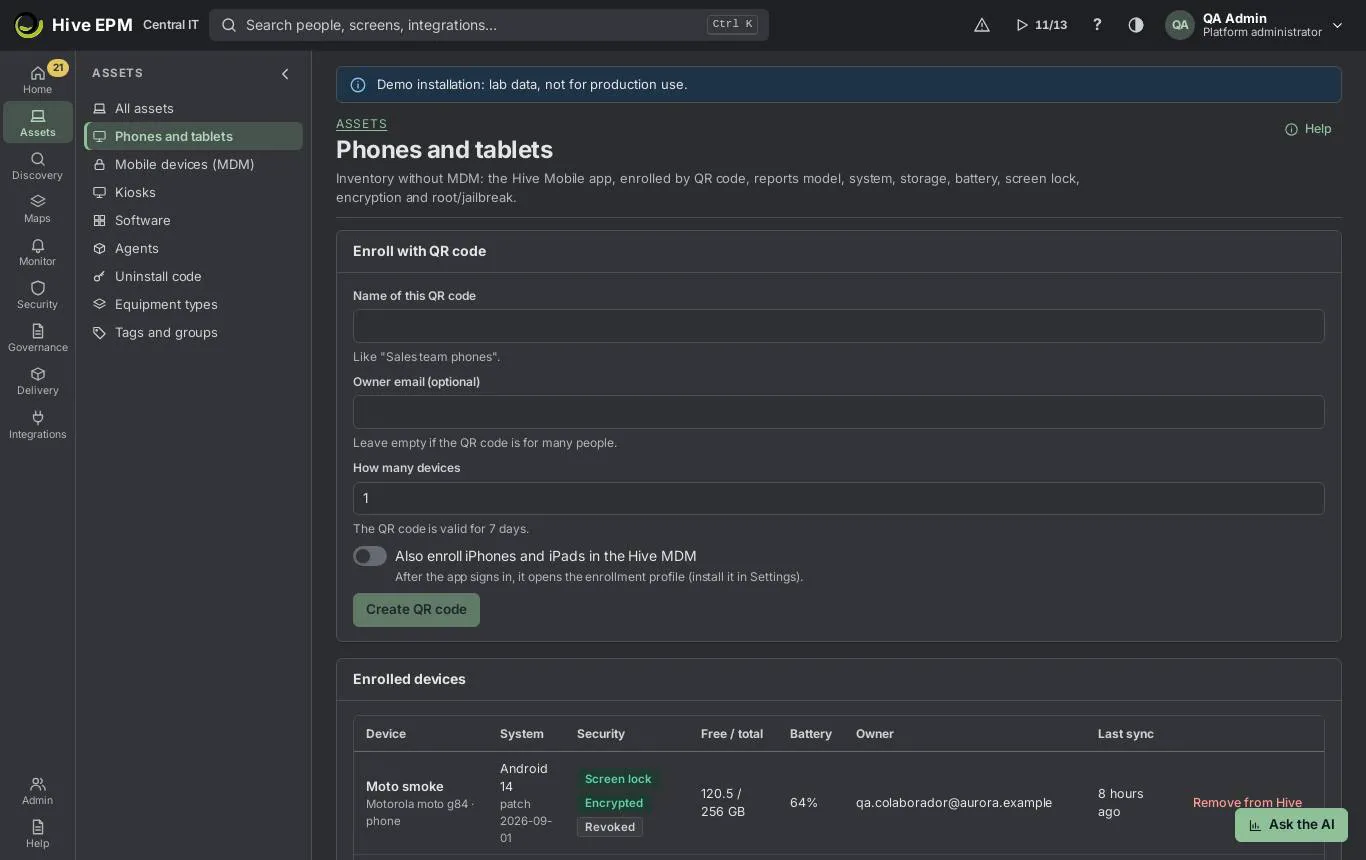
Devices managed in Workspace ONE UEM, Microsoft Intune or Jamf Pro come into the Hive inventory without installing anything: Hive reads them directly from the cloud API of the tool, read only, and merges them with the assets you already have. The sources are created in Assets › Phones and tablets › Sources without the app; the MDM cards of Integrations › Integrations Center › Catalog open the same place.
What you can do here
Connect a Workspace ONE UEM, Intune or Jamf Pro source, test it and import now.

See devices, their compliance, encryption and jailbreak/root state on the asset.

Remove a source (the devices stay in the inventory).

Step by step
- Open Assets › Phones and tablets and go to Sources without the app.
- Choose the Source (Microsoft Intune, Jamf Pro or Workspace ONE UEM), type a Name and fill in the fields of that tool (below). Secrets go to the vault.
- Click Connect: "Source connected. Import it now or wait for the next round." 4. On the source row, Test answers "Connection OK: devices in the source."; Import now imports right away; Remove deletes the source.
- After that, each source is imported every 6 hours. The row shows " devices ( new)" or "never imported".
What is imported and how it merges
| Workspace ONE UEM | Microsoft Intune | Jamf Pro |
|---|---|---|---|
Identity | name, host name (computers), serial, UDID (as hardware UUID on Macs), MAC | name, serial, Wi-Fi and Ethernet MAC | computers: name, serial, UDID as hardware UUID, MACs, last IP; mobile: name, serial, Wi-Fi MAC |
System | OS family and version, model, manufacturer | OS and version, manufacturer, model | macOS, iOS, iPadOS or tvOS and version, model |
User | e-mail, else user name | user principal name | e-mail, else user name |
Posture | compliant, encrypted, compromised, ownership, IMEI, enrollment, last sync | compliance state, encrypted, jailbroken, last sync | encrypted, screen lock, jailbroken (mobile), last contact |
Apps | optional ("Also import the installed apps") | no | no |
How a device becomes an asset:
It is matched like the agent does: hardware UUID, then serial number, then network card (MAC), then name. IMEI is not used to match. Phones without a host name match by serial or MAC only.

A device that matches nothing becomes a new asset of the right kind (phone, tablet, notebook, computer, TV, Chromebook).

The source only fills empty fields. What is already on the asset — from the agent or from anything else — is never overwritten; differences are kept. The only exception is a name that is empty or an IP address.

The posture (compliance, encryption, jailbreak) is replaced at each import; with two sources on the same device, the last one imported wins.

Apps from Workspace ONE count only on devices without an active agent.

UEM sources are not federation sources: they have no priority and no field rules.

Worked example: Workspace ONE UEM with an OAuth client
- In Workspace ONE: Groups & Settings › Configurations › OAuth Client Management, create the client hive-read with a role that only reads devices; copy the Client ID and secret. Note the REST API URL in Site URLs (for example https://as1234.awmdm.com ).
- In Hive, Sources without the app: Source Workspace ONE UEM, NameWS1 Central IT , Workspace ONE API serverhttps://as1234.awmdm.com , Authentication OAuth client (recommended), Region of the token address North America, Client ID and Client secret. Leave Also import the installed apps off.
- Connect, then Test: "Connection OK: 860 devices in the source." 4. Import now: "860 devices (610 new)". 250 matched assets that already had the agent (Windows notebooks) by serial or MAC; their names, OS and user stay as the agent reported, and the asset gains the Workspace ONE compliance and IMEI.
- If the company uses user and password instead: Authentication User and password with the tenant code, Administrator with API access, Password and Tenant code (REST API key).
Worked example: Intune through Microsoft Entra ID
- Connect Microsoft Entra ID in the Integrations Center with administrator consent (the consent includes reading Intune managed devices).
- Sources without the app: Source Microsoft Intune, NameIntune , Microsoft Entra ID connection the Entra connection. Without one, the screen says "Intune needs Microsoft Entra ID connected with the administrator consent." with Connect Entra ID.
- Connect and Import now: 1,420 devices, Windows notebooks matched to the agent assets by serial; 380 iPhones and Android phones created as new assets with their compliance state. 4. A phone that is "Not compliant in Intune" shows it in its security data; build a dynamic group or a report on it.
- Publishing the Hive agent to Intune is a different use of the same Entra connection, done in the agent wizard.
Worked example: Jamf Pro for Macs and iPads
- In Jamf Pro: Settings › API roles and clients, create a role with read privileges for computers and mobile devices and an API client hive with that role; copy the client ID and secret.
- Sources without the app: Source Jamf Pro, Jamf Pro addresshttps://centralit.jamfcloud.com , API client ID, Client secret. Connect.
- Import now: 140 Macs and 60 iPads. The Macs with the Hive agent match by hardware UUID (Jamf UDID); the iPads become new tablet assets with encryption, screen lock and jailbreak state.
Pitfalls and limits
Creating, testing, importing and removing need permission to administer integrations; listing needs permission to read assets.

Hive calls the cloud API directly, not through the collector: on-premises consoles on internal addresses are not reached from the cloud.

The interval (6 hours) is fixed; use Import now for an immediate import.

Up to 100,000 devices per source.

In the Integrations Center the MDM cards always show "Available": the sources live in Phones and tablets, not in Connection health or History.

Related
Phones and tablets (Hive Mobile)

Integrations Center

Bring machines from other inventory and CMDB tools

Assets and inventory

Send events to the SIEM
Hive continuously sends the SIEM the same events as the event buses: alerts, device changes, the audit trail, vulnerabilities, compliance and, if you want, metrics, endpoint telemetry, integrity changes and
agent events. A SIEM is a connection of Integrations › Integrations Center › Catalog, category SIEM and logs; the Audit screen also has a Send to the SIEM button that opens it.
What you can do here
Send events as Syslog/CEF, LEEF 2.0 (QRadar), Splunk HTTP Event Collector or Microsoft Sentinel (Logs Ingestion API).

Choose the event categories and limit device events to one tag.

Test the destination with a hive.test event.

Destinations
Syslog / CEF: RFC 5424 with the message in CEF. SIEM address (host:port) (default port 514) and Transport: TCP, TLS (recommended, with the host name checked) or UDP (datagrams cut at 8192 bytes). Works with ArcSight, Elastic, Graylog, Wazuh, Chronicle and any syslog receiver.

IBM QRadar: LEEF 2.0 over syslog. Event collector (host:port) and Transport.

Splunk: HTTP Event Collector address (port 8088), Index (optional), Sourcetype (default hive:event ) and the HEC token (vault). Hive posts to /services/collector/event with Authorization: Splunk <token> .

Microsoft Sentinel: Directory (tenant) ID, Application (client) ID, Data collection endpoint, Data collection rule (immutable ID), Stream (default Custom-HiveEvents_CL ) and the Client secret. Create a custom table with its data collection rule and give the app the Monitoring Metrics Publisher role on the rule. Columns: TimeGenerated, EventId, EventType, Category, Subject, Severity, Actor, Source, Data.

Choosing what goes
In Events to publish, tick the categories:
Category | What goes |
|---|---|
Alerts | opened, escalated, resolved |
Device changes | new device, software, hardware, network |
Audit trail | who did what |
Vulnerabilities | opened, closed, risk changed |
Compliance | a control changed status on a device |
Device metrics | CPU, memory, disk, network, services; one event per device per report |
Endpoint telemetry | processes, command lines, file activity bursts, in batches per device |
File and registry integrity | each change, with who and whether it was expected |
Agent events | enrollment, class, refusals, self-protection, silence |
Only devices with this tag (optional) limits the device events (changes, vulnerabilities, compliance, metrics, telemetry, integrity, agent) to the devices with that tag; alerts and the audit trail always go.
Severity in CEF/LEEF: critical 10, major 8, warning 6, minor 4.
Delivery
Each event goes into an outbox in the same transaction as the fact and is sent every few seconds in batches. If the SIEM does not accept it, it is sent again after 15 s, 1 min, 5 min, 15 min, 1 h, 3 h, 6 h and 12 h, then marked as failed. Test connection delivers a hive.test event right away in the format of the destination; if it fails, the screen says why (address, port, transport or credential).
Worked example: audit trail and alerts to Splunk
- In Splunk, create an HEC token hive for the index itops .
- Integrations Center › Catalog, Category SIEM and logs, Splunk › Connect. HTTP Event Collector addresshttps://splunk.centralit.com.br:8088 , Indexitops , keep Sourcetype hive:event , Events to publish Alerts and Audit trail, paste the token. Connect.
- The test answers "The SIEM accepted the test event: look for type hive.test." In Splunk: index=itops sourcetype=hive:event type=hive.test .
- When Maria changes an alert rule, an event hive.audit.<action> arrives with her name in the actor; when an alert opens, hive.alert.opened .
Worked example: only the PCI machines to QRadar over TLS
- IBM QRadar › Connect: Event collectorqradar-ec.centralit.com.br:6514 , Transport TLS, Events to publish Device changes, Vulnerabilities and Compliance, Only devices with this tag PCI .
- QRadar recognizes the log source as Hive (LEEF 2.0).
- A port opened on POS-0012 (tag PCI ) is sent; the same change on NB-HR-07 (no tag) is not.
Pitfalls and limits
Connecting needs permission to administer integrations.

The destination must be reachable from Hive; internal addresses are not called from the cloud.

After the last retry, failed events are kept for 14 days; delivered events are cleared after one day.

UDP has no delivery guarantee; prefer TLS.

Related
Integrations Center

Audit trail

Integrate with the GRCS
